1. บทนำ
This manual provides detailed instructions for the setup, operation, and maintenance of your CHESONA Rugged Keyboard Case for iPad 10.2-inch. Please read this manual thoroughly before using the product to ensure proper functionality and longevity.

Image 1.1: The CHESONA Rugged Keyboard Case with an iPad in landscape orientation, featuring the integrated keyboard and trackpad.
2. ความเข้ากันได้
The CHESONA Rugged Keyboard Case is designed for specific iPad 10.2-inch models. Verify your iPad's model number on the back of the device to ensure compatibility.
- iPad 9th Generation (2021): Model Numbers A2602, A2603, A2604, A2605
- iPad 8th Generation (2020): Model Numbers A2430, A2270, A2428, A2429
- iPad 7th Generation (2019): Model Numbers A2197, A2198, A2200
This product does not include the iPad tablet or Apple Pencil.
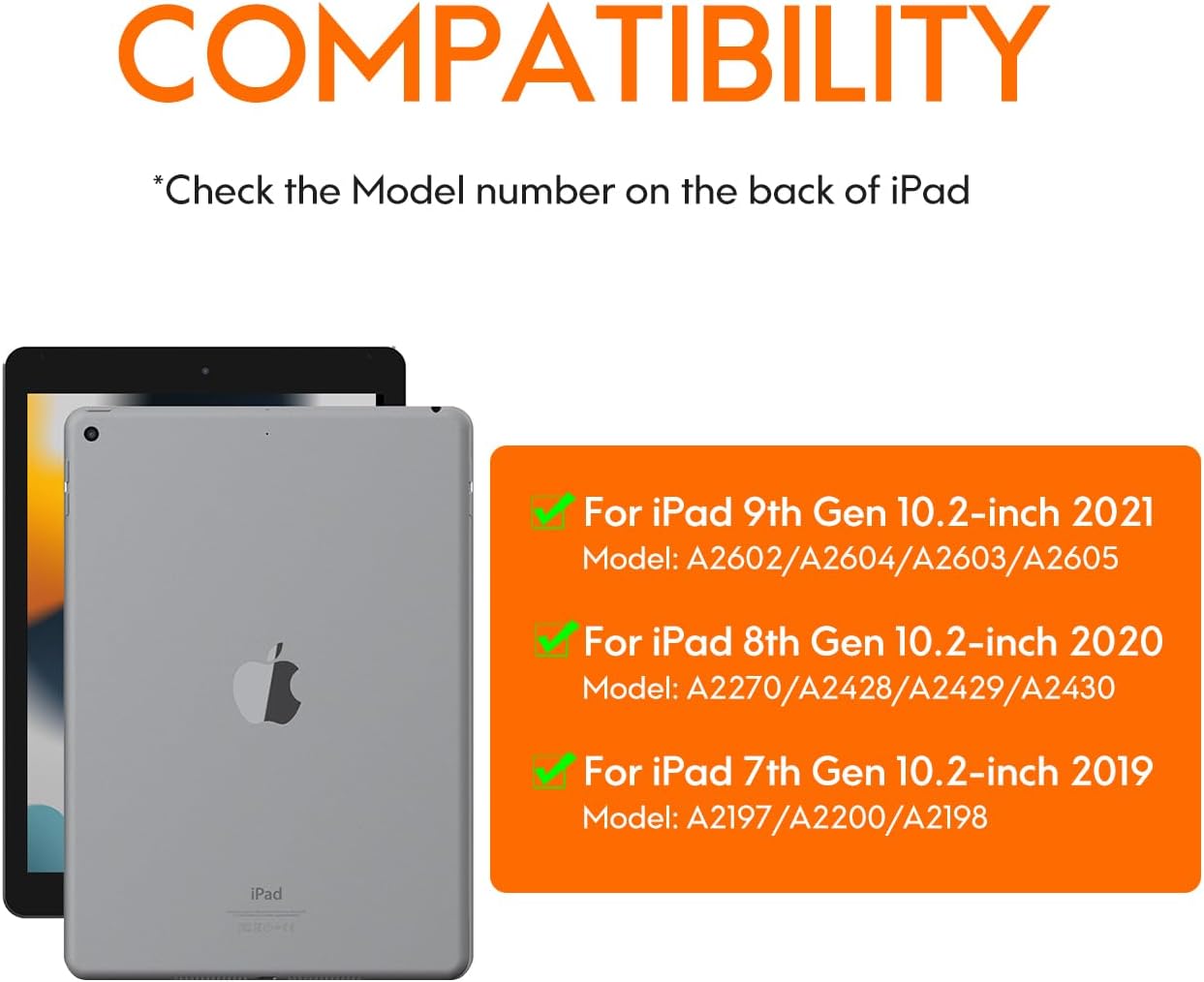
Image 2.1: Visual guide for identifying compatible iPad models and their corresponding model numbers.
3. เนื้อหาบรรจุภัณฑ์
กรุณาตรวจสอบแพ็คเกจสำหรับรายการต่อไปนี้:
- CHESONA Rugged Keyboard Case
- สายชาร์จ USB-C
- คู่มือการใช้งาน (เอกสารนี้)
4. สินค้าหมดview
The CHESONA Rugged Keyboard Case features a magnetic detachable design, integrated trackpad, and backlit keyboard to enhance your iPad experience.

Image 4.1: The keyboard case with an iPad magnetically attached, illustrating the detachable design.

Image 4.2: An exploded diagram showing the multi-layered construction of the rugged keyboard case, emphasizing its protective features.
5. การตั้งค่า
5.1 Attaching the iPad
- Align your iPad with the protective back case.
- ค่อยๆ กด iPad ลงในเคสจนเข้าที่อย่างแน่นหนา ตรวจสอบให้แน่ใจว่าขอบทุกด้านถูกปกคลุมอย่างเหมาะสม
- The keyboard component attaches magnetically to the back case. Position the keyboard so it aligns with the magnetic points.
The case features a dedicated slot for the Apple Pencil. For optimal stability in landscape or portrait mode, ensure the Apple Pencil slot is positioned at the top or right side.
5.2 การเชื่อมต่อคีย์บอร์ด (การจับคู่บลูทูธ)
- Ensure the keyboard is charged (refer to section 5.3).
- Turn on the keyboard by sliding the power switch. The indicator light will flash.
- บน iPad ของคุณไปที่ การตั้งค่า > บลูทูธ.
- เปิดบลูทูธ iPad ของคุณจะค้นหาอุปกรณ์ที่พร้อมใช้งาน
- Select "CHESONA Keyboard" (or similar name) from the list of devices.
- If prompted, enter the pairing code displayed on your iPad using the keyboard and press เข้า.
- Once paired, the indicator light on the keyboard will turn off, and your iPad will show the keyboard as "Connected."
5.3 การชาร์จคีย์บอร์ด
Connect the included USB-C charging cable to the charging port on the keyboard and the other end to a USB power adapter (not included). The charging indicator light will illuminate during charging and turn off when fully charged. A full charge typically takes 3-4 hours.
The keyboard is powered by a Lithium Polymer battery (included).
6. คู่มือการใช้งาน
6.1 ฟังก์ชั่นคีย์บอร์ด
The keyboard provides a full suite of iOS shortcuts for enhanced productivity.

Image 6.1: Illustration of the keyboard layout highlighting dedicated iOS shortcut keys for quick access to functions like home, search, media control, and volume.
การปรับแสงไฟหลังจอ
The keyboard features adjustable backlighting with 7 colors and 3 brightness levels.
- เพื่อปรับความสว่าง: กด Fn + กะ (up arrow key).
- To switch backlight colors (7 available): Press Fn + กลับ (right arrow key).

Image 6.2: Instructions for adjusting keyboard backlight brightness and changing colors using function key combinations.
6.2 ฟังก์ชันของแทร็กแพด
The integrated multi-gesture trackpad allows for precise navigation and interaction with your iPad. Ensure the trackpad is enabled in your iPad's settings if it is not responsive.

Image 6.3: Detail of the trackpad, indicating support for iOS shortcuts, multi-touch gestures, and manual on/off control.
6.3 ขาตั้งแบบปรับได้
The case features a fully adjustable stand, allowing you to set your iPad at angles from 15° to 180° for comfortable viewการพิมพ์และการพิมพ์
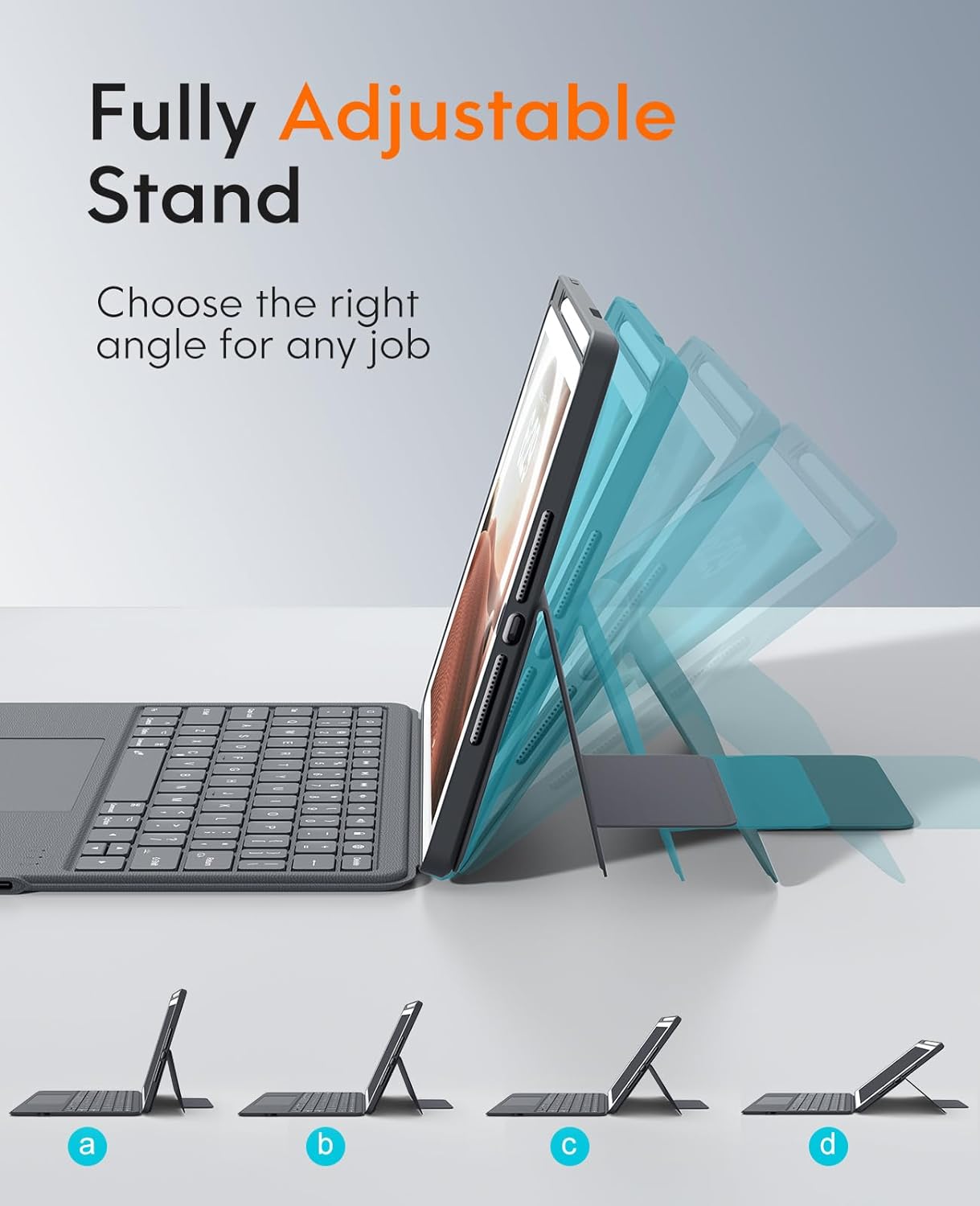
Image 6.4: Visual representation of the adjustable stand, demonstrating its flexibility to achieve different viewมุมการเอียง
6.4 Multi-Scene Modes
The versatile design supports multiple usage modes:
- โหมดแนวนอน: Ideal for typing, watching videos, or general use.
- โหมดแนวตั้ง: Suitable for reading documents or browsing vertically.
- Carry-on Mode: Detach the keyboard for a lighter, tablet-only experience.
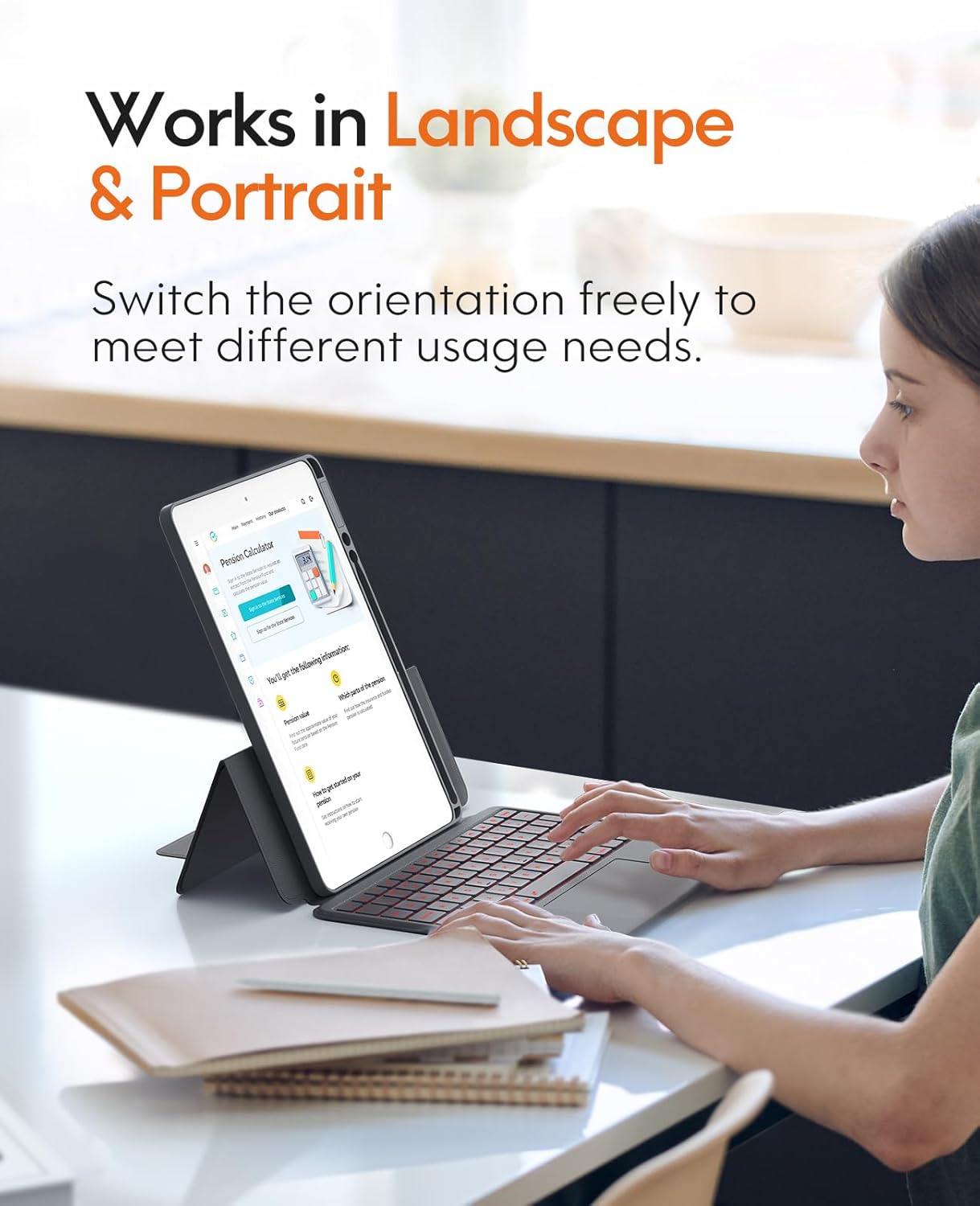
Image 6.5: The keyboard case supporting both landscape and portrait orientations for varied user needs.
7. การบำรุงรักษา
เพื่อให้เคสแป้นพิมพ์ของคุณมีอายุการใช้งานยาวนานและมีประสิทธิภาพสูงสุด โปรดปฏิบัติตามคำแนะนำในการบำรุงรักษาดังต่อไปนี้:
- การทำความสะอาด: ใช้แบบนุ่มๆamp cloth to wipe the exterior of the case and keyboard. Avoid harsh chemicals or abrasive cleaners. For keyboard keys, a soft brush or compressed air can remove debris.
- พื้นที่จัดเก็บ: เมื่อไม่ได้ใช้งานเป็นเวลานาน ควรเก็บกล่องไว้ในที่แห้งและเย็น
- การดูแลแบตเตอรี่ ควรหลีกเลี่ยงการปล่อยให้แบตเตอรี่หมดเกลี้ยงบ่อยๆ ชาร์จคีย์บอร์ดเป็นประจำเพื่อรักษาอายุการใช้งานของแบตเตอรี่

ภาพที่ 7.1: รายละเอียด view of the keyboard keys, illustrating areas that may require cleaning to remove dust or debris.
8 การแก้ไขปัญหา
| ปัญหา | สาเหตุที่เป็นไปได้ | สารละลาย |
|---|---|---|
| คีย์บอร์ดไม่เชื่อมต่อผ่านบลูทูธ | Keyboard battery is low or off. Bluetooth on iPad is off. Keyboard not in pairing mode. | Charge the keyboard. Ensure keyboard is powered on. Turn on iPad Bluetooth. Put keyboard in pairing mode and re-attempt pairing (refer to section 5.2). |
| คีย์ไม่ตอบสนอง | Low battery. Connection issue. Software glitch. | Charge the keyboard. Reconnect Bluetooth. Restart your iPad. |
| แทร็กแพดไม่ทำงาน | Trackpad disabled. Connection issue. | Ensure trackpad is enabled in iPad settings. Reconnect Bluetooth. |
| Backlight not working or changing. | Low battery. Incorrect key combination. | Charge the keyboard. Refer to section 6.1 for correct key combinations. |
9. ข้อมูลจำเพาะ
| คุณสมบัติ | รายละเอียด |
|---|---|
| แบบอย่าง | CHESONA Rugged Keyboard Case for iPad 10.2-inch |
| ความเข้ากันได้ | iPad 9th/8th/7th Generation (10.2-inch) |
| การเชื่อมต่อ | ไร้สาย (Bluetooth) |
| ประเภทแป้นพิมพ์ | Backlit with Trackpad |
| สีแบ็คไลท์ | 7 colors, 3 brightness levels |
| การปรับขาตั้ง | 15° - 180° |
| วัสดุ | หนัง PU |
| แหล่งพลังงาน | แบตเตอรี่ลิเธียมโพลิเมอร์แบบชาร์จไฟได้ |
| พอร์ตชาร์จ | ยูเอสบี-ซี |
| ส่วนประกอบที่รวมอยู่ | สาย USB |
| น้ำหนักสินค้า | 1.83 ปอนด์ (ประมาณ 0.83 กก.) |
| ขนาด (แพ็คเกจ) | 11.18 x 7.91 x 1.06 นิ้ว (ประมาณ 28.4 x 20.1 x 2.7 ซม.) |
10. การรับประกันและการสนับสนุน
CHESONA products are designed for reliability and performance. For warranty information, technical support, or customer service inquiries, please refer to the contact information provided with your purchase or visit the official CHESONA webเว็บไซต์.
คุณยังสามารถเยี่ยมชม ร้าน CHESONA บน Amazon สำหรับข้อมูลผลิตภัณฑ์และทรัพยากรสนับสนุนเพิ่มเติม


