การแนะนำ
This manual provides comprehensive instructions for the setup, operation, maintenance, and troubleshooting of your Logitech K585 Multi-Device Slim Wireless Keyboard. Please read this manual thoroughly before using the product to ensure proper functionality and longevity.
ข้อมูลด้านความปลอดภัย
ปฏิบัติตามข้อควรระวังด้านความปลอดภัยต่อไปนี้เพื่อป้องกันความเสียหายต่ออุปกรณ์หรือการบาดเจ็บต่อตัวคุณเอง:
- อย่าให้คีย์บอร์ดโดนของเหลวหรือความชื้นมากเกินไป
- หลีกเลี่ยงอุณหภูมิที่สูงหรือต่ำเกินไป
- อย่าพยายามถอดประกอบหรือซ่อมแซมแป้นพิมพ์ด้วยตนเอง โปรดติดต่อช่างผู้ชำนาญการ
- ทิ้งแบตเตอรี่ตามระเบียบข้อบังคับในท้องถิ่น
เนื้อหาแพ็คเกจ
ตรวจสอบว่ามีรายการทั้งหมดอยู่ในแพ็คเกจ:
- คีย์บอร์ดไร้สาย Logitech K585 Multi-Device Slim
- ตัวรับสัญญาณ USB Unifying
- แบตเตอรี่ AA 2 ก้อน (ติดตั้งไว้แล้วหรือรวมอยู่ด้วย)
- เอกสารประกอบการใช้งาน (คู่มือฉบับนี้)
Note: While product specifications indicate AA batteries are included, some users have reported AAA batteries are required and may not be included. Please check your specific package contents.
การตั้งค่า
1. การติดตั้งแบตเตอรี่
Locate the battery compartment on the underside of the keyboard. Insert two AA batteries, ensuring correct polarity (+/-). Close the battery compartment cover securely.

ภาพ: ด้านล่าง view of the Logitech K585 keyboard, highlighting the battery compartment and power switch.
2. การเชื่อมต่อคีย์บอร์ด
The Logitech K585 offers two connection methods: Bluetooth and the included USB Unifying Receiver.
2.1. Using the USB Unifying Receiver
- Remove the USB Unifying Receiver from its storage slot, usually located in the battery compartment or a dedicated slot on the keyboard.
- Plug the USB Unifying Receiver into an available USB-A port on your computer.
- Turn on the keyboard using the power switch, typically located on the top right edge or underside.
- The keyboard should automatically connect to the receiver. The Easy-Switch keys (1, 2, 3) will blink briefly and then remain solid on the connected channel.

Image: The Logitech K585 keyboard shown with its USB Unifying Receiver, illustrating the two connection options.
2.2. การใช้บลูทูธ
- เปิดแป้นพิมพ์โดยใช้สวิตช์เปิด/ปิด
- Press and hold one of the Easy-Switch keys (1, 2, or 3) for three seconds until the LED light above it starts blinking rapidly. This indicates the keyboard is in pairing mode.
- On your device (laptop, tablet, smartphone), go to Bluetooth settings.
- เลือก "Logitech K585" จากรายการอุปกรณ์ที่มีอยู่
- Follow any on-screen prompts to complete the pairing process. The LED light on the keyboard will turn solid for 5 seconds once connected.
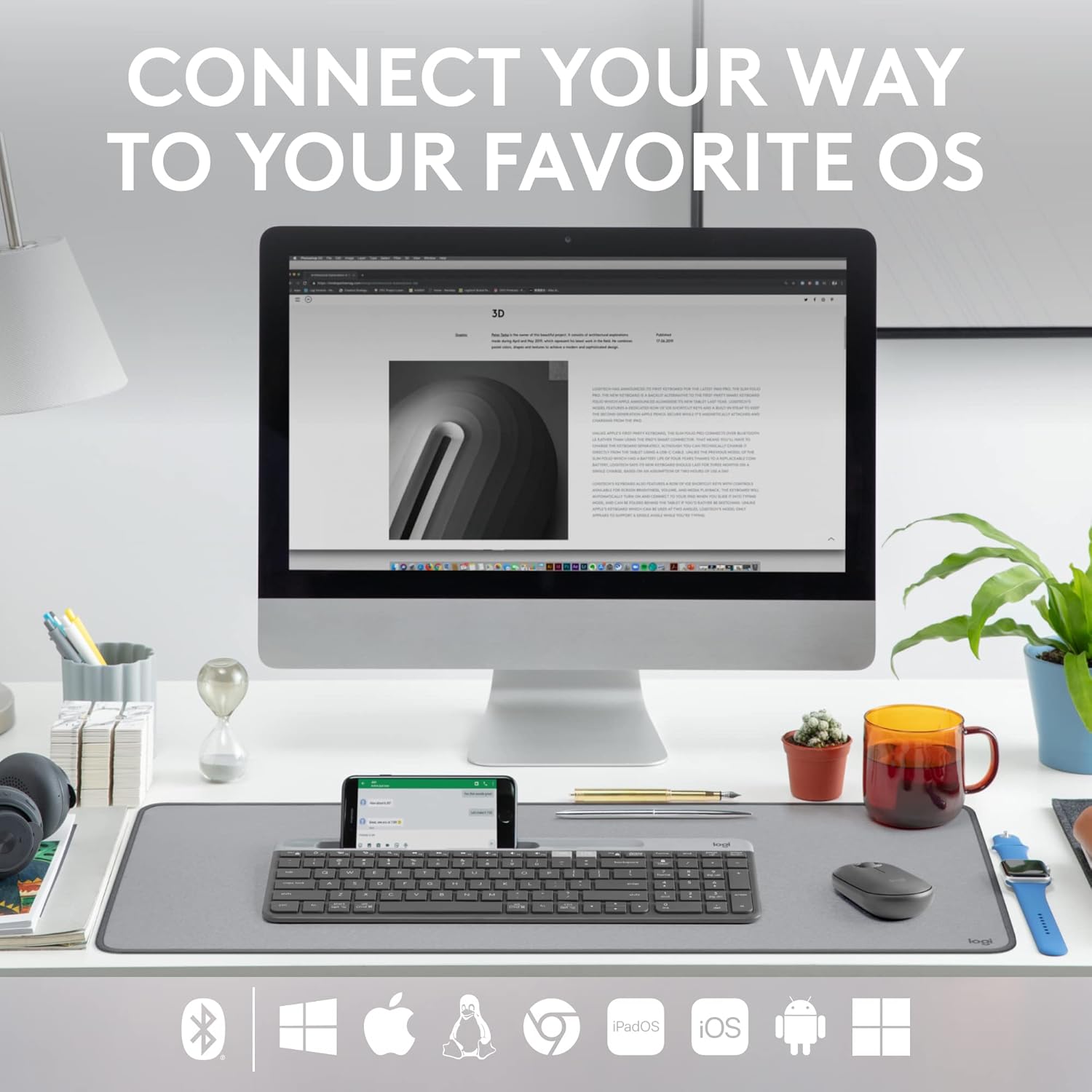
Image: The Logitech K585 keyboard positioned on a desk with a monitor, smartphone, and tablet, demonstrating its multi-device connectivity.
การใช้งานแป้นพิมพ์
ฟังก์ชัน Easy-Switch
The Logitech K585 allows you to seamlessly switch between up to three connected devices. Simply press the Easy-Switch key (1, 2, or 3) corresponding to the device you wish to use. The LED light above the selected key will illuminate to indicate the active connection.

ภาพ: เหนือศีรษะ view of the Logitech K585 keyboard with a smartphone placed in its integrated cradle, demonstrating the compact design and numpad.
Integrated Cradle
The built-in cradle at the top of the keyboard is designed to hold your smartphone or tablet at an optimal viewing angle while typing. This feature enhances productivity by keeping your mobile device accessible.
Function Keys (FN Keys)
The keyboard features 12 FN keys (F1-F12) with dual functions. By default, they perform media controls and shortcuts. To access the standard F1-F12 functions, press the Fn key simultaneously with the desired F key.
You can customize the FN keys using the Logi Options+ Software, available for download from the Logitech website. This allows you to assign specific shortcuts to suit your workflow.
ความเข้ากันได้ของระบบปฏิบัติการ
The Logitech K585 is designed for multi-OS compatibility, supporting:
- Windows (via USB receiver or Bluetooth)
- แมคโอเอส
- ระบบปฏิบัติการ iOS (ไอโฟน, ไอแพด)
- ไอแพดโอเอส
- แอนดรอยด์
- ระบบปฏิบัติการ Chrome
- ลินุกซ์

Image: The Logitech K585 keyboard with icons representing various operating systems and connectivity types (Bluetooth, USB receiver), highlighting its universal compatibility.
การซ่อมบำรุง
ทำความสะอาดคีย์บอร์ด
ในการทำความสะอาดแป้นพิมพ์ ให้ใช้ผ้านุ่มที่ไม่เป็นขุยเช็ดเบาๆampened with water or a mild cleaning solution. Avoid using abrasive cleaners, solvents, or aerosol sprays directly on the keyboard. For cleaning between keys, a can of compressed air can be used to remove dust and debris.
การเปลี่ยนแบตเตอรี่
The keyboard is designed for extended battery life (up to 24 months). When the battery indicator light (if present) signals low power, or if you experience connectivity issues, replace the two AA batteries. Refer to the "Installing Batteries" section under Setup for instructions.

Image: A person holding the Logitech K585 keyboard, emphasizing its long battery life.
การแก้ไขปัญหา
แป้นพิมพ์ไม่เชื่อมต่อ
- ตรวจสอบแบตเตอรี่: ตรวจสอบให้แน่ใจว่าใส่แบตเตอรี่อย่างถูกต้องและมีประจุเพียงพอ เปลี่ยนแบตเตอรี่หากจำเป็น
- เปิดเครื่อง: Verify the keyboard's power switch is in the ON position.
- ตัวรับสัญญาณ USB: If using the USB receiver, try plugging it into a different USB port on your computer. Ensure it's not obstructed.
- การจับคู่บลูทู ธ : If using Bluetooth, ensure your device's Bluetooth is enabled. Re-initiate pairing mode on the keyboard (hold Easy-Switch key for 3 seconds) and re-pair with your device.
- ระยะทาง: Ensure the keyboard is within the operating range (up to 10 meters / 33 feet) of your device.
คีย์ไม่ตอบสนอง
- คีย์สะอาด: Check for any debris or foreign objects lodged under the keys. Use compressed air to clear.
- Re-connect: Try turning the keyboard off and on, or re-pairing it with your device.
ความล่าช้าหรือการป้อนข้อมูลที่หน่วงเวลา
- การรบกวน: Move the keyboard closer to your device. Avoid placing it near other wireless devices that might cause interference (e.g., Wi-Fi routers, cordless phones).
- ระดับแบตเตอรี่: Low battery can sometimes cause performance issues. Replace batteries.
ข้อมูลจำเพาะ
| คุณสมบัติ | รายละเอียด |
|---|---|
| ชื่อรุ่น | Slim Multi-Device Wireless Keyboard Chrome OS Edition (K585) |
| หมายเลขชิ้นส่วน | 920-011479 |
| การเชื่อมต่อ | บลูทูธ, USB (ตัวรับสัญญาณแบบรวม) |
| ช่วงสาย | สูงถึง 10 เมตร (33 ฟุต) |
| ประเภทแบตเตอรี่ | แบตเตอรี่ AA 2 ก้อน |
| อายุการใช้งานแบตเตอรี่ | สูงสุด 24 เดือน (โดยประมาณ) |
| ขนาด (กว้าง x ยาว x สูง) | 14.7 x 5.6 x 0.76 นิ้ว (373.5 x 143.9 x 21.3 มม.) |
| น้ำหนัก | 1.24 pounds (558g including batteries) |
| จำนวนคีย์ | 104 |
| สี | กราไฟท์ |
| ผู้ผลิต | โลจิเทค |

Image: Diagram illustrating the dimensions (length, width, height) and weight of the Logitech K585 keyboard.
ข้อมูลการรับประกัน
This product is covered by Logitech's limited hardware warranty. For detailed warranty terms and conditions, please refer to the official Logitech webหรือบัตรรับประกันที่ให้มาพร้อมกับสินค้าที่คุณซื้อ โปรดเก็บหลักฐานการซื้อไว้เพื่อใช้ในการเคลมประกัน
Note: As this is a renewed product, specific warranty terms may vary. Please consult the seller or Amazon Renewed policy for details on your specific purchase.
สนับสนุน
For further assistance, technical support, or to download the Logi Options+ Software, please visit the official Logitech support webเว็บไซต์:
คุณสามารถค้นหาคำถามที่พบบ่อยและฟอรัมชุมชนได้ที่หน้าการสนับสนุน


