1. บทนำ
This user manual provides detailed instructions for the Baseus 9-in-1 Laptop Docking Station and the Baseus 240W PD 3.1 USB-C to USB-C Charger Cable. This bundle is designed to enhance your connectivity and charging capabilities for various devices, including laptops, tablets, and smartphones.
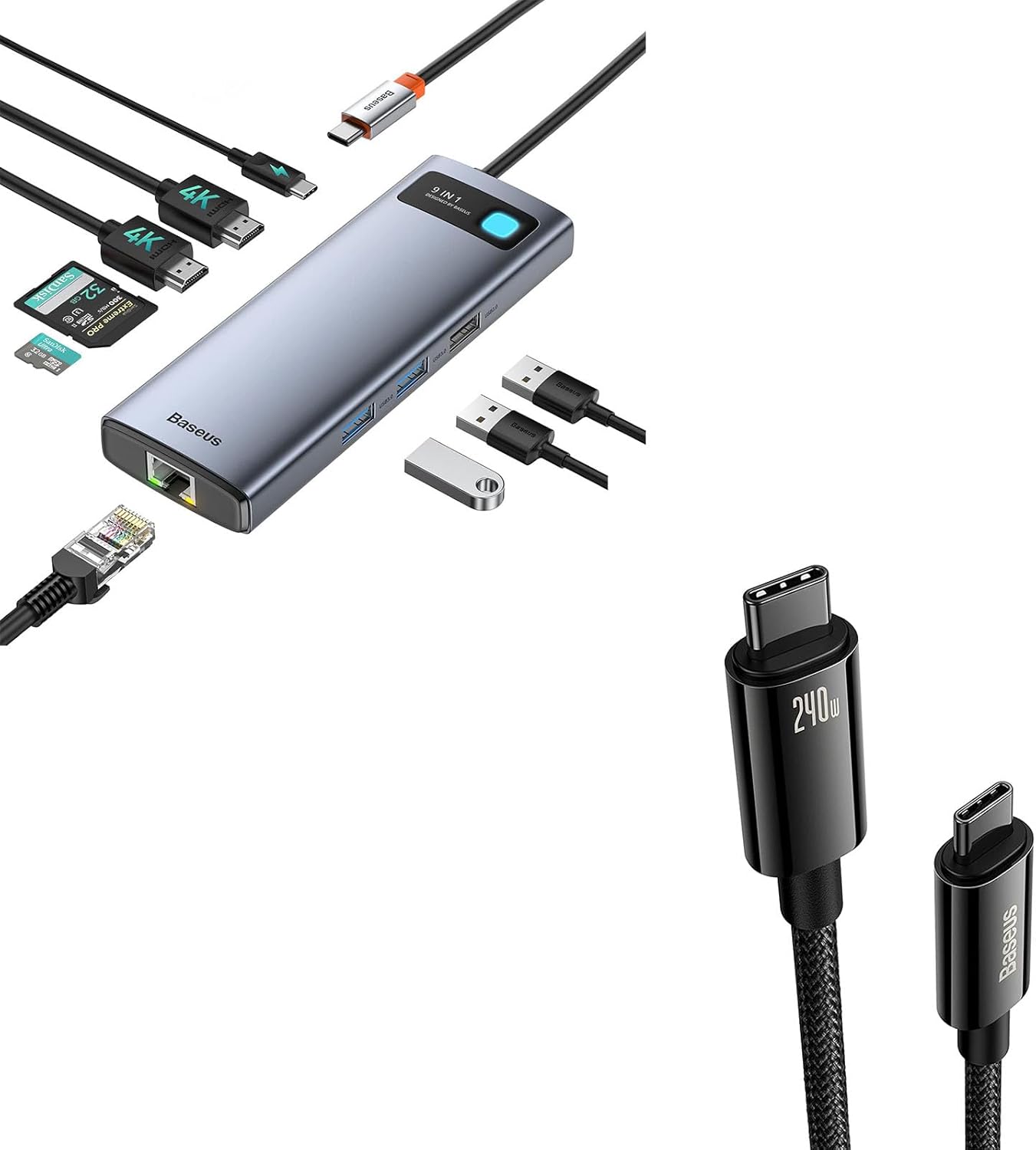
Figure 1: Baseus 9-in-1 Docking Station and 240W USB-C Cable Bundle. This image displays both the docking station with various ports and the USB-C to USB-C cable.
2. คุณสมบัติของผลิตภัณฑ์
2.1 Baseus 9-in-1 Laptop Docking Station
- Dual Monitor 4K Output: Connect up to two external displays with HDMI ports, supporting resolutions up to 4K@120Hz (single display) or 4K@30Hz (dual display).
- อีเธอร์เน็ตกิกะบิตที่เสถียร: Provides a reliable wired network connection up to 1000Mbps, ideal for stable internet access.
- Fast Power Delivery (PD): Equipped with a USB-C PD input port supporting up to 85W power delivery to charge your laptop while using the hub.
- พอร์ต USB หลายพอร์ต: Includes USB 3.0 ports (500MB/s) and USB 2.0 ports (60MB/s) for connecting peripherals and data transfer.
- เครื่องอ่านการ์ด SD/TF: Integrated slots for SD and TF (microSD) cards, supporting data transfer speeds up to 104MB/s.

รูปที่ 2: เกินview of the Baseus 9-in-1 Docking Station's ports and capabilities. This image highlights the various ports including HDMI, USB, SD/TF card slots, and PD input.
2.2 Baseus 240W PD 3.1 USB-C Cable
- กำลังขับ 240W: Supports PD 3.1 for ultra-fast charging up to 240W, backward compatible with 140W, 100W, and 60W.
- E-marker Technology: Features an advanced E-marker chip for safe and efficient charging, regulating current and voltage to protect devices.
- โครงสร้างทนทาน: Made with Zine Alloy connectors and a nylon braided cable for enhanced durability and longevity.

Figure 3: Baseus 240W USB-C Cable. This image emphasizes the cable's 240W power delivery capability.
3. คำแนะนำในการตั้งค่า
3.1 การเชื่อมต่อสถานีเชื่อมต่อ
- เชื่อมต่อกับอุปกรณ์โฮสต์: เสียบสาย USB-C ในตัวของแท่นวางเข้ากับพอร์ต USB-C ที่ใช้งานร่วมกันได้บนแล็ปท็อป แท็บเล็ต หรือสมาร์ทโฟนของคุณ
- การส่งกำลัง (ทางเลือก): For optimal performance and to charge your host device, connect an external USB-C power adapter (not included) to the PD input port on the docking station.
- จอแสดงผลภายนอก: เชื่อมต่อจอภาพ HDMI ของคุณเข้ากับพอร์ต HDMI 1 และ HDMI 2 บนแท่นวางโดยใช้สาย HDMI
- การเชื่อมต่อเครือข่าย: For a wired internet connection, connect an Ethernet cable from your router or modem to the RJ45 Ethernet port on the docking station.
- อุปกรณ์ต่อพ่วง: Connect your USB devices (e.g., mouse, keyboard, external hard drive, USB flash drive) to the available USB 3.0 or USB 2.0 ports.
- การ์ดหน่วยความจำ: Insert SD or TF cards into their respective slots as needed.

Figure 4: Dual Monitor Setup with the Docking Station. This image illustrates a laptop connected to the docking station, which in turn is connected to two external monitors.
3.2 Using the 240W USB-C Cable
- เชื่อมต่อกับอะแดปเตอร์ไฟ: Plug one end of the 240W USB-C cable into a compatible USB-C power adapter (e.g., a 240W, 140W, 100W, or 60W PD charger).
- เชื่อมต่อกับอุปกรณ์: Plug the other end of the USB-C cable into the charging port of your USB-C compatible device (e.g., laptop, tablet, smartphone).
- การถ่ายโอนข้อมูล: The cable can also be used for high-speed data transfer between compatible USB-C devices.
4. คู่มือการใช้งาน
4.1 การแสดงผลออก
Once connected, your operating system should automatically detect the external displays. You can configure display settings (mirror, extend, primary display) through your computer's display settings. For Windows, right-click on the desktop and select "Display settings." For macOS, go to "System Settings" > "Displays."
- จอแสดงผลเดี่ยว: รองรับความละเอียดสูงสุด 4K ที่ 120Hz
- จอแสดงผลคู่: Supports up to 4K@30Hz on both HDMI ports simultaneously.
4.2 การเชื่อมต่อเครือข่าย
The Gigabit Ethernet port provides a stable and fast wired network connection. Once the Ethernet cable is connected to the docking station and your network, your device should automatically establish a connection. Verify network status in your operating system's network settings.

Figure 5: Stable Gigabit Ethernet Connection. This image shows the docking station with an active Ethernet connection, indicating high-speed network capability.
4.3 USB Ports and Card Readers
The USB 3.0 ports offer high-speed data transfer for devices like external hard drives and USB flash drives. The USB 2.0 ports are suitable for peripherals such as keyboards, mice, and printers. The SD and TF card readers allow for quick access to data on memory cards.
4.4 การจ่ายพลังงาน
When an external power adapter is connected to the PD input port, the docking station can deliver up to 85W of power to your connected laptop, ensuring it remains charged during use. The 240W USB-C cable supports PD 3.1, enabling rapid charging for compatible devices when paired with a suitable power adapter.

Figure 6: Max 100W Power Input to Docking Station. This image illustrates the docking station receiving power input, capable of delivering up to 85W to the connected laptop.

Figure 7: Charging Speed Comparison (PD3.0 vs. PD3.1). This image visually compares the charging efficiency of PD3.0 and PD3.1, highlighting the faster charging capability of PD3.1 supported by the 240W cable.
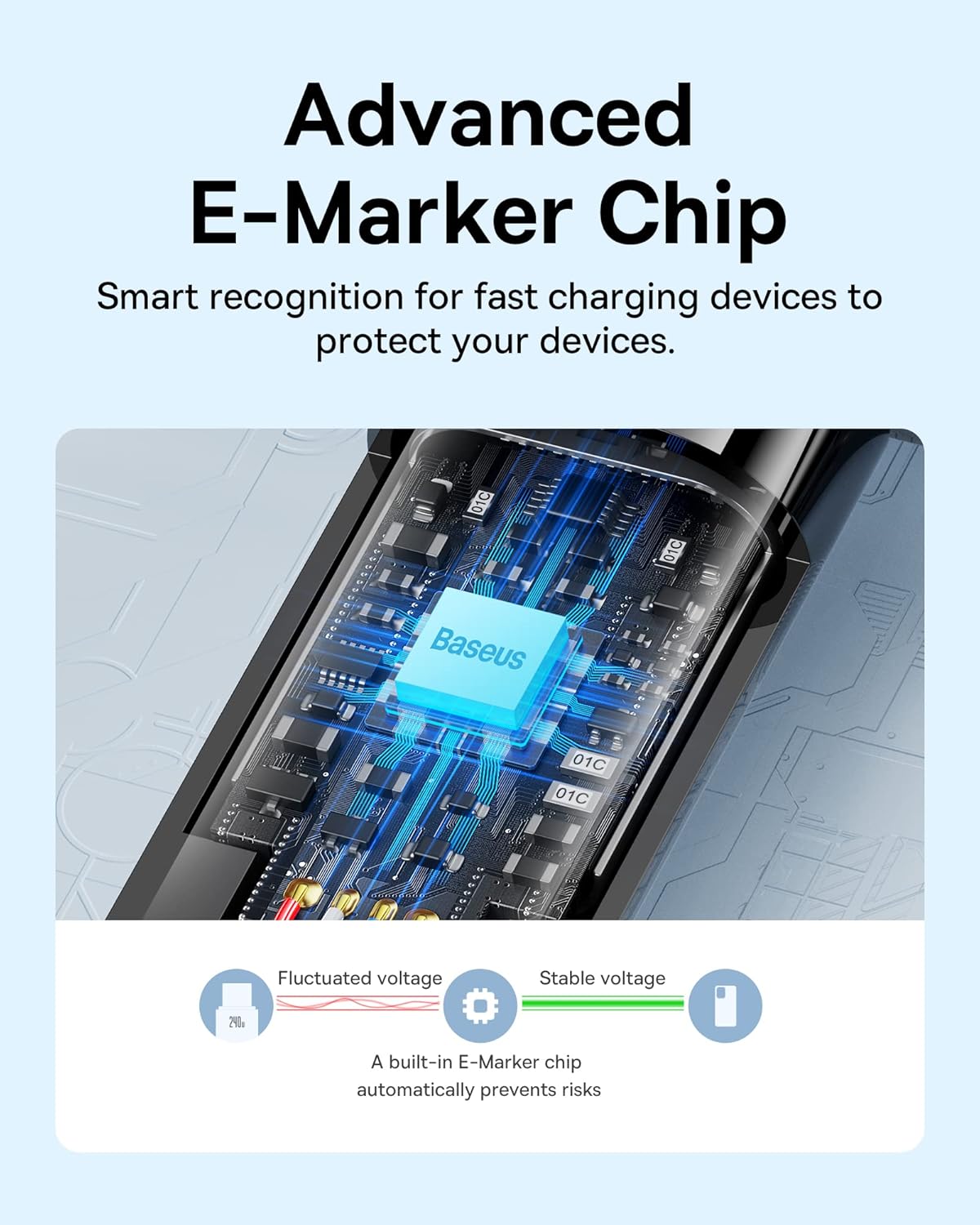
Figure 8: Advanced E-Marker Chip in USB-C Cable. This image provides a detailed view of the E-marker chip within the USB-C cable, which ensures safe and efficient power delivery.
5. การบำรุงรักษา
- การทำความสะอาด: Use a soft, dry cloth to clean the surfaces of the docking station and cable. Avoid using liquid cleaners or abrasive materials.
- พื้นที่จัดเก็บ: เก็บอุปกรณ์ไว้ในที่แห้งและเย็น หลีกเลี่ยงแสงแดดโดยตรงและอุณหภูมิที่สูงหรือต่ำเกินไป
- การจัดการ: Avoid dropping or subjecting the devices to strong impacts. Do not bend the cable excessively, especially near the connectors.
- การดูแลพอร์ต: ตรวจสอบให้แน่ใจว่าพอร์ตต่างๆ ปราศจากฝุ่นและสิ่งสกปรกก่อนเชื่อมต่อสายเคเบิล

Figure 9: Premium Texture and Durable Connector of USB-C Cable. This image highlights the quality and durability of the cable's zinc alloy connector and nylon braided texture.
6 การแก้ไขปัญหา
| ปัญหา | สาเหตุที่เป็นไปได้ | สารละลาย |
|---|---|---|
| ไม่มีการแสดงผลบนจอภาพภายนอก | Incorrect display settings, incompatible device, loose cable connection. |
|
| การเชื่อมต่ออีเทอร์เน็ตไม่เสถียรหรือทำงานไม่ได้ | Loose cable, driver issue, network configuration. |
|
| อุปกรณ์ USB ไม่ได้รับการรู้จัก | Insufficient power, driver issue, faulty device. |
|
| Device not charging or charging slowly with 240W cable. | Incompatible power adapter, device limitation, cable issue. |
|
7. ข้อมูลจำเพาะ
| คุณสมบัติ | รายละเอียด |
|---|---|
| ยี่ห้อ | เบสอุส |
| แบบอย่าง | 9-in-1 Docking Station & 240W USB-C Cable Bundle |
| ฮาร์ดแวร์อินเตอร์เฟซ | USB, USB Type C, HDMI, Ethernet, SD/TF Card Slots |
| พอร์ต USB รวม | 9 (on docking station) |
| เอาท์พุต HDMI | Up to 4K@120Hz (single), 4K@30Hz (dual) |
| ความเร็วอีเธอร์เน็ต | 1000Mbps (กิกะบิต) |
| Power Delivery (Dock) | Up to 85W to host device (via PD input) |
| USB-C Cable Power Output | สูงสุด 240 วัตต์ (PD 3.1) |
| อุปกรณ์ที่รองรับ | Smartphones, Tablets, Laptops, Desktops with USB-C |
8. การรับประกันและการสนับสนุน
Baseus products are designed with quality and reliability in mind. For warranty information or technical support, please contact Baseus Official Store directly through your purchase platform or visit the official Baseus webไซต์ โปรดเก็บหลักฐานการซื้อไว้เพื่อใช้ในการเรียกร้องการรับประกัน
ร้านค้าอย่างเป็นทางการของ Baseus: เยี่ยมชม Baseus Store บน Amazon


