การแนะนำ
This manual provides detailed instructions for the setup, operation, maintenance, and troubleshooting of your COOPERS CP20PRO Android 15 Tablet. Please read this manual thoroughly to ensure proper use and to maximize the performance and longevity of your device. Keep this manual for future reference.
มีอะไรอยู่ในกล่อง
เมื่อแกะกล่อง โปรดตรวจสอบว่ามีสิ่งของต่อไปนี้ครบถ้วนหรือไม่:
- COOPERS CP20PRO Android 15 Tablet
- เคสป้องกัน
- คีย์บอร์ดไร้สาย
- เมาส์ไร้สาย
- ปากกาสไตลัส
- Type-C Cable (for charging and data transfer)

Image: COOPERS CP20PRO Tablet and its complete accessory kit.
การตั้งค่า
1. การชาร์จครั้งแรก
Before first use, fully charge your tablet. Connect the provided Type-C cable to the tablet's charging port and the other end to a compatible USB power adapter (not included) or a computer's USB port. The charging indicator will show the charging status.

Image: Tablet charging via the unified Type-C port. A full charge typically takes 2-3 hours.
2. เปิด/ปิดเครื่อง
- การเปิดเครื่อง: กดปุ่มเปิด/ปิดที่อยู่ด้านข้างของแท็บเล็ตค้างไว้จนกว่าหน้าจอจะสว่างขึ้น
- วิธีปิดเครื่อง: กดปุ่มเปิด/ปิดค้างไว้ จากนั้นเลือก "ปิดเครื่อง" จากตัวเลือกที่ปรากฏบนหน้าจอ
- ในการรีสตาร์ท: กดปุ่มเปิด/ปิดค้างไว้ จากนั้นเลือก 'เริ่มระบบใหม่' จากตัวเลือก
3. Connecting Accessories (Keyboard, Mouse, Stylus)
The COOPERS CP20PRO tablet supports Bluetooth connectivity for its wireless keyboard, mouse, and stylus.
- Enable Bluetooth on Tablet: ไปที่ การตั้งค่า > อุปกรณ์ที่เชื่อมต่อ > บลูทูธ and toggle Bluetooth ON.
- การจับคู่เมาส์:
a. Turn on the switch button at the bottom of the wireless mouse.
b. The mouse will enter pairing mode (indicator light may flash).
c. On your tablet, search for available Bluetooth devices and select the mouse to pair. - การจับคู่คีย์บอร์ด:
a. Turn on the keyboard's power switch (usually on the side or back).
b. Press the Bluetooth connection button on the keyboard (often labeled 'Connect' or a Bluetooth icon).
c. On your tablet, search for available Bluetooth devices and select the keyboard to pair. - Pairing the Stylus: The stylus typically connects automatically when powered on and Bluetooth is active on the tablet, or it may require a similar pairing process as the mouse/keyboard if it has a dedicated Bluetooth button.
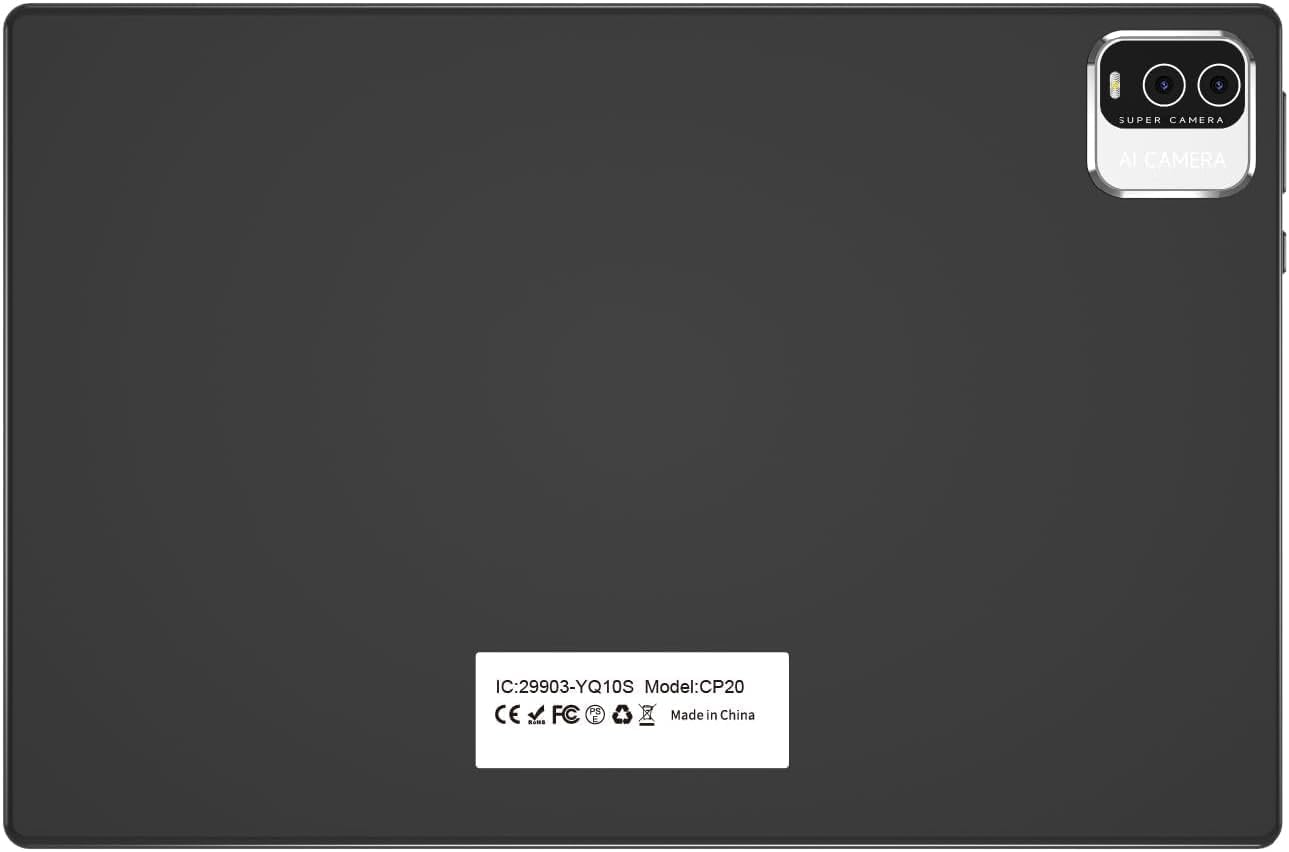
Image: Step-by-step guide for connecting the wireless mouse and keyboard via Bluetooth.
คำแนะนำการใช้งาน
1. ระบบปฏิบัติการ Android 15
Your COOPERS CP20PRO tablet runs on the Android 15 operating system, providing a user-friendly interface and access to a wide range of applications. The tablet is GMS certified, allowing full access to the Google Play Store for downloading apps like Netflix, TikTok, Facebook, and more.

Image: Tablet interface showing GMS certified applications and Google Play Store access.
2. การแสดงผลและภาพ
The tablet features a 10.1-inch IPS HD display with a resolution of 1280x800 pixels. This display technology offers wide viewing angles and vibrant colors. An integrated eye protection mode helps reduce eye strain during extended use.

Image: The 10.1-inch HD screen provides clear and comfortable viewการไอเอ็นจี
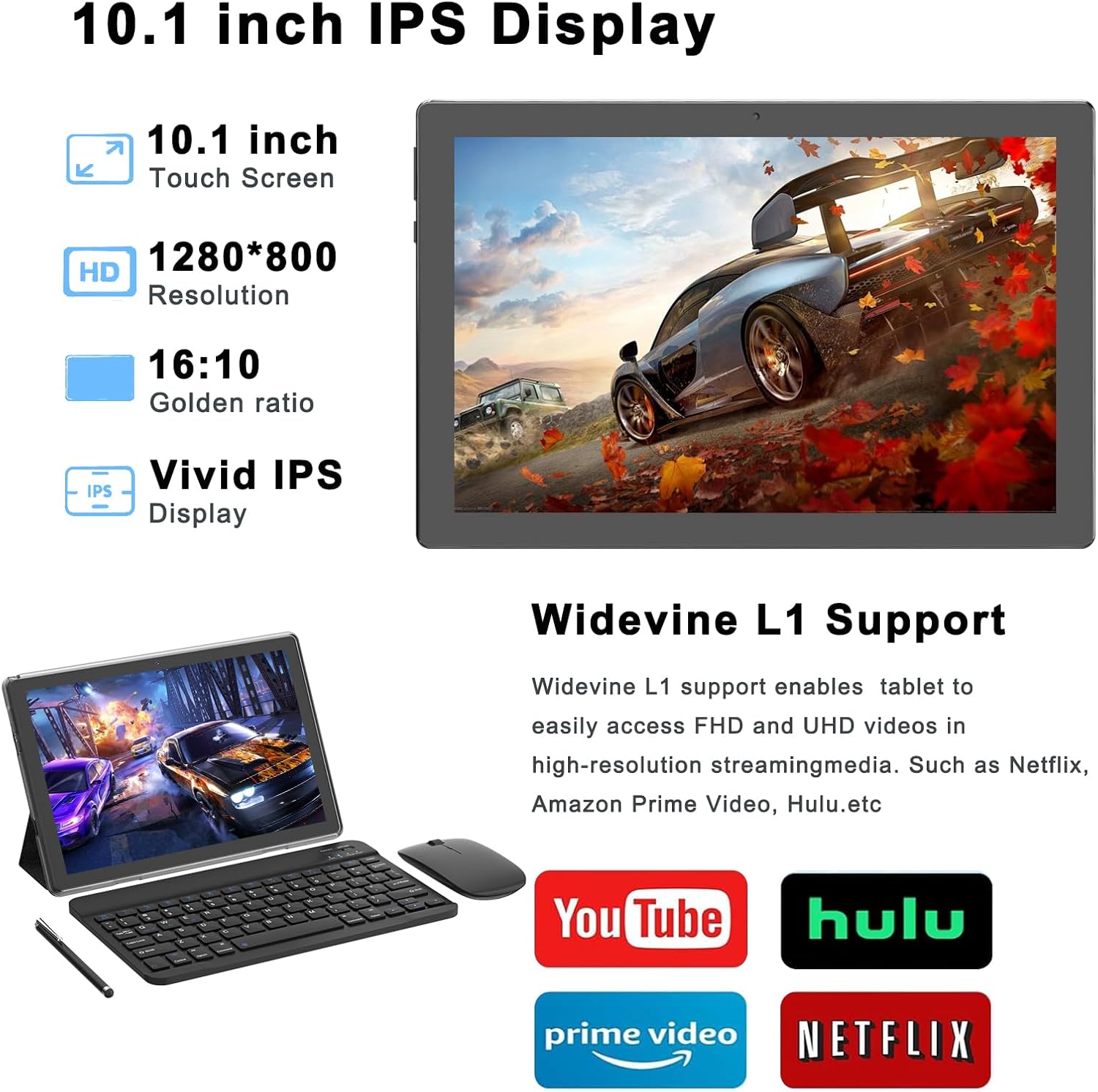
Image: The IPS display and Widevine L1 support enhance multimedia streaming.
3. ประสิทธิภาพและการจัดเก็บ
Equipped with a 2.0Ghz Quad-core Processor and 18GB RAM (4GB fixed, 14GB virtual), the tablet is designed for efficient multitasking and application performance. It includes 128GB of internal storage, expandable up to 2TB via a microSD card (not included), providing ampพื้นที่สำหรับแอปพลิเคชัน สื่อ และเอกสาร
4. การเชื่อมต่อ
- ไวไฟ : Supports 2.4Ghz and 5Ghz Wi-Fi 6 (802.11ac) for fast and stable internet connections.
- บลูทูธ: Features Bluetooth 5.0 for connecting wireless peripherals such as headphones, speakers, and the included keyboard and mouse.
5. กล้องถ่ายรูป
The tablet includes dual cameras: a 2MP front-facing camera for video calls and selfies, and an 8MP rear-facing camera for capturing photos and videos.

Image: Dual cameras allow for capturing both portraits and landscapes.
การซ่อมบำรุง
- การทำความสะอาด: ใช้ผ้านุ่มที่ไม่เป็นขุยทำความสะอาดหน้าจอและตัวเครื่องแท็บเล็ต หลีกเลี่ยงการใช้สารเคมีรุนแรงหรือวัสดุที่มีฤทธิ์กัดกร่อน
- การอัปเดตซอฟต์แวร์: ตรวจสอบและติดตั้งการอัปเดตระบบเป็นประจำเพื่อให้มั่นใจถึงประสิทธิภาพและความปลอดภัยที่เหมาะสมที่สุด ไปที่ การตั้งค่า > ระบบ > การอัพเดทระบบ.
- การดูแลแบตเตอรี่ เพื่อยืดอายุการใช้งานแบตเตอรี่ ควรหลีกเลี่ยงอุณหภูมิที่สูงหรือต่ำเกินไป และอย่าปล่อยให้แบตเตอรี่หมดเกลี้ยงบ่อยๆ
- การจัดการพื้นที่เก็บข้อมูล: ล้างสิ่งที่ไม่จำเป็นออกเป็นระยะๆ files and apps to maintain sufficient storage space and performance.
การแก้ไขปัญหา
ปัญหาทั่วไปและแนวทางแก้ไข
- แท็บเล็ตไม่เปิด: Ensure the tablet is sufficiently charged. Connect it to the charger for at least 30 minutes, then try powering it on again.
- ประสิทธิภาพการทำงานช้า: Close unused applications, clear cache, or restart the tablet. Check for available system updates.
- การตัดการเชื่อมต่อ Wi-Fi: Try restarting your Wi-Fi router and the tablet. Ensure you are within range of the Wi-Fi signal. If the issue persists, forget the network in Wi-Fi settings and reconnect.
- Bluetooth Accessories Not Connecting: Ensure Bluetooth is enabled on both the tablet and the accessory. Make sure the accessory is in pairing mode. Try restarting both devices.
- หน้าจอไม่ตอบสนอง: Perform a forced restart by holding the power button for approximately 10-15 seconds until the device powers off and restarts.
ข้อมูลจำเพาะ
| คุณสมบัติ | ข้อมูลจำเพาะ |
|---|---|
| ชื่อรุ่น | ซีพีทูโปร |
| ระบบปฏิบัติการ | แอนดรอยด์ 15 |
| ขนาดหน้าจอ | 10.1 นิ้ว |
| ความละเอียดหน้าจอ | 1280 x 800 พิกเซล (IPS HD) |
| โปรเซสเซอร์ | 2.0 GHz Quad-core (MediaTek) |
| แรม | หน่วยความจำ 18GB (4GB แบบถาวร + 14GB แบบเสมือน) |
| การจัดเก็บข้อมูลภายใน | 128GB |
| พื้นที่เก็บข้อมูลแบบขยายได้ | Up to 2TB (via microSD card, not included) |
| กล้องหลัง | 8 MP |
| กล้องหน้า | 2 MP |
| การเชื่อมต่อแบบไร้สาย | Wi-Fi 6 (802.11ac) 2.4Ghz/5Ghz |
| บลูทูธ | บลูทูธ 5.0 |
| อายุการใช้งานแบตเตอรี่ (เฉลี่ย) | 6 ชั่วโมง |
| ขนาดสินค้า | 9.5 x 0.3 x 6.5 นิ้ว |
| น้ำหนักสินค้า | 2.44 ปอนด์ |
| สี | สีดำ |
การรับประกันและการสนับสนุน
For warranty information and technical support, please refer to the documentation provided with your purchase or contact COOPERS customer service directly. Details for contacting support are typically available on the manufacturer's official webเว็บไซต์หรือผ่านผู้ค้าปลีกของคุณ


