1. บทนำ
This manual provides detailed instructions for the setup, operation, and maintenance of your Logitech POP Mouse. The POP Mouse is a compact, wireless mouse designed for multi-device use with customizable features.

Image: The Logitech POP Mouse in Graphite, showcasing การออกแบบที่กะทัดรัดและตามหลักสรีรศาสตร์
2. เนื้อหาบรรจุภัณฑ์
- Logitech POP Wireless Mouse
- 1x AA Battery (pre-installed)
- เอกสารประกอบการใช้งาน

Image: The Logitech POP Mouse and a single AA battery, representing the items included in the product package.
3. คำแนะนำในการตั้งค่า
3.1. การติดตั้งแบตเตอรี่
- Gently remove the top cover of the mouse. The cover is magnetically attached.
- ใส่แบตเตอรี่ AA ที่ให้มา ตรวจสอบให้แน่ใจว่าขั้วถูกต้อง (+/-)
- ปิดฝาครอบด้านบนให้สนิท ตรวจสอบให้แน่ใจว่าล็อคเข้าที่เรียบร้อยแล้ว
3.2. การเชื่อมต่อผ่าน Bluetooth
- เปิดเมาส์โดยใช้สวิตช์เปิด/ปิดที่อยู่ด้านล่าง
- Press and hold one of the Easy-Switch buttons (1, 2, or 3) on the bottom of the mouse until the LED indicator starts blinking rapidly. This indicates pairing mode.
- On your device (computer, tablet, or phone), open Bluetooth settings.
- Select "Logitech POP Mouse" from the list of available devices to complete the pairing process.
- The LED indicator will glow solid for a few seconds, then turn off, confirming a successful connection.

Image: The underside of the POP Mouse, highlighting the Easy-Switch buttons for multi-device pairing.
4. คู่มือการใช้งาน
4.1. ฟังก์ชั่นพื้นฐาน
- คลิกซ้าย: การคัดเลือกเบื้องต้นและการโต้ตอบ
- คลิกขวา: เข้าถึงเมนูบริบท
- ล้อเลื่อน: นำทางในแนวตั้งผ่านเอกสารและ web หน้า
4.2. SilentTouch Technology
The POP Mouse features SilentTouch Technology, which significantly reduces click noise, providing a quieter user experience without compromising tactile feedback.

Image: A hand operating the POP Mouse, illustrating the quiet operation provided by SilentTouch Technology.
4.3. SmartWheel Scrolling
The SmartWheel automatically switches between two modes:
- โหมดความแม่นยำ: For detailed, line-by-line navigation.
- Speed Scroll Mode: For rapid scrolling through long documents or web หน้า

Image: A user's hand demonstrating the use of the SmartWheel for efficient navigation.
5. การปรับแต่ง
5.1. Customizable Top Button (Emoji Button)
The top button, located below the scroll wheel, is customizable. By default, it can be configured to open an emoji menu or assign other shortcuts.
- Download and install the Logitech Options+ Software from the official Logitech webงาน (logitech.com/optionsplus).
- Open the Logitech Options+ Software.
- Select your POP Mouse from the detected devices.
- ไปที่การตั้งค่าการปรับแต่งปุ่ม
- Assign your desired function to the top button, such as an emoji shortcut, Snip Screen, Mic Mute, or Voice-to-Text.
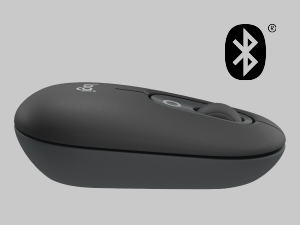
Image: A visual representation of the customizable top button on the POP Mouse, showing its function to access an emoji menu on a connected computer.
6. การเชื่อมต่อหลายอุปกรณ์
The Logitech POP Mouse can connect to up to three different devices simultaneously using Bluetooth. You can easily switch between these devices.
6.1. การสลับอุปกรณ์
To switch between paired devices, press the Easy-Switch button (1, 2, or 3) on the bottom of the mouse corresponding to the desired device. The LED indicator will briefly light up to confirm the selected channel.
6.2. Logitech FLOW (Advanced Feature)
For seamless control across multiple computers, install Logitech Options+ Software on all devices. With Logitech FLOW enabled, you can move your mouse cursor across screens as if they were a single desktop, even copying and pasting text, images, and fileอยู่ระหว่างพวกเขา
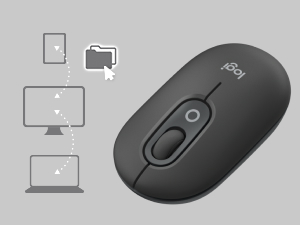
Image: A diagram showing how the POP Mouse can control multiple devices, illustrating the FLOW feature for cross-device interaction.
7. การบำรุงรักษา
7.1. การเปลี่ยนแบตเตอรี่
The POP Mouse operates on a single AA battery with an estimated life of up to 24 months. When the battery is low, the LED indicator on the bottom of the mouse may flash. Replace the battery by following the steps in Section 3.1.
7.2. การทำความสะอาด
ในการทำความสะอาดเมาส์ ให้ใช้ผ้าเนื้อนุ่มที่ไม่เป็นขุย สำหรับคราบสกปรกฝังแน่น ให้ใช้ผ้าชุบน้ำหมาดๆ เช็ดเบาๆampชุบผ้าด้วยน้ำ หลีกเลี่ยงการใช้สารเคมีรุนแรงหรือวัสดุที่มีฤทธิ์กัดกร่อน
8 การแก้ไขปัญหา
| ปัญหา | สารละลาย |
|---|---|
| เมาส์ไม่เปิด | Ensure the power switch on the bottom of the mouse is in the 'ON' position. Check and replace the AA battery if necessary. |
| เมาส์ไม่เชื่อมต่อผ่านบลูทูธ |
|
| การเคลื่อนไหวของเคอร์เซอร์ไม่แน่นอนหรือไม่ตอบสนอง |
|
| Custom button not working. | Ensure Logitech Options+ Software is installed and running on your computer, and the button is correctly configured. |
9. ข้อมูลจำเพาะ
| คุณสมบัติ | รายละเอียด |
|---|---|
| หมายเลขรุ่น | 910-007165 |
| การเชื่อมต่อ | บลูทูธ 5.1 |
| ช่วงสาย | สูงสุด 10 เมตร (32.81 ฟุต) |
| เทคโนโลยีเซ็นเซอร์ | Logitech High Precision Optical Tracking |
| จำนวนปุ่ม | 4 (Left/Right click, Scroll wheel click, Top customizable button) |
| ประเภทแบตเตอรี่ | แบตเตอรี่ AA 1 ก้อน |
| อายุการใช้งานแบตเตอรี่ | สูงสุด 24 เดือน (อาจแตกต่างกันขึ้นอยู่กับการใช้งาน) |
| ขนาด (กxยxส) | 14.12 x 2.34 x 1.38 นิ้ว (35.86 x 5.94 x 3.51 ซม.) |
| น้ำหนัก | 2.89 ounces (82g with battery) |
| ความเข้ากันได้ของระบบปฏิบัติการ | Windows 10 หรือเวอร์ชันที่ใหม่กว่า, macOS 10.15 หรือเวอร์ชันที่ใหม่กว่า, iPadOS, Chrome OS, Android |

Image: Technical drawing displaying the length, width, and height measurements of the Logitech POP Mouse.
10. การรับประกันและการสนับสนุน
สำหรับข้อมูลการรับประกันและการสนับสนุนทางเทคนิค โปรดเยี่ยมชมเว็บไซต์ฝ่ายสนับสนุนอย่างเป็นทางการของ Logitech website or refer to the user documentation included in your product package.
- การสนับสนุนทางออนไลน์: support.logi.com
- การลงทะเบียนผลิตภัณฑ์: Registering your product can help you receive faster support and updates.


