การแนะนำ
This manual provides detailed instructions for the Taiahiro 201 Gaming Keyboard. This 87-key mechanical keyboard is designed for an enhanced typing and gaming experience, featuring non-conflicting keys for simultaneous presses without lag. Its compact and ergonomic design ensures comfortable use across various devices.
เนื้อหาแพ็คเกจ
- Taiahiro 201 Mechanical Keyboard
- สาย USB-C ถึง USB-A
- คู่มือการใช้งาน
สินค้าเกินview
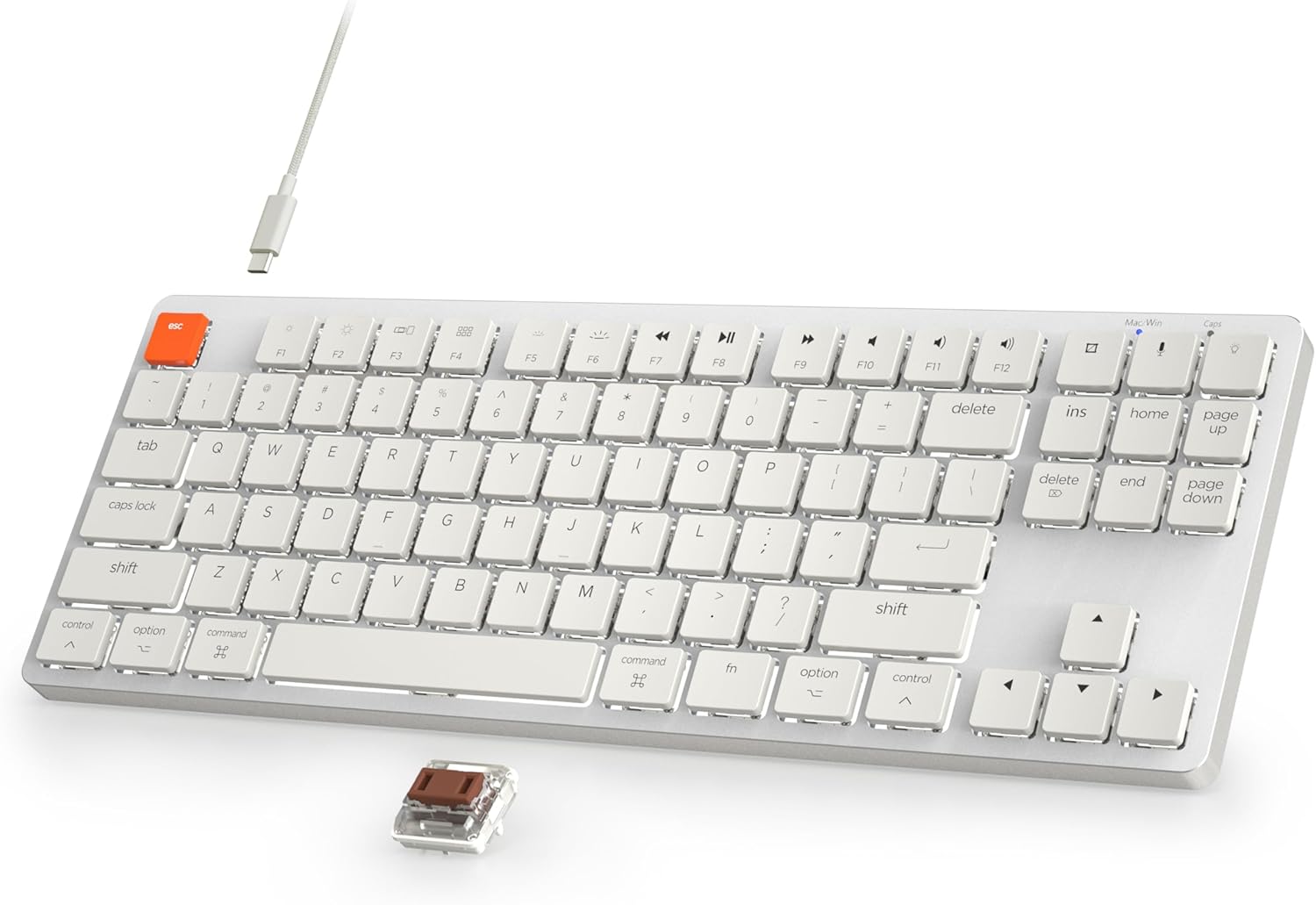
Figure 1: Taiahiro 201 Mechanical Keyboard. This image shows the full keyboard with its white keys and silver frame, connected via a white USB-C cable.
The Taiahiro 201 keyboard features an 87-key layout, providing a compact form factor without sacrificing essential functionality. It includes dedicated function keys and multimedia controls.
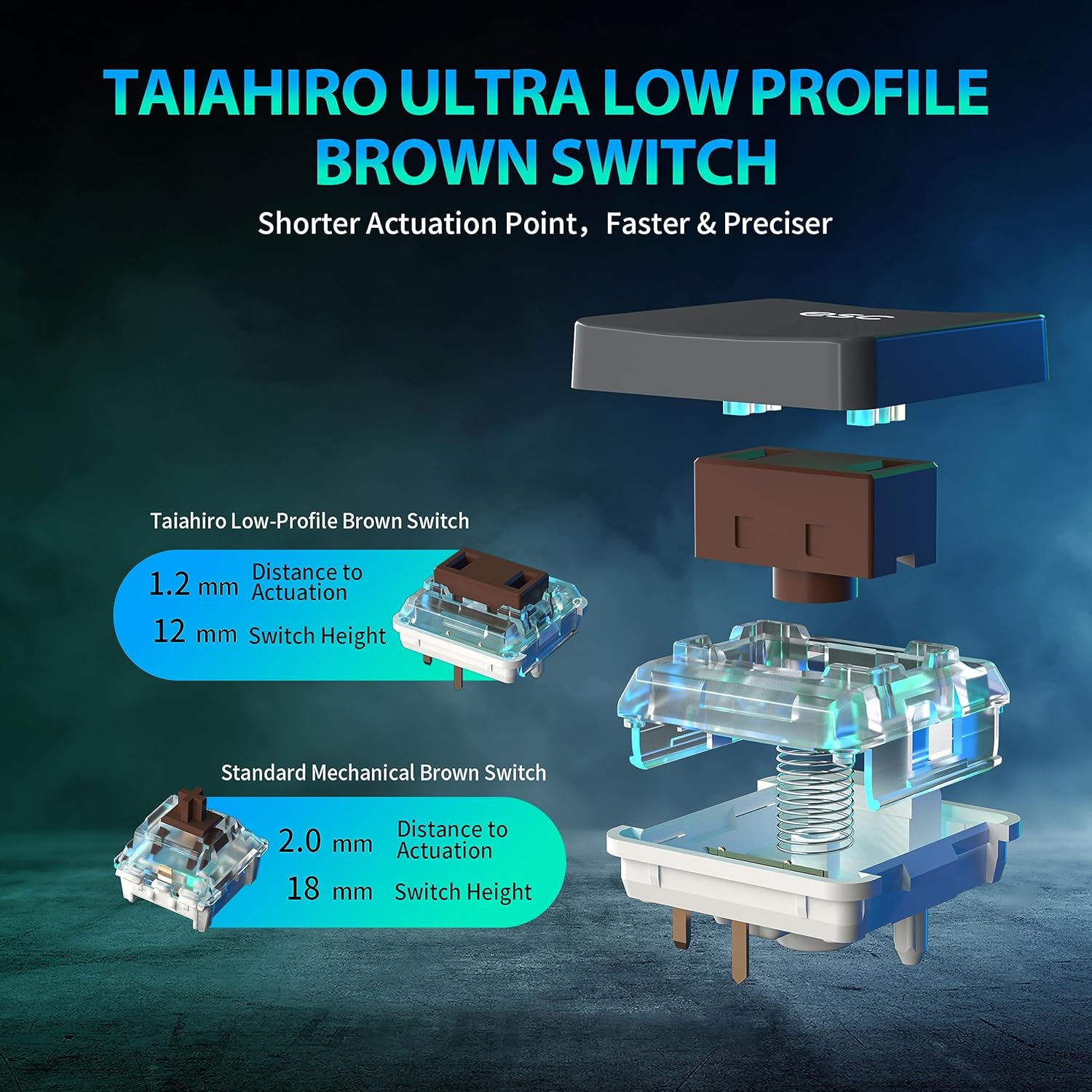
Figure 2: Taiahiro Low-Profile Brown Switch. This diagram illustrates the internal components and dimensions of the low-profile brown switch compared to a standard mechanical brown switch, highlighting its shorter actuation point and overall height.
The keyboard utilizes Taiahiro Low-Profile Brown Switches, designed for a shorter actuation point, resulting in faster and more precise keystrokes. The switch height is 12mm with a 1.2mm actuation distance.
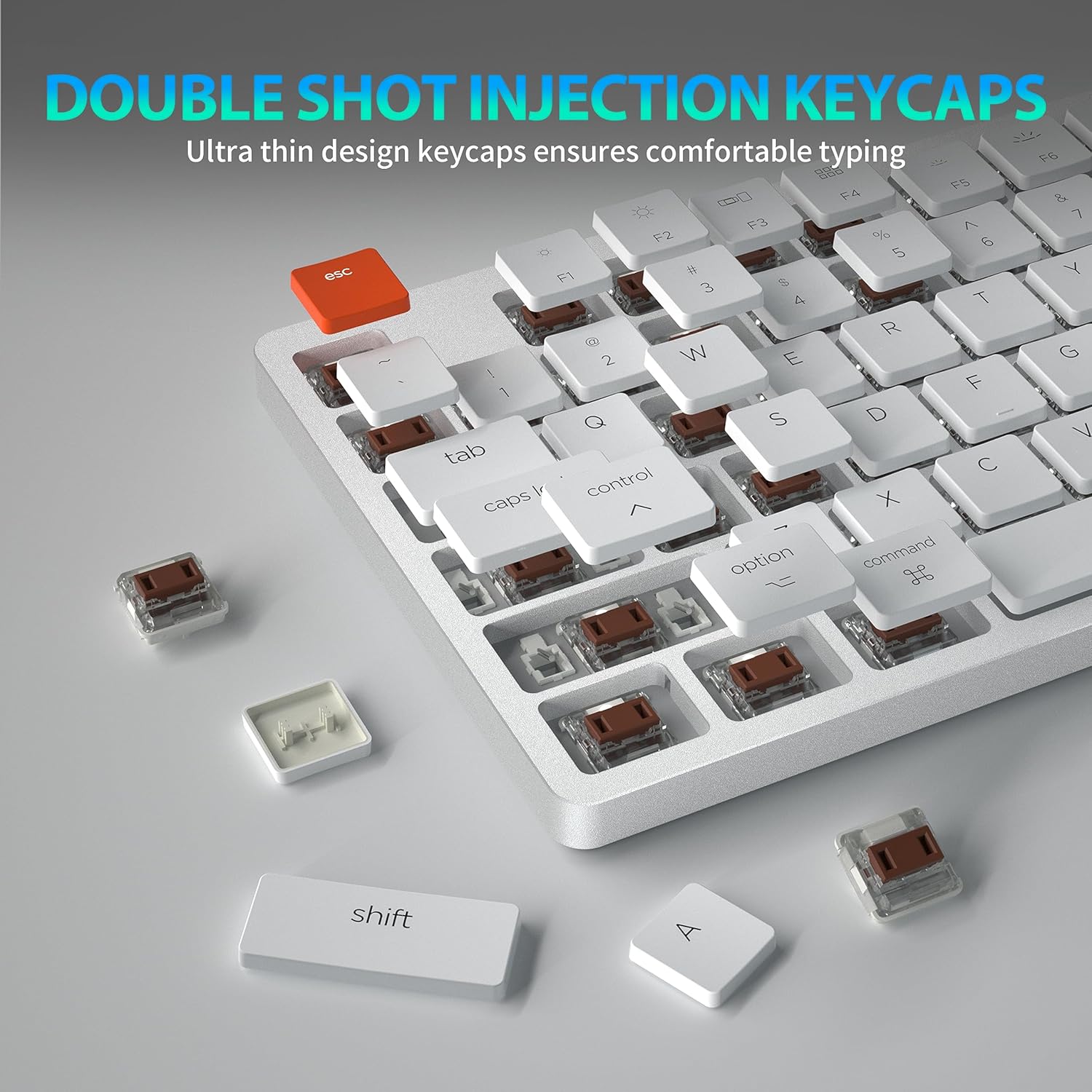
Figure 3: Double Shot Injection Keycaps. A close-up view of the keyboard showing several keycaps removed, revealing the double-shot injection molding process which ensures durability and clear legends.
Keycaps are manufactured using double shot injection, ensuring durability and preventing legends from fading over time. The ultra-thin design contributes to a comfortable typing experience.
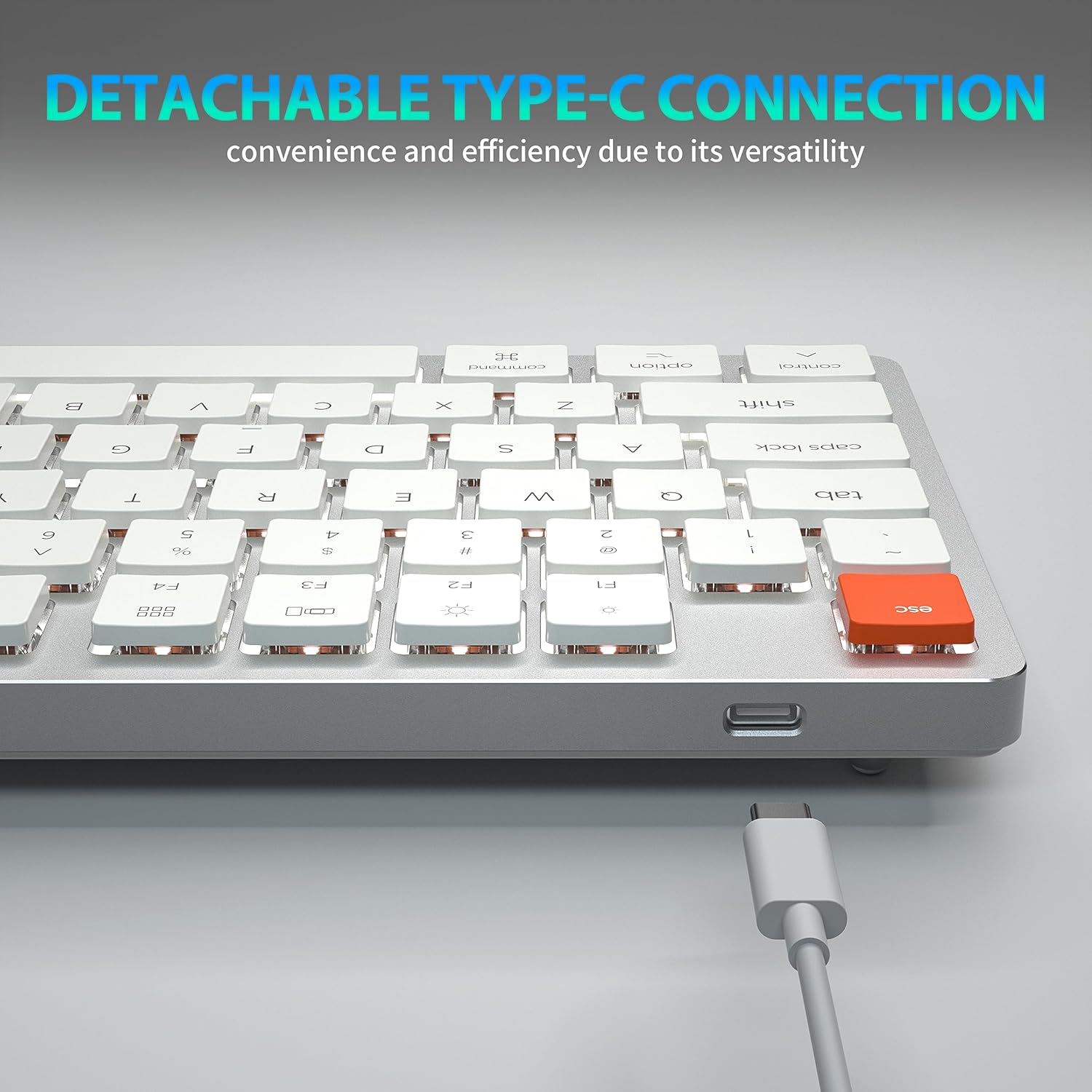
Figure 4: Detachable Type-C Connection. This image highlights the USB-C port on the keyboard and the detachable cable, emphasizing its versatility and ease of transport.
The keyboard features a detachable USB Type-C connection, offering convenience and efficiency due to its versatile and widely compatible interface.
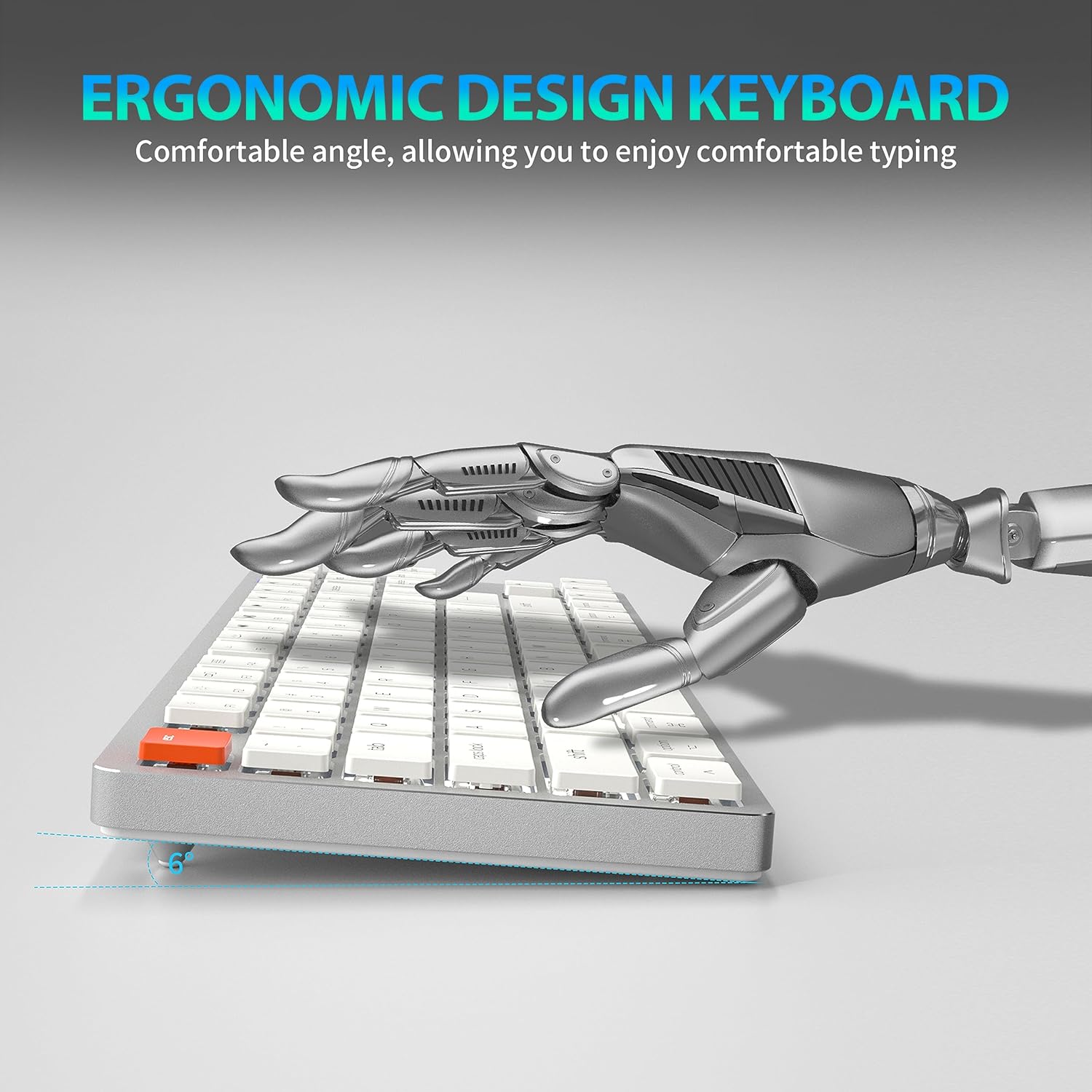
Figure 5: Ergonomic Design. A side view of the keyboard illustrating its comfortable typing angle, designed to reduce strain during extended use.
The ergonomic design provides a comfortable angle for typing, reducing wrist strain during prolonged use.
การตั้งค่า
การเชื่อมต่อแบบมีสาย (USB-C)
- เชื่อมต่อปลาย USB-C ของสายเคเบิลที่ให้มาเข้ากับพอร์ต USB-C ของแป้นพิมพ์
- Connect the USB-A end of the cable to an available USB port on your computer or device.
- แป้นพิมพ์จะถูกจดจำโดยอัตโนมัติและพร้อมใช้งาน
Wireless Connection (Bluetooth 5.1)
The keyboard supports stable Bluetooth 5.1 connectivity, allowing effortless switching between up to 3 devices.
- ตรวจสอบให้แน่ใจว่าคีย์บอร์ดได้รับการชาร์จหรือเชื่อมต่อผ่าน USB-C
- Turn on the keyboard's power switch (usually located on the back or side).
- หากต้องการเข้าสู่โหมดจับคู่ ให้กดค้างไว้ เอฟเอ็น+คิว, Fn + ว, หรือ Fn + อี for 3-5 seconds. The indicator light for the selected channel (Q, W, or E) will flash rapidly, indicating it's ready for pairing.
- On your device (PC, laptop, tablet, phone), enable Bluetooth and search for new devices.
- Select "Taiahiro 201 Keyboard" (or similar name) from the list of available devices.
- Once connected, the indicator light will stop flashing and remain solid for a few seconds, then turn off.
- หากต้องการสลับระหว่างอุปกรณ์ที่จับคู่ เพียงกด เอฟเอ็น+คิว, Fn + ว, หรือ Fn + อี.
คำแนะนำการใช้งาน
การควบคุมแบ็คไลท์
The Taiahiro 201 keyboard features adjustable backlighting. Use the following key combinations to control the backlight:
- Fn + \ |: Cycle through backlight modes.
- Fn + ↑: เพิ่มความสว่างของแสงไฟด้านหลัง
- Fn + ↓: ลดความสว่างของแสงไฟด้านหลัง
- เอฟเอ็น + ←: Decrease backlight speed (for dynamic modes).
- Fn + →: Increase backlight speed (for dynamic modes).
Multimedia Keys and Function Keys
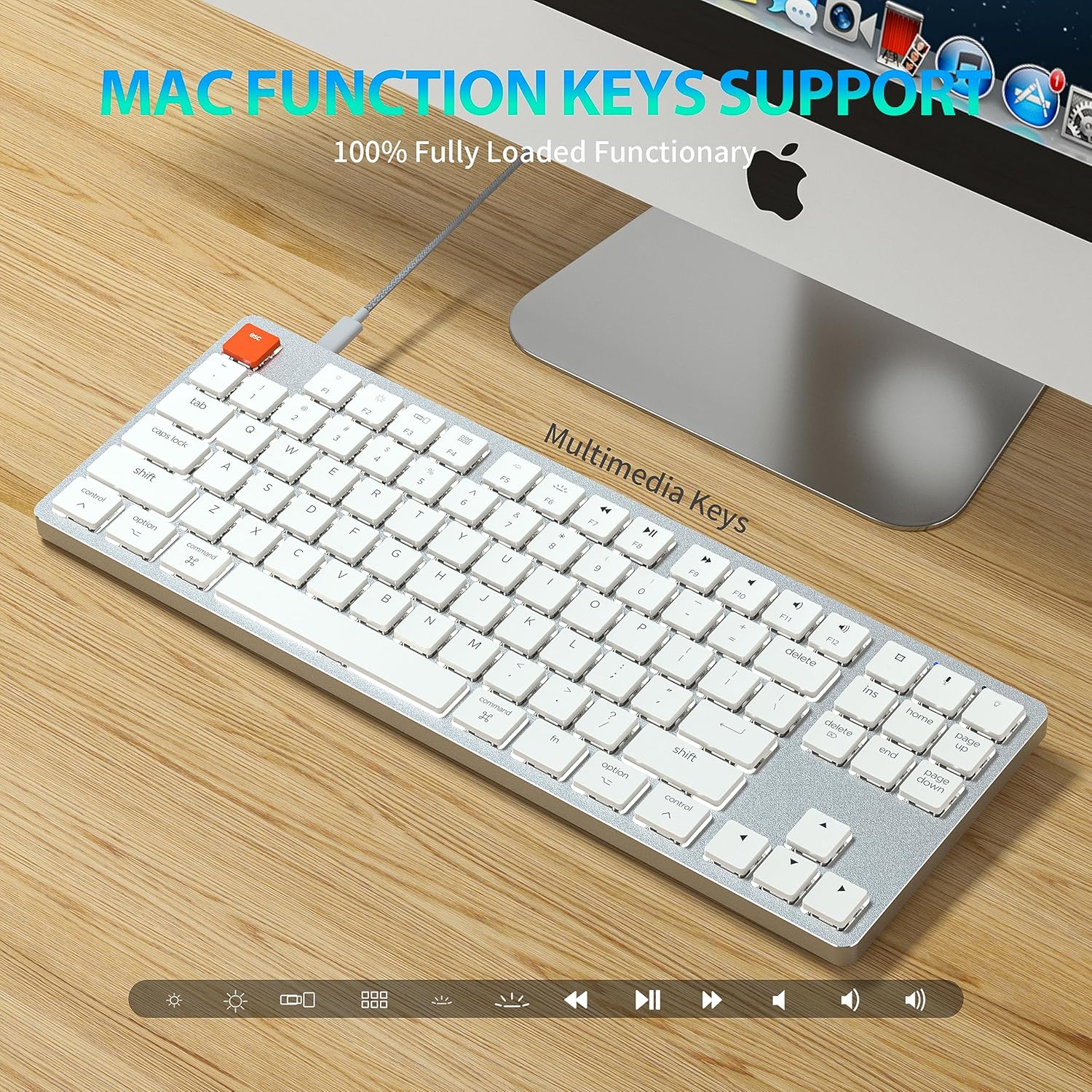
Figure 6: Mac Function Keys Support. This image shows the keyboard in a Mac setup, highlighting the multimedia and function keys (F1-F12) and their compatibility with macOS.
The keyboard supports full functionality for both Windows and Mac operating systems. Use the Fn key in combination with the F-keys for multimedia and system functions:
- Fn+F1ลดความสว่างหน้าจอ
- Fn+F2เพิ่มความสว่างหน้าจอ
- Fn+F3: Mission Control (Mac) / Task View (หน้าต่าง)
- Fn+F4: Launchpad (Mac) / Search (Windows)
- Fn+F5: Backlight mode cycle
- Fn+F6: Backlight color cycle
- Fn+F7: แทร็คก่อนหน้า
- Fn+F8: เล่น/หยุดชั่วคราว
- Fn+F9: แทร็คถัดไป
- Fn+F10: ปิดเสียง
- Fn+F11: ลดเสียงลง
- Fn+F12: ปรับระดับเสียงขึ้น
- Fn + ก: Switch to Mac layout (Command/Option keys)
- Fn + เอส: Switch to Windows layout (Ctrl/Alt keys)
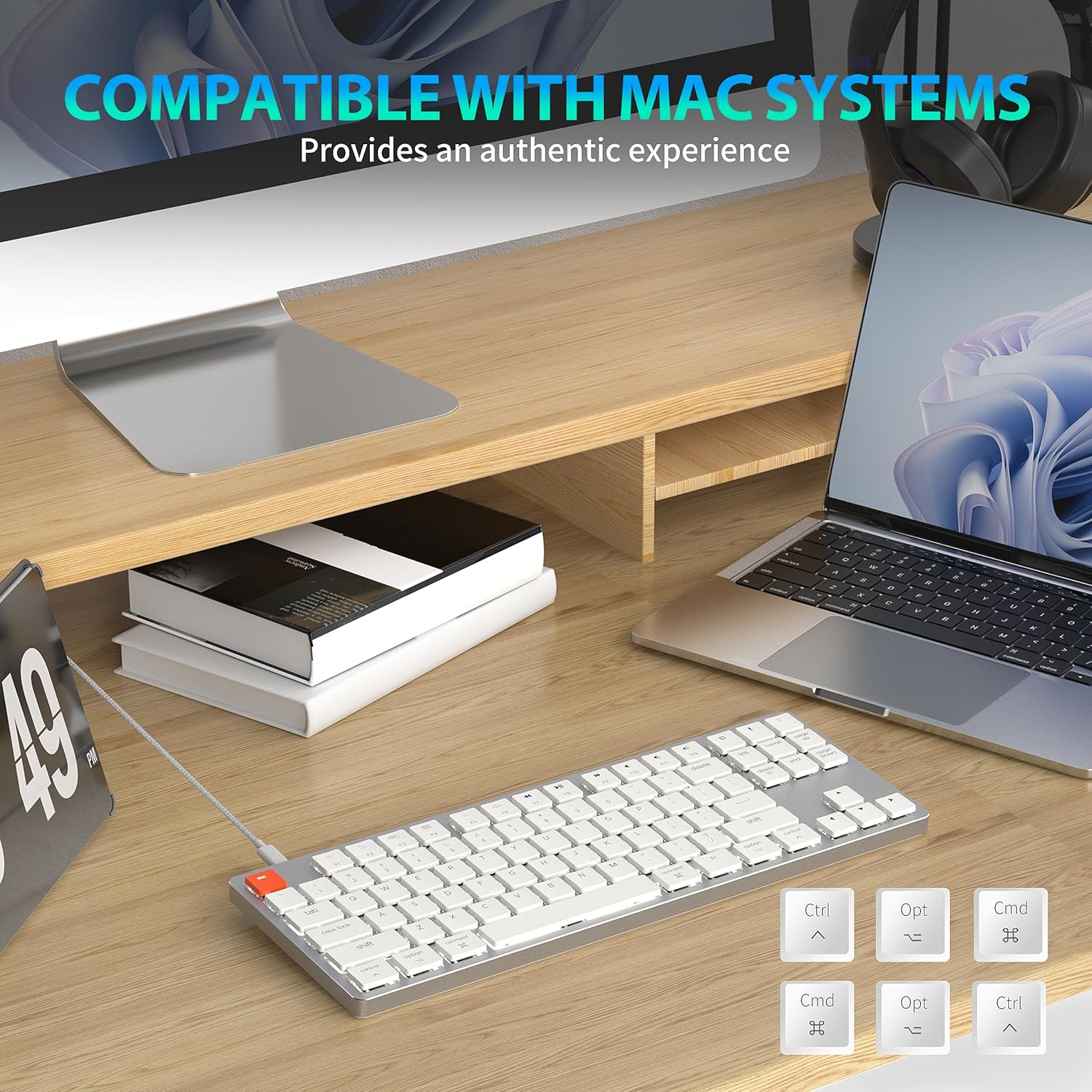
Figure 7: Compatibility with Mac Systems. This image shows the keyboard connected to a Mac setup, with an inset displaying alternative keycaps for Command, Option, and Control, indicating full compatibility and an authentic experience for Mac users.
The keyboard is fully compatible with Mac systems, providing an authentic experience with dedicated Mac function keys and layout options.
การซ่อมบำรุง
- การทำความสะอาด: Use a soft, dry cloth to wipe the keyboard surface. For deeper cleaning, gently remove keycaps and use compressed air to clear debris.
- พื้นที่จัดเก็บ: เก็บแป้นพิมพ์ไว้ในที่แห้งและเย็น หลีกเลี่ยงแสงแดดโดยตรงและอุณหภูมิที่สูงหรือต่ำเกินไป
- การสัมผัสของเหลว: Avoid exposing the keyboard to liquids. In case of spills, immediately disconnect the keyboard and allow it to dry completely before re-connecting.
การแก้ไขปัญหา
แป้นพิมพ์ไม่ตอบสนอง
- โหมดสาย: ตรวจสอบให้แน่ใจว่าสาย USB-C เชื่อมต่อกับทั้งคีย์บอร์ดและคอมพิวเตอร์อย่างแน่นหนา ลองใช้พอร์ต USB หรือสายอื่น
- โหมดไร้สาย:
- ตรวจสอบว่าแป้นพิมพ์เปิดใช้งานอยู่หรือไม่
- ตรวจสอบให้แน่ใจว่าแป้นพิมพ์มีประจุไฟแล้ว
- ตรวจสอบว่าได้เปิดใช้งานบลูทูธบนอุปกรณ์ของคุณแล้ว
- Re-pair the keyboard with your device (see Wireless Connection section).
- Ensure you are on the correct Bluetooth channel (Fn+Q/W/E).
Backlight Not Working/Dim
- เพิ่มความสว่างโดยใช้ Fn + ↑.
- หมุนเวียนผ่านโหมดแบ็คไลท์โดยใช้ Fn + \ |.
- Ensure the keyboard is not in a low-power state. Charge the keyboard if using wireless mode.
Bluetooth Disconnection Issues
- ตรวจสอบให้แน่ใจว่าแป้นพิมพ์อยู่ภายในระยะการใช้งานที่มีประสิทธิภาพของอุปกรณ์ของคุณ
- ลดการรบกวนจากอุปกรณ์ไร้สายอื่น ๆ
- Re-pair the keyboard.
- Update Bluetooth drivers on your device if applicable.
ข้อมูลจำเพาะ
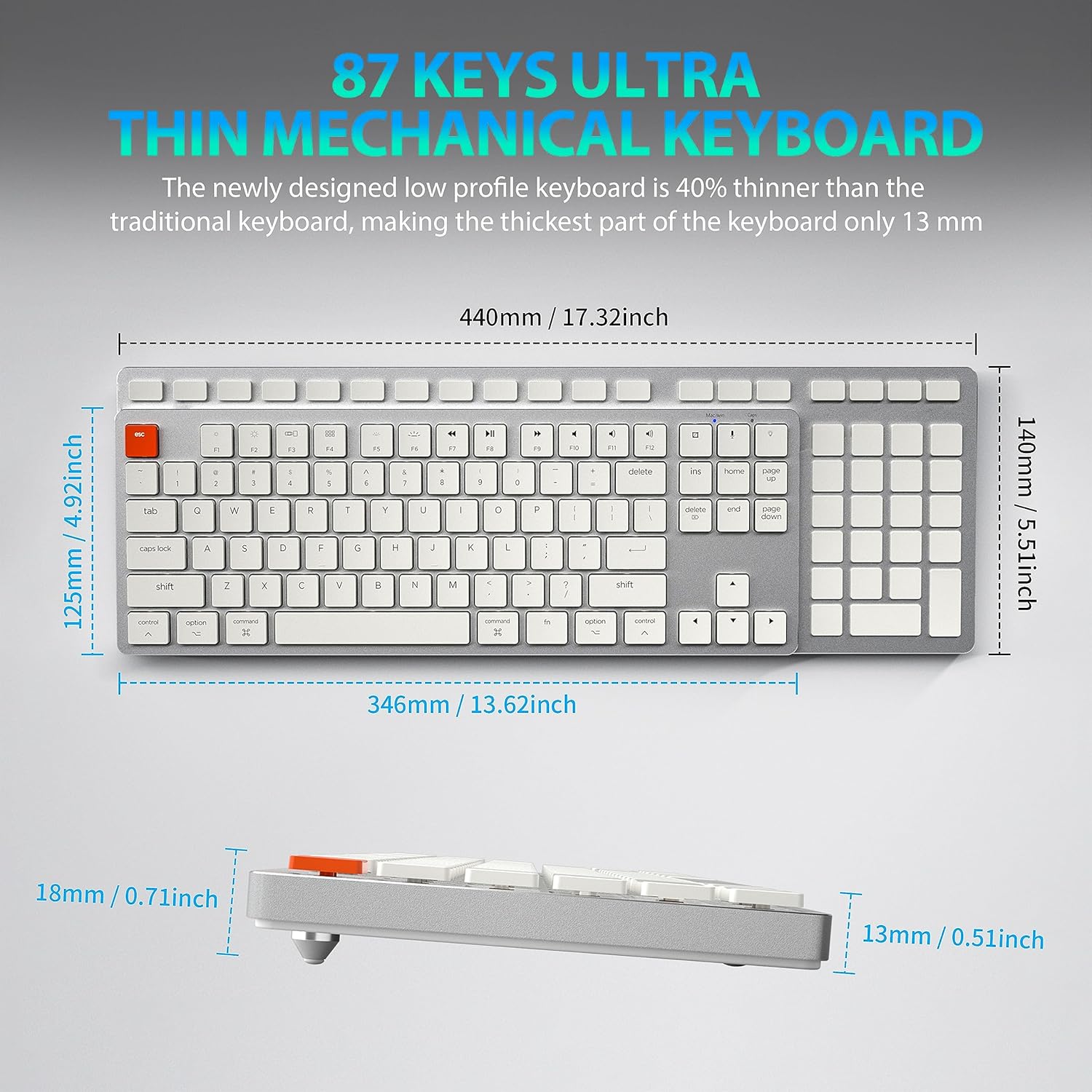
Figure 8: Keyboard Dimensions. This diagram provides precise measurements of the keyboard's length, width, and thickness, illustrating its ultra-thin profile.
| ยี่ห้อ | ไทอาฮิโระ |
| ชื่อรุ่น | 201 |
| เทคโนโลยีการเชื่อมต่อ | Bluetooth, USB-C (Wired) |
| คำอธิบายแป้นพิมพ์ | เครื่องจักรกล |
| จำนวนคีย์ | 87 |
| คุณสมบัติพิเศษ | Ergonomic, N-Key Rollover, Backlit |
| อุปกรณ์ที่รองรับ | PC, Laptop, Pad, Phone (Mac/Windows compatible) |
| น้ำหนักสินค้า | 2.18 ปอนด์ |
| ขนาดแพ็คเกจ | 16.93 x 6.69 x 1.54 นิ้ว |
| ผู้ผลิต | ไทอาฮิโระเทค |
การรับประกันและการสนับสนุน
For warranty information and technical support, please refer to the contact details provided with your product packaging or visit the official Taiahiro webไซต์นี้ โปรดเก็บใบเสร็จรับเงินที่ซื้อไว้เพื่อใช้เรียกร้องการรับประกัน


