1. บทนำ
This manual provides detailed instructions for the setup, operation, maintenance, and troubleshooting of your Xprinter XP-233B Thermal Barcode Printer. The XP-233B is designed for efficient thermal printing of barcodes and labels, utilizing heat-sensitive paper without the need for ink or ribbons.
2. คำแนะนำด้านความปลอดภัย
- Ensure the printer is connected to a power source with the correct voltage as specified on the power adapter.
- อย่าให้เครื่องพิมพ์โดนน้ำหรือความชื้นสูงเกินไป
- ควรหลีกเลี่ยงการวางเครื่องพิมพ์ไว้ในที่ที่มีแสงแดดส่องโดยตรง หรือใกล้แหล่งความร้อน
- ควรเก็บเครื่องพิมพ์ให้ห่างจากฝุ่นและสิ่งสกปรกเพื่อป้องกันความเสียหายต่อชิ้นส่วนภายใน
- อย่าพยายามถอดประกอบหรือซ่อมแซมเครื่องพิมพ์ด้วยตนเอง โปรดติดต่อช่างผู้ชำนาญการเพื่อขอความช่วยเหลือ
- Use only recommended thermal label rolls to ensure optimal print quality and printer longevity.
3. เนื้อหาบรรจุภัณฑ์
ตรวจสอบว่ามีรายการทั้งหมดอยู่ในแพ็คเกจ:
- Xprinter XP-233B Thermal Barcode Printer
- อะแดปเตอร์แปลงไฟ
- สาย USB
- คู่มือเริ่มต้นใช้งานฉบับย่อ (ถ้ามี)
- Driver CD (if included, drivers can also be downloaded online)
4. สินค้าหมดview
Familiarize yourself with the main components of the XP-233B printer.

รูปที่ 4.1: ด้านหน้า view of the Xprinter XP-233B, showing the power switch, control panel, and label output slot.

รูปที่ 4.2: หลัง view of the Xprinter XP-233B, highlighting the USB, Ethernet, and power input ports.
ฟังก์ชั่นแผงควบคุม:
- ปุ่มฟีด: Press to feed a blank label. Hold to perform a self-test print.
- ปุ่มหยุดชั่วคราว: หยุดหรือเริ่มการพิมพ์ใหม่
- ปุ่มยกเลิก: ยกเลิกงานพิมพ์ปัจจุบัน
- ไฟ LED แสดงสถานะ: Display printer status (e.g., Power, Error, Paper Out). Refer to troubleshooting for specific light patterns.
5. การตั้งค่า
5.1 การเชื่อมต่อเครื่องพิมพ์
- Connect the power adapter to the printer's power input port and then plug it into a wall outlet.
- Connect the USB cable from the printer to your computer. For Ethernet connectivity, connect an Ethernet cable from the printer to your network router or switch.
- เปิดเครื่องพิมพ์โดยใช้สวิตช์เปิด/ปิดที่อยู่ด้านข้าง
5.2 การโหลดฉลาก
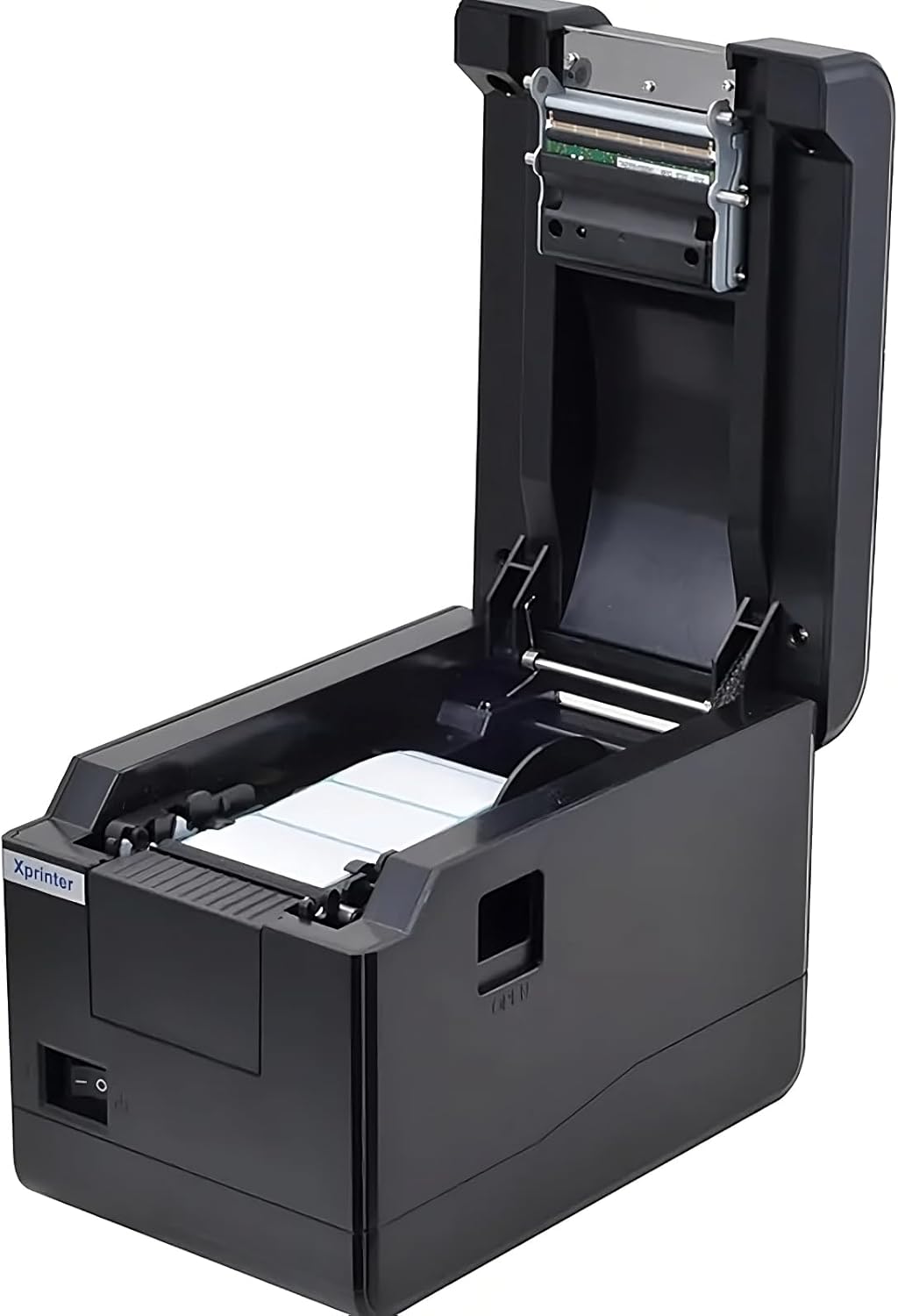
รูปที่ 5.1: จากบนลงล่าง view of the Xprinter XP-233B with the cover open, illustrating the label loading area.
- Press the 'OPEN' button on the side of the printer to open the top cover.
- Place the thermal label roll into the label compartment, ensuring the labels feed from the bottom of the roll and the printable side faces upwards.
- Adjust the movable label guides to fit the width of your label roll snugly, without pinching the labels.
- Pull a few labels past the print head and out through the front slot.
- ปิดฝาครอบด้านบนให้แน่นจนกระทั่งล็อคเข้าที่
- The printer will automatically calibrate and feed a few labels to detect the label gap.
5.3 การติดตั้งไดรเวอร์
Install the printer drivers on your computer. Drivers can typically be found on the included CD or downloaded from the official Xprinter webไซต์ ทำตามคำแนะนำบนหน้าจอเพื่อการติดตั้ง
6. การใช้งานเครื่องพิมพ์
6.1 การพิมพ์ขั้นพื้นฐาน
Once the printer is set up and drivers are installed, you can print labels from your application (e.g., label design software, shipping software). Ensure the correct printer model (Xprinter XP-233B) is selected in your application's print settings.
6.2 การพิมพ์ทดสอบตัวเอง
To perform a self-test print:
- ตรวจสอบให้แน่ใจว่าเครื่องพิมพ์เปิดอยู่และใส่ฉลากเรียบร้อยแล้ว
- กดปุ่มค้างไว้ ให้อาหาร button for approximately 3-5 seconds until the printer starts printing.
- The self-test print will display printer information and a test pattern, confirming basic functionality.
7. การบำรุงรักษา
7.1 การทำความสะอาดหัวพิมพ์
Regular cleaning of the print head ensures optimal print quality and extends the printer's lifespan. Clean the print head when print quality degrades or after every few rolls of labels.
- ปิดเครื่องพิมพ์และถอดสายไฟออก
- เปิดฝาครอบด้านบน
- ค่อยๆ เช็ดทำความสะอาดพื้นผิวหัวพิมพ์ด้วยสำลีพันก้านเบาๆampened with isopropyl alcohol (70% or higher).
- Allow the print head to dry completely (approximately 2-3 minutes) before closing the cover and turning on the printer.
7.2 การทำความสะอาดภายนอก
เช็ดภายนอกเครื่องพิมพ์ด้วยผ้านุ่มๆamp ผ้า. อย่าใช้สารเคมีที่รุนแรงหรือน้ำยาทำความสะอาดที่มีฤทธิ์กัดกร่อน
8 การแก้ไขปัญหา
| ปัญหา | สาเหตุที่เป็นไปได้ | สารละลาย |
|---|---|---|
| เครื่องพิมพ์ไม่เปิดเครื่อง | Power cord loose; power outlet faulty; power adapter damaged. | Check power connections; try a different outlet; replace power adapter if necessary. |
| No labels feeding | Labels incorrectly loaded; paper out; label guides too tight. | Reload labels correctly; replace label roll; adjust label guides. |
| คุณภาพการพิมพ์ไม่ดี (สีซีดจาง มีเส้น) | Print head dirty; low-quality labels; print head damaged. | Clean print head (refer to Section 7.1); use recommended thermal labels; contact support if print head is damaged. |
| Printer not responding to print commands | Incorrect driver installed; USB/Ethernet cable loose; printer paused. | Reinstall drivers; check cable connections; press หยุดชั่วคราว ปุ่มเพื่อดำเนินการต่อ |
| Labels skipping or misaligning | Incorrect label sensor calibration; label guides not set correctly. | Perform a self-test print to recalibrate; adjust label guides. |
9. ข้อมูลจำเพาะ
| คุณสมบัติ | ข้อมูลจำเพาะ |
|---|---|
| ชื่อรุ่น | Xprinter - Thermal barcode printer |
| หมายเลขรุ่นสินค้า | เอ็กซ์พี-233บี |
| เทคโนโลยีเครื่องพิมพ์ | เทอร์มอล |
| เทคโนโลยีการเชื่อมต่อ | อีเทอร์เน็ต, ยูเอสบี |
| เอาท์พุตเครื่องพิมพ์ | เอกรงค์ |
| สื่อสิ่งพิมพ์ | ฉลาก |
| ความจุแผ่นสูงสุด | 100 (typical for roll capacity, actual sheet capacity depends on label size) |
| ขนาดสินค้า (ลึก x กว้าง x สูง) | 26.8 x 18 x 17.2 ซม. |
| น้ำหนักสินค้า | 1.2 กก. |
| สี | สีดำ |
10. ข้อมูลการรับประกัน
Xprinter products typically come with a limited manufacturer's warranty. Please refer to the warranty card included with your product or visit the official Xprinter website for specific warranty terms and conditions, including coverage duration and service procedures. Keep your purchase receipt as proof of purchase for warranty claims.
11. การสนับสนุนลูกค้า
For technical assistance, driver downloads, or further inquiries regarding your Xprinter XP-233B, please visit the official Xprinter support website or contact their customer service department. Contact information can usually be found on the Xprinter webตรวจสอบได้จากเว็บไซต์หรือเอกสารประกอบที่มาพร้อมกับเครื่องพิมพ์ของคุณ


