1. บทนำ
This manual provides instructions for the UGREEN USB-C to HDMI Cable, Model 25155. This cable allows you to connect a USB-C enabled device to an HDMI display, such as a monitor, projector, or TV, to transmit video and audio signals. It supports resolutions up to 4K at 60Hz and is designed for plug-and-play functionality without requiring additional drivers.

Image 1.1: The UGREEN USB-C to HDMI Cable, featuring a USB-C connector on one end and an HDMI connector on the other, with a braided cable for durability.
2. คุณสมบัติของผลิตภัณฑ์
- ปลั๊กแอนด์เพลย์: Connects USB-C devices to HDMI displays without driver installation.
- ความละเอียดสูง: Supports resolutions up to 4K@60Hz and 3D technology, backward compatible with 1080P@144Hz and 720P.
- ความเข้ากันได้กว้าง: Compatible with various USB-C devices supporting DisplayPort Alternate Mode (DP Alt Mode) or Thunderbolt 3/4, including specific models of iPhone, MacBook, iPad, Galaxy, Surface, Huawei, and Dell XPS.
- สัญญาณเสถียร: Constructed with three layers of shielding and tinned copper wire for reliable signal transmission.
- การออกแบบที่ทนทาน: Features a braided nylon jacket and aluminum housing for enhanced durability, heat resistance, and corrosion resistance. 24K gold-plated connectors ensure a secure and stable connection.

Image 2.1: Diagram illustrating the multi-layered construction of the cable, including nylon braiding, an isolation layer, an anti-corrosion layer, and high-purity oxygen-free copper wires, designed for stable signal transmission and durability.
3. คำแนะนำในการตั้งค่า
The UGREEN USB-C to HDMI Cable is designed for simple plug-and-play operation. Follow these steps to connect your device to an external display:
- เชื่อมต่อ USB-C: Insert the USB-C connector of the cable into the USB-C port of your source device (e.g., laptop, tablet, smartphone). Ensure your device's USB-C port supports video output (DisplayPort Alternate Mode or Thunderbolt 3/4).
- เชื่อมต่อ HDMI: Insert the HDMI connector of the cable into an available HDMI input port on your display device (e.g., monitor, TV, projector).
- เลือกอินพุต: On your display device, select the corresponding HDMI input source using the display's remote control or on-screen menu.
- การกำหนดค่าการแสดงผล: Your device should automatically detect the external display. You may need to adjust display settings (e.g., mirror mode, extended mode, resolution) in your device's operating system settings.

Image 3.1: A smartphone connected to a large television screen using the UGREEN USB-C to HDMI cable, demonstrating a typical setup for viewing content on a larger display.
4. โหมดการทำงาน
The cable supports various display modes depending on your source device's capabilities:
- โหมดมิเรอร์: Duplicates your device's screen onto the external display. This is useful for presentations or sharing content.
- โหมดขยาย: Extends your device's desktop across multiple screens, allowing for increased workspace.
- โหมดฝาพับ: For laptops, this mode allows you to close the laptop lid while still using an external monitor, keyboard, and mouse.
- DeX Mode (for compatible Samsung Galaxy devices): Transforms your smartphone into a desktop-like experience when connected to an external display.

Image 4.1: A laptop connected to a large television, illustrating both 'Extended Mode' where the display is expanded, and 'Mirror Mode' where the laptop screen is duplicated on the TV.

Image 4.2: A closed laptop (in clamshell mode) connected to an external monitor, demonstrating how the cable facilitates a desktop setup with the laptop lid closed.
5. ความเข้ากันได้
This cable is compatible with USB-C devices that support DisplayPort Alternate Mode (DP Alt Mode) or Thunderbolt 3/4. It is essential to verify your device's USB-C port functionality for video output.
5.1. อุปกรณ์ที่รองรับ
- โทรศัพท์มือถือ: iPhone 15 series (15, 15 Pro, 15 Pro Max), Galaxy S25 Ultra/S24 Ultra, Pixel 9 Pro/8 Pro, Galaxy Fold series, Huawei P60 Pro (and devices supporting Galaxy DeX Mode).
- โน๊ตบุ๊ค: MacBook Pro (2016-2024), MacBook Air (2018-2024), MacBook (2015-2017), Surface Book 2/3, Dell XPS Series.
- แท็บเล็ต: iPad Pro/Air 13 & 11 (2024), iPad Mini 6/7, Galaxy Tab S10/S9/S8/S7/S6, Surface Pro 9.
5.2. Incompatible Devices/Ports
The cable is not compatible with devices or ports that do not support video output via USB-C. This includes:
- Redmi phones, Galaxy Tab/Phone A series, Galaxy Flip series, iPhone 14 and earlier models, iPad with Lightning Port.
- Gaming consoles like PlayStation, Xbox, NS Switch.
- Kindle devices, Cameras, TV Sticks.
- USB Type-A ports or standard DisplayPort (without USB-C adapter).
- USB-C ports that are for data transfer only or charging only, without DisplayPort Alternate Mode support.

Image 5.1: A detailed chart showing both compatible devices (mobile phones, laptops, tablets) and incompatible devices (older iPhones, specific Android models, gaming consoles, etc.) for the USB-C to HDMI cable.

Image 5.2: A diagram illustrating different types of USB-C ports and their capabilities, distinguishing between ports that support Thunderbolt/DP Alt Mode (for video output) and those that are for data transfer or charging only, highlighting compatible and incompatible port types.
6. ข้อมูลจำเพาะ
| คุณสมบัติ | รายละเอียด |
|---|---|
| ยี่ห้อ | ยูกรีน |
| หมายเลขรุ่น | 25155 |
| ประเภทขั้วต่อ | USB-C (Male) to HDMI (Male) |
| ความละเอียดสูงสุด | 4K@60Hz |
| ความเร็วในการถ่ายโอนข้อมูล | 18 กิกะบิตต่อวินาที |
| วัสดุของสายเคเบิล | Braided Nylon, Aluminum Housing |
| วัสดุเชื่อมต่อ | ชุบทอง 24K |
| คุณสมบัติพิเศษ | Tangle-free, Durable, Stable Signal |
| ขนาดสินค้า | 100 x 12 x 1.7 cm (Length: 1m) |
| น้ำหนัก | 70 กรัม |
7. การบำรุงรักษา
To ensure the longevity and optimal performance of your UGREEN USB-C to HDMI Cable, follow these maintenance guidelines:
- จัดการด้วยความระมัดระวัง: Avoid excessive bending, twisting, or pulling of the cable, especially near the connectors.
- ทำความสะอาดตัวเชื่อมต่อ: Periodically inspect the connectors for dust or debris. Use a soft, dry cloth or compressed air to gently clean them if necessary.
- พื้นที่จัดเก็บ: When not in use, store the cable in a cool, dry place, away from direct sunlight and extreme temperatures. Avoid tightly coiling the cable.
- หลีกเลี่ยงของเหลว: Do not expose the cable to water or other liquids. If it gets wet, disconnect it immediately and allow it to dry completely before reuse.
8 การแก้ไขปัญหา
If you encounter issues while using the UGREEN USB-C to HDMI Cable, refer to the following troubleshooting tips:
8.1. No Signal or Flickering Display
- ตรวจสอบการเชื่อมต่อ: Ensure both the USB-C and HDMI connectors are fully and securely plugged into their respective ports.
- ตรวจสอบความเข้ากันได้: Confirm that your source device's USB-C port supports DisplayPort Alternate Mode (DP Alt Mode) or Thunderbolt 3/4 for video output. Refer to your device's manual or manufacturer's specifications.
- เลือกอินพุตที่ถูกต้อง: On your display, make sure the correct HDMI input source is selected.
- Test with Another Device/Cable: If possible, test the cable with a different compatible source device or display, or try a different HDMI cable with your current setup to isolate the problem.
- รีสตาร์ทอุปกรณ์: Disconnect the cable, restart both your source device and display, then reconnect the cable.
8.2. Incorrect Resolution or Aspect Ratio
- ปรับการตั้งค่าการแสดงผล: Access your source device's display settings (e.g., Windows Display Settings, macOS System Settings > Displays) and manually set the desired resolution and refresh rate.
- อัปเดตไดรเวอร์: โปรดตรวจสอบให้แน่ใจว่าไดรเวอร์การ์ดจอของอุปกรณ์ของคุณเป็นเวอร์ชันล่าสุด
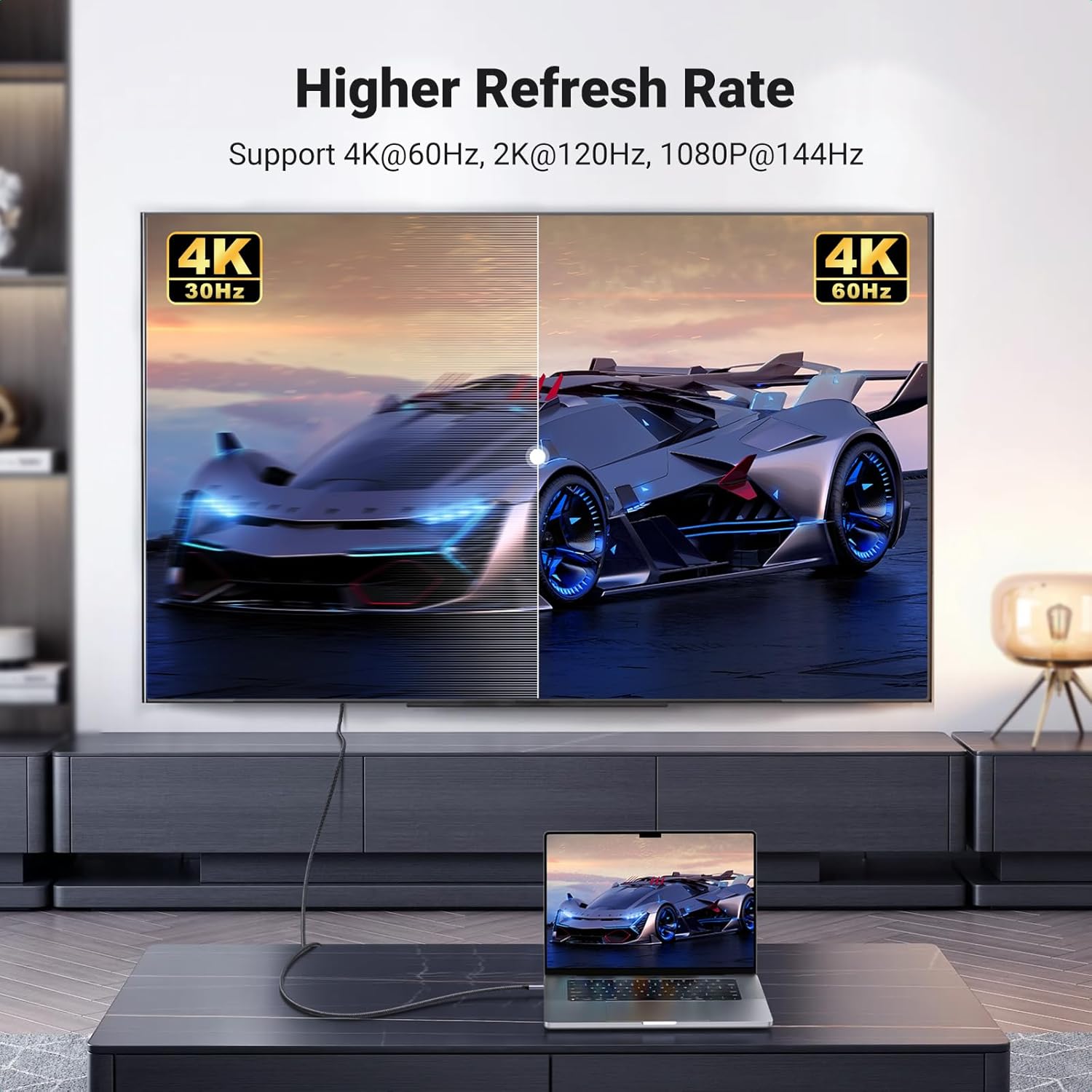
Image 8.1: A visual comparison demonstrating the difference between 4K@30Hz and 4K@60Hz refresh rates on a television screen, highlighting the smoother motion provided by the higher refresh rate supported by the cable.
9. การรับประกันและการสนับสนุน
สำหรับข้อมูลการรับประกันหรือการสนับสนุนทางเทคนิค โปรดดูที่เว็บไซต์อย่างเป็นทางการของ UGREEN webเยี่ยมชมเว็บไซต์หรือติดต่อฝ่ายบริการลูกค้าของ UGREEN โดยตรง เก็บใบเสร็จรับเงินไว้เพื่อใช้ในการเคลมประกัน


