การแนะนำ
This manual provides detailed instructions for the setup, operation, maintenance, and troubleshooting of your TECPHILE B102D Bluetooth Wireless Keyboard with Multi-Touch Trackpad. Please read this manual thoroughly before using the product to ensure optimal performance and longevity.

Image: The TECPHILE B102D Bluetooth Wireless Keyboard, showcasing its compact design and backlit keys.
เนื้อหาแพ็คเกจ
ตรวจสอบว่ามีรายการทั้งหมดอยู่ในแพ็คเกจ:
- 1x TECPHILE B102D Bluetooth Wireless Keyboard
- สายชาร์จ USB 1x
- 1x คู่มือผู้ใช้ (เอกสารนี้)
การตั้งค่า
1. การชาร์จคีย์บอร์ด
Before initial use, fully charge the keyboard. Connect the provided USB charging cable to the keyboard's USB-C port and the other end to a 5V 1A power adapter (not included) or a computer's USB port. The charging indicator light will illuminate during charging and turn off when fully charged.
Disclaimer: Kindly use the device with a 5V 1A power adapter only. This will improve the lifespan of your gear and its batteries.

Image: Close-up of the keyboard's USB-C charging port, indicating its location for power connection.
2. Pairing with Devices (Multi-Device Connectivity)
The TECPHILE B102D keyboard can connect to up to three devices simultaneously via Bluetooth.
- เปิดใช้งานโหมดจับคู่: Turn on the keyboard. Press and hold the Fn key along with either Q, W, หรือ E for 3-5 seconds until the Bluetooth indicator light flashes. This indicates the keyboard is in pairing mode for the selected device slot.
- เปิดใช้งานบลูทูธบนอุปกรณ์ของคุณ: บนคอมพิวเตอร์ แท็บเล็ต หรือสมาร์ทโฟนของคุณ ให้ไปที่การตั้งค่าบลูทูธ แล้วเปิดใช้งานบลูทูธ
- เลือกแป้นพิมพ์: Look for "TECPHILE B102D" or a similar name in the list of available Bluetooth devices and select it to connect.
- ยืนยันการเชื่อมต่อ: Once connected, the Bluetooth indicator light on the keyboard will stop flashing and remain solid for a moment, then turn off.
- Repeat for Additional Devices: To pair with a second or third device, repeat steps 1-3, using a different Fn + Q/W/E combination for each new device.

Image: Visual guide demonstrating how to pair the keyboard with multiple devices using Fn+Q/W/E keys.
3. ความเข้ากันได้
The TECPHILE B102D keyboard is widely compatible with various operating systems and devices, including:
- Windows (2000 and later)
- แมคโอเอส
- ระบบปฏิบัติการ iOS (iPad, iPhone)
- ไอแพดโอเอส
- แอนดรอยด์
- โครมโอเอส

Image: Illustration showing the keyboard's compatibility with various operating systems and device types.
คำแนะนำการใช้งาน
1. การพิมพ์ขั้นพื้นฐาน
แป้นพิมพ์มีรูปแบบมาตรฐาน QWERTY คุณสามารถพิมพ์ได้เหมือนกับแป้นพิมพ์อื่นๆ ทั่วไป
2. แทร็กแพดมัลติทัช
The integrated trackpad supports various gestures for navigation and control:
- แตะนิ้วเดียว: คลิกซ้าย.
- แตะด้วยสองนิ้ว: คลิกขวา.
- การเลื่อนด้วยสองนิ้ว: เลื่อนขึ้น/ลง หรือ ซ้าย/ขวา
- Additional gestures may be supported depending on your operating system.

Image: Diagram illustrating the left and right click functionality of the large trackpad.
3. การควบคุมแบ็คไลท์
The keyboard features 7-color backlighting with adjustable brightness.
- เปลี่ยนสี: กดปุ่ม อาร์จีบี key (often combined with the light bulb icon) to cycle through the 7 available colors.
- ปรับความสว่าง: Use the dedicated brightness keys (often combined with the light bulb icon and up/down arrows) to increase or decrease backlight intensity.
- เปิด/ปิด: Press the backlight key to toggle the backlight on or off.
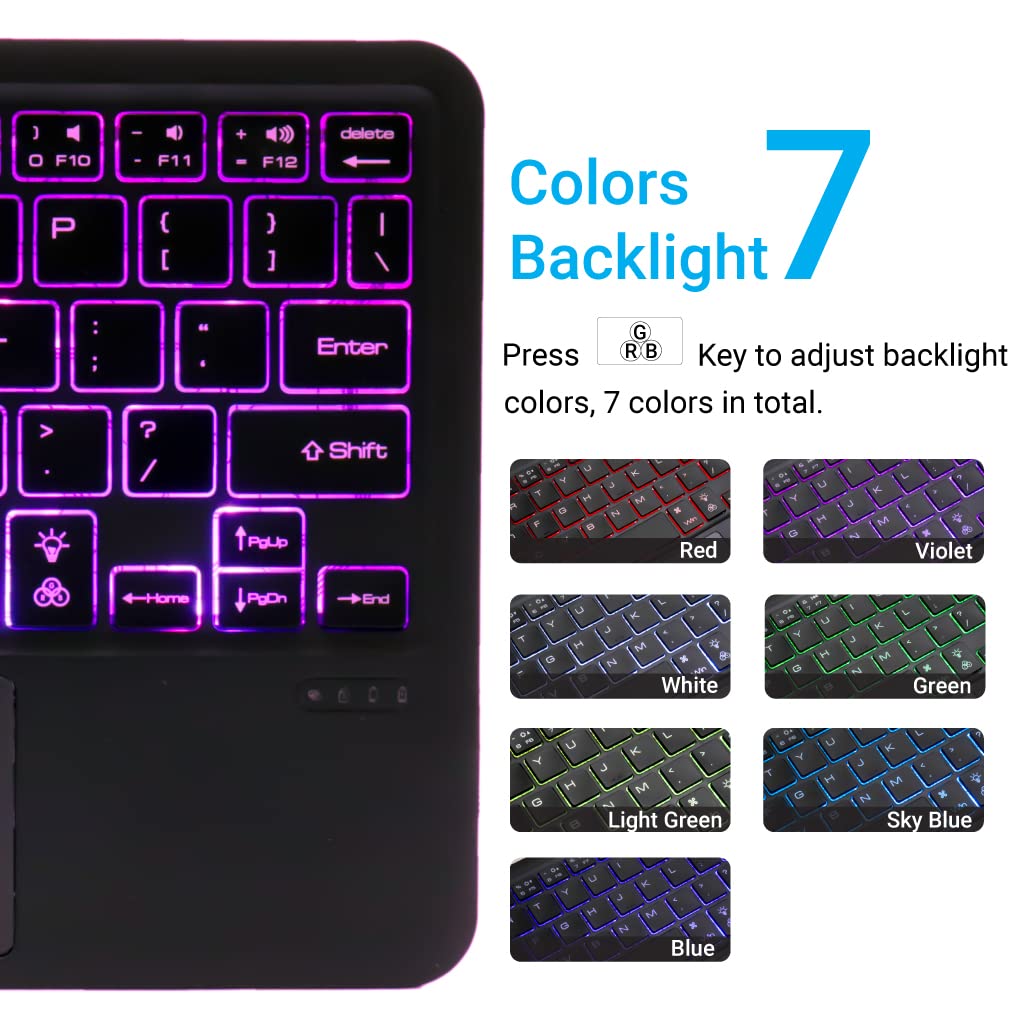
Image: Display of the 7 different backlight colors available on the keyboard.
4. การสลับระหว่างอุปกรณ์ที่เชื่อมต่อ
To switch between the three paired devices, simply short press the Fn กุญแจพร้อมกับกุญแจอุปกรณ์ที่เกี่ยวข้อง (Q, W, หรือ E).
- กด เอฟเอ็น+คิว เพื่อสลับไปใช้อุปกรณ์ที่ 1
- กด Fn + ว เพื่อสลับไปใช้อุปกรณ์ที่ 2
- กด Fn + อี เพื่อสลับไปใช้อุปกรณ์ที่ 3

Image: Visual guide for connecting and seamlessly switching between multiple paired devices.
5. ปุ่มฟังก์ชัน
The keyboard includes a full set of function and media keys. These keys often require pressing the Fn key simultaneously with the desired function key to activate their secondary functions (e.g., volume control, media playback).
การซ่อมบำรุง
1. การทำความสะอาด
ในการทำความสะอาดแป้นพิมพ์ ให้เช็ดพื้นผิวเบาๆ ด้วยผ้าเนื้อนุ่มและแห้งamp, lint-free cloth. Avoid using harsh chemicals, abrasive cleaners, or excessive moisture, as these can damage the keyboard's finish or internal components.
2. การดูแลแบตเตอรี่
- Always use a 5V 1A power adapter for charging to prevent battery damage and ensure optimal lifespan.
- หลีกเลี่ยงการปล่อยแบตเตอรี่จนหมดบ่อยครั้ง
- หากจะเก็บคีย์บอร์ดไว้เป็นเวลานาน ควรชาร์จแบตเตอรี่ให้เหลือประมาณ 50% แล้วเก็บไว้ในที่แห้งและเย็น
3. การจัดเก็บ
Store the keyboard in a dry environment, away from extreme temperatures, direct sunlight, and humidity. When not in use, it is recommended to turn off the keyboard to conserve battery life.
การแก้ไขปัญหา
| ปัญหา | สาเหตุที่เป็นไปได้ | สารละลาย |
|---|---|---|
| แป้นพิมพ์ไม่เปิดใช้งาน | แบตเตอรี่อ่อน | Charge the keyboard using the provided USB-C cable and a 5V 1A power adapter. |
| ไม่สามารถเชื่อมต่อผ่านบลูทูธได้ | Keyboard not in pairing mode; Bluetooth off on device; device already connected to 3 keyboards. | Ensure keyboard is in pairing mode (Fn + Q/W/E for 3-5s). Check device's Bluetooth settings. Forget previous connections if necessary. |
| Trackpad not responding. | Software issue; trackpad disabled. | Restart the keyboard and the connected device. Ensure trackpad is not accidentally disabled (check function keys). |
| ไฟแบ็คไลท์ไม่ทำงาน | ไฟแบ็คไลท์ดับลง เนื่องจากแบตเตอรี่เหลือน้อย | Press the backlight key to turn it on. Charge the keyboard. |
| คีย์ไม่ตอบสนองหรือล่าช้า | Low battery; interference; distance from device. | Charge the keyboard. Move closer to the connected device. Reduce potential wireless interference. |
ข้อมูลจำเพาะ
- ยี่ห้อ: เทคฟิล
- แบบอย่าง: B102D
- การเชื่อมต่อ: บลูทูธ
- รูปแบบแป้นพิมพ์: คีย์บอร์ด QWERTY
- คุณสมบัติพิเศษ: Multi-Touch Trackpad, 7-Color Backlit, Multi-Device Connectivity (up to 3), USB-C Rechargeable
- แบตเตอรี่: ลิเธียมไออน 1x (รวมอยู่ด้วย)
- ขนาดสินค้า : 25 x 1 x 15 ซม. (กว้าง x ยาว x สูง)
- น้ำหนักสินค้า: 300 กรัม
- วัสดุ: พลาสติก
- ระบบปฏิบัติการที่รองรับ: Windows, macOS, iOS, iPadOS, Android, ChromeOS

Image: Diagram showing the ultra-slim profile and dimensions of the keyboard (24.7 cm x 15 cm x 0.5 cm).
การรับประกันและการสนับสนุน
TECPHILE products are designed for reliability and performance. For warranty information, please refer to the warranty card included with your purchase or visit the official TECPHILE website. For technical support or further assistance, please contact TECPHILE customer service through the contact details provided on the product packaging or the official webเว็บไซต์.
