1. สินค้าหมดview
The CUPEISI Android 15 Tablet YQ10S MAX is a versatile 10-inch device designed for both productivity and entertainment. Running on the latest Android 15.0 system with Google GMS certification, it offers a smooth and secure user experience. This 2-in-1 tablet comes equipped with a powerful quad-core processor, ample memory, and a high-definition IPS screen, making it ideal for various tasks from gaming and multimedia consumption to work and study.

Figure 1.1: CUPEISI Android 15 Tablet with included accessories.
คุณสมบัติหลัก:
- ระบบปฏิบัติการ: Android 15.0 with Google GMS certification for enhanced security and performance.
- หน่วยความจำและการจัดเก็บ: 18GB RAM (6GB + 12GB expansion) and 128GB ROM, expandable up to 2TB via microSD card (not included).
- โปรเซสเซอร์: New generation ultra-high performance and low power consumption 2.0GHz Quad-core CPU.
- แสดง: 10.1-inch IPS HD screen with 1280x800 resolution, featuring a sensitive touchscreen and a comfortable "reading mode".
- กล้องถ่ายรูป: 8MP rear camera and 2MP front camera for capturing moments and video calls.
- การเชื่อมต่อ: Supports 2.4G/5G Wi-Fi 6.0 and Bluetooth 5.0 for stable and fast wireless connections.
- แบตเตอรี่: 6000mAh battery providing up to 10 hours of usage on a single charge.
- ฟังก์ชั่น 2-in-1: Transforms into a laptop-style device with the included Bluetooth keyboard, wireless mouse, and stylus.
2. อะไรอยู่ในกล่อง
กรุณาตรวจสอบเนื้อหาในแพ็คเกจของคุณเพื่อให้แน่ใจว่ามีสินค้าครบทั้งหมด:
- CUPEISI Android 15 Tablet (YQ10S MAX)
- คีย์บอร์ดไร้สาย
- เมาส์บลูทู ธ
- Foldable Protective Cover
- ปากกาสไตลัส
- สายเคเบิล Type-C

รูปที่ 2.1: ส่วนประกอบทั้งหมดที่รวมอยู่ในแพ็คเกจ
3. คู่มือการติดตั้ง
3.1 การชาร์จเริ่มต้น
- Connect the provided Type-C cable to the tablet's charging port.
- ต่อปลายอีกด้านของสายเคเบิลเข้ากับอะแดปเตอร์แปลงไฟ USB ที่ใช้งานร่วมกันได้ (ไม่ได้รวมอยู่ในชุด) แล้วเสียบเข้ากับเต้ารับไฟฟ้า
- โปรดปล่อยให้แท็บเล็ตชาร์จจนเต็มก่อนใช้งานครั้งแรก ตัวแสดงสถานะแบตเตอรี่บนหน้าจอจะแสดงสถานะการชาร์จ
3.2 การเปิด/ปิดเครื่อง
- การเปิดเครื่อง: Press and hold the Power button on the side of the tablet until the screen lights up.
- วิธีปิดเครื่อง: กดปุ่มเปิด/ปิดค้างไว้จนกว่าเมนูปิดเครื่องจะปรากฏขึ้น เลือก "ปิดเครื่อง" เพื่อปิดเครื่อง
- ในการรีสตาร์ท: จากเมนูปิดเครื่อง ให้เลือก "รีสตาร์ท"
3.3 การเชื่อมต่ออุปกรณ์เสริม
The tablet comes with a Bluetooth keyboard, wireless mouse, and stylus for enhanced usability.

Figure 3.1: Tablet used with various accessories.
Connecting the Bluetooth Keyboard:
- เปิดใช้งานคีย์บอร์ดโดยใช้สวิตช์เปิด/ปิด
- Press the "Connect" button on the keyboard to enter pairing mode (indicator light will blink).
- บนแท็บเล็ตของคุณ ให้ไปที่ การตั้งค่า > อุปกรณ์ที่เชื่อมต่อ > บลูทูธ.
- โปรดตรวจสอบให้แน่ใจว่าได้เปิดใช้งานบลูทูธแล้ว แท็บเล็ตจะค้นหาอุปกรณ์ที่ใช้งานได้
- Select the keyboard from the list (e.g., "Bluetooth Keyboard") and follow any on-screen prompts to complete pairing.
Connecting the Wireless Mouse:
- Insert the necessary batteries into the wireless mouse (refer to mouse instructions for battery type and insertion).
- Locate the USB receiver for the mouse, usually found in a compartment on the mouse itself.
- Plug the USB receiver into the tablet's USB-C port using an appropriate adapter if necessary (adapter not included).
- The tablet should automatically detect and connect to the mouse.
การใช้สไตลัส:
The stylus does not require pairing. Simply use it to navigate the touchscreen, draw, or write as you would with your finger.
4. คู่มือการใช้งาน
4.1 การนำทางพื้นฐาน
- สัมผัส: แตะไอคอนเพื่อเปิดแอปหรือเลือกรายการ
- ปัด: ลากนิ้วของคุณไปตามหน้าจอเพื่อเลื่อนดูหน้าหรือเนื้อหา
- บีบเพื่อซูม: วางนิ้วสองนิ้วบนหน้าจอ แล้วแยกนิ้วออกจากกันเพื่อซูมเข้า หรือบีบนิ้วเข้าหากันเพื่อซูมออก
- หน้าจอหลัก: แตะปุ่มโฮม (โดยปกติจะเป็นไอคอนวงกลมหรือรูปบ้าน) เพื่อกลับไปยังหน้าจอหลัก
- กลับ: Tap the Back button (usually a triangle or arrow icon) to return to the previous screen.
- แอปล่าสุด: แตะปุ่มแอปล่าสุด (ปกติจะเป็นไอคอนสี่เหลี่ยม) เพื่อ view และสลับระหว่างแอปพลิเคชันที่ใช้ล่าสุด
4.2 การเชื่อมต่อ Wi-Fi
The tablet supports both 2.4GHz and 5GHz Wi-Fi 6 for fast and stable internet access.

Figure 4.1: Tablet showing Wi-Fi connection capabilities.
- ไปที่ การตั้งค่า > เครือข่ายและอินเตอร์เน็ต > ไวไฟ.
- Toggle the Wi-Fi switch to the "On" position.
- เลือกเครือข่าย Wi-Fi ที่คุณต้องการจากรายการเครือข่ายที่มีอยู่
- หากระบบถาม ให้ป้อนรหัสผ่านเครือข่ายแล้วแตะ "เชื่อมต่อ"
4.3 การเล่นมัลติมีเดีย
Enjoy high-definition multimedia content with Widevine L1 support, ensuring a premium viewing experience for streaming services like Netflix and YouTube.
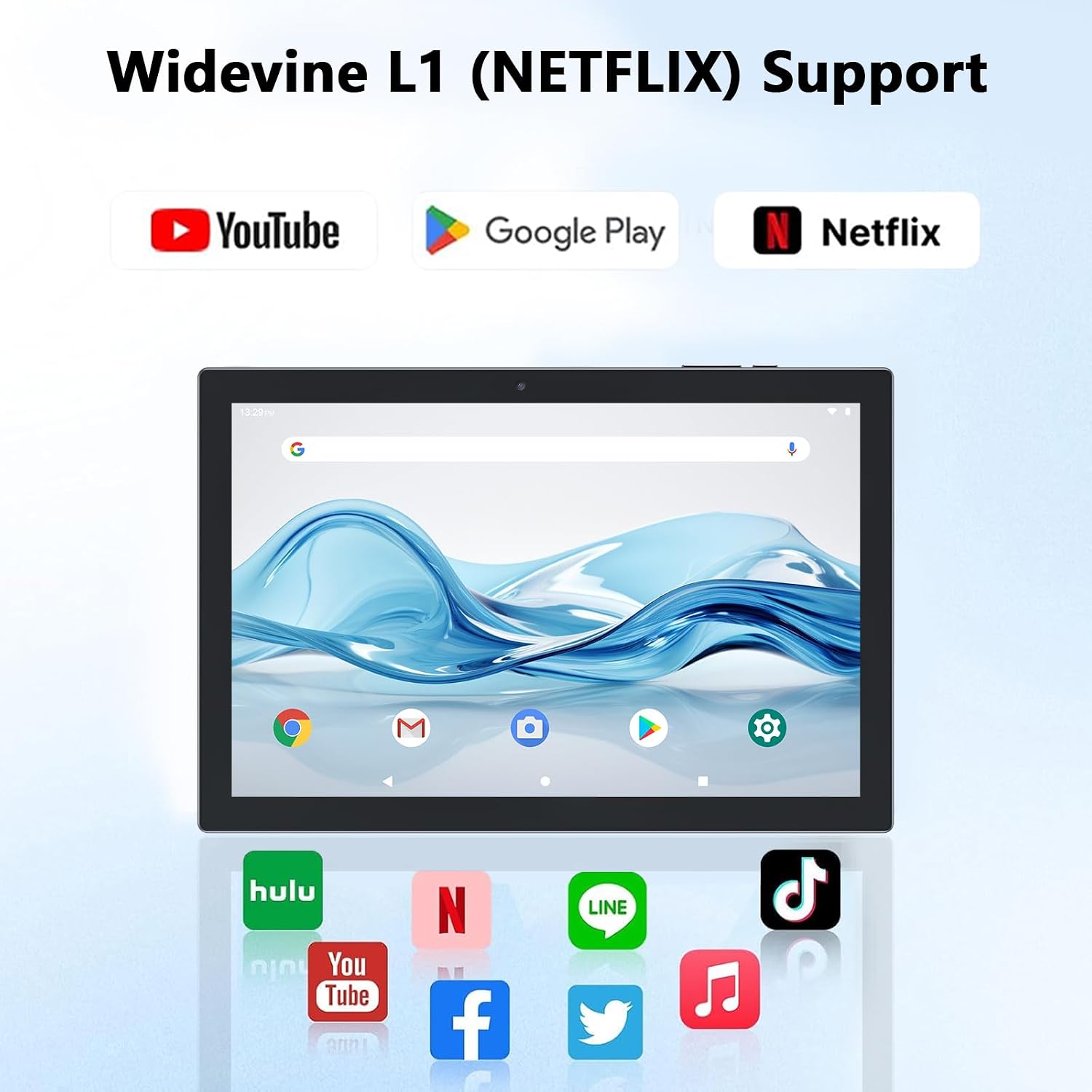
Figure 4.2: Widevine L1 support for popular streaming platforms.
The tablet's IPS HD screen provides vibrant colors and advanced visual effects. Utilize the pre-installed media players or download your preferred streaming apps from the Google Play Store.
วิดีโอ 4.1: จบแล้วview of the YQ10SMAX Android 15 tablet's features and performance, demonstrating its capabilities for daily use and entertainment.
4.4 การใช้กล้อง
แท็บเล็ตมีกล้องด้านหลัง 8MP และกล้องด้านหน้า 2MP

Figure 4.3: Dual cameras for photos and video calls.
- Open the "Camera" application from the home screen or app drawer.
- แตะไอคอนกล้องเพื่อสลับระหว่างกล้องหน้าและกล้องหลัง
- แตะปุ่มชัตเตอร์เพื่อถ่ายภาพหรือเริ่ม/หยุดการบันทึกวิดีโอ
4.5 Storage and Expansion
The tablet comes with 128GB of internal storage and supports up to 2TB expansion via a microSD card.

Figure 4.4: Mass storage and easy expansion options.
- ในการใส่การ์ด microSD ให้หาช่องเสียบการ์ดที่ด้านข้างของแท็บเล็ต แล้วค่อยๆ ดันการ์ดเข้าไปจนกว่าจะได้ยินเสียงคลิก
- หากต้องการจัดการพื้นที่จัดเก็บข้อมูล ให้ไปที่ การตั้งค่า > พื้นที่จัดเก็บ.
5. การบำรุงรักษา
5.1 การทำความสะอาดแท็บเล็ตของคุณ
- ใช้ผ้านุ่มที่ไม่เป็นขุยในการทำความสะอาดหน้าจอและตัวเครื่องแท็บเล็ต
- สำหรับรอยเปื้อนฝังแน่น ให้เช็ดออกเล็กน้อยampเทน้ำหรือน้ำยาทำความสะอาดที่ปลอดภัยต่อหน้าจอลงบนผ้า
- หลีกเลี่ยงการใช้สารเคมีรุนแรง วัสดุที่มีฤทธิ์กัดกร่อน หรือความชื้นที่มากเกินไป
5.2 การดูแลแบตเตอรี่
The tablet is equipped with a 6000mAh battery for long-lasting performance.

Figure 5.1: Large-capacity battery with long-lasting battery life.
- ควรชาร์จแท็บเล็ตเป็นประจำ แต่ควรหลีกเลี่ยงการเสียบปลั๊กทิ้งไว้นานเกินไปหลังจากชาร์จเต็มแล้ว
- ใช้เฉพาะสาย Type-C ที่ให้มาสำหรับการชาร์จ
- Avoid exposing the tablet to extreme temperatures, as this can affect battery life.
5.3 การอัปเดตซอฟต์แวร์
ตรวจสอบการอัปเดตระบบเป็นระยะเพื่อให้มั่นใจได้ถึงประสิทธิภาพและความปลอดภัยสูงสุด
- ไปที่ การตั้งค่า > ระบบ > การอัพเดทระบบ.
- ปฏิบัติตามคำแนะนำบนหน้าจอเพื่อดาวน์โหลดและติดตั้งการอัพเดตที่มีอยู่
6 การแก้ไขปัญหา
If you encounter any issues with your tablet, please refer to the following common problems and solutions:
| ปัญหา | สาเหตุที่เป็นไปได้ | สารละลาย |
|---|---|---|
| แท็บเล็ตไม่สามารถเปิดได้ | แบตเตอรี่ต่ำ ระบบขัดข้อง | ชาร์จแท็บเล็ตอย่างน้อย 30 นาที กดปุ่มเปิด/ปิดค้างไว้ 10-15 วินาทีเพื่อบังคับให้รีสตาร์ท |
| ปัญหาการเชื่อมต่อ Wi-Fi | Incorrect password; Router issue; Out of range | Verify Wi-Fi password. Restart your router. Move closer to the Wi-Fi router. |
| ประสิทธิภาพการทำงานช้า | มีแอปพลิเคชันเปิดใช้งานมากเกินไป; พื้นที่เก็บข้อมูลเหลือน้อย; ซอฟต์แวร์ล้าสมัย | Close unnecessary apps. Clear cache/uninstall unused apps. Check for system updates. |
| Accessories not connecting | Bluetooth off; Incorrect pairing; Low battery in accessory | Ensure Bluetooth is on. Re-pair the accessory. Check accessory batteries. |
| หน้าจอไม่ตอบสนอง | ข้อผิดพลาดซอฟต์แวร์ชั่วคราว | Force restart the tablet by holding the Power button. |
7. ข้อมูลจำเพาะ
| คุณสมบัติ | รายละเอียด |
|---|---|
| ยี่ห้อ | คิวเปซี |
| ชื่อรุ่น | YQ10S MAX |
| ระบบปฏิบัติการ | แอนดรอยด์ 15 |
| ขนาดหน้าจอ | 10.1 นิ้ว |
| ความละเอียดหน้าจอ | 1280 x 800 พิกเซล (IPS HD) |
| โปรเซสเซอร์ | ควอดคอร์ 2.0 GHz |
| แรม | หน่วยความจำ 18GB (เพิ่มได้ 6GB + เพิ่มอีก 12GB) |
| การจัดเก็บข้อมูลภายใน | 128GB |
| พื้นที่เก็บข้อมูลแบบขยายได้ | Up to 2TB (microSD card not included) |
| กล้องหลัง | 8 MP |
| กล้องหน้า | 2 MP |
| ประเภทไร้สาย | 802.11ax (Wi-Fi 6), 2.4G/5G Dual-band |
| บลูทูธ | บลูทูธ 5.0 |
| ความจุของแบตเตอรี่ | ลิเธียมโพลีเมอร์ 6000 mAh |
| อายุการใช้งานแบตเตอรี่โดยเฉลี่ย | นานถึง 10 ชั่วโมง |
| น้ำหนักสินค้า | 2.75 ปอนด์ (ประมาณ 1.25 กก.) |
| ขนาดสินค้า | 9.45 x 5.91 x 0.39 นิ้ว (ประมาณ 24 x 15 x 1 ซม.) |
8. การรับประกันและการสนับสนุน
CUPEISI products are manufactured to the highest quality standards. This product is covered by a standard manufacturer's warranty against defects in materials and workmanship from the date of purchase. Please retain your proof of purchase for warranty claims.
For technical support, warranty inquiries, or any questions regarding your CUPEISI Android 15 Tablet, please contact our customer service team through the retailer's platform or visit the official CUPEISI webเว็บไซต์สำหรับข้อมูลการติดต่อ
โปรดทราบว่าการรับประกันไม่ครอบคลุมความเสียหายที่เกิดจากการใช้งานผิดวิธี อุบัติเหตุ การซ่อมแซมที่ไม่ได้รับอนุญาต หรือการสึกหรอตามปกติ


