การแนะนำ
Welcome to the user manual for your new TECLAST F16 Plus 15.6-inch Laptop. This guide provides essential information to help you set up, operate, maintain, and troubleshoot your device. Please read this manual carefully to ensure proper use and to maximize the performance and lifespan of your laptop.
การตั้งค่า
การแกะกล่องและการตั้งค่าเริ่มต้น
Carefully remove the laptop and all accessories from the packaging. Ensure all components are present: the TECLAST F16 Plus laptop, power adapter, and this user manual. Connect the power adapter to the laptop's charging port and then to a power outlet. Allow the laptop to charge for at least 30 minutes before its first use.
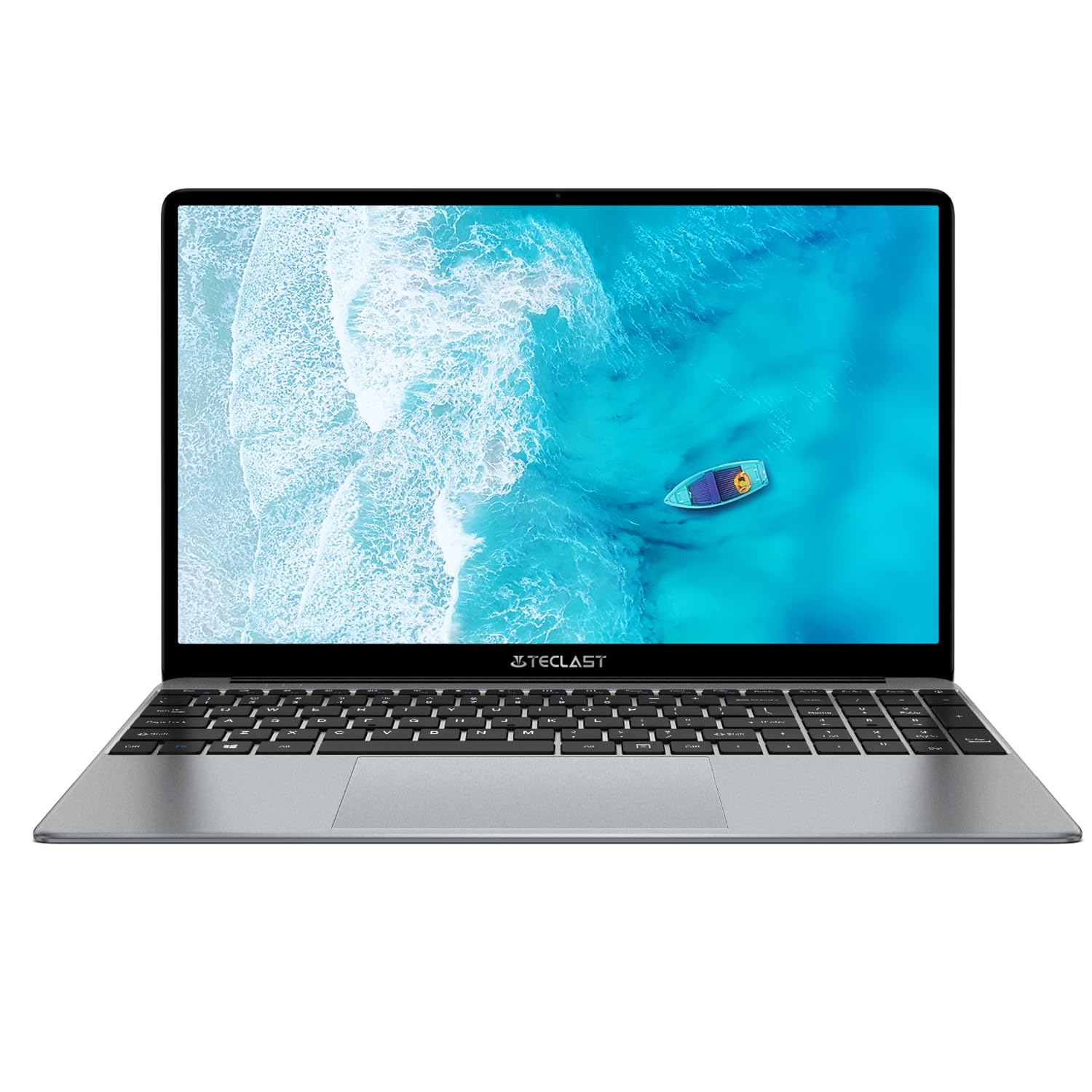
Image: The TECLAST F16 Plus laptop, showcasing its sleek design and 15.6-inch display with the Windows 11 operating system interface.
การเปิด/ปิดเครื่อง
- การเปิดเครื่อง: Press and hold the power button located on the top right of the keyboard until the screen illuminates.
- วิธีปิดเครื่อง: Click the Start button in Windows 11, then select the Power icon, and choose 'Shut down'.
- ในการรีสตาร์ท: Click the Start button, select the Power icon, and choose 'Restart'.
การเชื่อมต่ออุปกรณ์ต่อพ่วง
Your TECLAST F16 Plus laptop is equipped with multiple ports for connecting external devices. Insert USB devices such as mice, keyboards, or external storage drives into the available USB ports. For external displays, use the appropriate video output port (e.g., HDMI) if available, and configure display settings in Windows.
การดำเนินงาน
คีย์บอร์ดและทัชแพด
The laptop features a full-sized keyboard and a responsive touchpad. Use the touchpad for navigation and gestures. Many function keys (F1-F12) have secondary functions, activated by pressing the 'Fn' key simultaneously. For example, 'Fn + F5' may control keyboard backlighting.
การตั้งค่าการแสดงผล
Adjust screen brightness using the dedicated function keys (often Fn + F5/F6 or similar). To change display resolution or scaling, right-click on the desktop, select 'Display settings', and make your adjustments.
การตั้งค่าเสียง
Control volume using the dedicated function keys (often Fn + F2/F3 or similar) or through the sound icon in the Windows taskbar. Connect headphones or external speakers to the audio jack for private listening or enhanced sound.
การเชื่อมต่อเครือข่าย
To connect to Wi-Fi, click the network icon in the taskbar, select your desired network, enter the password, and click 'Connect'. Bluetooth devices can be paired via 'Settings > Bluetooth & devices'.
Windows 11 Basics
Your laptop runs on Windows 11. Familiarize yourself with the Start menu, taskbar, and File Explorer for efficient navigation and file management. Regular Windows updates are crucial for security and performance.
การซ่อมบำรุง
การทำความสะอาดแล็ปท็อป
ใช้ผ้านุ่มไม่เป็นขุยเช็ดเล็กน้อยampened with water or a screen cleaner to clean the display. For the keyboard and chassis, use a soft brush or compressed air to remove dust. Avoid harsh chemicals or abrasive materials.
การดูแลแบตเตอรี่
เพื่อยืดอายุการใช้งานแบตเตอรี่ ควรหลีกเลี่ยงการปล่อยให้แบตเตอรี่หมดจนเกลี้ยงบ่อยๆ แนะนำให้รักษาระดับประจุแบตเตอรี่ไว้ระหว่าง 20% ถึง 80% เท่าที่จะเป็นไปได้ และควรเก็บแล็ปท็อปไว้ในที่แห้งและเย็นเมื่อไม่ได้ใช้งานเป็นเวลานาน
การอัพเดตซอฟต์แวร์
Regularly check for and install Windows updates and driver updates to ensure your system has the latest security patches and performance enhancements. This can be done through 'Settings > Windows Update'.
การจัดการการจัดเก็บข้อมูล
The 256GB SSD provides fast storage. To maintain optimal performance, regularly delete unnecessary files, empty the recycle bin, and consider using cloud storage for large files to free up local space.
การแก้ไขปัญหา
ปัญหาทั่วไปและแนวทางแก้ไข
- โน๊ตบุ๊คไม่เปิด: ตรวจสอบให้แน่ใจว่าอะแดปเตอร์เสียบแน่นดีแล้ว และแบตเตอรี่มีประจุเพียงพอ ลองกดปุ่มเปิด/ปิดค้างไว้ 15-20 วินาทีเพื่อรีเซ็ตเครื่อง
- ไม่มีการแสดงผลบนหน้าจอ: Connect an external monitor to check if the issue is with the laptop's display. Ensure brightness is not set to minimum.
- Wi-Fi ไม่เชื่อมต่อ: Check if Wi-Fi is enabled in Windows settings. Restart your router and the laptop. Verify the Wi-Fi password.
- ประสิทธิภาพช้า: ปิดแอปพลิเคชันที่ไม่จำเป็น ตรวจสอบกระบวนการทำงานเบื้องหลังในตัวจัดการงาน ตรวจสอบให้แน่ใจว่ามีพื้นที่จัดเก็บข้อมูลว่างเพียงพอ
- อุปกรณ์ USB ไม่ได้รับการตรวจพบ: ลองเสียบอุปกรณ์เข้ากับพอร์ต USB อื่น ตรวจสอบให้แน่ใจว่าได้ติดตั้งไดรเวอร์อุปกรณ์แล้ว รีสตาร์ทแล็ปท็อป
หากคุณพบปัญหาที่ไม่ได้รับการแก้ไขในที่นี้ โปรดดูที่ส่วนการสนับสนุนเพื่อขอความช่วยเหลือเพิ่มเติม
ข้อมูลจำเพาะ
รายละเอียดทางเทคนิค
| คุณสมบัติ | รายละเอียด |
| ยี่ห้อ | เทคลัสท์ |
| แบบอย่าง | F16 พลัส |
| ขนาดหน้าจอ | 15.6 นิ้ว |
| โปรเซสเซอร์ | Intel Celeron N (4 Cores) |
| แรม | 12GB |
| พื้นที่จัดเก็บ | SSD ความจุ 256GB |
| ระบบปฏิบัติการ | หน้าต่าง |
| สี | New Gray |
| องค์ประกอบของแบตเตอรี่ | ลิเธียมโพลิเมอร์ |
| อินเตอร์เฟซการป้อนข้อมูล | แป้นพิมพ์ |
| ขนาดแพ็คเกจ | 50.79 x 29.2 x 7.9 ซม. |
| น้ำหนักแพ็คเกจ | 2.62 กิโลกรัม |
การรับประกันและการสนับสนุน
Your TECLAST F16 Plus laptop comes with a standard manufacturer's warranty. Please refer to the warranty card included in your product packaging for specific terms and conditions. For technical support, driver downloads, or service inquiries, visit the official TECLAST webหรือติดต่อฝ่ายบริการลูกค้า โปรดเก็บใบเสร็จรับเงินและหมายเลขซีเรียลของผลิตภัณฑ์ไว้ใกล้มือเมื่อต้องการขอความช่วยเหลือ


