การแนะนำ
This manual provides comprehensive instructions for the setup, operation, and maintenance of your MARKLIFE P50 Label Maker Machine. Please read this manual carefully before using the device to ensure proper functionality and longevity.
มีอะไรอยู่ในกล่อง
เมื่อแกะกล่องโปรดตรวจสอบว่ามีส่วนประกอบทั้งหมดที่ระบุไว้ด้านล่างอยู่ครบ:
- MARKLIFE P50 เครื่องผลิตฉลาก
- สายชาร์จ USB-C
- Label Tapes (3 rolls included):
- 1.57" x 1.18" (40x30mm) White Gap Label
- 2" x 2" (50x50mm) Circle Gap Label
- 1.57" x 2.36" (40x60mm) White Gap Label
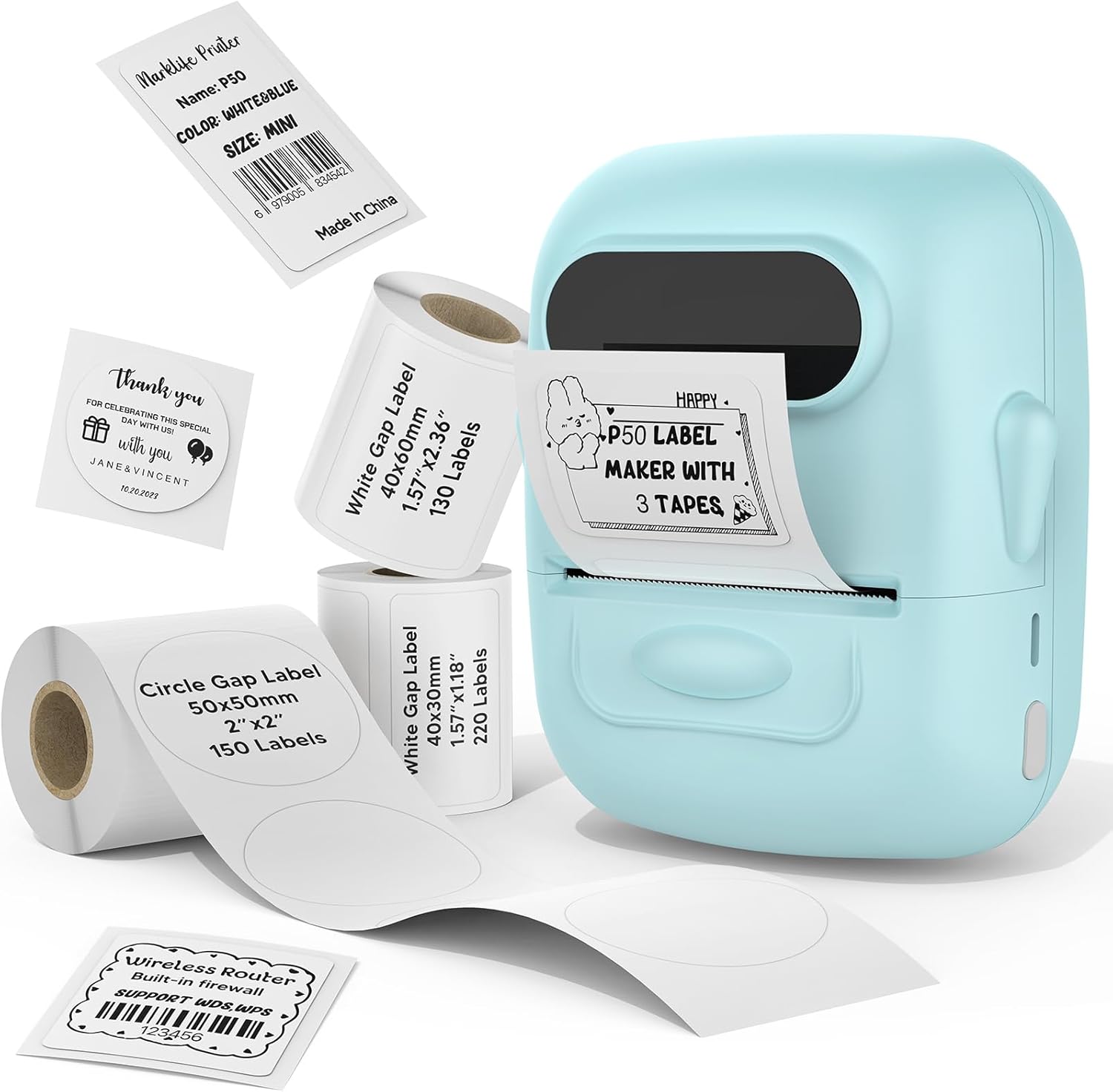
Image: The MARKLIFE P50 Label Maker Machine shown with three rolls of label tape of different sizes and shapes, demonstrating the variety included in the package.
การตั้งค่า
1. Label Paper Installation
- Hold the sides of the label maker and gently lift up the paper cover to open the compartment.
- Remove the paper roll holder from the paper bin.
- Take out the left flap of the paper roll holder.
- Place the label paper roll onto the right movable plate of the holder.
- Insert the left bezel back onto the holder, ensuring the arrows on both baffles are uniformly facing forward.
- Place the assembled paper roll holder back into the paper bin. Ensure the yellow label on the paper roll is on the right side and the print side of the label paper is facing down.
- Drag a section of the label paper to the paper outlet.
- Press down with both hands to close the paper cover firmly.
- Long press the power switch to start the device. Double-click the switch key to perform a test print.
- The label paper can be torn down and to the right near the paper outlet after printing.
Video: A detailed tutorial demonstrating the process of installing label paper into the MARKLIFE P50 Label Maker, including opening the cover, assembling the paper roll holder, inserting the paper, and closing the cover.
2. ดาวน์โหลดแอปและเข้าสู่ระบบ
- Download the "Marklife" app from your device's app store (available for Android and iOS).
- Open the app. You can choose to log in using your email, a third-party app (like Facebook), or proceed as a guest.
3. การเชื่อมต่อบลูทู ธ
- In the Marklife app, click on the "UNLINK" or "Not connected" icon, typically located in the top left corner.
- Allow Bluetooth to be turned on when prompted by the app to connect to the printer.
- The app will search for nearby print devices. Once your P50 printer appears in the list (e.g., "P50S_..."), click "UNLINK" or "Connect" next to it.
- If the circle icon next to your printer name turns green, the printer is successfully connected.
คำแนะนำการใช้งาน
1. Creating a Label
- From the main app screen, click "Create label".
- Select the label stock type: "Continuous Label" if you are using continuous paper, or "Gap Label" if you are using pre-cut labels with gaps.
- Click "Quick to select a size" and choose the same size as the label stock loaded into your label machine. Confirm your selection.
2. การแก้ไขข้อความ
- Double-click the text box on the label editor screen to enter the text.
- Enter the desired text you want to print.
- Click "Text layout" to adjust font size, spacing, and line spacing. Swipe left or right on the sliders to adjust these parameters.
- Use the "B" icon to bold the text, the "U" icon to underline, and the "I" icon to italicize.
- Click the vertical text icon (A with an arrow pointing up) to print text vertically.
- Click "Font Options" to change the style of the font.
- To move the text box, click "Text" and drag it to the desired position.
- Pinch the text box to change the size of the label stock preview.
- Click and move the double-headed arrow on the text box to increase its length.
3. การพิมพ์
- After editing, click "Print".
- Adjust the "Print Density" slider to change the clarity of the font.
- Use the minus (-) and plus (+) buttons next to "Print Copy" to increase or decrease the number of copies.
- Click "Print Now" to start printing. You can cancel printing if needed.

Image: Various applications of the MARKLIFE P50 Label Maker, including price tags for clothing, labels for handmade soaps, and bakery item labels, showcasing its versatility for small businesses.
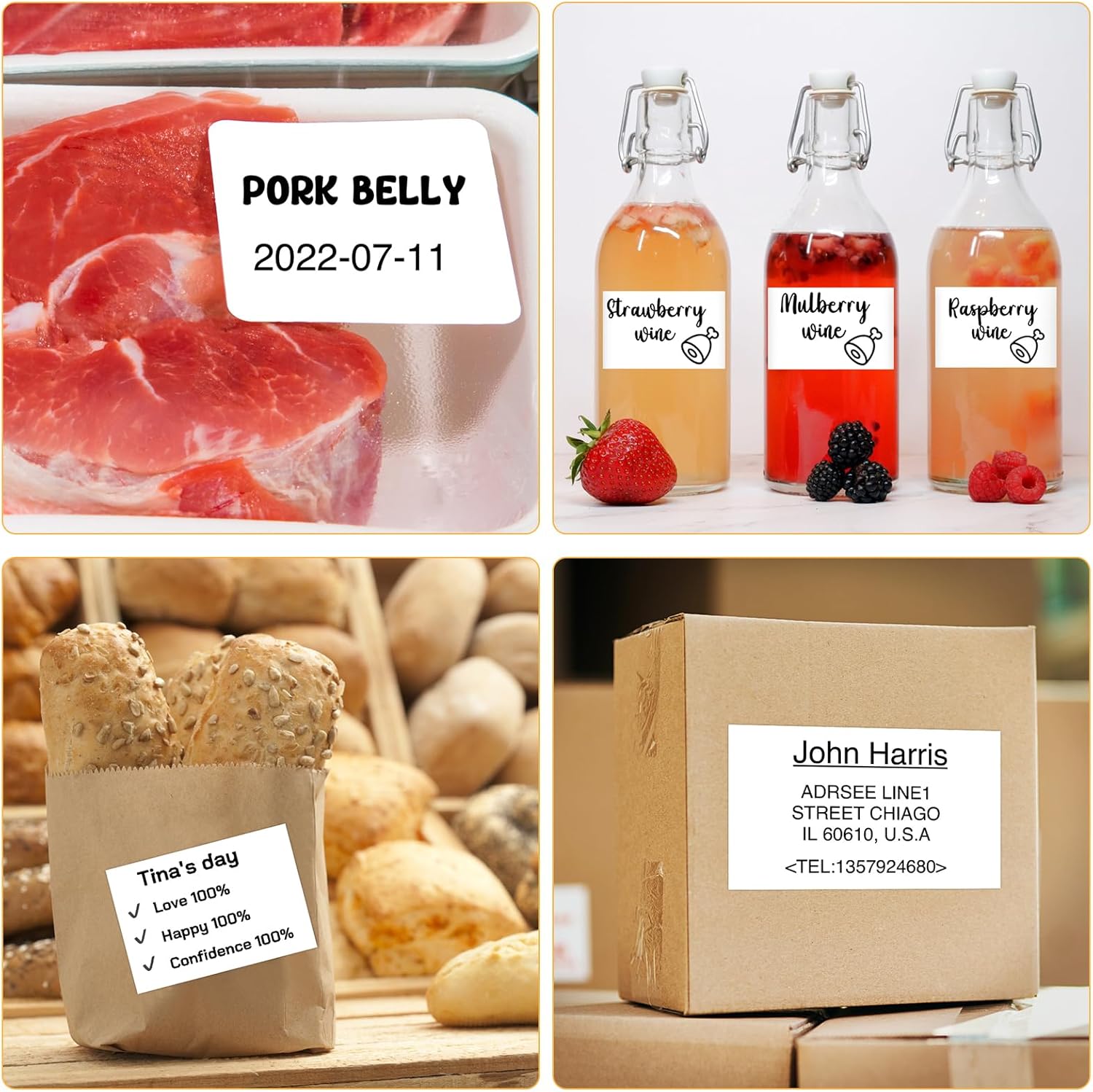
Image: Additional label examples, such as food identification labels for pork belly and homemade beverages, and a shipping address label on a package, highlighting practical uses.
การซ่อมบำรุง
- การทำความสะอาดหัวพิมพ์: Regularly clean the thermal print head with an alcohol wipe to ensure clear and consistent print quality. Avoid touching the print head directly with your fingers.
- การดูแลแบตเตอรี่ เพื่อยืดอายุการใช้งานแบตเตอรี่ ควรหลีกเลี่ยงการปล่อยให้แบตเตอรี่หมดจนเกลี้ยงบ่อยๆ ควรชาร์จแบตเตอรี่เป็นประจำ โดยเฉพาะอย่างยิ่งหากจะเก็บไว้เป็นเวลานาน
- พื้นที่จัดเก็บ: เก็บเครื่องพิมพ์ฉลากไว้ในที่แห้งและเย็น หลีกเลี่ยงแสงแดดโดยตรงและอุณหภูมิที่สูงหรือต่ำเกินไป
- Use Approved Labels: Only use thermal label paper specifically designed for the MARKLIFE P50 to prevent damage to the print head and ensure optimal performance.
การแก้ไขปัญหา
| ปัญหา | สาเหตุที่เป็นไปได้ | สารละลาย |
|---|---|---|
| เครื่องพิมพ์ไม่เปิดใช้งาน | แบตเตอรี่เหลือน้อยหรือมีปัญหาเรื่องไฟเลี้ยง | Charge the device using the provided USB-C cable. Ensure the charging indicator light is on. |
| ไม่สามารถเชื่อมต่อผ่านบลูทูธได้ | Bluetooth is off on the device or phone; app permission issues; printer not discoverable. | Ensure Bluetooth is enabled on your smartphone. Grant Bluetooth permissions to the Marklife app. Restart both the printer and your phone, then try connecting again. |
| Poor print quality (faint or unclear). | Low print density setting; dirty print head; incorrect label type. | Increase the print density in the app settings. Clean the print head. Ensure you are using thermal labels compatible with the P50. |
| Labels are not feeding correctly or getting stuck. | Improper label installation; label roll not aligned. | Re-install the label paper, ensuring it is properly seated in the paper roll holder and aligned. Make sure the paper cover is securely closed. |
| แอปพลิเคชันขัดข้องหรือหยุดทำงาน | Software bug; insufficient phone memory. | Close and restart the Marklife app. Ensure your phone's operating system and the app are updated to the latest versions. Clear app cache if necessary. |
ข้อมูลจำเพาะ
| คุณสมบัติ | รายละเอียด |
|---|---|
| ยี่ห้อ | มาร์คไลฟ์ |
| หมายเลขรุ่น | P50 |
| เทคโนโลยีการพิมพ์ | เทอร์มอล |
| เอาท์พุตเครื่องพิมพ์ | ภาพขาวดำ (ขาวดำ) |
| เทคโนโลยีการเชื่อมต่อ | บลูทูธ, ยูเอสบี |
| อุปกรณ์ที่รองรับ | Android, iOS, PC, Tablets |
| ขนาดสื่อสูงสุด | 2 inches (0.59''-2.24'' width range) |
| น้ำหนักสินค้า | 6 ออนซ์ |
| ขนาดสินค้า | 4 x 3 x 2 นิ้ว |
| คุณสมบัติพิเศษ | น้ำหนักเบา พกพาสะดวก |
| แบตเตอรี่ | แบตเตอรี่ในตัว 1200mAh |
การรับประกันและการสนับสนุน
For warranty information, technical support, or service inquiries, please refer to the official MARKLIFE webหรือติดต่อฝ่ายบริการลูกค้าโดยตรง โปรดเก็บใบเสร็จรับเงินไว้เป็นหลักฐานการซื้อสำหรับการเรียกร้องการรับประกัน
You can also find additional support and tutorials by visiting the MARKLIFE store on Amazon: MARKLIFE Amazon Store.


