การแนะนำ
This manual provides comprehensive instructions for the installation, operation, maintenance, and troubleshooting of your Sharp 40-inch Full HD Smart LED Roku TV. Please read this manual thoroughly before using your television to ensure proper setup and functionality. Keep this manual for future reference.

ภาพ: ด้านหน้า view of the Sharp 40-inch Full HD Smart LED Roku TV.
การตั้งค่า
1. การแกะกล่องและเนื้อหาภายในบรรจุภัณฑ์
นำส่วนประกอบทั้งหมดออกจากบรรจุภัณฑ์อย่างระมัดระวัง ตรวจสอบว่ามีอุปกรณ์ทั้งหมดที่ระบุไว้ด้านล่างครบถ้วน:
- Sharp 40-inch Full HD Smart LED Roku TV
- รีโมทคอนโทรล (ต้องใช้แบตเตอรี่ AAA 2 ก้อน ไม่รวมอยู่ด้วย)
- Table Stand with Screws
- คู่มือการใช้งาน (เอกสารนี้)
- ข้อมูลการรับประกัน
2. การติดตั้งขาตั้งทีวี
If you are placing the TV on a table or entertainment unit, you will need to attach the included stand. Place the TV screen-down on a soft, clean surface to prevent scratches. Align the stand legs with the mounting holes on the bottom of the TV and secure them using the provided screws.

Image: The Sharp Roku TV displayed on its table stand in a room.
3. การเชื่อมต่ออุปกรณ์ภายนอก
Your Sharp Roku TV offers various ports for connecting external devices such as cable boxes, gaming consoles, and USB drives.
- พอร์ต HDMI: Connect high-definition devices using HDMI cables. This TV features 3 HDMI inputs.
- พอร์ต USB: Connect USB storage devices for media playback. This TV features 1 USB input.
- อินพุตวิดีโอคอมโพสิต: For older devices, use the composite video (AV) input.
- เอาต์พุตเสียงออปติคัล: สำหรับเชื่อมต่อกับระบบเสียงภายนอก

Image: Rear panel of the TV illustrating the power connector and various input/output ports (HDMI, USB, Optical, AV).
4. การเชื่อมต่อไฟฟ้า
Connect the power cord to the TV's power input and then plug it into a standard electrical outlet (120V AC, 60Hz).
5. การตั้งค่าเริ่มต้นและการเชื่อมต่อเครือข่าย
Upon first power-on, the TV will guide you through the initial setup process. This includes selecting your language, connecting to your Wi-Fi network, and activating your Roku account. A stable Wi-Fi connection is required to access smart TV features and streaming content.
คำแนะนำการใช้งาน
1. ฟังก์ชั่นการควบคุมระยะไกล
The included remote control uses infrared technology. Ensure there is a clear line of sight between the remote and the TV's IR receiver. Insert two AAA batteries into the remote control, observing polarity.
2. Roku OS Interface
Your TV operates on the Roku OS, providing a user-friendly interface for accessing streaming channels, live TV, and connected devices. The home screen displays your installed channels and input selections.

Image: The Roku TV home screen interface and a smartphone displaying the Roku mobile app remote control with voice search functionality.
3. การควบคุมด้วยเสียง
The Sharp Roku TV supports voice control through compatible devices like Amazon Alexa or Google Assistant. You can use voice commands to search for movies, change channels, switch inputs, and more.
4. Streaming and Apps
Access a wide variety of streaming services and applications through the Roku Channel Store. Many popular apps are pre-installed, and you can download additional ones to customize your viewการสร้างประสบการณ์
5. เสียงดอลบี้
This television features Dolby Audio technology, which enhances sound quality for a more immersive listening experience. Ensure your audio settings are configured to utilize this feature for optimal performance.
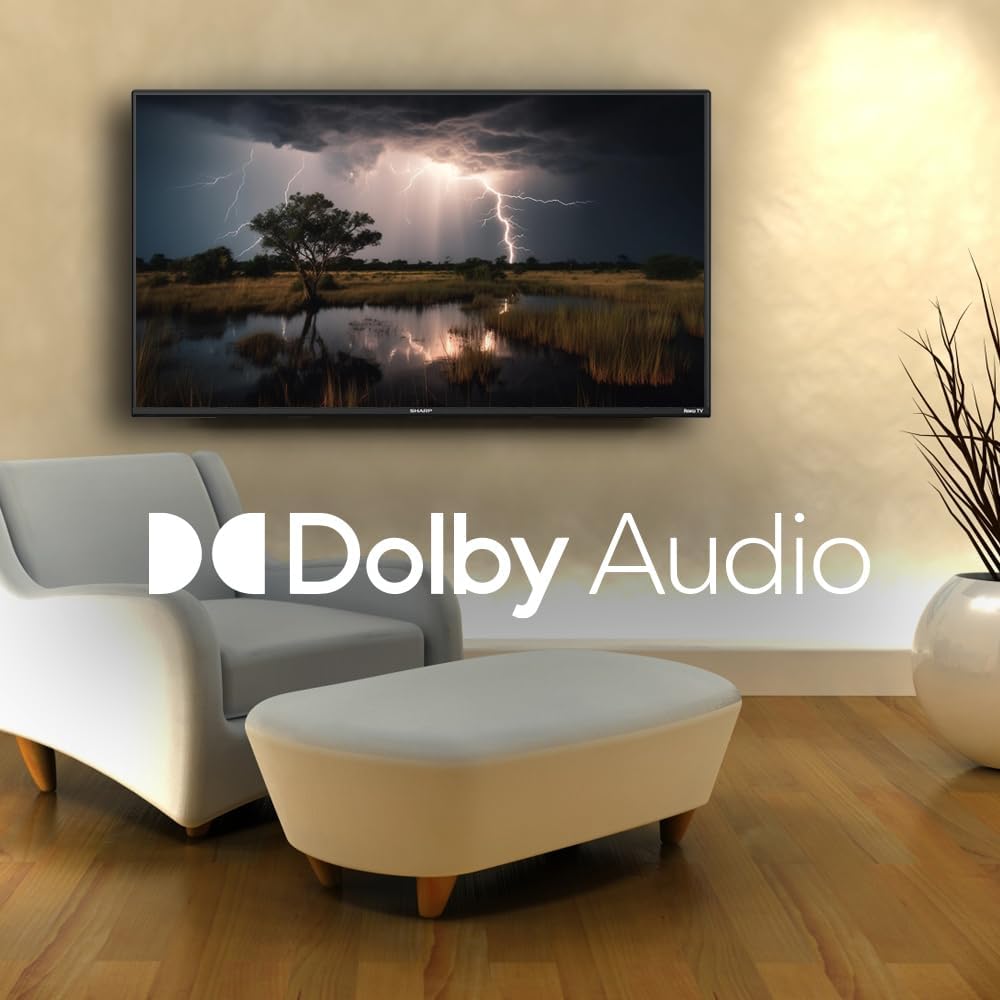
Image: A television screen displaying a dramatic scene with the Dolby Audio logo prominently featured.
การซ่อมบำรุง
1. Cleaning the TV Screen
ในการทำความสะอาดหน้าจอ ให้เช็ดเบาๆ ด้วยผ้านุ่มที่ไม่เป็นขุย สำหรับรอยฝังแน่น ให้เช็ดเบาๆampen the cloth with water or a screen-specific cleaning solution. Avoid using harsh chemicals, abrasives, or direct spraying onto the screen.
2. การทำความสะอาดทีวีasing
เช็ดทีวีasinเช็ดด้วยผ้าแห้งนุ่มๆ อย่าใช้น้ำยาทำความสะอาดชนิดเหลวโดยตรงกับพื้นผิวasing.
3. การระบายอากาศ
Ensure that the ventilation openings on the back of the TV are not blocked. Proper airflow is essential to prevent overheating.
การแก้ไขปัญหา
หากคุณประสบปัญหาเกี่ยวกับทีวี โปรดดูปัญหาทั่วไปและวิธีแก้ไขต่อไปนี้:
| ปัญหา | วิธีแก้ปัญหาที่เป็นไปได้ |
|---|---|
| ไม่มีไฟฟ้า | Check if the power cord is securely connected to both the TV and the electrical outlet. Ensure the outlet is functional. |
| ไม่มีภาพแต่มีเสียง | ตรวจสอบว่าเลือกแหล่งสัญญาณเข้าที่ถูกต้อง ตรวจสอบการเชื่อมต่ออุปกรณ์ภายนอก |
| ไม่มีเสียงแต่มีภาพ | Check the volume level and mute status. Ensure external audio systems are properly connected and powered on. |
| รีโมตคอนโทรลไม่ทำงาน | Replace the batteries in the remote control. Ensure no obstructions are between the remote and the TV. |
| ไม่สามารถเชื่อมต่อ Wi-Fi ได้ | Verify your Wi-Fi password. Restart your router and the TV. Ensure the TV is within range of your Wi-Fi network. |
| ฟังก์ชันอัจฉริยะไม่ตอบสนอง | Check your internet connection. Restart the TV by unplugging it for 30 seconds and plugging it back in. |
ข้อมูลจำเพาะ
| คุณสมบัติ | รายละเอียด |
|---|---|
| หมายเลขรุ่น | 2TC40EF4UR |
| ขนาดหน้าจอ | 40 นิ้ว (แนวทแยงมุมที่มองเห็นได้ 102 ซม.) |
| เทคโนโลยีการแสดงผล | นำ |
| ปณิธาน | ฟูลเอชดี (1920 x 1080) |
| อัตราการรีเฟรช | 60 เฮิรตซ์ |
| ระบบปฏิบัติการ | ระบบปฏิบัติการ Roku |
| แรม | 512MB |
| กำลังขับเสียง | 16 Watts (2.0 Dolby) |
| พอร์ต HDMI | 3 |
| พอร์ต USB | 1 |
| การเชื่อมต่อ | HDMI, USB, Wi-Fi, Composite Video |
| ความเข้ากันได้ของการควบคุมด้วยเสียง | Amazon Alexa, Google Assistant |
| Power Consumption (On Mode) | 65 วัตต์ |
| เล่มที่tage | 120 โวลต์ (AC) |
| ขนาด (รวมขาตั้ง) | 99 ซม. (ก) x 12 ซม. (ล) x 57 ซม. (ส) |
| น้ำหนัก | 5.7 กก. |
| เทคโนโลยีการควบคุมระยะไกล | อินฟราเรด |
| รองรับบลูทูธ | เลขที่ |

Image: The Sharp Roku TV with its width, depth, and height dimensions indicated.
การรับประกันและการสนับสนุน
ข้อมูลการรับประกัน
Your Sharp 40-inch Full HD Smart LED Roku TV comes with a manufacturer's warranty. Please refer to the warranty document included in your product packaging for detailed terms, conditions, and registration information. Keep your proof of purchase for warranty claims.
การสนับสนุนลูกค้า
For technical assistance, troubleshooting beyond this manual, or warranty service, please contact Sharp customer support. Contact information can typically be found on the Sharp official webไซต์หรือในเอกสารการรับประกันของคุณ


