1. บทนำ
This manual provides comprehensive instructions for the Logitech MX Master 2S Bluetooth Wireless Mouse. Designed for multi-device productivity, this ergonomic mouse offers advanced features such as Darkfield High Precision tracking, hyper-fast scrolling, and multi-computer control with Logitech Flow. Please read this manual thoroughly to ensure optimal use and longevity of your device.

รูปที่ 1: The Logitech MX Master 2S Bluetooth Wireless Mouse in graphite color, showcasinก. การออกแบบตามหลักสรีรศาสตร์
2. การตั้งค่า
2.1. อะไรอยู่ในกล่อง
ก่อนที่คุณจะเริ่มต้น โปรดตรวจสอบให้แน่ใจว่ามีส่วนประกอบทั้งหมดครบถ้วน:
- Logitech MX Master 2S Wireless Mouse
- สายชาร์จ (USB-A ถึง Micro-USB)
- เอกสารประกอบการใช้งาน

รูปที่ 2: The Logitech MX Master 2S mouse and its included USB charging cable, illustrating the product packaging.
2.2. การชาร์จเมาส์
The MX Master 2S features a fast-rechargeable battery. Connect the included Micro-USB cable to the charging port on the front of the mouse and the other end to a USB power source (e.g., computer USB port, USB wall adapter). A full charge can last up to 70 days, and a 3-minute charge provides enough power for a full day of use.

รูปที่ 3: The Logitech MX Master 2S mouse shown connected to its charging cable, highlighting its fast rechargeable battery feature.
2.3. การเชื่อมต่อกับคอมพิวเตอร์ของคุณ
The MX Master 2S can connect to up to three devices via Bluetooth. Follow these steps to pair your mouse:
- เปิดใช้งานเมาส์โดยใช้สวิตช์เปิด/ปิดที่อยู่ด้านล่าง
- Press the Easy-Switch button (labeled 1, 2, or 3) on the bottom of the mouse to select a channel. The LED indicator for the selected channel will blink rapidly, indicating it's in pairing mode.
- On your computer (Mac or PC), open Bluetooth settings and search for new devices.
- Select "Logitech MX Master 2S" from the list of available devices to complete the pairing.
- Repeat for up to two additional devices, using different Easy-Switch channels.

รูปที่ 4: The Logitech MX Master 2S mouse illustrating its compatibility with Bluetooth, Apple macOS, and Windows operating systems.

รูปที่ 5: A diagram of the Logitech MX Master 2S mouse's underside, highlighting the Easy-Switch button for connecting to up to three different devices across various operating systems.
2.4. การติดตั้งซอฟต์แวร์ Logitech Options (แนะนำ)
To unlock the full potential of your MX Master 2S, including button customization and Logitech Flow, download and install the Logitech Options software from the official Logitech webงาน (www.logitech.com/options).

รูปที่ 6: The Logitech Flow feature in action, demonstrating seamless cursor, text, and file transfer between multiple computers with different operating systems.
3. การใช้งานเมาส์
3.1. การออกแบบตามหลักสรีรศาสตร์
The MX Master 2S is crafted to support your hand and wrist in a comfortable, natural position, reducing strain during extended use.

รูปที่ 7: Images depicting the meticulous design process, emphasizing how the Logitech MX Master 2S is crafted for ultimate comfort and ergonomic support.
3.2. Buttons and Wheels
The MX Master 2S features 7 customizable buttons and 2 wheels for enhanced control:
- ล้อเลื่อนหลัก: Speed-adaptive, switches between click-to-click and hyper-fast scrolling.
- ล้อนิ้วหัวแม่มือ: Provides side-to-side scrolling, useful for large spreadsheets or timelines.
- ปุ่มที่ปรับแต่งได้: Program buttons for specific functions using Logitech Options software.

รูปที่ 8: The Logitech Options software interface, demonstrating how users can customize the 7 buttons and 2 wheels of the MX Master 2S mouse to suit their workflow.

รูปที่ 9: A detailed diagram labeling key features of the Logitech MX Master 2S mouse, including Bluetooth connectivity, thumb wheel, thumb support, SmartShift hyper-fast scroll wheel, customizable buttons, and ergonomic design.
3.3. การติดตามความแม่นยำสูงของ Darkfield
The MX Master 2S utilizes Darkfield High Precision tracking, allowing for flawless control on virtually any surface, including glass (minimum 4mm thickness).

รูปที่ 10: The Logitech MX Master 2S mouse being used on a glass surface, demonstrating its Darkfield High Precision tracking capability.
3.4. การเลื่อนแบบความเร็วสูง
The speed-adaptive scroll wheel automatically shifts between precise click-to-click scrolling and hyper-fast scrolling, allowing you to navigate long documents and web pages with ease.

รูปที่ 11: A hand operating the Logitech MX Master 2S mouse, highlighting the hyper-fast scrolling wheel for quick navigation.
4. การบำรุงรักษา
4.1. การทำความสะอาด
เพื่อให้เมาส์ทำงานได้อย่างมีประสิทธิภาพสูงสุด ควรทำความสะอาดเมาส์เป็นระยะ โดยใช้ผ้าเนื้อนุ่ม ปราศจากขน และชุบน้ำหมาดๆ เช็ดเบาๆampened with water or an electronics-safe cleaning solution. Avoid harsh chemicals or abrasive materials. Ensure no liquid enters the mouse openings.
4.2. การดูแลแบตเตอรี่
The MX Master 2S uses a Lithium Polymer battery. For best battery life, avoid fully discharging the mouse frequently. Recharge when the battery indicator lights show low power. Store the mouse in a cool, dry place when not in use for extended periods.
5 การแก้ไขปัญหา
5.1. ปัญหาการเชื่อมต่อ
- เมาส์ไม่เชื่อมต่อ: Ensure the mouse is turned on and the correct Easy-Switch channel is selected. Check your computer's Bluetooth settings to confirm the mouse is paired. Try re-pairing the mouse.
- การเชื่อมต่อไม่ต่อเนื่อง: Move the mouse closer to your computer. Ensure there are no large metal objects or other wireless devices interfering with the Bluetooth signal.
5.2. Lag or Unresponsive Mouse
- Mouse goes to sleep: The MX Master 2S may enter a low-power state after a period of inactivity. A slight movement should wake it up. If there's a noticeable delay (3-5 seconds), ensure your computer's Bluetooth drivers are up to date and consider installing Logitech Options software to manage power settings.
- เคอร์เซอร์ไม่แน่นอนหรือไม่เคลื่อนไหว: Check the battery level and recharge if necessary. Ensure the optical sensor on the bottom of the mouse is clean and free of debris. Try using the mouse on a different surface.
5.3. Logitech Flow Not Working
- Ensure Logitech Options software is installed on all computers you wish to use with Flow.
- ตรวจสอบให้แน่ใจว่าคอมพิวเตอร์ทุกเครื่องอยู่ในเครือข่ายเดียวกัน
- Check firewall settings on all computers; they might be blocking Flow communication.
6. ข้อมูลจำเพาะ
| คุณสมบัติ | รายละเอียด |
|---|---|
| ยี่ห้อ | โลจิเทค |
| หมายเลขรุ่น | 910-007219 |
| เทคโนโลยีการเชื่อมต่อ | บลูทูธ |
| เทคโนโลยีตรวจจับการเคลื่อนไหว | ระบบออปติคอล (ดาร์กฟิลด์ ความแม่นยำสูง) |
| ช่วง DPI | สูงถึง 4,000 DPI |
| คุณสมบัติพิเศษ | Wireless, Hyper-Fast Scrolling, Ergonomic Design, Rechargeable, Multi-Device (Logitech Flow) |
| ประเภทแบตเตอรี่ | แบตเตอรี่ลิเธียมโพลิเมอร์ 1 ก้อน (รวมอยู่ด้วย) |
| อายุการใช้งานแบตเตอรี่โดยเฉลี่ย | สูงสุด 70 วัน (2 เดือน) |
| น้ำหนักสินค้า | 5.1 ออนซ์ (145 กรัม) |
| ขนาดสินค้า (กxยxส) | 4.96 x 3.37 x 1.91 นิ้ว (12.6 x 8.57 x 4.84 ซม.) |
| แพลตฟอร์มฮาร์ดแวร์ | PC |
| ความเข้ากันได้ของระบบปฏิบัติการ | Mac OS, Windows |
| สี | กราไฟท์ |
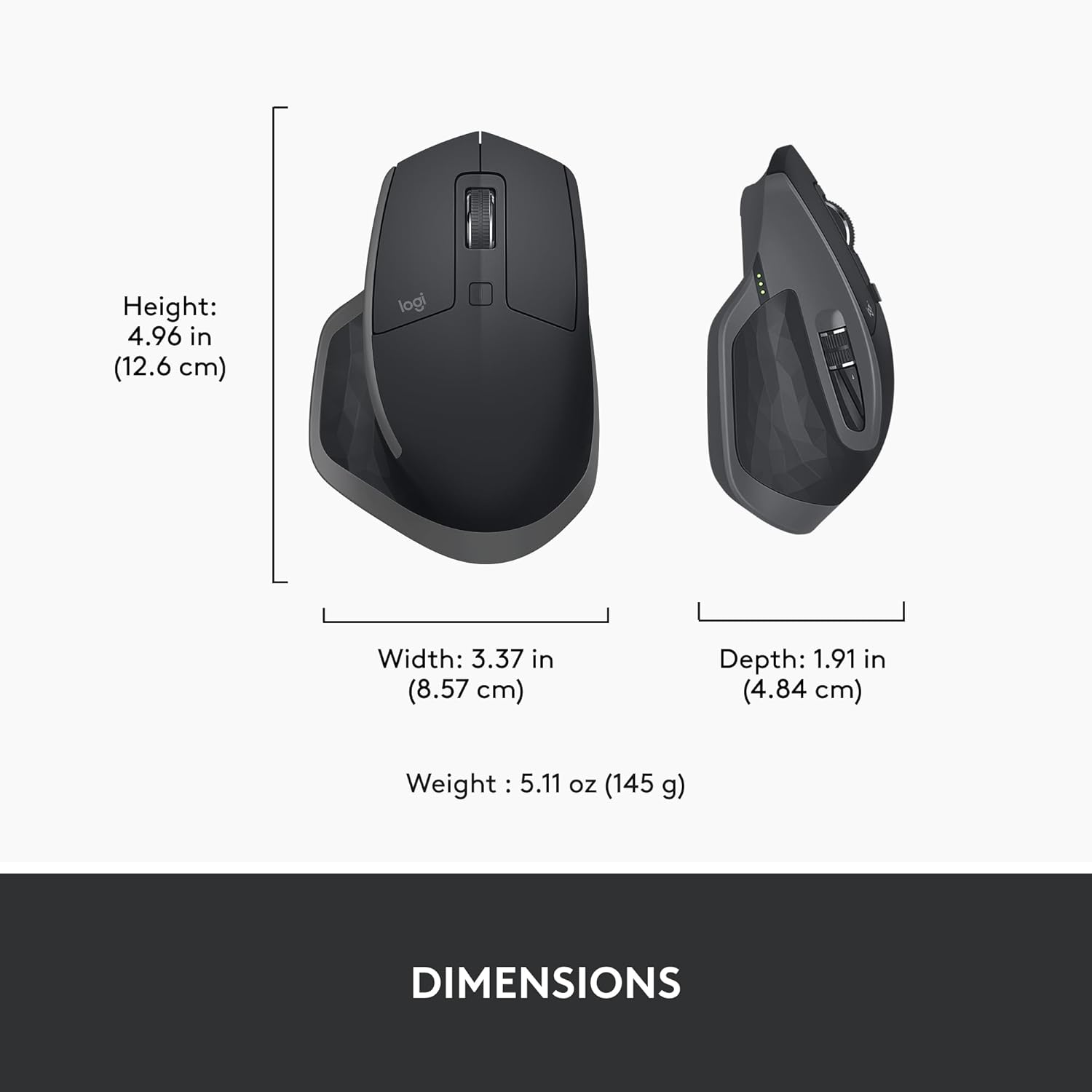
รูปที่ 12: A diagram illustrating the height, width, depth, and weight of the Logitech MX Master 2S mouse.
7. การรับประกันและการสนับสนุน
7.1. ข้อมูลการรับประกัน
Logitech products typically come with a limited hardware warranty. For specific warranty terms and conditions applicable to your region and product, please refer to the warranty card included with your purchase or visit the official Logitech support webเว็บไซต์.
7.2. การสนับสนุนลูกค้า
For further assistance, technical support, or to access FAQs and driver downloads, please visit the Logitech support webเว็บไซต์:


