การแนะนำ
This manual provides instructions for the Trust 25025 AZERTY Wireless Keyboard and Mouse Set. This comfortable wireless set features silent keys and buttons, and is constructed using 85% recycled materials. It is designed for ease of use and long-lasting performance.
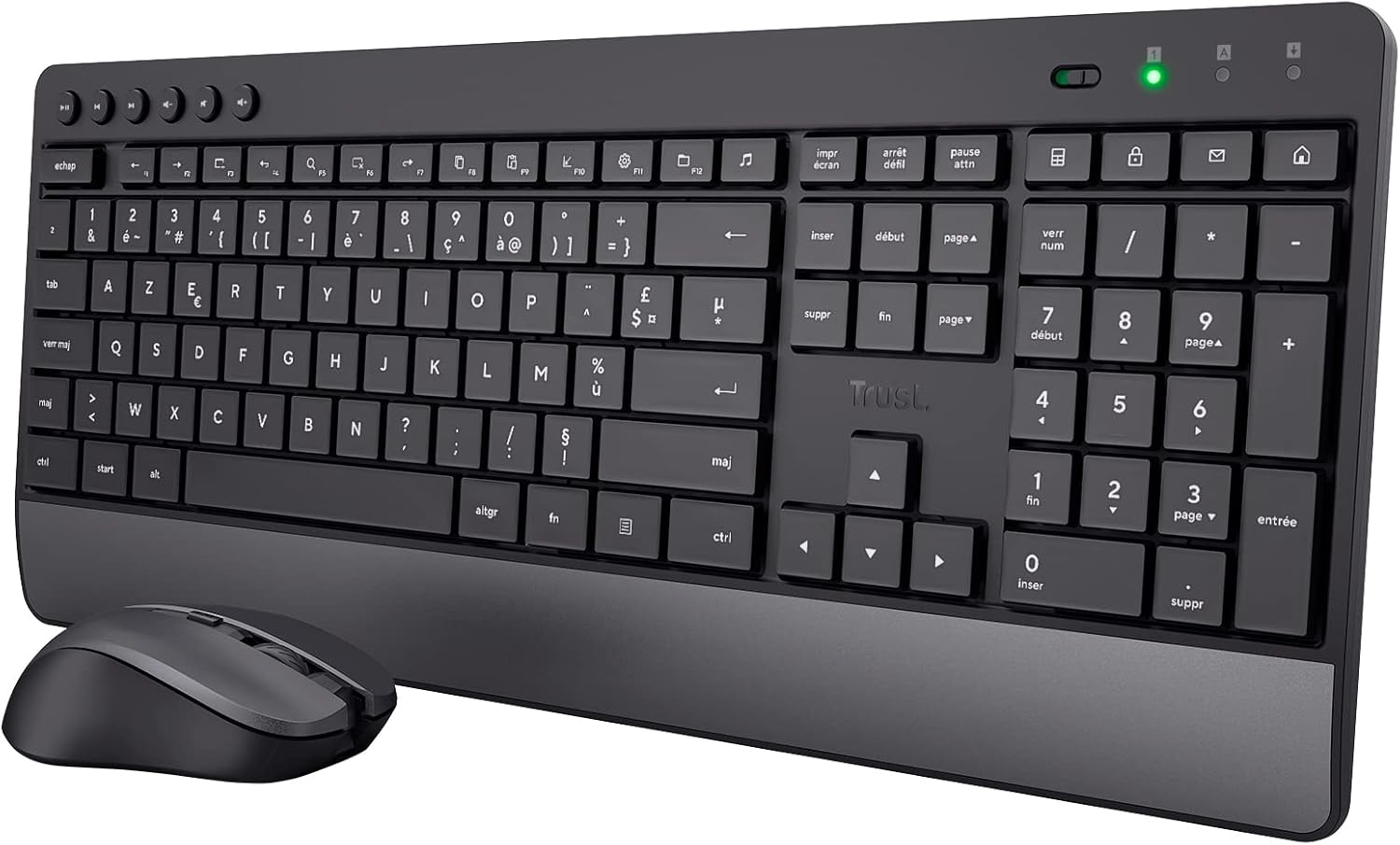
Image: The Trust 25025 AZERTY Wireless Keyboard and Mouse Set, featuring a full-size keyboard with a wrist rest and a compact mouse.
เนื้อหาแพ็คเกจ
- Trust 25025 AZERTY Wireless Keyboard
- วางใจเมาส์ไร้สาย
- ตัวรับสัญญาณไมโคร USB
- แบตเตอรี่ AA 3 ก้อน (ติดตั้งไว้ล่วงหน้าหรือรวมแยกต่างหาก)
- คู่มือการใช้งาน (เอกสารนี้)
การตั้งค่า
1. การติดตั้งแบตเตอรี่
The keyboard requires 2 AA batteries and the mouse requires 1 AA battery. These are typically included. If not, or if replacing, ensure correct polarity.
- ค้นหาช่องใส่แบตเตอรี่ที่ด้านล่างของคีย์บอร์ดและเมาส์
- เปิดฝาครอบแบตเตอรี่
- Insert the AA batteries, matching the + and - indicators.
- ปิดฝาครอบแบตเตอรี่ให้แน่น
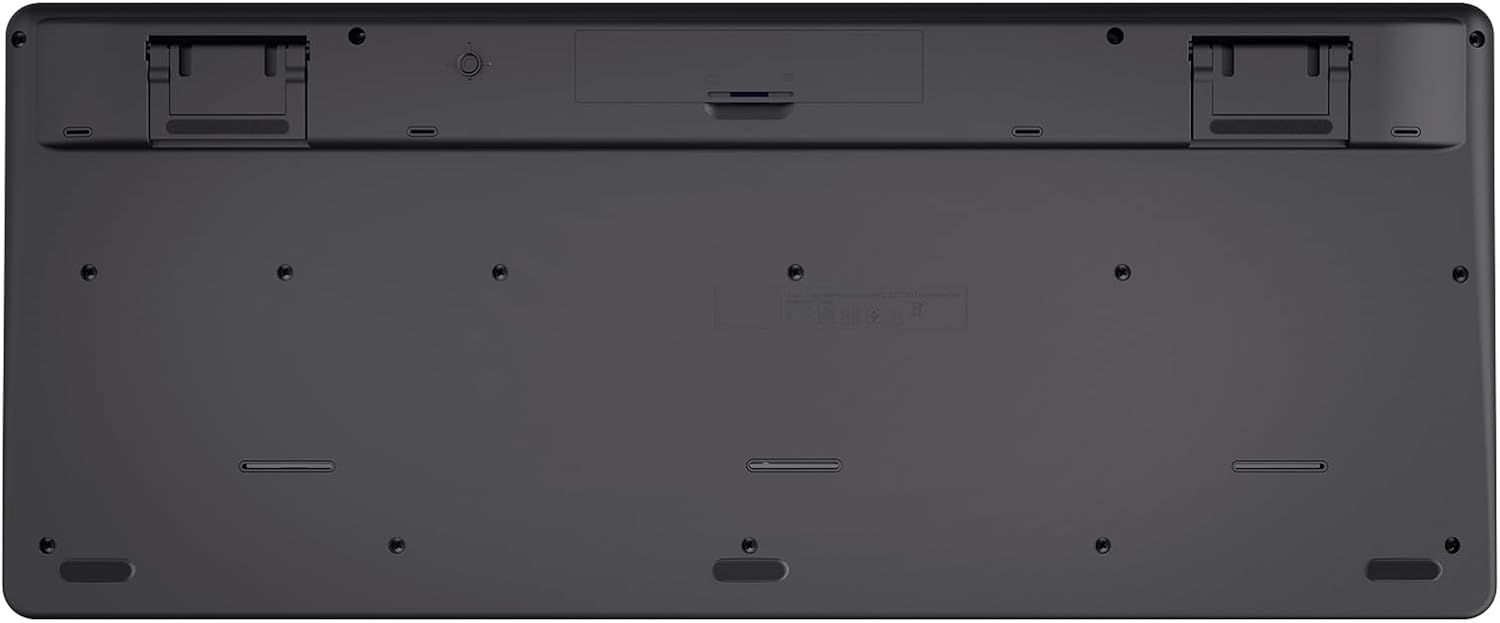
Image: The underside of the Trust 25025 keyboard, showing the battery compartment and the storage slot for the USB micro receiver.
2. Connecting the USB Micro Receiver
The keyboard and mouse connect wirelessly to your computer via a single USB micro receiver.
- Locate the USB micro receiver, usually stored in the mouse's battery compartment or a dedicated slot on the keyboard's underside.
- Plug the USB micro receiver into an available USB port on your computer (PC or Mac).
- คอมพิวเตอร์ของคุณจะตรวจจับและติดตั้งไดรเวอร์ที่จำเป็นโดยอัตโนมัติ อุปกรณ์นี้เป็นแบบเสียบแล้วใช้งานได้ทันที ไม่จำเป็นต้องติดตั้งซอฟต์แวร์เพิ่มเติม

Image: An icon representing 'Plug & Play' functionality, indicating easy setup without additional drivers.
3. เปิดเครื่อง
Ensure the keyboard and mouse are switched on. The mouse typically has an on/off switch on its underside. The keyboard may have an indicator light to show it's active.
คำแนะนำการใช้งาน
คุณสมบัติของแป้นพิมพ์
- AZERTY Layout: Standard French keyboard layout for comfortable typing.
- ปุ่มเงียบ: Designed for quiet operation, reducing typing noise.
- ที่พักข้อมือแบบบูรณาการ: ให้การรองรับตามหลักสรีรศาสตร์ระหว่างการใช้งานเป็นเวลานาน
- คีย์มัลติมีเดีย: Dedicated keys for quick access to media controls (play, pause, volume, etc.).
- การออกแบบที่ทนต่อการรั่วไหล: Helps protect against accidental liquid spills.
- อายุการใช้งานแบตเตอรี่ยาวนาน: Up to 48 months of battery life under typical usage conditions.

ภาพ: จากบนลงล่าง view of the Trust 25025 keyboard and mouse, highlighting the AZERTY layout and multimedia keys.
คุณสมบัติของเมาส์
- ปุ่มเงียบ: Reduces click noise for a quieter working environment.
- DPI ที่ปรับได้: Cycle through 1000, 1400, and 1800 DPI settings for precise cursor control. Use the DPI button located near the scroll wheel to change sensitivity.
- การออกแบบตีสองหน้า: เหมาะสำหรับทั้งผู้ใช้ถนัดซ้ายและถนัดขวา
- อายุการใช้งานแบตเตอรี่ยาวนาน: Up to 12 months of battery life under typical usage conditions.

ภาพ: ภาพระยะใกล้ view of the Trust wireless mouse, showing its ergonomic shape and the DPI adjustment button.
การซ่อมบำรุง
การทำความสะอาด
- ใช้ผ้าแห้งเนื้อนุ่มเช็ดทำความสะอาดพื้นผิวของแป้นพิมพ์และเมาส์
- สำหรับสิ่งสกปรกฝังแน่น ให้เช็ดออกเล็กน้อยampชุบผ้าด้วยน้ำหรือน้ำยาทำความสะอาดอ่อนๆ หลีกเลี่ยงสารเคมีรุนแรง
- ห้ามจุ่มอุปกรณ์ลงในน้ำ
การเปลี่ยนแบตเตอรี่
When the battery indicator light (if present) illuminates or performance degrades, replace the batteries.
- Turn off the mouse using its power switch.
- Open the battery compartments on both devices.
- Remove old batteries and dispose of them according to local regulations.
- Insert new AA batteries, ensuring correct polarity.
- Close the battery covers.
การแก้ไขปัญหา
No Response from Keyboard or Mouse
- ตรวจสอบแบตเตอรี่: ตรวจสอบให้แน่ใจว่าได้ติดตั้งแบตเตอรี่อย่างถูกต้องและแบตเตอรี่ไม่หมด หากจำเป็นให้เปลี่ยนแบตเตอรี่ใหม่
- สวิตช์ไฟ: Verify that the mouse (and keyboard, if applicable) is switched ON.
- ตัวรับสัญญาณ USB: Ensure the USB micro receiver is securely plugged into a working USB port on your computer. Try a different USB port.
- ระยะทาง: Make sure the keyboard and mouse are within the operational range of the USB receiver (typically up to 10 meters).
- การรบกวน: Move the devices away from other wireless devices or large metal objects that might cause interference.
เคอร์เซอร์เมาส์กระโดดหรือเคลื่อนไหวผิดปกติ
- พื้นผิว: ใช้เมาส์บนพื้นผิวที่สะอาดและไม่สะท้อนแสง แนะนำให้ใช้แผ่นรองเมาส์
- การตั้งค่า DPI: Adjust the DPI setting using the button on the mouse to find a comfortable sensitivity.
- แบตเตอรี่: Low battery power can affect mouse performance. Replace batteries if needed.
ข้อมูลจำเพาะ
| คุณสมบัติ | รายละเอียด |
|---|---|
| ยี่ห้อ | เชื่อมั่น |
| หมายเลขรุ่น | 25025 |
| ชุด | Trezo |
| สี | สีดำ |
| เทคโนโลยีการเชื่อมต่อ | Radio Frequency (Wireless) |
| เค้าโครงแป้นพิมพ์ | อาเซอร์ตี้ |
| การตั้งค่า DPI ของเมาส์ | 1000, 1400, 1800 |
| อายุการใช้งานแบตเตอรี่ของคีย์บอร์ด | นานถึง 48 เดือน |
| อายุการใช้งานแบตเตอรี่ของเมาส์ | นานถึง 12 เดือน |
| แบตเตอรี่ที่จำเป็น | 3 x AA (รวมอยู่ด้วย) |
| ขนาดสินค้า | 18.2 x 43.6 x 4.4 ซม. |
| น้ำหนักสินค้า | 752 กรัม |
| แพลตฟอร์มฮาร์ดแวร์ | แมค, พีซี |
| ความเข้ากันได้ของระบบปฏิบัติการ | Windows, Mac OS, Chrome OS |
| คุณสมบัติพิเศษ | 85% recycled plastic, long battery life, silent typing and clicks, wrist rest, single USB adapter for mouse and keyboard |
| อุปกรณ์ที่รองรับ | แล็ปท็อปพีซี |

Image: An icon indicating compatibility with multiple devices, including laptops and PCs.
การรับประกันและการสนับสนุน
สำหรับข้อมูลการรับประกันและการสนับสนุนทางเทคนิค โปรดดูที่เว็บไซต์อย่างเป็นทางการของ Trust website or contact their customer service directly. Details regarding specific warranty periods and support channels are typically provided with the product packaging or on the manufacturer's webเว็บไซต์.


