1. บทนำ
This manual provides comprehensive instructions for the Maxcom Fit FW55 Aurum Pro Smartwatch. It covers essential information regarding product setup, operation, maintenance, and troubleshooting to ensure optimal performance and user experience. Please read this manual carefully before using your device.
2. เนื้อหาบรรจุภัณฑ์
โปรดตรวจสอบว่าสินค้าทั้งหมดที่ระบุไว้ด้านล่างนี้มีอยู่ในบรรจุภัณฑ์ผลิตภัณฑ์ของคุณ:
- Maxcom Fit FW55 Aurum Pro Smartwatch
- สายชาร์จ
- คู่มือการใช้งาน (เอกสารนี้)
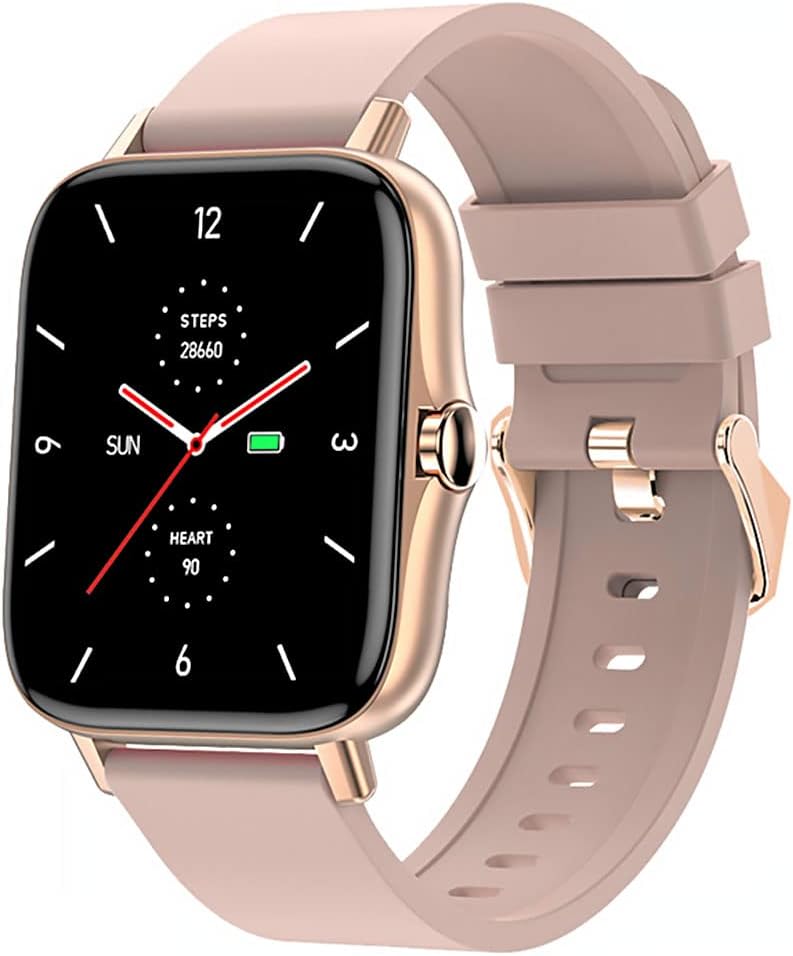
Image 1: Maxcom Fit FW55 Aurum Pro Smartwatch with a pink silicone band. The watch face displays steps, heart rate, and time.
3. การตั้งค่า
3.1. การชาร์จสมาร์ทวอทช์
Before initial use, fully charge your Maxcom Fit FW55 Aurum Pro Smartwatch. Connect the provided charging cable to the charging port on the back of the smartwatch and plug the other end into a standard USB power adapter (not included) or a computer's USB port. The watch display will indicate charging status.
- Ensure the charging pins are clean and properly aligned with the watch's charging contacts.
- โดยทั่วไปการชาร์จเต็มจะใช้เวลาประมาณ 2 ชั่วโมง
3.2. การจับคู่กับสมาร์ทโฟนของคุณ
To unlock the full functionality of your smartwatch, you need to pair it with your smartphone via Bluetooth.
- ดาวน์โหลดแอป: ค้นหา the official Maxcom Fit application in your smartphone's app store (iOS App Store or Google Play Store) and install it.
- เปิดใช้งานบลูทูธ: ตรวจสอบให้แน่ใจว่าได้เปิดใช้งาน Bluetooth บนสมาร์ทโฟนของคุณแล้ว
- เปิดแอป: Launch the Maxcom Fit application on your smartphone.
- เพิ่มอุปกรณ์: Follow the in-app instructions to add a new device. Select "FW55 Aurum Pro" from the list of available devices.
- ยืนยันการจับคู่: A pairing request may appear on both your smartphone and the smartwatch. Confirm the pairing on both devices.
Once successfully paired, the smartwatch will synchronize data with your phone, and you can customize settings through the app.
4. การใช้งานสมาร์ทวอทช์
4.1. เปิด/ปิดเครื่อง
- เปิดเครื่อง: Press and hold the side button for a few seconds until the Maxcom logo appears.
- หมดแรง: From the watch face, swipe down to access quick settings, or navigate to the 'Settings' menu. Select 'Power Off' and confirm. Alternatively, press and hold the side button and select 'Power Off'.
4.2. การนำทางพื้นฐาน
- หน้าจอสัมผัส: The FW55 Aurum Pro features a 1.7-inch touch screen for intuitive interaction.
- ปัดขึ้น/ลง: Scroll through notifications, menus, or quick settings.
- ปัดไปทางซ้าย/ขวา: Access different widgets or main functions (e.g., heart rate, activity data).
- แตะ: เลือกสินค้าหรือยืนยันการดำเนินการ
- ปุ่มด้านข้าง: Press to return to the watch face or wake the screen. A long press may access power options.
4.3. คุณสมบัติหลัก
The Maxcom Fit FW55 Aurum Pro Smartwatch offers a range of features to support your daily activities and health monitoring:
- การติดตามกิจกรรม: ตรวจสอบจำนวนก้าวที่เดิน ระยะทางที่เดิน และปริมาณแคลอรีที่เผาผลาญ
- การตรวจสอบอัตราการเต้นของหัวใจ: ให้ข้อมูลอัตราการเต้นของหัวใจแบบเรียลไทม์
- การติดตามการนอนหลับ: ติดตามรูปแบบและคุณภาพการนอนหลับ
- การแจ้งเตือน: รับการแจ้งเตือนสำหรับสายเรียกเข้า ข้อความ และการแจ้งเตือนจากแอปต่างๆ จากสมาร์ทโฟนที่เชื่อมต่ออยู่
- จีพีเอส: Integrated GPS for accurate outdoor activity tracking.
- หน้าปัดนาฬิกาที่ปรับแต่งได้: Personalize your watch face through the companion app.

Image 2: Maxcom Fit FW55 Aurum Pro Smartwatch featuring a gold metal mesh band. The watch face displays digital time, steps, and heart rate.
5. การบำรุงรักษา
Proper care and maintenance will extend the lifespan of your smartwatch.
- การทำความสะอาด: Regularly wipe the watch screen and body with a soft, dry, lint-free cloth. For stubborn dirt, slightly dampชุบผ้าด้วยน้ำ หลีกเลี่ยงการใช้สารเคมีรุนแรงหรือวัสดุที่มีฤทธิ์กัดกร่อน
- การดูแลสายรัด: Clean the watch strap according to its material. Silicone straps can be washed with mild soap and water. Metal straps may require specific cleaning agents.
- หลีกเลี่ยงเงื่อนไขที่รุนแรง: ห้ามให้สมาร์ทวอทช์สัมผัสกับอุณหภูมิที่สูงหรือต่ำมาก แสงแดดโดยตรงเป็นเวลานาน หรือของเหลวที่มีฤทธิ์กัดกร่อน
- ความต้านทานน้ำ: While the watch may have some water resistance, it is not suitable for diving or high-pressure water activities. Refer to the product specifications for detailed water resistance ratings.
6 การแก้ไขปัญหา
If you encounter issues with your Maxcom Fit FW55 Aurum Pro Smartwatch, try the following solutions:
- นาฬิกาไม่เปิด: ตรวจสอบให้แน่ใจว่านาฬิกาชาร์จเต็มแล้ว เสียบนาฬิกาเข้ากับเครื่องชาร์จอย่างน้อย 30 นาที
- ไม่สามารถจับคู่กับสมาร์ทโฟนได้:
- ตรวจสอบให้แน่ใจว่าได้เปิดใช้งานบลูทูธบนโทรศัพท์และนาฬิกาของคุณแล้ว
- ตรวจสอบให้แน่ใจว่านาฬิกาอยู่ในระยะบลูทูธของโทรศัพท์ของคุณ
- รีสตาร์ททั้งโทรศัพท์และสมาร์ทวอทช์ของคุณ
- ลองยกเลิกการจับคู่แล้วจับคู่อุปกรณ์ใหม่ผ่านแอป
- ข้อมูลไม่ถูกต้อง (จำนวนก้าว อัตราการเต้นของหัวใจ):
- ตรวจสอบให้แน่ใจว่านาฬิกากระชับพอดีกับข้อมือของคุณ โดยอยู่เหนือกระดูกข้อมือประมาณหนึ่งนิ้ว
- ทำความสะอาดเซ็นเซอร์ที่ด้านหลังของนาฬิกา
- Update the companion app to the latest version.
- ไม่ได้รับการแจ้งเตือน:
- Check notification settings in the Maxcom Fit app.
- Ensure your phone's notification permissions are granted to the app.
- Verify that the watch is successfully paired and connected to your phone.
If problems persist, consult the Maxcom support webเว็บไซต์หรือติดต่อฝ่ายบริการลูกค้า
7. ข้อมูลจำเพาะ
Below are the technical specifications for the Maxcom Fit FW55 Aurum Pro Smartwatch:
| คุณสมบัติ | รายละเอียด |
|---|---|
| ยี่ห้อ | แม็กซ์คอม |
| หมายเลขรุ่น | FW55 Aurum Pro |
| ขนาดหน้าจอ | 1.7 นิ้ว |
| เทคโนโลยีการเชื่อมต่อ | บลูทูธ |
| มาตรฐานการสื่อสารไร้สาย | บลูทูธ |
| อุปกรณ์ที่รองรับ | สมาร์ทโฟน |
| จีพีเอส | จีพีเอสแบบบูรณาการ |
| รูปร่าง | สี่เหลี่ยม |
| กลุ่มเป้าหมาย | ผู้ใหญ่ unisex |
| ส่วนประกอบที่รวมอยู่ | เครื่องชาร์จ |

ภาพที่ 3: ด้านหน้า view of the Maxcom Fit FW55 Aurum Pro Smartwatch with a pink silicone band, highlighting the square display.
8. การรับประกันและการสนับสนุน
For warranty information and customer support, please refer to the documentation included with your purchase or visit the official Maxcom webไซต์นี้ โปรดเก็บหลักฐานการซื้อไว้เพื่อใช้ยืนยันการรับประกัน
For technical assistance or further inquiries, please contact Maxcom customer service through their official channels.


