1. สินค้าหมดview
The Matbip Wireless Controller is designed for an enhanced gaming experience, offering broad compatibility with PS4, PS4 Pro, PS4 Slim, PS3, and PC (Windows 7/8/10 systems). It features advanced wireless technology for stable connections, dual vibration motors, a 6-axis gyro sensor, and customizable macro programming.

Image: Matbip Wireless Controller, white and black design with textured grips.

Image: Diagram illustrating the controller's compatibility with PS4, PS4 Pro, PS4 Slim, and PC Windows systems.
2. คุณสมบัติหลัก
- ระบบสั่นคู่: Built-in motors provide tactile feedback for an immersive gaming experience.
- เซ็นเซอร์ไจโร 6 แกน: Enables intuitive motion control in supported games.
- ฟังก์ชั่นเทอร์โบ: Allows for continuous firing in shooting games by setting a turbo button.
- การเขียนโปรแกรมมาโคร: Customizable back buttons (M1/M2) can be programmed to map any desired button for personalized gameplay styles.
- อายุการใช้งานแบตเตอรี่ยาวนาน: Equipped with a 600mAh rechargeable battery, offering 8-10 hours of gaming time on a 1-2 hour charge.
- Clickable Touchpad: Supports multi-point simultaneous input, sliding touch, and flicking.
- แจ็คเสียงขนาด 3.5 มม.: Compatible with CTIA standard headsets for audio and communication (note: product does not have a built-in speaker function).
- แถบไฟ LED: Provides visual feedback on connection status and charging.
- พอร์ต Type-C: Modern USB-C charging port for convenience.

Image: Visual representation of Turbo function, Dual Vibration, and 6-Axis Motion Sensor features.

Image: Illustrates the dual motor vibration and 6-axis motion sensor capabilities, showing controller movement.
3. เค้าโครงของตัวควบคุม
Familiarize yourself with the buttons and features of your Matbip Wireless Controller:

ภาพ: ด้านหน้าและด้านหลัง view of the controller with labels for Share button, Touchpad, Option button, L1/L2 Triggers, D-Pad, Action buttons, Left stick, Right stick, LED light bar, Home button, Reset button, M1/M2 Programming keys, and Stereo headset jack.
- ปุ่มแบ่งปัน: ใช้สำหรับแชร์เนื้อหาเกมเพลย์
- ปุ่มตัวเลือก: Access in-game menus and options.
- ทัชแพด: Interactive surface for various game inputs.
- L1/L2 & R1/R2 Triggers: ปุ่มไหล่และไกปืนแบบอนาล็อก
- ดี-แพด: แผงทิศทางเพื่อการเคลื่อนไหวที่แม่นยำ
- ปุ่มควบคุมการทำงาน (สามเหลี่ยม วงกลม กากบาท สี่เหลี่ยม): ปุ่มแอ็กชันมาตรฐานของ PlayStation
- จอยสติ๊กซ้าย/ขวา: Analog joysticks for 360-degree control.
- ปุ่มโฮม: Powers on the controller, accesses system menus.
- แถบไฟ LED: Indicates player number, charging status, and other game-specific information.
- M1/M2 Programming Keys: ปุ่มย้อนกลับที่สามารถปรับแต่งได้
- Stereo Headset Jack: ช่องเสียบขนาด 3.5 มม. สำหรับเชื่อมต่อหูฟัง
- ปุ่มรีเซ็ต: Small pinhole button on the back for resetting the controller.
4. Initial Setup & Connectivity
Connecting to PS4 Console (First Time)
- โปรดตรวจสอบให้แน่ใจว่าเครื่อง PS4 ของคุณเปิดอยู่
- Connect the controller to the PS4 console using the provided Type-C USB charging cable.
- กดปุ่ม ปุ่มโฮม on the controller. The LED light bar will flash and then stay lit, indicating a successful connection.
- Once connected, you can unplug the USB-C cable to use the controller wirelessly.

Image: Step-by-step visual guide showing how to connect the controller to a PS4 console using a USB cable and pressing the Home button.
Connecting to PC (Windows 7/8/10)
To connect the controller wirelessly to a PC:
- On the controller, simultaneously press and hold the ปุ่มโฮม และ ปุ่มแชร์ for approximately 5 seconds. The LED light bar will begin to flash rapidly.
- On your PC, go to Bluetooth settings and add a new Bluetooth device.
- Select the Matbip controller from the list of available devices to pair.
Note: Up to 4 Matbip controllers can be used simultaneously on each console. If you need to connect a new controller and have reached the limit, you may need to remove an existing device from your console's connected devices list.
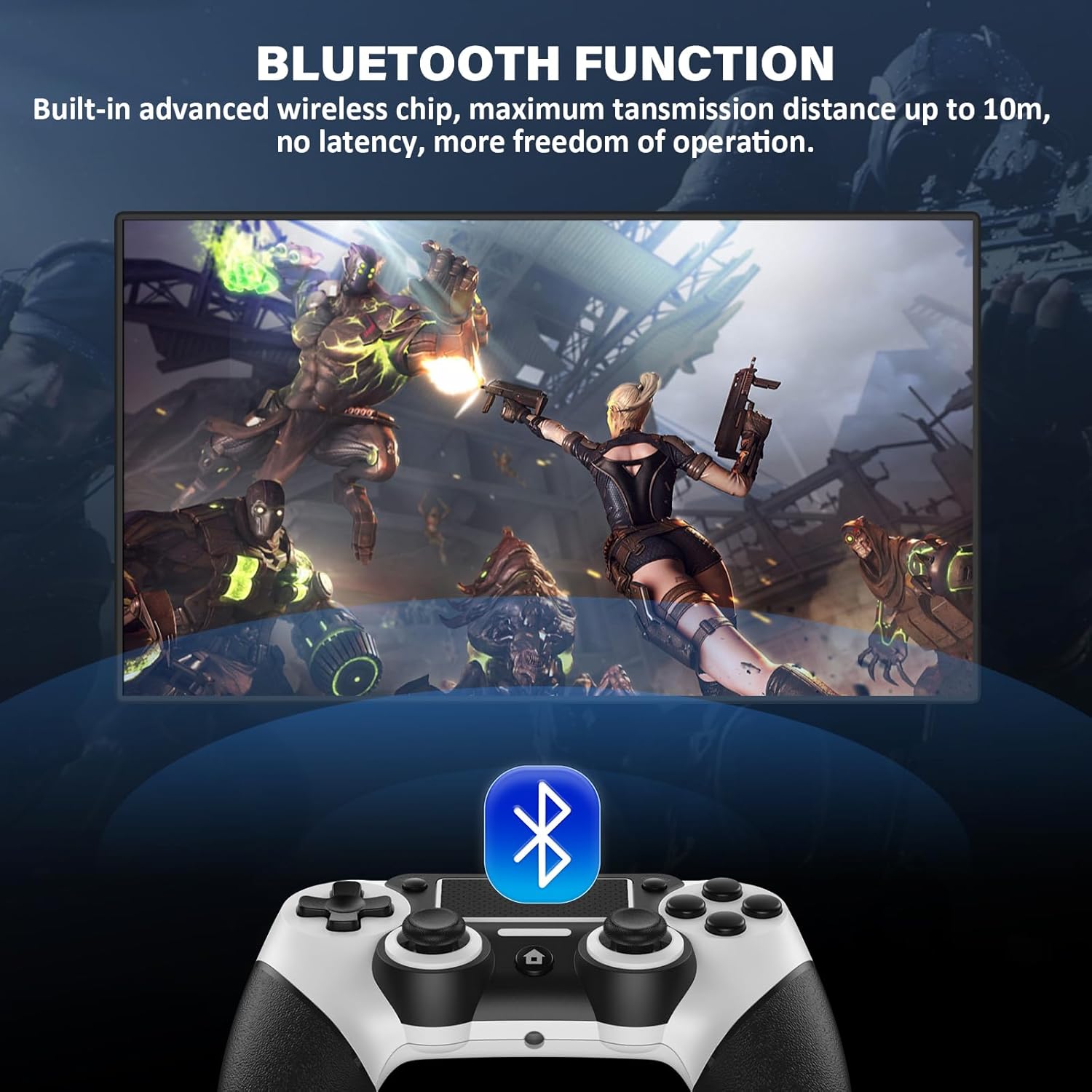
Image: Depicts the controller's Bluetooth function, highlighting its wireless capability with a range of up to 10 meters (33 feet).
5. การชาร์จคอนโทรลเลอร์
ตัวควบคุมนี้มาพร้อมกับแบตเตอรี่แบบชาร์จไฟได้ความจุสูง 600mAh
- เวลาในการชาร์จ: ใช้เวลาประมาณ 1-2 ชั่วโมงในการชาร์จเต็ม
- เวลาทำงาน: Provides up to 8-10 hours of uninterrupted gaming.
- พอร์ตชาร์จ: ประเภท C
LED Light Bar Status during Charging:
- ระหว่างการชาร์จ: LED light is orange.
- เมื่อการชาร์จเสร็จสิ้น: ไฟ LED ดับอยู่
- In standby: ไฟ LED กะพริบ
- When not connected: LED light is white.
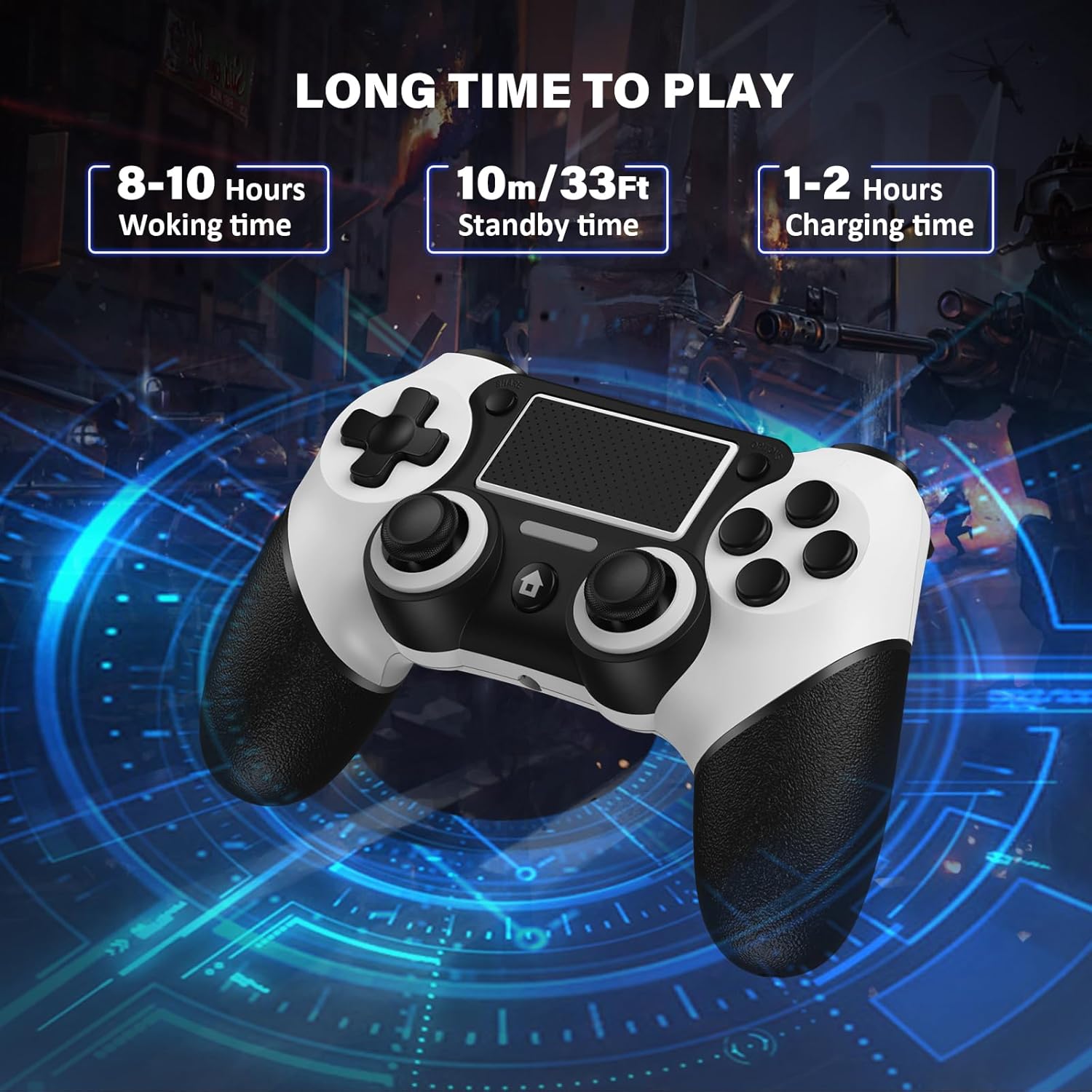
Image: Displays the controller's battery life metrics: 8-10 hours working time, 10m/33ft standby time, and 1-2 hours charging time.

Image: Highlights the controller's built-in 600mAh rechargeable battery, showing charging and working times.
6. Advanced Functions: Turbo and Macro Programming
ฟังก์ชันเทอร์โบ
The Turbo function allows for continuous rapid input of a button press, useful in games requiring fast repetitive actions.
- How to Set TURBO: Press the desired function button (e.g., Triangle, Circle, Cross, Square, R1, R2, L1, L2) + the ปุ่มแชร์ พร้อมกัน
- How to Cancel TURBO: Press the button with the continuous fire setting + the ปุ่มแชร์ พร้อมกัน
- การปรับอัตราเทอร์โบ: กดค้างไว้ ปุ่มแชร์ and move the right stick up or down to switch between 6 times/second, 12 times/second, and 18 times/second.
การเขียนโปรแกรมแมโคร
The M1 and M2 back buttons can be programmed to execute complex sequences or map any standard button, providing a competitive edge.
- The extra multi-function buttons on the back of this controller can be programmed for custom gameplay styles.
- You can map any button you want to set to M1 or M2.

Image: Illustrates the Macro Programming Features with M1 and M2 buttons on the back, showing customization options for up to 16 buttons.
7. Troubleshooting & Reset
การรีเซ็ตคอนโทรลเลอร์
If the product is not working properly due to a malfunction, you can perform a reset:
- Locate the small reset hole on the back of the controller (refer to the Controller Layout image).
- Use a thin, pointed object (like a paperclip) to press the reset button inside the hole.
- After resetting, re-pair the controller with your device following the initial setup instructions.
ปัญหาทั่วไป
- ปัญหาการจับคู่: Ensure no other buttons or joysticks on the controller are pressed during the initial pairing process. This can prevent proper connection.
- การตัดการเชื่อมต่อ: If the controller frequently disconnects, ensure it is fully charged and within the 33ft (10m) Bluetooth range. Interference from other wireless devices can also affect connection stability.
- อาการหน่วง/ไม่ตอบสนองของอินพุต: Check battery level. If wired, ensure the USB cable is securely connected. For wireless, try re-pairing the controller.
8. ข้อมูลจำเพาะผลิตภัณฑ์
| ข้อมูลจำเพาะ | รายละเอียด |
|---|---|
| ขนาดสินค้า | 6.6 x 4.45 x 2.69 นิ้ว |
| น้ำหนักสินค้า | 10.8 ออนซ์ |
| ASIN | B0C1VMH1T8 |
| ผู้ผลิต | มัทบิบ |
| ชื่อรุ่น | P4 |
| อุปกรณ์ที่รองรับ | Playstation 3, PC, Playstation 4 |
| ประเภทตัวควบคุม | แป้นเกม |
| เทคโนโลยีการเชื่อมต่อ | Bluetooth, USB C |
| ความจุของแบตเตอรี่ | 600mAh |
9. วิดีโอผลิตภัณฑ์อย่างเป็นทางการ
Video: An official product video from Matbip showcasing the Wireless Controller for PS4, highlighting its features and design. This video demonstrates the controller's appearance and some of its functionalities.
10. การรับประกันและการสนับสนุนลูกค้า
Matbip specializes in providing customized controllers for game lovers. If you encounter any problems or have questions regarding your Matbip Wireless Controller, please do not hesitate to contact us. We are committed to providing prompt assistance and will reply to your inquiries within 24 hours.
For support, please refer to the contact information provided with your product packaging or visit the official Matbip store on Amazon.


