การแนะนำ
This manual provides detailed instructions for the installation, operation, and maintenance of the Supermicro MBD-X12DPI-N6-B E-ATX Server Motherboard. It is designed to assist users in setting up their server system correctly and efficiently. Please read this manual thoroughly before proceeding with any installation or configuration.
ข้อมูลด้านความปลอดภัย
Observe the following safety precautions to prevent damage to the motherboard and ensure personal safety:
- Always disconnect the power cord from the power supply before installing or removing any components.
- Wear an anti-static wrist strap and work on an anti-static mat to prevent electrostatic discharge (ESD) damage to sensitive components.
- จับเมนบอร์ดที่ขอบเพื่อหลีกเลี่ยงการสัมผัสชิ้นส่วนภายในโดยตรง
- Ensure proper ventilation within the server chassis to prevent overheating.
- Refer to the power supply unit's manual for specific safety guidelines related to power connections.
เนื้อหาแพ็คเกจ
ตรวจสอบว่ามีรายการทั้งหมดอยู่ในแพ็คเกจ:
- Supermicro MBD-X12DPI-N6-B E-ATX Server Motherboard
- I / O Shield
- สาย SATA (ปริมาณอาจแตกต่างกัน)
- คู่มืออ้างอิงฉบับย่อ
- Driver and Utility DVD/USB (if included)
การติดตั้งและการตั้งค่า
ส่วนนี้จะแนะนำขั้นตอนการติดตั้งเมนบอร์ดและส่วนประกอบหลักต่างๆ อย่างละเอียด
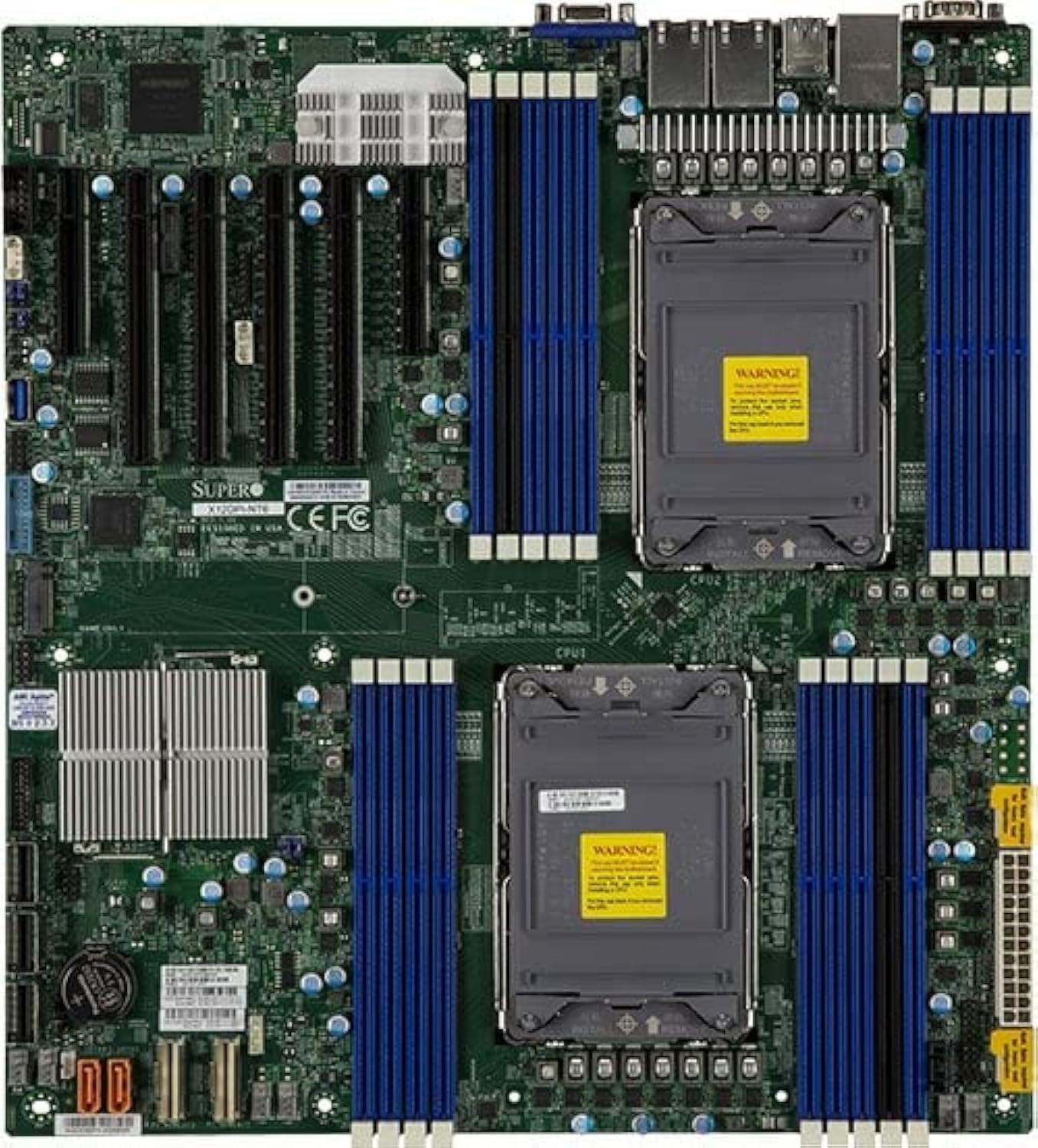
รูปที่ 1: จากบนลงล่าง view of the Supermicro MBD-X12DPI-N6-B E-ATX Server Motherboard, showcasing its dual LGA 4189 CPU sockets, 18 DDR4 DIMM slots, multiple PCIe 4.0 expansion slots, and various connectors for storage and peripherals. The board features a green PCB with blue and black DIMM slots, and silver heatsinks for chipset and VRMs.
1. การติดตั้ง CPU (LGA 4189)
- Carefully open the CPU socket retention mechanism by releasing คันโยก
- Align the triangular mark on the CPU with the corresponding mark on the socket.
- วาง CPU ลงในซ็อกเก็ตอย่างเบามือโดยไม่ต้องออกแรง
- Close the socket retention mechanism, ensuring the CPU is securely seated.
- ทาซิลิโคนระบายความร้อนลงบนซีพียู และติดตั้งพัดลมระบายความร้อนซีพียูตามคำแนะนำของผู้ผลิต
2. Memory (DIMM) Installation
The motherboard supports up to 4TB of 3DS ECC RDIMM/LRDIMM DDR4-3200MHz memory across 18 DIMM slots. Intel Optane Persistent Memory 200 Series is supported in specific slots (P1-DIMMB2 and P2-DIMMB2).
- Open the retention clips at both ends of the DIMM slot.
- จัดตำแหน่งรอยบากบนโมดูลหน่วยความจำให้ตรงกับร่องในช่องเสียบ DIMM
- เสียบโมดูลเข้าไปในช่องให้แน่นจนกระทั่งคลิปล็อกเข้าที่
- Ensure all modules are seated correctly and evenly.
3. การติดตั้งการ์ด PCIe
The motherboard features 2 PCIe 4.0 x8 and 4 PCIe 4.0 x16 slots.
- Select an appropriate PCIe slot for your expansion card.
- Remove the corresponding metal bracket cover from the server chassis.
- Align the card with the slot and press down firmly until it is fully seated.
- Secure the card with a screw or retention clip to the chassis.
4. การเชื่อมต่ออุปกรณ์จัดเก็บข้อมูล
The Intel C621A controller provides 14 SATA3 (6 Gbps) ports with RAID 0, 1, 5, 10 support. There is also 1 PCIe 4.0 x4 M.2 slot (2280/22110 form factor, M-Key).
- อุปกรณ์ SATA: Connect SATA data cables from your storage drives to the SATA ports on the motherboard. Connect power cables from the power supply to the drives.
- อุปกรณ์ M.2: Insert the M.2 SSD into the M.2 slot, securing it with the provided screw.
5. การเชื่อมต่อพาวเวอร์ซัพพลาย
Connect the main 24-pin ATX power connector and the 8-pin (or 4+4 pin) CPU power connectors from your power supply unit to the corresponding ports on the motherboard. Ensure all power connections are secure.
คำแนะนำการใช้งาน
1 การบูตเครื่องครั้งแรก
- After all components are installed, connect the power cord to the power supply and turn on the system.
- The system will perform a Power-On Self-Test (POST). Monitor for any error codes or beeps.
2. การกำหนดค่า BIOS/UEFI
During POST, press the designated key (usually เดล or F2) to enter the BIOS/UEFI setup utility. Here you can configure boot order, system time, and various hardware settings.
3. การติดตั้งระบบปฏิบัติการ
Insert your operating system installation media (USB drive or DVD) and configure the BIOS/UEFI to boot from it. Follow the on-screen instructions to install your preferred operating system.
การซ่อมบำรุง
1. การทำความสะอาด
Regularly clean the interior of your server chassis to prevent dust buildup, which can lead to overheating. Use compressed air to remove dust from heatsinks, fans, and other components. Ensure the system is powered off and unplugged before cleaning.
2. Firmware and Driver Updates
Periodically check the Supermicro official website for the latest BIOS/UEFI firmware and driver updates for your motherboard. Keeping your system updated ensures optimal performance, stability, and security.
การแก้ไขปัญหา
หากคุณพบปัญหา โปรดดูขั้นตอนการแก้ไขปัญหาทั่วไปต่อไปนี้:
- ไม่มีไฟฟ้า: Ensure all power cables (24-pin ATX, 8-pin CPU) are securely connected. Check the power supply unit and wall outlet.
- ไม่มีจอแสดงผล: Verify that the monitor is connected and powered on. Reseat the graphics card (if applicable) and memory modules. Try booting with minimal components.
- เสียงเตือนจากระบบ: Consult the motherboard's beep code table (usually found in the full manual on the Supermicro website) to diagnose hardware issues indicated by specific beep patterns.
- ระบบปฏิบัติการไม่บูต: Check the boot order in BIOS/UEFI. Ensure the storage drive with the OS is detected and functional.
- ความร้อนสูงเกินไป: Ensure CPU coolers and chassis fans are properly installed and functioning. Clean dust from heatsinks and vents.
ข้อมูลจำเพาะ
| คุณสมบัติ | รายละเอียด |
|---|---|
| ซ็อคเก็ตซีพียู | Dual LGA 4189 (Socket P+) |
| โปรเซสเซอร์ที่เข้ากันได้ | 3rd Gen Intel Xeon Scalable processors (up to 270W TDP) |
| ชิปเซ็ต | Intel C621A |
| ประเภทหน่วยความจำ | DDR4 3DS ECC RDIMM/LRDIMM, Intel Optane Persistent Memory 200 Series |
| ความเร็วหน่วยความจำ | 3200เมกะเฮิรตซ์ |
| สล็อตหน่วยความจำ | 18 DIMM slots (up to 4TB total) |
| สล็อตขยาย PCIe | 2 x PCIe 4.0 x8, 4 x PCIe 4.0 x16 |
| รองรับ NVMe | 2 x PCIe 4.0 NVMe x8 Internal Port(s) |
| อินเทอร์เฟซ M.2 | 1 x PCIe 4.0 x4 (2280/22110, M-Key) |
| พอร์ต SATA | 14 x SATA3 (6 Gbps) with RAID 0, 1, 5, 10 |
| แลน | Dual LAN with Intel i350 Gigabit Ethernet Controller |
| เอาท์พุตวิดีโอ | 2 x VGA (1 rear bezel, 1 front panel) |
| ฟอร์มแฟกเตอร์ | อี-เอทีเอ็กซ์ |
| ขนาด | 16 x 12 x 5 นิ้ว |
การสนับสนุนและการรับประกัน
For technical support, driver downloads, and the latest BIOS updates, please visit the official Supermicro website. Information regarding product warranty terms and conditions can also be found on the Supermicro support portal or by contacting your point of purchase.
Always refer to the official Supermicro documentation for the most accurate and up-to-date information.


