1. บทนำ
This manual provides essential information for the safe and efficient use of your AOC CU34P3CV 34-inch Ultrawide Quad HD LED Monitor. Please read this manual thoroughly before operating the device and retain it for future reference.
The AOC CU34P3CV is a 34-inch ultrawide curved monitor designed for productivity and immersive viewing, featuring a 3440 x 1440 Quad HD resolution, a VA panel, and a versatile USB-C docking solution.
2. ข้อมูลด้านความปลอดภัย
- แหล่งพลังงาน: ใช้เฉพาะสายไฟและอะแดปเตอร์ที่ให้มาพร้อมกับจอภาพเท่านั้น ตรวจสอบให้แน่ใจว่าเต้ารับไฟฟ้ามีการต่อสายดินอย่างถูกต้อง
- การระบายอากาศ : อย่าปิดกั้นช่องระบายอากาศ ควรเว้นพื้นที่รอบจอภาพให้เพียงพอเพื่อให้อากาศถ่ายเทได้สะดวก
- การสัมผัสของเหลว: Keep the monitor away from water or other liquids. Do not operate in high humidity environments.
- การทำความสะอาด: ถอดสายไฟออกก่อนทำความสะอาด ใช้ผ้านุ่มและแห้ง หลีกเลี่ยงการใช้น้ำยาทำความสะอาดชนิดน้ำหรือสเปรย์
- การจัดวาง: วางจอภาพบนพื้นผิวที่มั่นคงและเรียบ หลีกเลี่ยงแสงแดดโดยตรง แหล่งความร้อน หรือฝุ่นละอองมากเกินไป
- การบริการ: อย่าพยายามซ่อมแซมจอภาพด้วยตนเอง แนะนำให้ส่งช่างผู้ชำนาญการซ่อมบำรุงทั้งหมด
3. เนื้อหาบรรจุภัณฑ์
กรุณาตรวจสอบสิ่งของภายในบรรจุภัณฑ์เมื่อแกะกล่อง หากมีสินค้าใดสูญหายหรือเสียหาย โปรดติดต่อผู้ค้าปลีกของคุณ
- AOC CU34P3CV Monitor
- ขาตั้งจอมอนิเตอร์ (ฐานและคอ)
- สายไฟ
- สาย HDMI
- สายเคเบิล DisplayPort
- สาย USB-C
- คู่มือการใช้งาน (เอกสารนี้)
4. การตั้งค่า
4.1. การประกอบขาตั้ง
- วางจอภาพคว่ำหน้าลงบนพื้นผิวที่นุ่มและสะอาดอย่างระมัดระวังเพื่อป้องกันรอยขีดข่วน
- Attach the stand neck to the back of the monitor. Secure with screws if provided.
- Attach the stand base to the stand neck. Secure with the thumb screw or screws provided.
Image: AOC CU34P3CV Monitor Front View
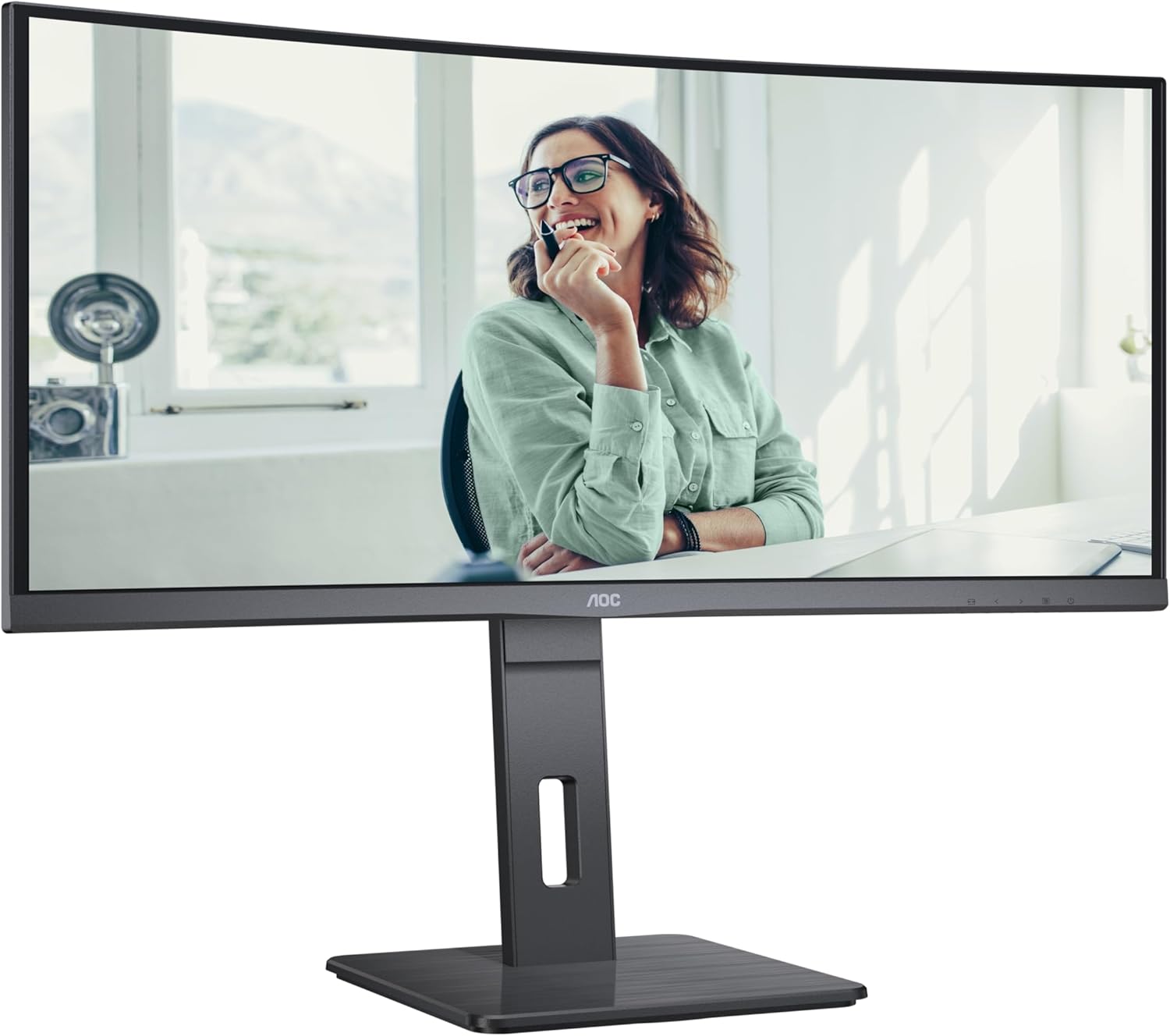
This image shows the AOC CU34P3CV monitor from the front, with its stand, displaying a vibrant image on its curved screen.
Image: AOC CU34P3CV Monitor Features Overview

ภาพนี้แสดงให้เห็นด้านหน้า view of the AOC CU34P3CV monitor, with graphical overlays indicating its key features such as 34-inch size, WQHD resolution, VA panel, 3-sided frameless design, adjustable stand, and curved display.
4.2. การเชื่อมต่อจอภาพ
อ้างถึงด้านหลัง view ภาพแสดงตำแหน่งท่าเรือ

This image displays the rear of the AOC CU34P3CV monitor, detailing the arrangement of its power input, video input ports (HDMI, DisplayPort, USB-C), and USB hub ports.
- การเชื่อมต่อไฟฟ้า: เชื่อมต่อสายไฟเข้ากับแหล่งจ่ายไฟของจอภาพ จากนั้นจึงเชื่อมต่อกับเต้ารับไฟฟ้าที่มีสายดิน
- การเชื่อมต่อวิดีโอ:
- ยูเอสบี-C: For a single-cable solution providing video, data, and power delivery (up to 65W), connect the USB-C cable from your computer to the monitor's USB-C port.
- HDMI/พอร์ตแสดงผล: Connect an HDMI or DisplayPort cable from your computer's video output to the corresponding port on the monitor.
- ฮับ USB: Connect the upstream USB-C cable (if using USB-C for video) or a separate USB upstream cable (if using HDMI/DP) from your computer to the monitor to enable the integrated USB hub ports.
- เครือข่าย (RJ45): If your monitor supports an integrated Ethernet port via USB-C docking, connect an Ethernet cable from your network router/modem to the RJ45 port on the monitor.
4.3. เปิดเครื่องครั้งแรก
- ตรวจสอบให้แน่ใจว่าสายเคเบิลทั้งหมดเชื่อมต่ออย่างแน่นหนา
- กดปุ่มเปิด/ปิดบนจอภาพ
- Turn on your computer. The monitor should automatically detect the input signal. If not, you may need to manually select the input source using the On-Screen Display (OSD) menu.
5. คู่มือการใช้งาน
5.1. เปิด/ปิดเครื่อง
Press the power button, usually located on the bottom right or rear of the monitor, to turn the monitor on or off.
5.2. เมนูการแสดงผลบนหน้าจอ (OSD)
The OSD menu allows you to adjust various monitor settings. Use the control buttons (joystick or individual buttons) typically located on the bottom or rear of the monitor to navigate the menu.
- เลือกอินพุต: Choose between USB-C, HDMI, or DisplayPort inputs.
- การตั้งค่ารูปภาพ: Adjust Brightness, Contrast, Gamma, Color Temperature, and various picture modes.
- การตั้งค่าสี: Fine-tune color settings.
- การตั้งค่า OSD: ปรับภาษา OSD ความโปร่งใส และเวลาหมดเวลา
- พิเศษ: Access information about the current resolution and refresh rate.
5.3. การปรับตำแหน่งจอภาพ
The monitor stand allows for ergonomic adjustments.
- การปรับความสูง: ดันหรือดึงจอภาพขึ้นหรือลงเบาๆ เพื่อปรับความสูง
- การปรับเอียง: ปรับมุมหน้าจอมอนิเตอร์ไปข้างหน้าหรือข้างหลังเพื่อหาตำแหน่งที่เหมาะสมที่สุด viewมุมอิง
- การปรับหมุน: หมุนจอภาพไปทางซ้ายหรือขวาบนฐาน
Image: AOC CU34P3CV Monitor Side View พร้อมพอร์ต USB

ภาพนี้แสดงด้านข้างของมืออาชีพfile of the AOC CU34P3CV monitor, highlighting two easily accessible USB ports on the side of the display.
Image: AOC CU34P3CV Monitor Side View with Stand Adjustment

ภาพนี้แสดงให้เห็นด้านข้าง view of the AOC CU34P3CV monitor, showcasing the flexibility of its stand for height and tilt adjustments.
Image: AOC CU34P3CV Monitor Top View
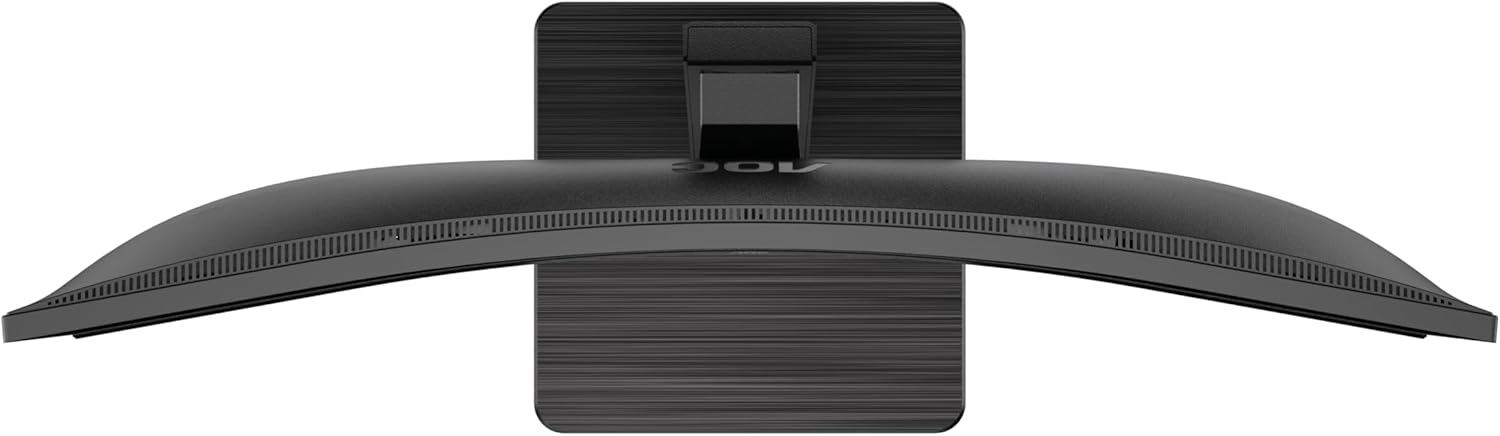
This image provides a top-down perspective of the AOC CU34P3CV monitor, clearly showing the curvature of its ultrawide screen.
6. การบำรุงรักษา
6.1. การทำความสะอาดจอภาพ
- ควรถอดปลั๊กจอภาพออกจากเต้ารับไฟฟ้าทุกครั้งก่อนทำความสะอาด
- ใช้ผ้าที่ไม่เป็นขุยและนุ่มเช็ดหน้าจอและพื้นผิวภายนอกอย่างเบามือ
- สำหรับรอยฝังแน่น ให้เช็ดเบาๆampชุบผ้าด้วยน้ำหรือน้ำยาทำความสะอาดหน้าจอสูตรอ่อนโยนที่ไม่กัดกร่อน ห้ามฉีดน้ำยาลงบนหน้าจอโดยตรง
- หลีกเลี่ยงการใช้เบนซีน ทินเนอร์ น้ำยาทำความสะอาดที่มีส่วนผสมของแอมโมเนีย หรือสารทำความสะอาดที่มีฤทธิ์กัดกร่อน
7 การแก้ไขปัญหา
หากคุณพบปัญหาเกี่ยวกับจอภาพของคุณ โปรดดูปัญหาทั่วไปและวิธีแก้ไขต่อไปนี้:
| ปัญหา | สาเหตุที่เป็นไปได้ | สารละลาย |
|---|---|---|
| No power/No image | Power cable not connected; Monitor off | Ensure power cable is securely connected; Press the power button to turn on the monitor. |
| No signal/"No Input" message | ไม่ได้เชื่อมต่อสายวิดีโอ; เลือกแหล่งสัญญาณเข้าไม่ถูกต้อง | Check video cable connections (HDMI, DisplayPort, USB-C); Use OSD menu to select the correct input source. |
| รูปภาพมืด/สว่างเกินไป | การตั้งค่าความสว่าง/ความคมชัดไม่ถูกต้อง | ปรับค่าความสว่างและความคมชัดผ่านเมนู OSD |
| ภาพสั่นไหว | Incorrect refresh rate; Loose cable | Ensure refresh rate is set to 60Hz in your computer's display settings; Check video cable connections. |
| พอร์ต USB ไม่ทำงาน | USB upstream cable not connected; Driver issue | Ensure the USB-C cable (for video and data) or a separate USB upstream cable is connected to your computer; Check computer's device manager for USB driver issues. |
8. ข้อมูลจำเพาะ
แบบอย่าง: AOC CU34P3CV
| คุณสมบัติ | ข้อมูลจำเพาะ |
|---|---|
| ขนาดหน้าจอ | 34 นิ้ว (86.4 ซม.) |
| ปณิธาน | 3440 x 1440 Quad HD |
| อัตราส่วนภาพ | 21:9 น. |
| ประเภทแผง | แผงเวอร์จิเนีย |
| อัตราการรีเฟรช | 60 เฮิรตซ์ |
| อัตราส่วนความคมชัดของภาพ | 1000:1 น. |
| การเชื่อมต่อ | USB-C (with Power Delivery), HDMI, DisplayPort, USB Hub, Ethernet (RJ45) |
| การใช้พลังงาน (SDR) | 32.0 วัตต์ |
| การใช้พลังงาน (HDR) | 35.0 วัตต์ |
| การใช้พลังงาน (โหมดปิด) | 0.3 วัตต์ |
| การใช้พลังงาน (สแตนด์บาย) | 0.5 วัตต์ |
| ขนาดสินค้า (โดยประมาณ) | 11.81 x 11.81 x 11.81 นิ้ว (พร้อมขาตั้ง) |
| น้ำหนักสินค้า (โดยประมาณ) | น้ำหนัก 2.2 ปอนด์ (ไม่รวมขาตั้ง) |
| รับประกันการอัปเดตซอฟต์แวร์/เฟิร์มแวร์ | 8 ปี |
| Guaranteed Spare Parts | 7 ปี |
| รับประกันการสนับสนุนผลิตภัณฑ์ | 8 ปี |
Image: Product Information Sheet
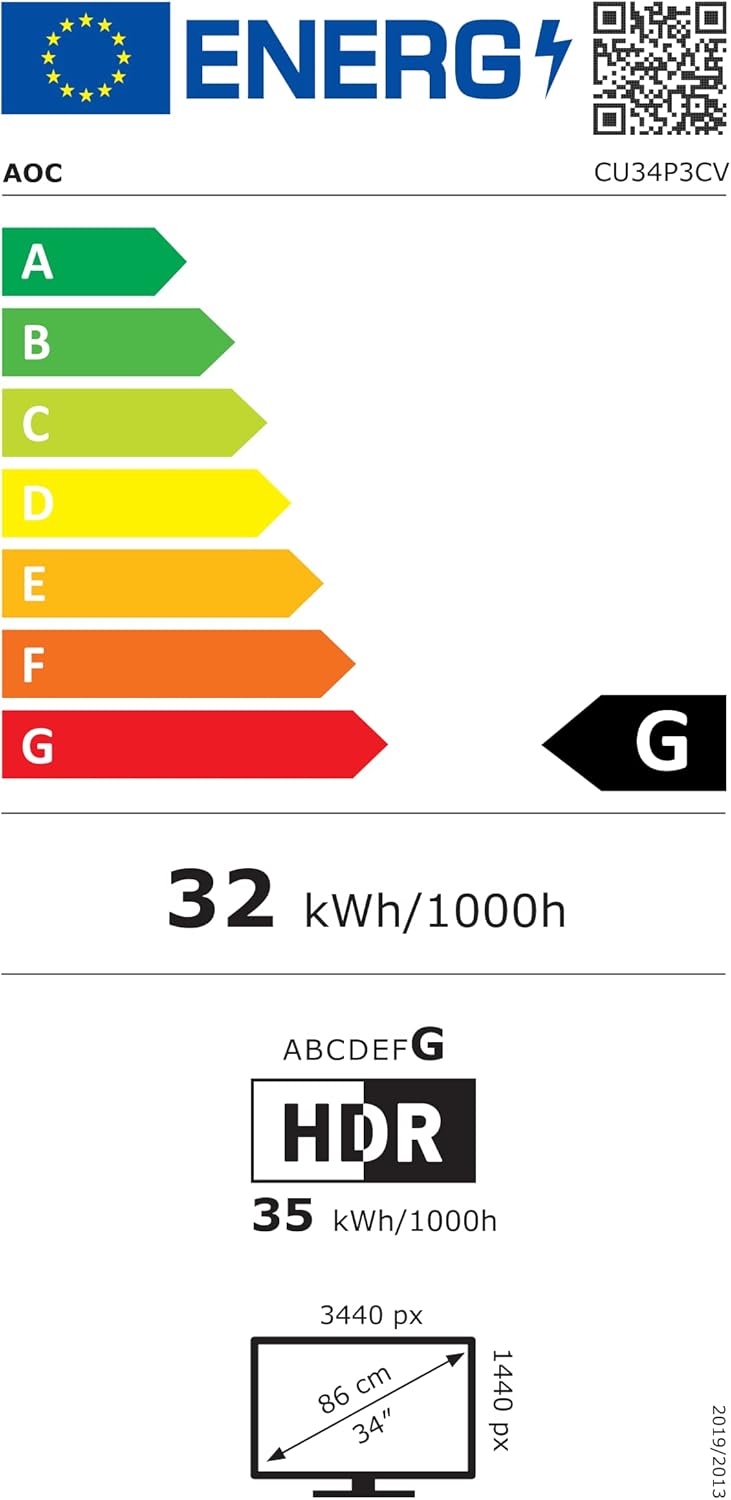
This image displays the official Product Information Sheet for the AOC CU34P3CV monitor, providing detailed technical specifications and compliance information.
Image: Energy Label
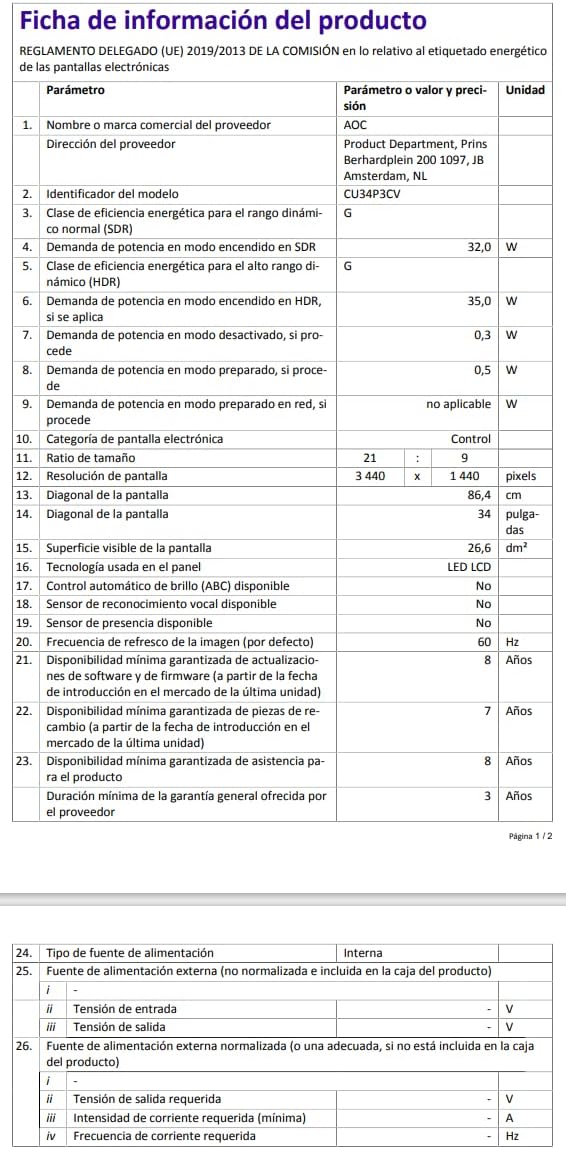
This image presents the EU Energy Label for the AOC CU34P3CV monitor, indicating its energy efficiency class and annual power consumption.
For more detailed energy information, please visit the EPREL database: https://eprel.ec.europa.eu/qr/1362085
9. การรับประกันและการสนับสนุน
Your AOC CU34P3CV monitor comes with a minimum general guarantee of 3 ปี provided by the supplier. Additionally, AOC guarantees minimum availability of software and firmware updates for 8 years, spare parts for 7 years, and product support for 8 years from the date of end of placement on the market.
For technical support, warranty claims, or further assistance, please visit the official AOC website or contact your local AOC customer service center. Keep your purchase receipt as proof of purchase for warranty purposes.


