1. บทนำ
This manual provides essential instructions for setting up, operating, and maintaining your Huawei H158-381 5G CPE Pro 5 Router. Please read this guide thoroughly before using the device to ensure proper functionality and safety.
2. เนื้อหาบรรจุภัณฑ์
ตรวจสอบว่ารายการทั้งหมดต่อไปนี้รวมอยู่ในแพ็คเกจผลิตภัณฑ์ของคุณ:
- เราเตอร์ Huawei H158-381 5G CPE Pro 5
- อะแดปเตอร์ไฟ 12V 3A
- คู่มือการเริ่มต้นฉบับย่อ (คู่มือนี้)
3. สินค้าหมดview
The Huawei H158-381 5G CPE Pro 5 Router is a high-performance wireless router designed for advanced internet connectivity. It supports both 5G and 4G networks, offering high-speed data transmission and robust Wi-Fi capabilities.
คุณสมบัติหลัก:
- 5G and 4G Network Compatibility: Supports 5G frequencies in NSA and SA modes (n1/3/5/7/20/28/71/38/40/41/77/78/79) and 4G bands (B1/3/5/7/8/18/19/20/26/28/32/34/38/39/40/41/42/43). Note: 2G and 3G are not supported.
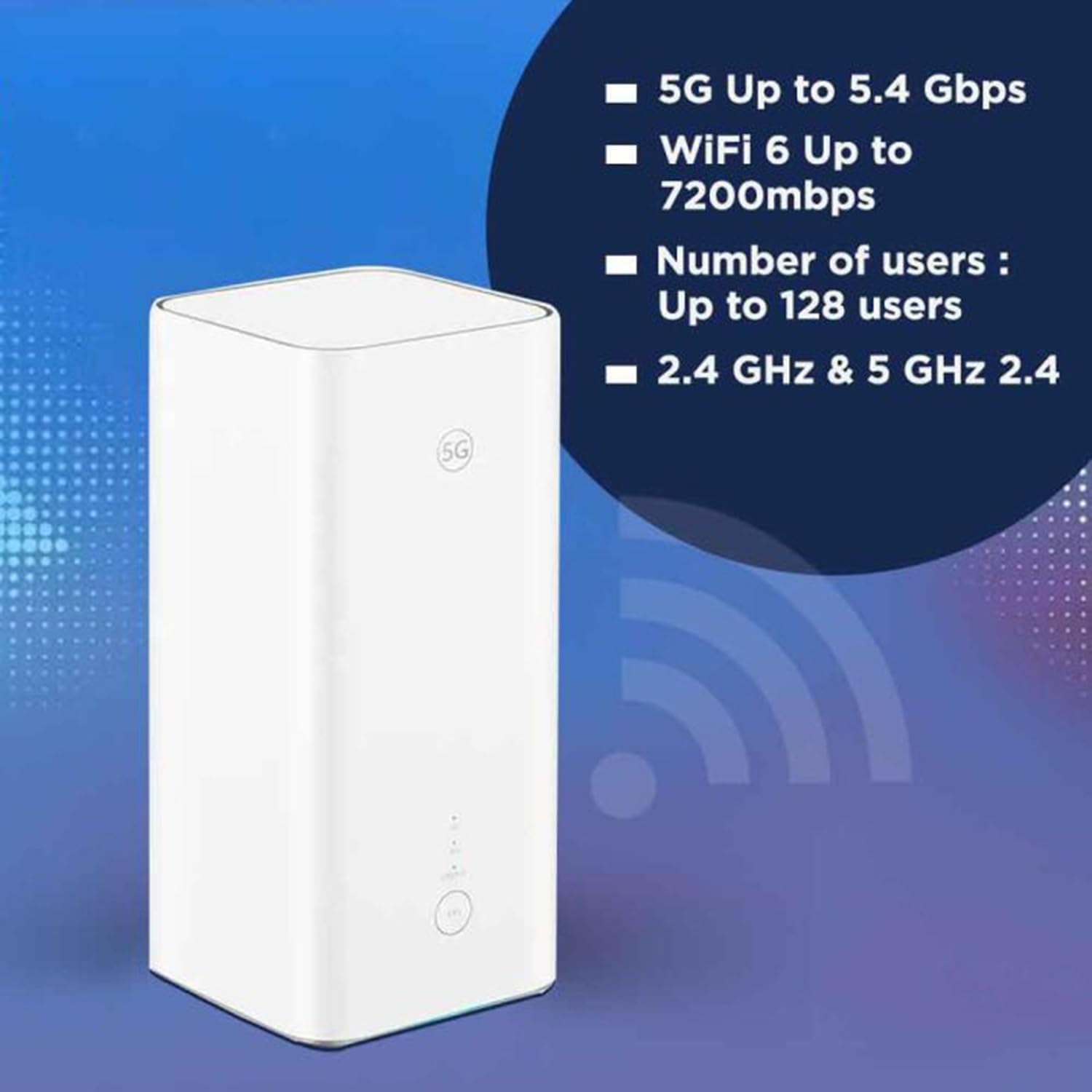
- ข้อมูลความเร็วสูง: Achieves download speeds up to 5.4 Gbps and upload speeds up to 500 Mbps on 5G (network dependent).
- Wi-Fi 6 (AX7200): Provides Wi-Fi speeds up to 7200 Mbps across 2.4 GHz and 5 GHz bands, supporting up to 128 connected users.
- ความปลอดภัย WPA3: Enhanced wireless security protocol for a safer network.
- Nano-SIM Slot: สำหรับการเชื่อมต่อบรอดแบนด์มือถือ
- Integrated 5G NR Antenna: Features a 12 dBi internal antenna for optimized signal reception.
- พอร์ตอีเธอร์เน็ต: Includes 2 Ethernet ports for wired connections.
องค์ประกอบทางกายภาพ:


4. คู่มือการติดตั้ง
4.1 การติดตั้งซิมการ์ด
- Locate the Nano-SIM card slot on your router.
- Insert a Nano-SIM card into the slot. Ensure the SIM card is correctly oriented according to the diagram near the slot.
- สำคัญ: It is recommended to disable the PIN code of your SIM card using a mobile phone before inserting it into the router for a smoother setup process.
4.2 การเชื่อมต่อสายไฟ
- Connect the provided 12V 3A power adapter to the router's power input port.
- เสียบอะแดปเตอร์จ่ายไฟเข้ากับเต้ารับไฟฟ้าที่เหมาะสม
- The router will automatically power on. Wait for the status indicators to stabilize.
4.3 การกำหนดค่าเริ่มต้น
Once powered on, the router will attempt to connect to the mobile network. You can access the router's web interface or use the dedicated mobile application for further configuration, such as changing Wi-Fi names and passwords.
5. คู่มือการใช้งาน
5.1 การเชื่อมต่ออุปกรณ์ผ่าน Wi-Fi
- บนอุปกรณ์ของคุณ (สมาร์ทโฟน แล็ปท็อป แท็บเล็ต) ค้นหาเครือข่าย Wi-Fi ที่ใช้งานได้
- Select the Wi-Fi network name (SSID) corresponding to your router. The default SSID and password are usually found on a label at the bottom of the router.
- ป้อนรหัสผ่าน Wi-Fi เมื่อได้รับแจ้ง
- ตอนนี้อุปกรณ์ของคุณควรเชื่อมต่อกับอินเทอร์เน็ตแล้ว
5.2 การเชื่อมต่ออุปกรณ์ผ่านสายอีเธอร์เน็ต
The router features two Ethernet ports for wired connections:
- Connect one end of an Ethernet cable to an Ethernet port on the back of the router.
- Connect the other end of the Ethernet cable to the Ethernet port on your device (e.g., computer, gaming console, smart TV).
- The device should automatically establish a wired network connection.
6. คุณสมบัติขั้นสูง
6.1 การรองรับเสาอากาศภายนอก
The Huawei H158-381 router supports external 5G antennas to enhance signal reception. To utilize this feature:
- Install your external 5G antennas according to their respective instructions.
- Connect the external antennas to the designated external antenna ports on the router.
- Open the router's management application (e.g., Deco app), navigate to Advanced > External Antennas, and activate the external antennas option.
- When activated, the external antennas will replace a portion of the internal antennas for signal reception.
6.2 วิดีโอสรุปข้อมูลผลิตภัณฑ์
ดูวิดีโอนี้เพื่อดูภาพรวมอย่างรวดเร็วview of the Huawei H158-381 5G CPE Pro 5 Router's features and benefits.
6.1 วิดีโอ: A product summary video showcasing the Huawei H158-381 5G CPE Pro 5 Router's design and core functionalities.
7. ข้อมูลจำเพาะทางเทคนิค
| คุณสมบัติ | ข้อมูลจำเพาะ |
|---|---|
| ยี่ห้อ | หัวเว่ย |
| ผู้ผลิต | หัวเว่ย |
| ชุด | H158-381 |
| ขนาดสินค้า | 10.3 x 10.3 x 22.6 ซม.; 915 กรัม |
| หมายเลขรุ่นสินค้า | H158-381 |
| สี | สีขาว |
| ประเภทการเชื่อมต่อ | ไวไฟ |
| ประเภทไร้สาย | 802.11ax |
| จำนวนพอร์ตอีเธอร์เน็ต | 2 |
| เล่มที่tage | 12 โวลต์ |
| ระบบปฏิบัติการ | เราเตอร์โอเอส |
| รวมแบตเตอรี่ | เลขที่ |
| รับประกันการอัปเดตซอฟต์แวร์จนถึง | 23 พฤษภาคม 2025 |
| ชื่อรุ่น | H158-381 |
| คุณสมบัติพิเศษ | ดับบลิวพีเอส |
| ระดับย่านความถี่ | ดูอัลแบนด์ |
| มาตรฐานการสื่อสารไร้สาย | 802.11ax |
| อุปกรณ์ที่รองรับ | Game console, tablet, personal computer, smartphone, smart television, streaming device, security camera, printer, smart thermostat |
| คำแนะนำการใช้งานผลิตภัณฑ์ | บ้าน, ธุรกิจ |
| ส่วนประกอบที่รวมอยู่ | Manual, 12V 3A Charger, Router H158-381 |
| เทคโนโลยีการเชื่อมต่อ | อีเทอร์เน็ต, ไวไฟ |
8. การบำรุงรักษา
To ensure the longevity and optimal performance of your router, consider the following maintenance tips:
- การจัดวาง: วางเราเตอร์ในตำแหน่งศูนย์กลาง ห่างจากสิ่งกีดขวางและอุปกรณ์อิเล็กทรอนิกส์อื่นๆ ที่อาจทำให้เกิดสัญญาณรบกวน
- การทำความสะอาด: รักษาเราเตอร์ให้สะอาดและปราศจากฝุ่น ใช้ผ้านุ่มและแห้งเช็ดทำความสะอาด
- อัพเดตเฟิร์มแวร์: Regularly check for and install firmware updates to benefit from improved performance, security, and new features. This can usually be done through the router's web อินเทอร์เฟซหรือแอพมือถือ
- การระบายอากาศ : Ensure the router has adequate ventilation to prevent overheating. Do not cover ventilation openings.
9 การแก้ไขปัญหา
หากคุณพบปัญหาเกี่ยวกับเราเตอร์ของคุณ ให้ลองทำตามขั้นตอนการแก้ไขปัญหาต่อไปนี้:
- ไม่มีการเชื่อมต่ออินเทอร์เน็ต:
- ตรวจสอบว่าใส่และเปิดใช้งานซิมการ์ดอย่างถูกต้อง
- Ensure the router is powered on and all indicator lights are functioning as expected.
- Restart the router by unplugging it from the power source, waiting 30 seconds, and plugging it back in.
- Verify your mobile data plan is active and has sufficient data.
- ความเร็ว Wi-Fi ช้า:
- ขยับเข้าไปใกล้เราเตอร์มากขึ้นเพื่อปรับปรุงความแรงของสัญญาณ
- ลดจำนวนอุปกรณ์ที่เชื่อมต่อหรือกิจกรรมที่ใช้แบนด์วิดท์มาก
- ตรวจสอบการรบกวนจากอุปกรณ์อิเล็กทรอนิกส์อื่นๆ
- พิจารณาใช้เสาอากาศภายนอกหากความแรงของสัญญาณต่ำอย่างต่อเนื่อง
- ไม่สามารถเข้าถึงการตั้งค่าเราเตอร์ได้:
- ตรวจสอบให้แน่ใจว่าอุปกรณ์ของคุณเชื่อมต่อกับเครือข่าย Wi-Fi ของเราเตอร์หรือผ่านสายอีเทอร์เน็ต
- Verify you are entering the correct IP address (usually 192.168.8.1 or 192.168.1.1) in your web เบราว์เซอร์
- Confirm you are using the correct administrator username and password.
If problems persist, consult the official Huawei support webไซต์หรือติดต่อฝ่ายบริการลูกค้าเพื่อขอความช่วยเหลือเพิ่มเติม
10. การรับประกันและการสนับสนุน
สำหรับข้อมูลการรับประกัน โปรดดูบัตรรับประกันที่รวมอยู่ในผลิตภัณฑ์ของคุณหรือเยี่ยมชมเว็บไซต์ HUAWEI อย่างเป็นทางการ website. Technical support and customer service contact details can also be found on the HUAWEI support portal.


