1. บทนำ
This manual provides essential instructions for the safe and efficient use of your KYOCERA ECOSYS MA5500ifx multifunction printer. Please read this manual thoroughly before operating the device and keep it for future reference. The KYOCERA ECOSYS MA5500ifx is an A4 monochrome multifunction system designed for printing, copying, scanning, and faxing.
2. ข้อมูลด้านความปลอดภัย
ปฏิบัติตามข้อควรระวังด้านความปลอดภัยต่อไปนี้เสมอเพื่อป้องกันการบาดเจ็บหรือความเสียหายต่ออุปกรณ์:
- วางอุปกรณ์บนพื้นผิวเรียบและมั่นคง
- ตรวจสอบให้แน่ใจว่ามีการระบายอากาศที่เหมาะสมรอบๆ อุปกรณ์
- อย่าปิดกั้นช่องระบายอากาศ
- ใช้เฉพาะแหล่งจ่ายไฟและระดับเสียงที่กำหนดเท่านั้นtage.
- เก็บของเหลวให้ห่างจากอุปกรณ์
- อย่าพยายามซ่อมแซมอุปกรณ์ด้วยตัวเอง อ้างอิงการบริการทั้งหมดกับบุคลากรที่มีคุณสมบัติเหมาะสม
3. การตั้งค่า
3.1 การแกะและการจัดวาง
Carefully remove the printer from its packaging. Ensure all packing materials and protective tapes are removed. Place the printer in a location with adequate space for operation and maintenance.

ภาพที่ 1: ด้านหน้า view of the KYOCERA ECOSYS MA5500ifx multifunction printer, showing its compact design and paper trays.
3.2 การเชื่อมต่อสายไฟ
Connect the power cord securely to the printer and then to a grounded electrical outlet.
3.3 Network and USB Connection
The printer supports both USB and Gigabit network interfaces. For network connectivity, connect an Ethernet cable to the printer's network port and to your network router or switch. For direct connection, use a USB cable to connect the printer to your computer.

ภาพที่ 2: ภาพระยะใกล้ view of the USB port on the side of the KYOCERA ECOSYS MA5500ifx, used for direct connection to a computer or for USB drive functionality.
3.4 การติดตั้งไดรเวอร์
Upon connecting the printer to a computer via USB or network, drivers are often automatically detected and installed by the operating system. If not, download the latest drivers from the official KYOCERA support webเว็บไซต์.
3.5 การกำหนดค่าเริ่มต้น
Turn on the printer. Use the 17.8 cm (7-inch) touchscreen control panel to configure initial settings such as language, date, time, and network parameters. The touchscreen has a 3-step tilt for ergonomic viewการไอเอ็นจี

ภาพที่ 3: รายละเอียด view of the KYOCERA ECOSYS MA5500ifx's touchscreen control panel, displaying various function icons like Copy, Send, Fax, and Job Box.
4. คู่มือการใช้งาน
4.1 กำลังโหลดกระดาษ
The printer features a 500-sheet paper cassette and a 100-sheet universal feeder, both supporting up to A4 size. Open the desired paper tray, load the paper, and adjust the guides. Ensure the paper type and size settings on the control panel match the loaded paper. The printer can also handle labels as print media.
4.2 การพิมพ์ขั้นพื้นฐาน
From your computer, select the KYOCERA ECOSYS MA5500ifx as your printer. Adjust print settings as needed (e.g., single-sided or duplex). The printer offers monochrome printing at up to 55 pages per minute (ppm) with a resolution of up to 1200 x 1200 dpi.
4.3 การคัดลอกเอกสาร
Place your document on the scanner glass or in the automatic document feeder (ADF). The ADF supports up to 75 sheets (A4) with automatic duplex scanning. Select 'Copy' from the touchscreen, adjust settings like quantity, zoom, and duplex options, then press 'Start'. Maximum copy resolution is 600 dpi for black and white, and 1200 x 1200 dpi for color.

ภาพที่ 4: ภาพระยะใกล้ view of the automatic document feeder (ADF) input tray on the KYOCERA ECOSYS MA5500ifx, showing a document being loaded for scanning or copying.
4.4 การสแกนเอกสาร
Place your document as described for copying. Select 'Send' or 'Scan' from the touchscreen. Choose your scan destination (e.g., email, network folder, USB drive). Configure scan settings such as resolution and file format, then press 'Start'. The scanner is a sheetfed type with duplex capability.
4.5 การส่งแฟกซ์
Place your document in the ADF. Select 'Fax' from the touchscreen. Enter the recipient's fax number using the numeric keypad or select from the address book. Adjust any necessary fax settings and press 'Start'.
4.6 Using the Touch Panel
The touch panel provides intuitive access to all printer functions. Navigate through menus by tapping icons and swiping. Common functions include Copy, Send, Fax, Job Box, and USB Drive access. The panel also features physical buttons for Status/Job Cancel, Copy, Send, Fax, Reset, Stop, and Start.
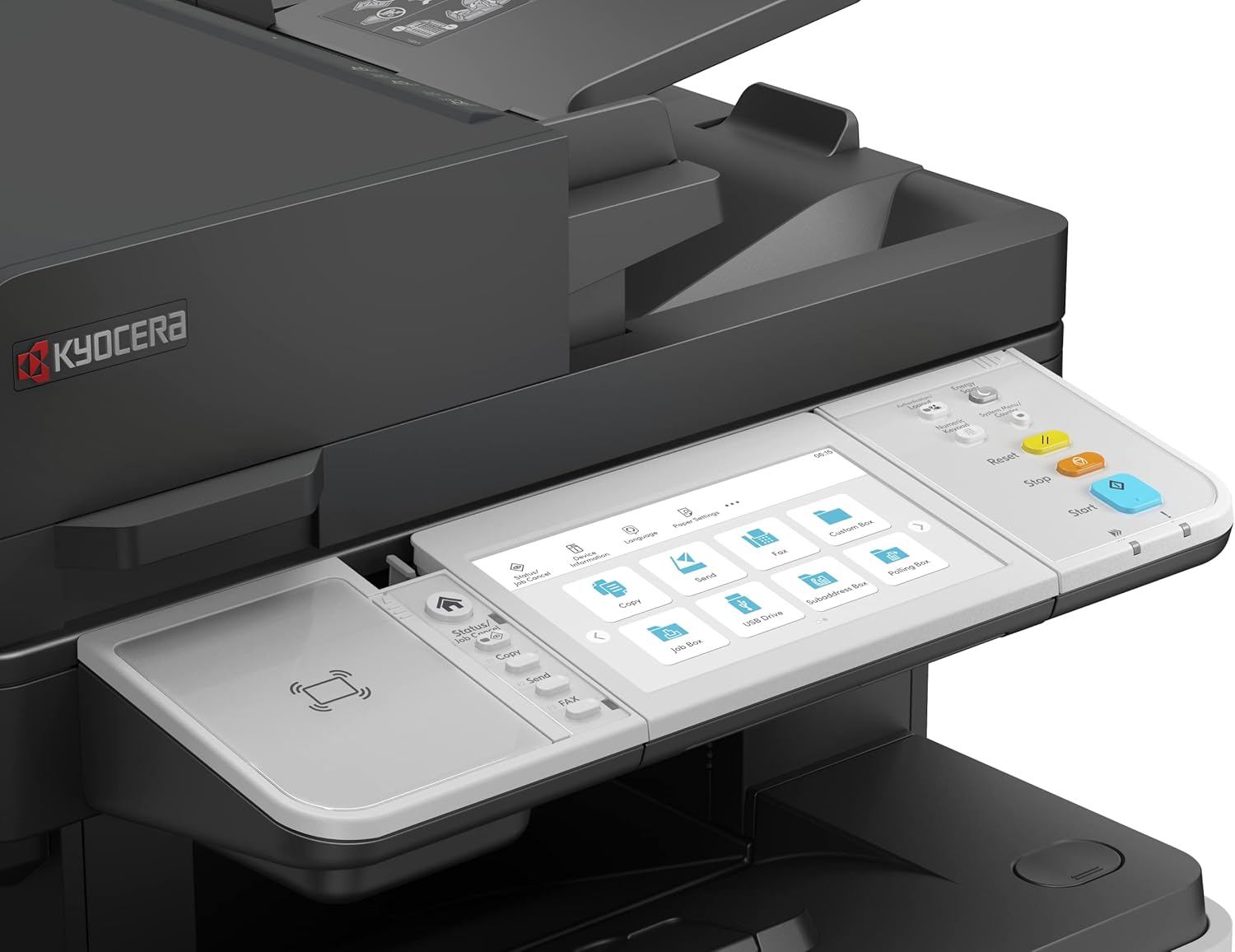
ภาพที่ 5: กว้างขึ้น view of the KYOCERA ECOSYS MA5500ifx control panel, highlighting the touchscreen interface with various function icons and the adjacent physical control buttons.
5. การบำรุงรักษา
5.1 การทำความสะอาดเครื่อง
Regularly clean the exterior of the printer with a soft, dry, lint-free cloth. For the scanner glass, use a mild glass cleaner applied to a cloth, not directly to the glass. Ensure the device is powered off before cleaning.
5.2 การเปลี่ยนโทนเนอร์
When the black ink (toner) cartridge is low or empty, a message will appear on the control panel. Follow the on-screen instructions or refer to the quick guide for safe replacement of the toner cartridge.
5.3 การทำความสะอาดทางเดินกระดาษ
If paper jams occur frequently or print quality degrades, the paper path may need cleaning. Consult the full service manual for detailed instructions on cleaning specific components within the paper path.
6 การแก้ไขปัญหา
This section addresses common issues you might encounter. For more complex problems, contact KYOCERA support.
6.1 กระดาษติด
If a paper jam occurs, the control panel will display an error message and indicate the location of the jam. Carefully open the designated covers and remove the jammed paper, ensuring no torn pieces remain inside. Close all covers securely.
6.2 ปัญหาคุณภาพการพิมพ์
If prints are faded, streaky, or have spots, check the toner level. Ensure the correct paper type is selected in the print settings. Perform a print head cleaning or calibration from the maintenance menu on the control panel if available.
6.3 ปัญหาการเชื่อมต่อ
If the printer is not responding, verify that the power cable and network/USB cables are securely connected. Restart the printer and your computer. Check network settings on the printer's control panel and ensure your computer is connected to the same network.
7. ข้อมูลจำเพาะ
| คุณสมบัติ | ข้อมูลจำเพาะ |
|---|---|
| ซีรี่ส์ซีรี่ย์ | อีโคซิส MA5500ifx |
| หมายเลขรุ่นสินค้า | 110C0Z3NL0 |
| เทคโนโลยีการพิมพ์ | เลเซอร์ |
| เอาท์พุตเครื่องพิมพ์ | เอกรงค์ |
| ความเร็วในการพิมพ์สูงสุด (ขาวดำ) | 55 หน้าต่อนาที |
| ความละเอียดการพิมพ์ขาวดำสูงสุด | 600 จุดต่อนิ้ว |
| ความละเอียดการพิมพ์สีสูงสุด | 1200 x 1200 จุดต่อนิ้ว |
| ความเร็วในการคัดลอกสูงสุด (ขาวดำ) | 55 หน้าต่อนาที |
| ความละเอียดสูงสุดในการถ่ายเอกสาร (ขาวดำ) | 600 จุดต่อนิ้ว |
| ความละเอียดสูงสุดในการคัดลอก (สี) | 1200 x 1200 จุดต่อนิ้ว |
| ประเภทสแกนเนอร์ | ป้อนกระดาษ |
| Duplex (Printing/Scanning) | อัตโนมัติ |
| ความจุแผ่นอินพุตสูงสุด | 100 (ADF) + 500 (Cassette) + 100 (Universal Feeder) |
| ความจุของแผ่นเอาต์พุต | 100 |
| จำนวนถาด | 2 (มาตรฐาน) |
| วิธีการควบคุม | Touch (Touch Panel) |
| ฮาร์ดแวร์อินเตอร์เฟซ | ยูเอสบี |
| เทคโนโลยีการเชื่อมต่อ | USB, Network (Gigabit) |
| ความจุของหน่วยความจำ | 1.5GB |
| ขนาดสินค้า | 19.49 x 18.9 x 23.35 นิ้ว (โดยประมาณ) |
| น้ำหนักสินค้า | 54.3 ปอนด์ (ประมาณ) |
| คุณสมบัติพิเศษ | Auto Document Feeder, Auto-Duplex, Double Sided Scanning, Network-Ready, Touch Screen, High Security (SSL, IPsec, TLS 1.3, Secure Boot, Run-time Integrity Check, Confidential Print) |
| ส่วนประกอบที่รวมอยู่ | Labels (as print media) |
8. การรับประกันและการสนับสนุน
For warranty information and technical support, please refer to the documentation included with your product or visit the official KYOCERA webไซต์ คุณยังสามารถค้นหาข้อมูลเพิ่มเติมและทรัพยากรสนับสนุนได้ที่ KYOCERA Store on Amazon.


