การแนะนำ
The reMarkable 2 Type Folio is a keyboard accessory designed exclusively for the 10.3-inch reMarkable 2 paper tablet. It transforms your reMarkable 2 into a versatile workstation, allowing for comfortable and focused typing while also providing protective coverage. This manual provides essential information for setting up, operating, maintaining, and troubleshooting your Type Folio.
มีอะไรอยู่ในกล่อง
- reMarkable 2 Type Folio Keyboard
- Folio Case
การตั้งค่า
The reMarkable 2 Type Folio is designed for seamless integration with your reMarkable 2 tablet. No charging or complex setup is required.
- Attach the Type Folio: Align your reMarkable 2 tablet with the magnetic connectors on the Type Folio. The tablet will snap securely into place.
- Open and Position: Open the folio to reveal the keyboard. The reMarkable 2 display will automatically adjust to an upright typing position.
- เริ่มพิมพ์: The keyboard is immediately ready for use.
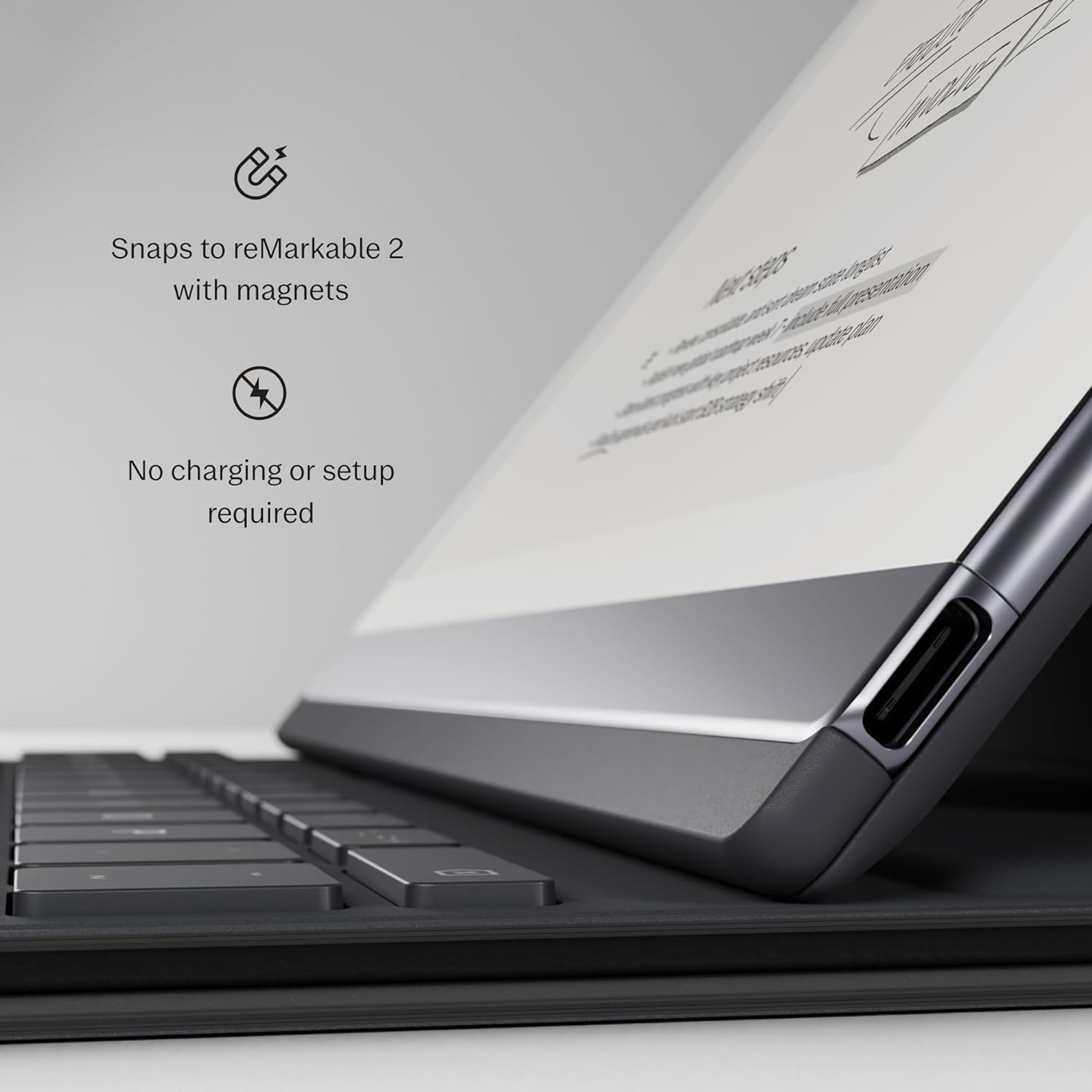
Image: Magnetic connection points for easy attachment.

Image: The reMarkable 2 Type Folio in an open, ready-to-type position.
Video: Official product video demonstrating the reMarkable Type Folio's features, including magnetic attachment, typing, and integration with the reMarkable 2 tablet.
คำแนะนำการใช้งาน
ประสบการณ์การพิมพ์
The Type Folio features a tactile keyboard with 1.3 mm of key travel and full-size letter keys, providing a comfortable typing experience similar to a laptop. The reMarkable's CANVAS display minimizes glare and eye strain.

ภาพ: รายละเอียด view of the Type Folio's tactile keyboard.
Combining Typing and Freehand
You can seamlessly integrate typed text with handwritten notes and sketches. Add comments in the margins, draw between paragraphs, or highlight passages with your Marker while typing. Annotations intelligently anchor to typed text, maintaining their position even when text is moved.

Image: Demonstrating the ability to combine typed text with handwritten annotations.
การปรับแต่ง Viewอิงแองเกิลส์
The Type Folio offers two fixed typing modes: an upright position for standard typing and a near-flat position ideal for combining handwriting and typed text. For reading or extensive handwriting, the keyboard can be folded away, allowing the folio to open like a book.

Image: Illustration of the two available typing and viewมุมการเอียง
Mobile and Desktop App Integration
Your notes and typed content can be accessed and edited across your smart devices using the reMarkable mobile and desktop applications. This allows you to continue your work seamlessly, regardless of your location or device. A Connect subscription is required for full mobile and desktop note-taking functionality.

Image: Syncing reMarkable content across tablet, laptop, and smartphone.
Handwriting Conversion
Convert your handwritten notes, whether a full page or just a few lines, into typed text directly on your reMarkable 2. Converted text can be easily sent via email, saved, or moved to other documents.

Image: Options for converting handwritten notes to typed text.
การซ่อมบำรุง
To ensure the longevity and optimal performance of your reMarkable 2 Type Folio, follow these maintenance guidelines:
- การทำความสะอาด: Use a soft, dry, lint-free cloth to gently wipe the exterior of the folio. For the keyboard keys, a slightly damp cloth can be used, ensuring no moisture enters the device. Avoid abrasive cleaners or solvents.
- พื้นที่จัดเก็บ: When not in use, keep the Type Folio closed to protect the keyboard and your reMarkable 2 screen from dust and scratches. Store in a cool, dry place away from direct sunlight and extreme temperatures.
- การจัดการ: While durable, avoid dropping the folio or exposing it to excessive force, which could damage the internal components or the magnetic connection.

Image: The Type Folio provides sturdy and slim protection when closed.
การแก้ไขปัญหา
If you encounter issues with your reMarkable 2 Type Folio, consider the following common solutions:
- แป้นพิมพ์ไม่ตอบสนอง: Ensure your reMarkable 2 is securely attached to the Type Folio. The connection is magnetic and does not require Bluetooth pairing or charging. Detach and reattach the tablet to reset the connection.
- Tablet Not Sitting Properly: Check for any debris or obstructions on the magnetic connection points of both the tablet and the folio. Clean if necessary.
- พฤติกรรมที่ไม่คาดคิด: If the reMarkable 2 or Type Folio behaves unexpectedly, try restarting your reMarkable 2 tablet.
- ความเข้ากันได้: Confirm that your tablet is a 10.3-inch reMarkable 2. The Type Folio is not compatible with the 11.8-inch reMarkable Paper Pro.
For persistent issues, refer to the official reMarkable support resources.
ข้อมูลจำเพาะ
| คุณสมบัติ | รายละเอียด |
|---|---|
| ขนาดสินค้า | 9.69 x 7.76 x 0.51 นิ้ว |
| น้ำหนักสินค้า | 16 ออนซ์ |
| ผู้ผลิต | น่าจดจำ |
| ASIN | B0BXPQB5CS |
| ประเทศต้นกำเนิด | จีน |
| หมายเลขรุ่นสินค้า | 710 ริงกิต |
| ยี่ห้อ | น่าจดจำ |
| อุปกรณ์ที่รองรับ | reMarkable 2 Tablet (10.3") |
| เทคโนโลยีการเชื่อมต่อ | Magnetic (RF for internal communication) |
| คำอธิบายแป้นพิมพ์ | แป้นพิมพ์มีไฟแบ็คไลท์ |
| คุณสมบัติพิเศษ | มีไฟแบ็คไลท์ |
| สี | Sepia Brown |
| จำนวนคีย์ | 64 |
| สไตล์ | ทันสมัย |
| วัสดุ | หนังเทียม |
ข้อมูลการรับประกัน
Specific warranty details for the reMarkable 2 Type Folio are not provided in this manual. Please refer to the official reMarkable website or contact their customer support for the most up-to-date warranty policy and registration information.
การสนับสนุนลูกค้า
For further assistance, technical support, or inquiries regarding your reMarkable 2 Type Folio, please contact reMarkable customer support through their official channels:
- เป็นทางการ Webเว็บไซต์: Visit the reMarkable webไซต์สำหรับคำถามที่พบบ่อย บทความสนับสนุน และตัวเลือกการติดต่อ
- พอร์ทัลการสนับสนุนออนไลน์: Access their dedicated support portal for submitting tickets or finding solutions.
Please have your product model (RM710) and purchase details ready when contacting support.


