1. บทนำ
This manual provides detailed instructions for the ENDORFY Thock Wireless Mechanical Keyboard, model EY5A078. It covers setup, operation, maintenance, and troubleshooting to ensure optimal performance and longevity of your device. Please read this manual thoroughly before using the keyboard.

Image 1.1: The ENDORFY Thock Wireless Mechanical Keyboard EY5A078. This image displays the full QWERTY layout with illuminated keys, showcasing the keyboard's design and RGB capabilities.
2. เนื้อหาบรรจุภัณฑ์
ตรวจสอบว่ามีรายการทั้งหมดอยู่ในแพ็คเกจ:
- ENDORFY Thock Wireless Mechanical Keyboard EY5A078
- USB-C to USB-A Cable (detachable)
- ตัวรับสัญญาณ USB 2.4 GHz
- ตัวดึงกุญแจ
- ตัวดึงสวิตช์
- คู่มือการใช้งาน (เอกสารนี้)
3. การตั้งค่าและการเชื่อมต่อ
The ENDORFY Thock Wireless Mechanical Keyboard offers three connection modes: wired, 2.4 GHz wireless, and Bluetooth.
3.1. การเชื่อมต่อแบบมีสาย
- Locate the USB-C port on the keyboard (typically on the back or top edge).
- Connect the provided USB-C to USB-A cable to the keyboard.
- เชื่อมต่อปลายสาย USB-A เข้ากับพอร์ต USB ที่ว่างอยู่บนคอมพิวเตอร์ของคุณ
- แป้นพิมพ์จะถูกตรวจจับโดยอัตโนมัติและพร้อมใช้งาน
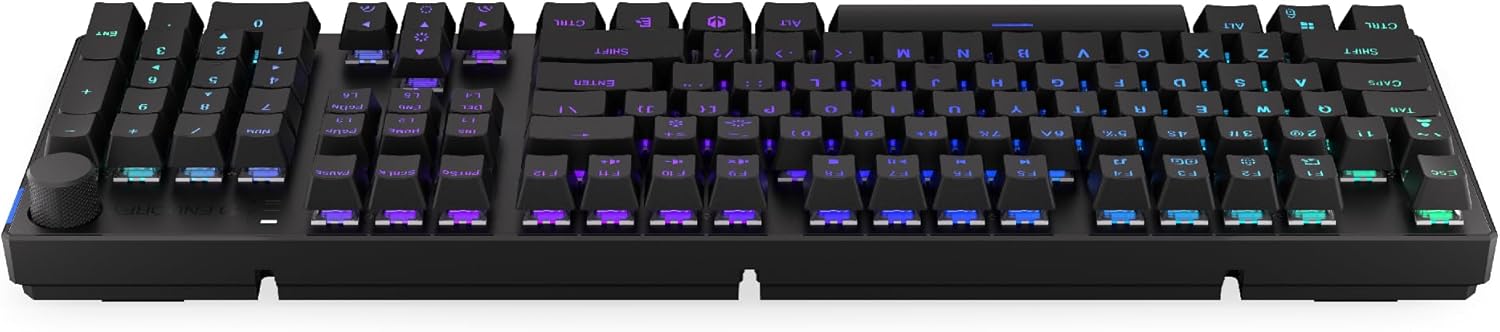
ภาพที่ 3.1: ด้านข้าง view of the keyboard, highlighting the USB-C port for wired connection and charging.
3.2. การเชื่อมต่อไร้สาย 2.4 GHz
- Locate the 2.4 GHz USB receiver. It may be stored in a compartment on the underside of the keyboard.
- เสียบตัวรับสัญญาณ USB 2.4 GHz เข้ากับพอร์ต USB ที่ว่างอยู่บนคอมพิวเตอร์ของคุณ
- On the keyboard, locate the mode switch (usually on the back or side) and set it to the 2.4 GHz wireless mode (often indicated by a specific icon or "2.4G").
- The keyboard should automatically connect. An indicator light may confirm the connection.

Image 3.2: Underside of the keyboard, showing the compartment for storing the 2.4 GHz USB receiver and adjustable feet.
3.3. การเชื่อมต่อบลูทู ธ
- On the keyboard, set the mode switch to Bluetooth mode (often indicated by a Bluetooth icon or "BT").
- The keyboard may have multiple Bluetooth profiles (e.g., BT1, BT2, BT3). Select one by pressing Fn + 1, Fn + 2, or Fn + 3. The corresponding indicator light will flash.
- บนคอมพิวเตอร์หรืออุปกรณ์ของคุณ เปิดการตั้งค่าบลูทูธและค้นหาอุปกรณ์ใหม่
- Select "ENDORFY Thock Wireless" (or similar name) from the list of available devices.
- ปฏิบัติตามคำแนะนำบนหน้าจอเพื่อดำเนินการจับคู่ให้เสร็จสมบูรณ์
- เมื่อจับคู่แล้ว ไฟแสดงสถานะบนแป้นพิมพ์จะหยุดกะพริบและคงสว่างอยู่
4. การดำเนินการ
4.1. Key Functions and Shortcuts
The keyboard features various function key combinations (Fn + Key) for multimedia control, lighting adjustments, and other settings.
- Fn + F1-F12: Multimedia and system functions (e.g., volume control, media playback, calculator). Refer to the keycap legends for specific functions.
- Fn + ปุ่มลูกศร: Adjust RGB lighting effects (e.g., brightness, speed, direction).
- Fn + 1/2/3: สลับระหว่าง Bluetooth Profiles.
- Fn + 4: Switch to 2.4 GHz wireless mode.
- Fn + 5: สลับไปเป็นโหมดแบบมีสาย
4.2. การควบคุมแสง RGB
The ENDORFY Thock keyboard features programmable RGB backlighting. Use the following combinations to customize the lighting:
- ปุ่ม Fn + ลูกศรขวา: Change lighting effect.
- ปุ่ม Fn + ลูกศรซ้าย: Change lighting effect direction.
- Fn + ลูกศรขึ้น: เพิ่มความสว่าง
- Fn + ลูกศรลง: ลดความสว่างลง
- Fn + อิน: เปลี่ยนสี
- Fn + เดล: ปรับความเร็วของเอฟเฟกต์
4.3. ปุ่มปรับระดับเสียง
The dedicated volume knob located on the top right of the keyboard allows for quick audio adjustments.
- หมุนตามเข็มนาฬิกา: เพิ่มปริมาณ
- หมุนทวนเข็มนาฬิกา: ลดระดับเสียง.
- กดลง: ปิด/เปิดเสียง

Image 4.1: Detail of the volume knob and status indicator lights, located on the upper right side of the keyboard.
4.4. สวิตช์แบบ Hot-Swappable
The ENDORFY Thock keyboard features hot-swappable switches, allowing you to change mechanical switches without soldering. This enables customization of typing feel.
- ถอด Keycap: ใช้ที่ดึงปุ่มที่ให้มาเพื่อดึงปุ่มที่ต้องการออกอย่างเบามือ
- ถอดสวิตช์: ใช้เครื่องมือถอดสวิตช์ที่ให้มา จับที่คลิปด้านบนและด้านล่างของสวิตช์อย่างระมัดระวัง แล้วดึงขึ้นตรงๆ
- ใส่สวิตช์ใหม่: จัดตำแหน่งขาของสวิตช์ใหม่ให้ตรงกับรูบนแผงวงจรพิมพ์ กดสวิตช์ให้แน่นจนกระทั่งมีเสียงคลิกเข้าที่ ตรวจสอบให้แน่ใจว่าขาของสวิตช์ไม่บิดงอ
- เปลี่ยนคีย์แคป: วางปุ่มกดกลับเข้าไปบนแกนสวิตช์ใหม่

ภาพที่ 4.2: ภาพระยะใกล้ view of the Kailh Box Brown mechanical switches, demonstrating the hot-swappable design.
5. การบำรุงรักษา
5.1. การทำความสะอาดคีย์บอร์ด
การทำความสะอาดเป็นประจำจะช่วยรักษาประสิทธิภาพและรูปลักษณ์ของแป้นพิมพ์
- ถอดแป้นพิมพ์ออกจากคอมพิวเตอร์ของคุณก่อนทำความสะอาด
- ใช้เครื่องมือถอดคีย์แคปเพื่อถอดคีย์แคปออกสำหรับการทำความสะอาดอย่างทั่วถึง
- ใช้ลมอัดเพื่อกำจัดฝุ่นละอองและเศษต่างๆ ออกจากระหว่างปุ่ม
- เช็ดปุ่มกดและพื้นผิวแป้นพิมพ์ด้วยผ้าเนื้อนุ่มและแห้งamp ผ้า. หลีกเลี่ยงสารเคมีที่รุนแรง
- ตรวจสอบให้แน่ใจว่าแป้นพิมพ์แห้งสนิทก่อนเชื่อมต่อใหม่
5.2. การเปลี่ยนคีย์แคปและสวิตช์
Refer to Section 4.4 for detailed instructions on replacing keycaps and switches. Use only compatible keycaps and switches to avoid damage.
6 การแก้ไขปัญหา
| ปัญหา | สาเหตุที่เป็นไปได้ | สารละลาย |
|---|---|---|
| แป้นพิมพ์ไม่ตอบสนอง (มีสาย) | การเชื่อมต่อสายเคเบิลหลวม, พอร์ต USB ชำรุด | ตรวจสอบให้แน่ใจว่าเสียบสาย USB-C แน่นดีแล้ว ลองใช้พอร์ต USB หรือสายอื่นดู |
| แป้นพิมพ์ไม่ตอบสนอง (ไร้สาย) | Low battery, incorrect mode, receiver not plugged in, pairing issue. | Charge the keyboard. Ensure mode switch is set correctly (2.4G or BT). Re-pair Bluetooth or re-insert 2.4 GHz receiver. |
| ไฟ RGB ไม่ทำงาน | ไฟดับ แบตเตอรี่เหลือน้อย ปัญหาซอฟต์แวร์ | Check lighting controls (Fn + Arrow keys). Charge the keyboard. Restart computer. |
| คีย์พิมพ์ซ้ำหรือไม่ได้ลงทะเบียน | ฝุ่น/เศษสิ่งสกปรกใต้สวิตช์ สวิตช์อาจชำรุด | Clean under keycaps with compressed air. If issue persists, replace the switch (refer to Section 4.4). |
7. ข้อมูลจำเพาะ
- แบบอย่าง: EY5A078
- ยี่ห้อ: รับรอง
- การเชื่อมต่อ: Wired (USB-C), 2.4 GHz Wireless, Bluetooth
- ประเภทสวิตช์: Kailh Box Brown (Hot-swappable)
- คีย์แคป: PBT ดับเบิลช็อต
- เค้าโครง: QWERTY ขนาดเต็ม
- การแบ็คไลท์: RGB ที่สามารถตั้งโปรแกรมได้
- ระบบปฏิบัติการ: Linux, Mac OS X 10.12 Sierra, Windows 10
- สี: สีดำ
- วัสดุ: โพลีบิวทิลีนเทเรฟทาเลต (PBT)
- คุณสมบัติพิเศษ: Detachable cable, Volume knob with mute, Hot-swappable switches
- แบตเตอรี่: ลิเธียมไอออน (รวมอยู่ด้วย)
8. การรับประกันและการสนับสนุน
ENDORFY products are covered by a manufacturer's warranty. For detailed warranty information, please refer to the warranty card included with your product or visit the official ENDORFY website. For technical support, product inquiries, or service requests, please contact ENDORFY customer support through their official channels.
เป็นทางการ Webเว็บไซต์: www.endorfy.com
9. ข้อมูลด้านความปลอดภัย
- เก็บแป้นพิมพ์ให้ห่างจากของเหลวและความชื้นที่มากเกินไป
- หลีกเลี่ยงการให้คีย์บอร์ดสัมผัสกับอุณหภูมิที่สูงเกินไป
- Do not attempt to disassemble or modify the keyboard beyond hot-swapping switches and keycaps, as this may void the warranty and cause damage.
- ใช้เฉพาะสายชาร์จที่ให้มาหรือที่แนะนำเท่านั้น
- กำจัดแบตเตอรี่และชิ้นส่วนอิเล็กทรอนิกส์อย่างถูกวิธีตามระเบียบข้อบังคับของท้องถิ่น


