1. บทนำ
Thank you for choosing the CUPEISI CP20 Android 15 Tablet. This manual provides essential information for setting up, operating, and maintaining your device. Please read it thoroughly to ensure optimal performance and longevity of your tablet.
2. อะไรอยู่ในกล่อง
ตรวจสอบว่ามีรายการทั้งหมดอยู่ในแพ็คเกจของคุณ:
- CUPEISI CP20 Android 15 Tablet
- คีย์บอร์ดไร้สาย
- Foldable Protective Cover
- เมาส์บลูทู ธ
- ปากกาสไตลัส
- สายเคเบิล Type-C
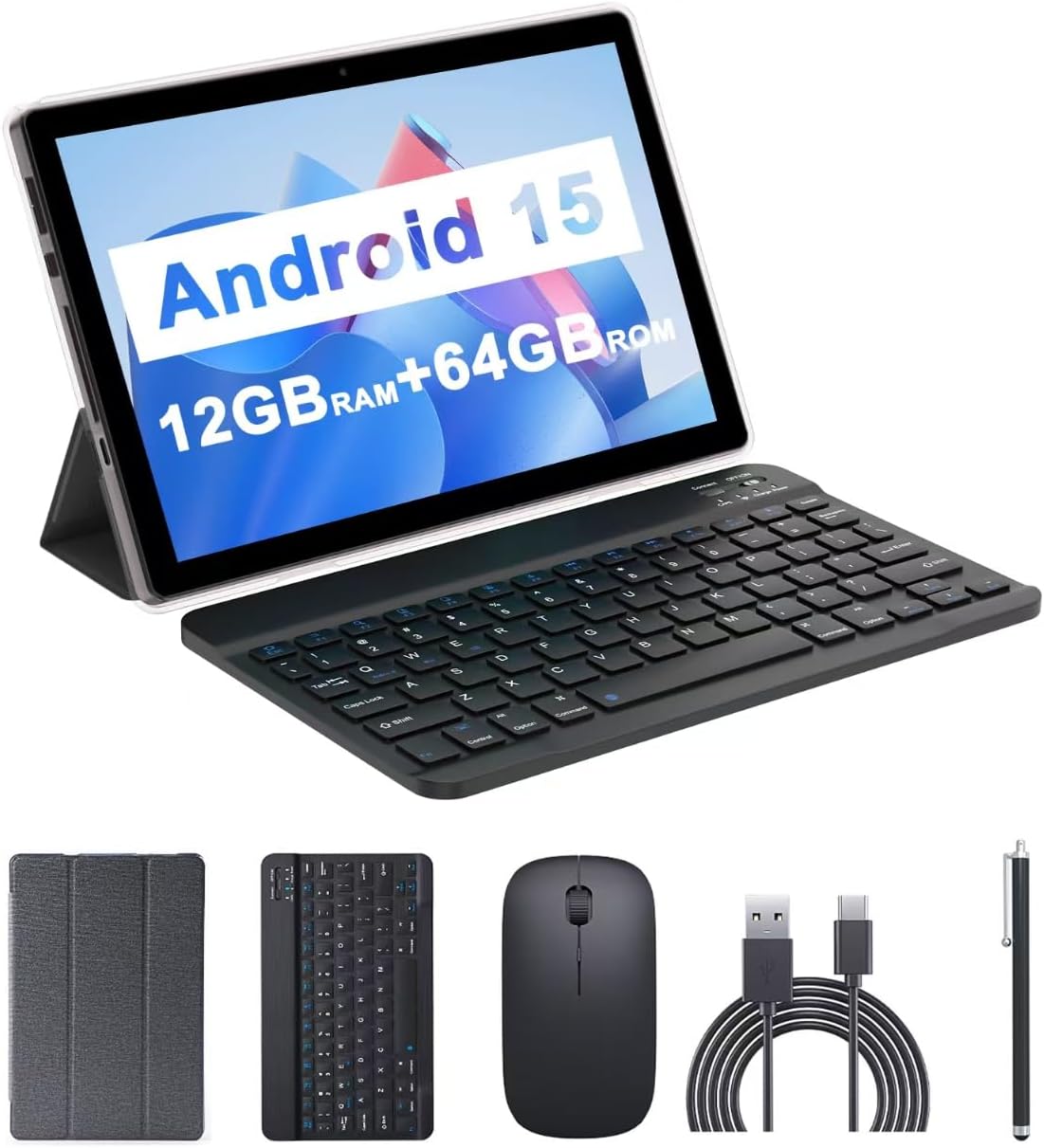
Image: The CUPEISI CP20 Tablet alongside its accessories, including the wireless keyboard, Bluetooth mouse, stylus, and foldable protective cover.
3. คุณสมบัติและส่วนประกอบของผลิตภัณฑ์
The CUPEISI CP20 Tablet is designed for versatility and performance, offering a seamless user experience for both work and entertainment.
3.1 คุณสมบัติหลัก
- ระบบปฏิบัติการ: Stable Android 15.0 system.
- โปรเซสเซอร์: Built-in 1.8GHz Quad-core CPU for efficient multitasking.
- หน่วยความจำและการจัดเก็บ: 12GB RAM (4GB+8GB expansion) and 64GB ROM, expandable up to 1TB via microSD card.
- แสดง: Stunning 10.1-inch 1280x800 IPS HD touch screen for immersive visuals and eye protection.
- แบตเตอรี่: Powered by a 6000mAh battery, providing approximately 6 hours of regular operation and up to 12 hours of standby time. Charges via 5V2A Type-C port.
- กล้องถ่ายรูป: 8MP rear camera with auto-focus and flash, and a 2MP front camera for clear video calls and photos.
- การเชื่อมต่อ: Supports 5G WiFi 6 and Bluetooth 5.0.
- ฟังก์ชั่น 2-in-1: Transforms into a laptop or computer mode with the included Bluetooth keyboard, wireless mouse, and foldable protective case.

ภาพ: เหนือview of the tablet's core specifications and features.
3.2 ส่วนประกอบทางกายภาพ
Familiarize yourself with the tablet's physical layout:
- ปุ่มเปิด/ปิด: ปุ่มนี้อยู่ด้านข้าง ใช้สำหรับเปิด/ปิดแท็บเล็ต หรือเปิด/ปิดหน้าจอ
- ปุ่มปรับระดับเสียง: ปรับระดับเสียง
- พอร์ต Type-C: สำหรับการชาร์จและถ่ายโอนข้อมูล
- ช่องเสียบการ์ด TF/ซิมการ์ด: Insert a microSD card for expanded storage.
- กล้องหน้า: สำหรับวิดีโอคอลและเซลฟี่
- Rear Camera & Flash: เพื่อภาพถ่ายและวิดีโอคุณภาพสูง
- วิทยากร: Two speakers for audio output.

Image: Labeled diagram of the tablet's ports and buttons.
4. คู่มือการติดตั้ง
4.1 การชาร์จเริ่มต้น
Before first use, fully charge your tablet. Connect the Type-C cable to the tablet's charging port and the other end to a compatible power adapter (5V2A recommended). The battery indicator will show charging status.
4.2 การเปิด/ปิดเครื่อง
- การเปิดเครื่อง: กดปุ่มเปิด/ปิดค้างไว้จนกว่าหน้าจอจะสว่างขึ้น
- วิธีปิดเครื่อง: Press and hold the Power Button, then select 'Power off' from the options that appear on the screen.
- ในการรีสตาร์ท: Press and hold the Power Button, then select 'Restart'.
4.3 การเชื่อมต่อกับ Wi-Fi
- ไปที่ การตั้งค่า > เครือข่ายและอินเตอร์เน็ต > ไวไฟ.
- เปิด Wi-Fi
- เลือกเครือข่าย Wi-Fi ที่คุณต้องการจากรายการ
- ป้อนรหัสผ่านหากได้รับแจ้ง จากนั้นแตะ เชื่อมต่อ.
4.4 Pairing Bluetooth Accessories
To use the wireless keyboard and Bluetooth mouse, they must be paired with your tablet.
- Ensure the keyboard and mouse are charged and powered on.
- บนแท็บเล็ตของคุณ ให้ไปที่ การตั้งค่า > อุปกรณ์ที่เชื่อมต่อ > บลูทูธ.
- เปิดบลูทูธ
- The tablet will scan for available devices. Select the keyboard or mouse from the list.
- ปฏิบัติตามคำแนะนำบนหน้าจอเพื่อดำเนินการจับคู่ให้เสร็จสมบูรณ์

Image: Instructions for connecting the wireless keyboard and mouse via Bluetooth.
4.5 การใส่การ์ด MicroSD
To expand storage, insert a microSD card (up to 1TB) into the TF/SIM card slot. Ensure the tablet is powered off before inserting or removing the card.
5. การใช้งานแท็บเล็ตของคุณ
5.1 การนำทางพื้นฐาน
Navigate the Android interface using touch gestures:
- แตะ: เลือกรายการหรือเปิดแอป
- ปัด: เลื่อนดูหน้าหรือรายการ
- บีบเพื่อซูม: Enlarge or shrink content.
- กดยาว: เข้าถึงเมนูบริบทหรือย้ายไอคอน
5.2 Using Keyboard and Mouse
Once paired, the keyboard and mouse function similarly to a laptop. The keyboard allows for efficient typing, while the mouse provides precise cursor control, enhancing productivity.

Image: The tablet in laptop mode, demonstrating its use for productivity tasks.
5.3 การใช้งานกล้อง
Open the Camera app to capture photos and videos. Switch between the 2MP front camera and the 8MP rear camera as needed. The rear camera features auto-focus and flash for improved image quality.

Image: Demonstrating the tablet's front and rear camera functionality for video calls and photography.
5.4 App Installation and Management
Download and install applications from the Google Play Store. To manage installed apps, go to การตั้งค่า > แอปพลิเคชั่น.

Image: The tablet running Android 15 OS, showing popular applications like YouTube, Google Play, and Netflix.
6. การบำรุงรักษา
6.1 การทำความสะอาด
ใช้ผ้าเนื้อนุ่มที่ไม่เป็นขุยเช็ดทำความสะอาดหน้าจอและตัวเครื่องแท็บเล็ต หลีกเลี่ยงการใช้สารเคมีรุนแรงหรือวัสดุที่มีฤทธิ์กัดกร่อน สำหรับคราบสกปรกที่ล้างออกยาก ให้ใช้ผ้าชุบน้ำหมาดๆ เช็ดเบาๆampเทน้ำหรือน้ำยาทำความสะอาดหน้าจอที่ออกแบบมาสำหรับอุปกรณ์อิเล็กทรอนิกส์ลงบนผ้า
6.2 การอัปเดตซอฟต์แวร์
ตรวจสอบและติดตั้งการอัปเดตซอฟต์แวร์เป็นประจำเพื่อให้แน่ใจว่าแท็บเล็ตของคุณมีฟีเจอร์ แพตช์ความปลอดภัย และการปรับปรุงประสิทธิภาพล่าสุด ไปที่ การตั้งค่า > ระบบ > การอัพเดทระบบ.
6.3 การจัดการการจัดเก็บข้อมูล
เพื่อรักษาประสิทธิภาพสูงสุด ควรตรวจสอบเป็นระยะview และจัดการพื้นที่จัดเก็บข้อมูลของแท็บเล็ตของคุณ ลบข้อมูลที่ไม่จำเป็นออก files ถอนการติดตั้งแอปที่ไม่ได้ใช้และย้ายสื่อขนาดใหญ่ files to external storage (microSD card) if applicable. Go to การตั้งค่า > พื้นที่จัดเก็บ ถึง view การใช้งานและเพิ่มพื้นที่ว่าง
7 การแก้ไขปัญหา
This section addresses common issues you might encounter with your CUPEISI CP20 Tablet.
แท็บเล็ต 7.1 ไม่เปิด
- ตรวจสอบให้แน่ใจว่าแท็บเล็ตมีแบตเตอรี่เพียงพอ เสียบแท็บเล็ตเข้ากับที่ชาร์จอย่างน้อย 30 นาที
- Perform a forced restart by pressing and holding the Power Button for 10-15 seconds.
7.2 ประสิทธิภาพช้า
- ปิดแอปพลิเคชันที่ไม่ได้ใช้งานซึ่งทำงานอยู่เบื้องหลัง
- Clear cached data for apps (Settings > Apps > [App Name] > Storage & cache > Clear cache).
- ตรวจสอบให้แน่ใจว่ามีพื้นที่เก็บข้อมูลว่างเพียงพอ
- รีสตาร์ทแท็บเล็ตเป็นระยะๆ
7.3 ปัญหาการเชื่อมต่อ Wi-Fi
- ปิดและเปิด Wi-Fi ในการตั้งค่า
- รีสตาร์ทเราเตอร์ Wi-Fi ของคุณ
- Forget the network and reconnect (Settings > Network & internet > Wi-Fi > [Network Name] > Forget).
7.4 แบตเตอรี่หมดเร็ว
- ลดความสว่างหน้าจอ
- ปิดใช้งาน Wi-Fi, Bluetooth และ GPS เมื่อไม่ได้ใช้งาน
- จำกัดการรีเฟรชแอปพื้นหลัง
- ตรวจสอบการใช้งานแบตเตอรี่ใน การตั้งค่า > แบตเตอรี่ เพื่อระบุแอปที่กินพลังงาน
8. ข้อมูลจำเพาะ
| คุณสมบัติ | ข้อมูลจำเพาะ |
|---|---|
| ยี่ห้อ | คิวเปซี |
| ชื่อรุ่น | ซีพี20 |
| ระบบปฏิบัติการ | แอนดรอยด์ 15 |
| ขนาดหน้าจอ | 10 นิ้ว |
| ความละเอียดหน้าจอ | 1280 x 800 พิกเซล (IPS HD) |
| โปรเซสเซอร์ | ควอดคอร์ 1.8 GHz |
| แรม | 12 GB (4GB+8GB expansion) |
| ขนาดหน่วยความจำแฟลช | 64GB |
| พื้นที่เก็บข้อมูลแบบขยายได้ | ความจุสูงสุด 1TB (microSD) |
| หลัง Webความละเอียดของกล้อง | 8 MP |
| ความละเอียดของกล้องหน้า | 2 MP |
| ประเภทไร้สาย | 802.11ax (5G WiFi 6) |
| บลูทูธ | บลูทูธ 5.0 |
| ความจุของแบตเตอรี่ | 6000mAh ลิเธียมโพลิเมอร์ |
| อายุการใช้งานแบตเตอรี่โดยเฉลี่ย | 8 ชั่วโมง |
| น้ำหนักสินค้า | 1 ปอนด์ |
| ขนาดสินค้า | 9.7 x 6.5 x 0.3 นิ้ว |
9. การรับประกันและการสนับสนุน
For warranty information and technical support, please refer to the documentation included with your purchase or visit the official CUPEISI webไซต์นี้ โปรดเก็บหลักฐานการซื้อไว้เพื่อใช้ยืนยันการรับประกัน
If you encounter issues not covered in this manual, please contact CUPEISI customer service for assistance.


