การแนะนำ
Thank you for choosing the AUSDOM Wireless Keyboard and Mouse Combo. This manual provides detailed instructions for setting up, operating, and maintaining your new wireless peripheral set. Please read this manual thoroughly before use to ensure optimal performance and longevity of your product.
เนื้อหาแพ็คเกจ
- 1 x AUSDOM Wireless Keyboard
- 1 x AUSDOM Wireless Mouse
- ตัวรับสัญญาณ USB 1 ชิ้น (เก็บไว้ในช่องใส่แบตเตอรี่ของเมาส์)
- สายชาร์จ 1 x USB-C
- 1 x คู่มือผู้ใช้
สินค้าเกินview
The AUSDOM Wireless Keyboard and Mouse Combo offers a comfortable and efficient input solution. The keyboard features a full-size layout with a numeric keypad and shortcut keys, while the mouse provides adjustable DPI settings for precise control.

Image: The AUSDOM wireless keyboard and mouse combo, showing the full-size keyboard, the ergonomic mouse, and the compact USB receiver.

Image: A visual emphasizing the quiet operation of the keyboard's scissor-switch keys and the silent click mouse, designed for a focused work environment.
คุณสมบัติแป้นพิมพ์:
- แป้นพิมพ์ขนาดมาตรฐานพร้อมแป้นตัวเลข
- 16 multimedia and shortcut keys
- Slim and silent scissor-switch keys
- ชาร์จไฟได้ผ่าน USB-C
คุณสมบัติเมาส์:
- Silent click design
- 3 adjustable DPI levels (800/1200/1600)
- ปุ่มย้อนกลับ
- ชาร์จไฟได้ผ่าน USB-C
- Integrated USB receiver storage
คู่มือการติดตั้ง
Follow these steps to connect your AUSDOM Wireless Keyboard and Mouse Combo to your computer.

Image: Step-by-step visual guide for connecting the wireless keyboard and mouse, including powering on devices and inserting the USB receiver.
- ชาร์จอุปกรณ์: Before first use, ensure both the keyboard and mouse are fully charged using the provided USB-C cable. Connect the cable to the charging port on each device and a USB power source. The charging indicator will turn off when fully charged.
- ค้นหาตัวรับ USB: The 2.4 GHz USB receiver is stored in the battery compartment on the underside of the mouse. Gently open the compartment cover and remove the receiver.
- เสียบปลั๊กเครื่องรับสัญญาณ: Insert the USB receiver into an available USB port on your computer (desktop, laptop, or all-in-one PC).
- เปิดใช้งานคีย์บอร์ด: Locate the power switch on the side or back of the keyboard and slide it to the "ON" position.
- เปิดเครื่องเมาส์: หาปุ่มเปิด/ปิดที่อยู่ด้านล่างของเมาส์ แล้วเลื่อนไปที่ตำแหน่ง "เปิด"
- การเชื่อมต่ออัตโนมัติ: The keyboard and mouse should automatically connect to your computer within a few seconds. No additional drivers are typically required for Windows operating systems.
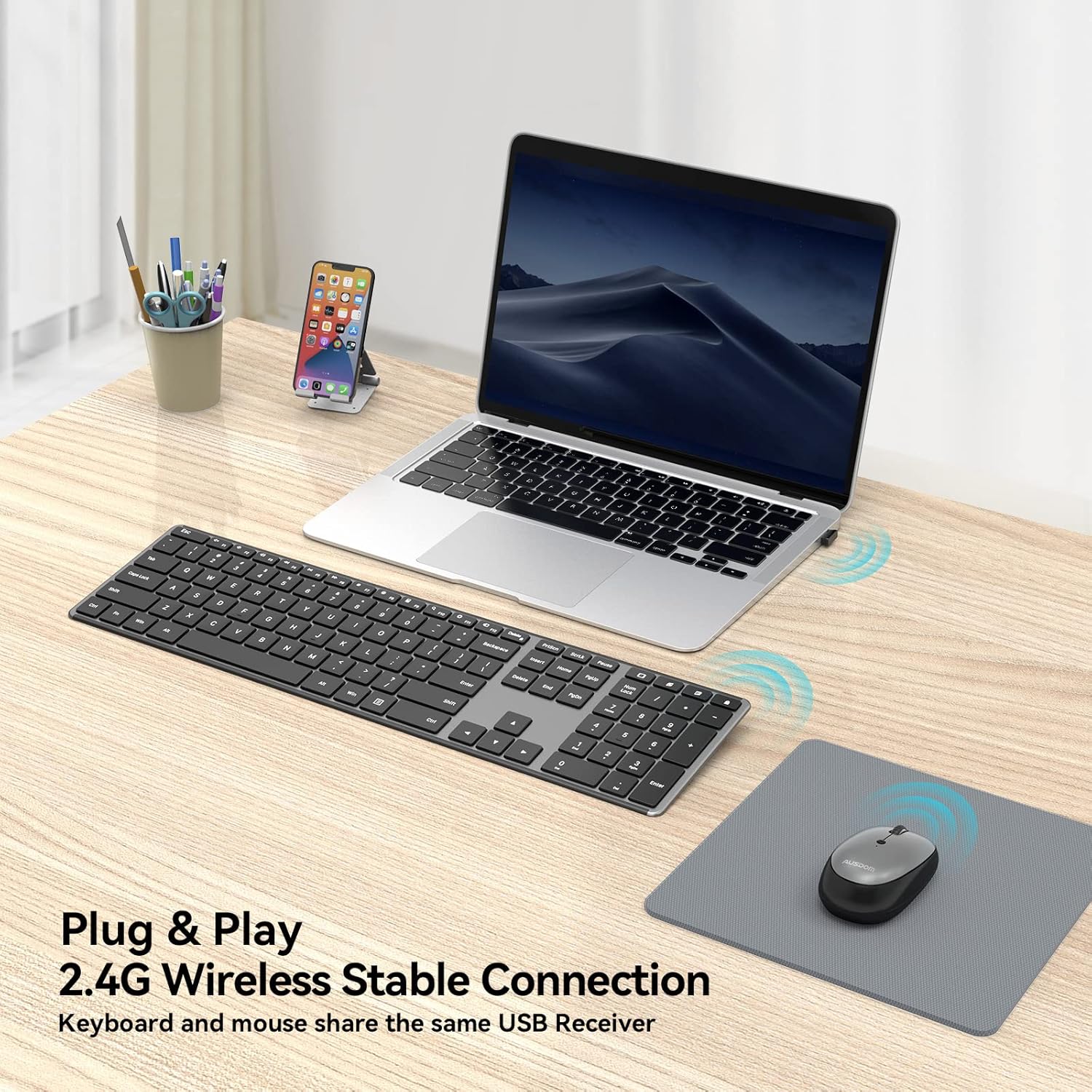
Image: The wireless keyboard and mouse connected to a laptop, illustrating the 2.4G wireless stable connection using a single USB receiver.

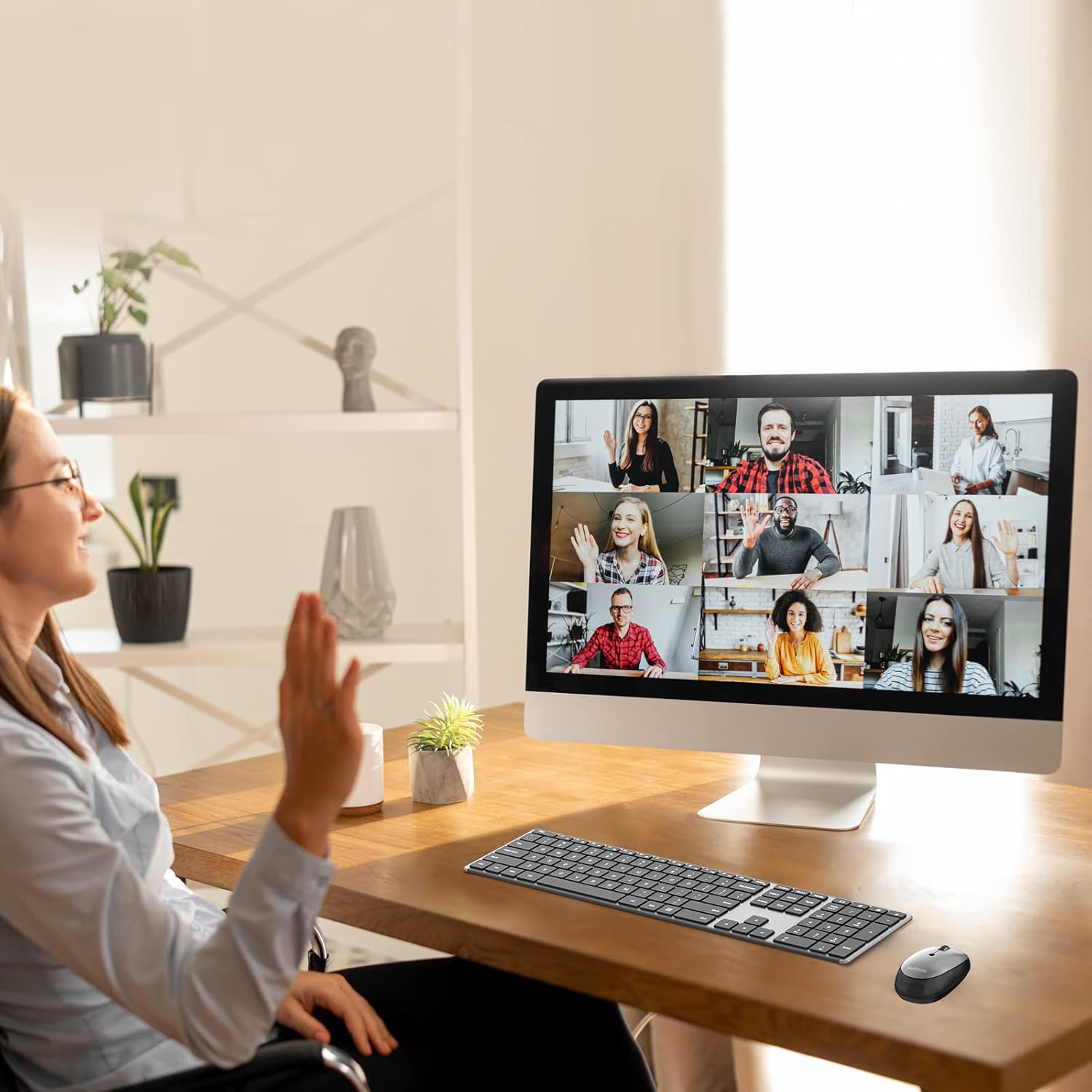
Image: The keyboard and mouse set up with a desktop computer, indicating its primary design for Windows devices including desktops, notebooks, and all-in-one PCs.
คำแนะนำการใช้งาน
การใช้แป้นพิมพ์:
The keyboard features a standard QWERTY layout with a numeric keypad and dedicated function keys. It is designed for quiet and comfortable typing.
ภาพ: รายละเอียด view of the keyboard highlighting the 16 convenient shortcut keys for various functions like volume control, media playback, and system settings.
ปุ่มลัด:
The keyboard includes 16 shortcut keys for quick access to common functions. These keys are typically activated by pressing the Fn กดปุ่มพร้อมกันกับปุ่มฟังก์ชันที่ต้องการ (F1-F12)
- Fn+F1: ปิดเสียง
- Fn+F2: ลดระดับเสียง
- Fn+F3: เพิ่มระดับเสียง
- Fn+F4: เพลงก่อนหน้า
- Fn+F5: เล่น/หยุดชั่วคราว
- Fn+F6: เพลงถัดไป
- Fn+F7: ลดความสว่าง
- Fn+F8: เพิ่มความสว่าง
- Fn+F9: เครื่องคิดเลข
- Fn+F10: ค้นหา
- Fn+F11: การตั้งค่า
- Fn+F12: เปิดเครื่อง
- Windows Search Key: Opens Windows Search.
- Open Browser Key: Launches default web เบราว์เซอร์
- Display Desktop Key: Minimizes all open windows.
- Lock Screen Key: ล็อกหน้าจอคอมพิวเตอร์
บันทึก: Some multimedia features may not be available or function differently on Mac OS.
การใช้เมาส์:
The wireless mouse offers precise tracking and silent clicks for a focused work environment.

Image: The silent mouse with its underside visible, indicating the DPI adjustment button, power switch, and the compartment for the USB receiver.
การปรับ DPI:
The mouse features three adjustable DPI (Dots Per Inch) levels to control cursor sensitivity. Press the DPI button (usually located near the scroll wheel or on the underside) to cycle through the settings:
- 800 จุดต่อนิ้ว: Slower cursor movement for precise tasks.
- 1200 จุดต่อนิ้ว: การเคลื่อนที่ของเคอร์เซอร์แบบมาตรฐาน
- 1600 จุดต่อนิ้ว: Faster cursor movement for quick navigation.
The mouse also includes a "Return Button" for quick navigation, typically functioning as a back button in web เบราว์เซอร์
การซ่อมบำรุง
การชาร์จ:
Both the keyboard and mouse are equipped with built-in rechargeable batteries. Use the provided USB-C charging cable to recharge them.
- Connect the USB-C end of the cable to the charging port on the keyboard or mouse.
- Connect the USB-A end of the cable to a USB power adapter (not included), a computer's USB port, or a power bank.
- โดยทั่วไปการชาร์จเต็มจะใช้เวลาประมาณ 1.5 ชั่วโมง
- A single full charge can provide over a month of usage time, depending on usage frequency.
- สามารถใช้งานอุปกรณ์ได้ขณะชาร์จไฟ

Image: The wireless keyboard and mouse connected to USB-C charging cables, illustrating the rechargeable feature and estimated charging/usage times.
การประหยัดพลังงาน:
To conserve battery life, both the keyboard and mouse feature power switches. Turn them off when not in use for extended periods.
การทำความสะอาด:
To clean your devices, gently wipe them with a soft, damp ใช้ผ้าเช็ดทำความสะอาด หลีกเลี่ยงการใช้สารเคมีรุนแรงหรือวัสดุขัดถูที่อาจทำให้พื้นผิวเสียหาย
การแก้ไขปัญหา
If you encounter issues with your AUSDOM Wireless Keyboard and Mouse Combo, please refer to the following common solutions:
- อุปกรณ์ไม่ตอบสนอง:
- ตรวจสอบให้แน่ใจว่าทั้งคีย์บอร์ดและเมาส์เปิดอยู่
- ตรวจสอบว่าตัวรับสัญญาณ USB เสียบเข้ากับพอร์ต USB ที่ใช้งานได้บนคอมพิวเตอร์ของคุณอย่างแน่นหนาหรือไม่ ลองใช้พอร์ต USB อื่นดู
- Verify that the devices are fully charged. Recharge them if the battery is low.
- Move the devices closer to the USB receiver to ensure they are within the 10m wireless range.
- รีสตาร์ทเครื่องคอมพิวเตอร์ของคุณ
- การเชื่อมต่อไม่ต่อเนื่อง:
- Ensure there are no large metal objects or other wireless devices (e.g., Wi-Fi routers, other wireless peripherals) causing interference between the devices and the receiver.
- ลองเสียบตัวรับสัญญาณ USB เข้ากับพอร์ต USB อื่น โดยควรเป็นพอร์ตด้านหน้าของคอมพิวเตอร์หากใช้คอมพิวเตอร์แบบตั้งโต๊ะ
- เคอร์เซอร์เมาส์กระโดดหรือไม่แม่นยำ:
- ทำความสะอาดเซ็นเซอร์ออปติคัลที่อยู่ใต้เมาส์
- โปรดตรวจสอบให้แน่ใจว่าคุณใช้เมาส์บนพื้นผิวที่เหมาะสม (ไม่ใช่พื้นผิวสะท้อนแสงสูงหรือโปร่งใส) แนะนำให้ใช้แผ่นรองเมาส์
- Adjust the DPI settings using the DPI button on the mouse to find a comfortable sensitivity.
- ปุ่มคีย์บอร์ดไม่ทำงาน:
- Check for any debris under the non-functioning key.
- ตรวจสอบให้แน่ใจว่าแป้นพิมพ์มีประจุไฟเต็มแล้ว
- If only function keys are not working as expected, ensure you are pressing the Fn key if required, or check your operating system's settings for function key behavior.
- Compatibility Issues with Mac OS:
- This combo is primarily designed for Windows devices. While basic typing and pointing functions will work, some multimedia or shortcut keys may not be fully functional or may require specific software/driver installations on Mac OS.
ข้อมูลจำเพาะ
| คุณสมบัติ | รายละเอียด |
|---|---|
| หมายเลขรุ่น | คัม200 |
| เทคโนโลยีการเชื่อมต่อ | ไร้สาย 2.4 GHz |
| ช่วงสาย | สูงถึง 10 เมตร (33 ฟุต) |
| ขนาดแป้นพิมพ์ | 16.85 x 4.49 x 0.62 นิ้ว (42.8 x 11.4 x 1.57 ซม.) |
| น้ำหนักคีย์บอร์ด | ประมาณ 12.8 ออนซ์ (362.87 กรัม) |
| ระดับ DPI ของเมาส์ | 800 / 1200 / 1600 จุดต่อนิ้ว |
| ประเภทแบตเตอรี่ | แบตเตอรี่ลิเธียมไอออนแบบชาร์จไฟได้ในตัว |
| พอร์ตชาร์จ | ยูเอสบี-ซี |
| เวลาในการชาร์จ | ประมาณ 1.5 ชั่วโมง |
| ระยะเวลาใช้งาน (เมื่อชาร์จเต็ม) | Over 1 month (depending on usage) |
| ระบบปฏิบัติการที่รองรับ | Windows (Desktop, Laptop, All-in-One PC) |

Image: A visual representation of the keyboard and mouse dimensions, highlighting the ultra-slim design of the keyboard at 0.62 inches thick.
การรับประกันและการสนับสนุน
AUSDOM provides a one-year warranty service for this product. If you encounter any problems during use, please contact AUSDOM customer support for assistance.
For warranty claims or technical support, please visit the official AUSDOM website or contact their customer service department through the contact information provided with your purchase.


