1. สินค้าหมดview
The Phomemo M220 is a portable Bluetooth thermal label printer designed for various labeling needs in home, office, and small business environments. It supports a range of label widths and offers versatile printing options through its dedicated mobile and desktop applications.
คุณสมบัติหลัก:
- Supports label widths from 0.78'' to 3.14'' (not compatible with 4x6 shipping labels).
- การออกแบบที่กะทัดรัดน้ำหนักเบาเพื่อความสะดวกในการพกพา
- Prints barcodes, QR codes, addresses, text, images, and various icons.
- Built-in 2200 mAh rechargeable battery with up to 4 hours of continuous use and 2 months standby.
- Thermal printing technology eliminates the need for ink or toner.
- Compatible with Android, iOS, Chrome OS, Linux, Windows, and macOS devices.
- Connects via Bluetooth (for mobile) or USB (for computers).
อะไรอยู่ในกล่อง:
- เครื่องทำฉลาก Phomemo M220
- สายชาร์จ USB
- 3 Rolls of Labels (1.97'' x 1.18'', 1.97'' x 3.14'', 2.76'' x 3.14'')
- คู่มือการใช้งาน

Image: Phomemo M220 Label Maker with various label rolls and sample labels.
2. คู่มือการติดตั้ง
2.1. การโหลดฉลาก
- Press the side button to open the label compartment.
- Remove any existing label roll and its holder.
- Insert a new label roll onto the holder, ensuring the labels face upwards.
- Place the loaded holder back into the compartment.
- Pull a small portion of the label paper out through the printer slot.
- Close the compartment lid firmly until it clicks. The printer will automatically adjust the label.

Image: Phomemo M220 Label Maker demonstrating different label sizes it supports.
2.2. การเปิด/ปิดเครื่อง
- To power on: Long press the power button for 3 seconds until the display lights up.
- To power off: Long press the power button again until the display turns off.
2.3. Connecting to the App (Phone/Tablet)
- Download the 'Print Master' app from your device's app store (Android/iOS).
- Ensure your M220 label maker is powered on and your phone/tablet's Bluetooth is enabled.
- Open the 'Print Master' app. The app will automatically search for and connect to the M220 printer.
- Once connected, select the desired label size within the app to begin editing.

Image: Phomemo M220 Label Maker demonstrating Bluetooth wireless connectivity with a smartphone.
Video: Official Phomemo guide on how to use the M220 Label Maker, including app connection steps.
2.4. Connecting to a Computer (Laptop/PC)
- Check your computer's operating system (OS) and download the correct M220 driver and the 'Labelife' app from the official Phomemo webเว็บไซต์.
- ใช้สายเคเบิลข้อมูล USB ที่ให้มาเชื่อมต่อเครื่องพิมพ์ฉลาก M220 กับคอมพิวเตอร์ของคุณ
- Open the 'Labelife' app, select the label size, edit your content, and choose M220 from the printer list to print.

Image: Phomemo M220 Label Maker connected to a laptop via USB cable for printing.
3. คู่มือการใช้งาน
3.1. Creating Labels with the App
The 'Print Master' app offers a wide range of customization options for your labels:
- ข้อความ: Add custom text, choose from over 30 fonts, and adjust size, alignment, and style.
- บาร์โค้ดและคิวอาร์โค้ด: Generate and print various barcode and QR code formats.
- Icons & Templates: Access over 400 icons and pre-designed templates for quick label creation.
- รูปภาพ: Insert your own images or photos onto labels.
- Borders & Shapes: Add decorative borders and shapes to enhance your labels.
- ภาษา: The app supports 15 languages for diverse user needs.

Image: The Print Master app showcasing its powerful multi-function editing capabilities.
3.2. การพิมพ์ฉลาก
- After designing your label in the app, click the 'Print' button.
- Review พิมพ์ก่อนview to ensure the layout is correct.
- Confirm the number of copies and initiate printing.
- Once printed, gently tear off the label from the printer's output slot.
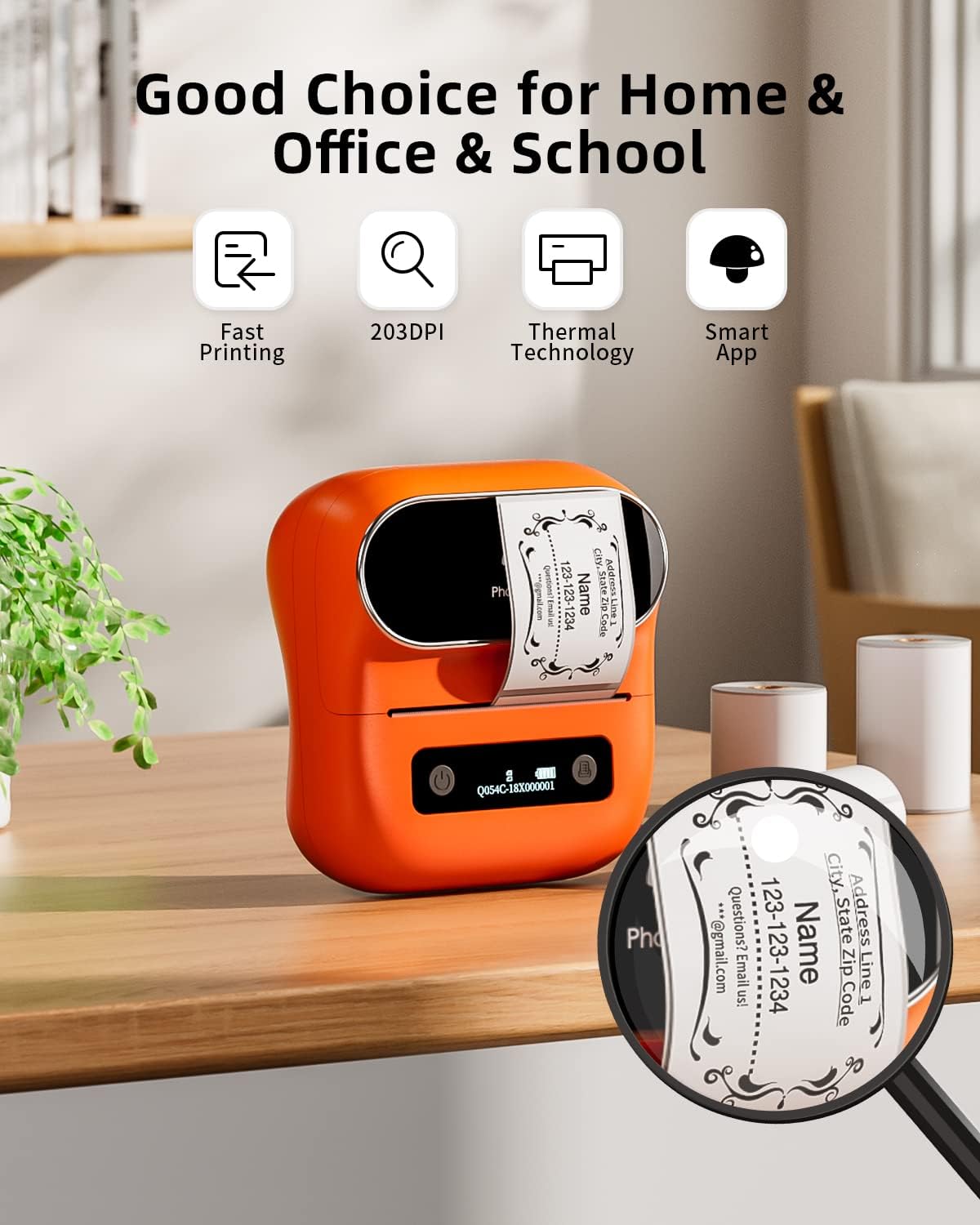
Image: Phomemo M220 Label Maker in operation, printing a customized label.
4. การบำรุงรักษา
4.1. แบตเตอรี่และการชาร์จ
- The M220 features a built-in 2200 mAh rechargeable battery.
- A full charge provides approximately 4 hours of continuous printing.
- The printer can remain on standby for at least 2 months.
- Charge the device using the provided USB-C cable. The display will indicate charging status.
4.2. Thermal Printing Technology
- The M220 uses thermal printing, meaning no ink, toner, or ribbon is required.
- Ensure you use compatible thermal labels for optimal print quality.

Image: Advanced thermal printing technology of the Phomemo M220, emphasizing no ink requirement.
5 การแก้ไขปัญหา
- เครื่องพิมพ์ไม่เชื่อมต่อ: Ensure Bluetooth is enabled on your device and the printer is powered on. Restart both the app and the printer if issues persist.
- คุณภาพการพิมพ์ไม่ดี: Check if the label roll is inserted correctly and the labels are thermal compatible. Ensure the printer head is clean (refer to the full manual for cleaning instructions).
- ฉลากไม่ป้อน: Open the label compartment and ensure the label roll is properly seated and a portion of the label is extended through the slot.
- ปัญหาแอป: Try restarting the app or reinstalling it. Check for app updates.
6. ข้อมูลจำเพาะ
| คุณสมบัติ | รายละเอียด |
|---|---|
| ขนาดสินค้า | ลึก 7.9 นิ้ว x กว้าง 5.9 นิ้ว x สูง 2.9 นิ้ว |
| เทคโนโลยีการเชื่อมต่อ | บลูทูธ, พอร์ต USB-Type-C |
| เทคโนโลยีการพิมพ์ | เทอร์มอล |
| ขนาดสื่อสูงสุด | 80mm (3.14'') |
| ความละเอียดการพิมพ์สูงสุด | 203 จุดต่อนิ้ว |
| ความจุของแบตเตอรี่ | ลิเธียมโพลีเมอร์ 2200 mAh |
| น้ำหนักสินค้า | 14.1 ออนซ์ (400 กรัม) |
| อุปกรณ์ที่รองรับ | Android & iOS Phone/Tablet, Chrome OS, Linux, Windows, macOS |
7. การรับประกันและการสนับสนุน
The Phomemo M220 Label Maker comes with a รับประกันตลอดอายุการใช้งาน.
หากต้องการความช่วยเหลือเพิ่มเติม โปรดเยี่ยมชมเว็บไซต์อย่างเป็นทางการของ Phomemo webเข้าชมเว็บไซต์หรือติดต่อฝ่ายบริการลูกค้า:
- Webเว็บไซต์: www.phoemo.com
- ผู้ขาย: โฟเมโม-วายคิว


