1. บทนำ
Thank you for choosing the KLIM Tandem Wireless Keyboard and Mouse Set. This product is designed to provide a seamless and responsive wireless experience for both gaming and office use. This manual will guide you through the installation, operation, and maintenance of your new device.

Image 1: The KLIM Tandem wireless keyboard and mouse set, featuring RGB backlighting and a compact USB receiver.
2. เนื้อหาบรรจุภัณฑ์
โปรดตรวจสอบให้แน่ใจว่ามีสินค้าทั้งหมดอยู่ในแพ็คเกจของคุณ:
- KLIM Tandem Wireless Keyboard
- KLIM Tandem Wireless Mouse
- USB Wireless Receiver (located in the mouse battery compartment)
- USB Charging Cable (for both keyboard and mouse)
- คู่มือการใช้งาน
3. คำแนะนำในการตั้งค่า
3.1 การเชื่อมต่ออุปกรณ์
- ค้นหาตัวรับสัญญาณไร้สาย USB โดยทั่วไปจะเก็บไว้ในช่องด้านล่างของเมาส์
- เสียบตัวรับสัญญาณไร้สาย USB เข้ากับพอร์ต USB ที่ว่างอยู่บนคอมพิวเตอร์ของคุณ
- เปิดใช้งานคีย์บอร์ดโดยใช้สวิตช์เปิด/ปิด ซึ่งโดยปกติจะอยู่บริเวณขอบด้านบน
- Turn on the mouse using the power switch, usually located on the underside.
- คอมพิวเตอร์ของคุณจะตรวจจับและติดตั้งไดรเวอร์ที่จำเป็นโดยอัตโนมัติ อุปกรณ์ต่างๆ ก็พร้อมใช้งานเมื่อตรวจพบแล้ว

Image 2: Close-up of the KLIM Tandem mouse and its USB receiver, ready for connection.
3.2 ค่าบริการเริ่มต้น
For optimal performance, it is recommended to fully charge both the keyboard and mouse before first use. Use the provided USB charging cable to connect the devices to your computer or a USB wall adapter. An indicator light will typically show charging status and turn off or change color when fully charged.
4. คู่มือการใช้งาน
4.1 ฟังก์ชั่นคีย์บอร์ด
- การควบคุมแบ็คไลท์: The keyboard features RGB backlighting. Use the dedicated backlight key (often labeled with a lightbulb icon or combined with Fn key) to cycle through brightness levels or turn the backlight on/off. Note that the keyboard's colors are fixed in a rainbow pattern.
- ปุ่มฟังก์ชัน (Fn): The keyboard includes a special Function (Fn) key. Press and hold the Fn key, then press the corresponding F1-F12 keys to access multimedia controls and other shortcuts (e.g., volume control, media playback).
- โหมดสลีปอัตโนมัติ: To conserve battery, the keyboard backlight will automatically turn off after a period of inactivity. Press any key to reactivate it.
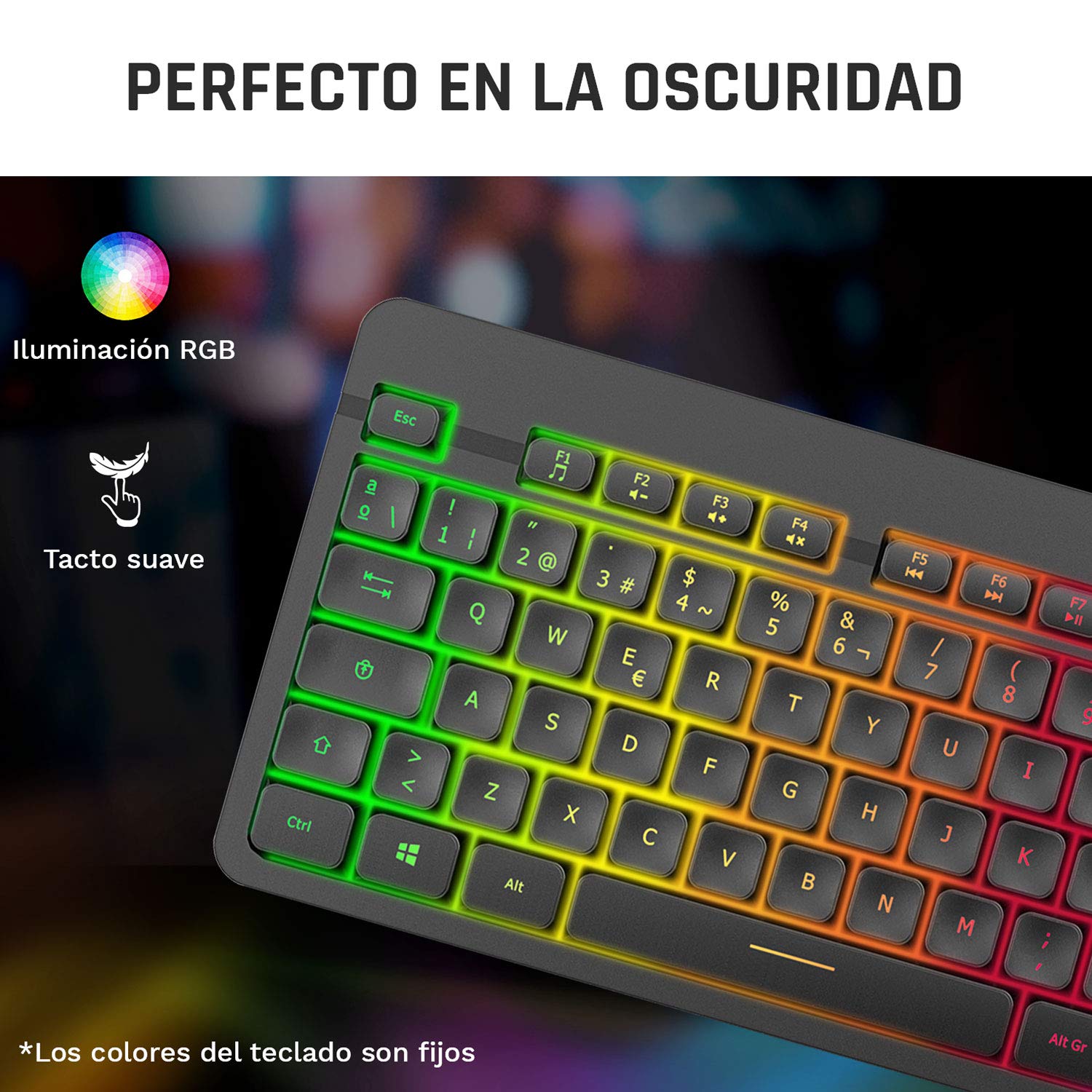
Image 3: Close-up of the KLIM Tandem keyboard showcasing its RGB illumination and soft-touch keys.
4.2 ฟังก์ชันเมาส์
- การปรับ DPI: The mouse features adjustable DPI (Dots Per Inch) settings, allowing you to change cursor sensitivity. Use the dedicated DPI button (usually located behind the scroll wheel) to cycle through different sensitivity levels.
- ปุ่มด้านข้าง: The mouse includes side buttons, typically used for forward and backward navigation in web browsers or customizable for gaming.
- Illuminated Logo: The mouse features an illuminated KLIM logo. This lighting can usually be toggled on or off via a switch on the underside of the mouse, separate from the main power switch.
- การออกแบบตามหลักสรีรศาสตร์: The mouse is designed for an ergonomic grip, recommended for right-hand users.
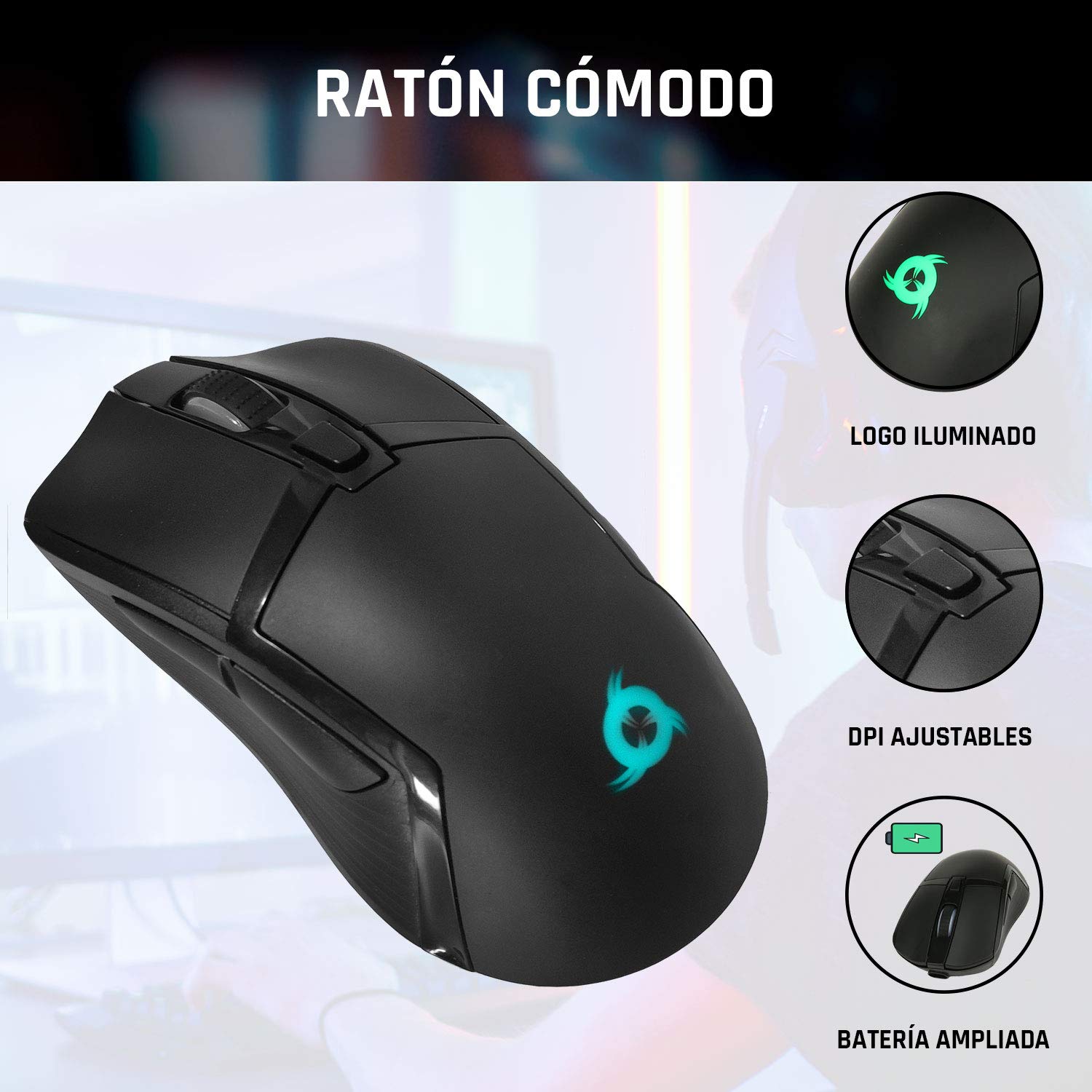
Image 4: The KLIM Tandem mouse highlighting its illuminated logo, adjustable DPI settings, and extended battery capacity.
5. การชาร์จและอายุการใช้งานแบตเตอรี่
Both the KLIM Tandem keyboard and mouse are equipped with built-in rechargeable batteries. Use the provided USB cable to charge them. You can continue to use the devices while they are charging.
- ไฟแสดงสถานะการชาร์จ: A small LED light on each device will indicate charging status. Refer to the device for specific light behavior (e.g., red for charging, off for full).
- การเพิ่มประสิทธิภาพอายุการใช้งานแบตเตอรี่: Lowering the keyboard's backlight brightness or turning it off will significantly extend battery life. The mouse's illuminated logo can also be toggled off to save power.
- คำเตือนแบตเตอรี่ต่ำ: Devices will typically provide a visual cue (e.g., flashing indicator light) when the battery is low, signaling that charging is required.
6. การบำรุงรักษา
To ensure the longevity and optimal performance of your KLIM Tandem set, follow these maintenance guidelines:
- การทำความสะอาด: ใช้ผ้านุ่มและแห้งเช็ดคีย์บอร์ดและเมาส์ สำหรับคราบสกปรกฝังแน่น ให้เช็ดเบาๆamp สามารถใช้ผ้าชุบสบู่เหลวอ่อนๆ เช็ดได้ โดยระวังอย่าให้ของเหลวเข้าไปในตัวเครื่อง หลีกเลี่ยงสารเคมีรุนแรง
- พื้นที่จัดเก็บ: เก็บอุปกรณ์ไว้ในที่แห้งและเย็น หลีกเลี่ยงแสงแดดโดยตรงและอุณหภูมิที่สูงหรือต่ำเกินไป
- หลีกเลี่ยงการหกเลอะ: While the keyboard is designed to be resistant to minor spills, it is best to avoid liquid contact to prevent damage.
- ตัวรับสัญญาณ USB: When not in use, the USB receiver can be stored in the mouse's dedicated compartment to prevent loss.
7 การแก้ไขปัญหา
If you encounter any issues with your KLIM Tandem set, please refer to the following table:
| ปัญหา | สาเหตุที่เป็นไปได้ | สารละลาย |
|---|---|---|
| คีย์บอร์ด/เมาส์ไม่ตอบสนอง | Low battery; Devices turned off; USB receiver disconnected; Driver issue. | Charge devices; Ensure power switches are ON; Re-plug USB receiver; Restart computer. |
| แสงไฟไม่ทำงาน | Backlight turned off; Low battery; Brightness set to minimum. | Press backlight key; Charge keyboard; Adjust brightness. |
| เคอร์เซอร์เมาส์เคลื่อนที่ผิดปกติหรือช้า | Dirty sensor; Incompatible surface; Low DPI setting. | Clean mouse sensor; Use a mouse pad; Adjust DPI setting. |
| อายุการใช้งานแบตเตอรี่สั้น | High backlight brightness; Frequent use. | Reduce backlight brightness; Ensure full charge before use. |
8. ข้อมูลจำเพาะ
Key technical specifications for the KLIM Tandem Wireless Keyboard and Mouse Set:
- การเชื่อมต่อ: 2.4 GHz Wireless (single USB receiver)
- ระยะสัญญาณไร้สาย: สูงสุด 10 เมตร
- Keyboard Key Type: เมมเบรน
- ไฟแบ็คไลท์ของคีย์บอร์ด: Fixed RGB (rainbow pattern)
- อายุการใช้งานคีย์บอร์ด: ยอดคลิกมากกว่า 10 ล้านครั้ง
- ดีพีไอของเมาส์: Adjustable (multiple levels)
- Mouse Lifetime: ยอดคลิกมากกว่า 10 ล้านครั้ง
- แบตเตอรี่: Built-in rechargeable (long-lasting)
- วัสดุ: ABS ทนทาน
- ความเข้ากันได้: PC, Mac, PS4, Xbox One (check specific game/system compatibility)

Image 5: Multilingual specifications sheet for the KLIM Tandem wireless keyboard and mouse set.
9. การรับประกันและการสนับสนุน
KLIM Technologies offers a รับประกัน 5 ปี on the KLIM Tandem Wireless Keyboard and Mouse Set, demonstrating confidence in product quality. For any questions, technical assistance, or warranty claims, please contact KLIM Customer Service. Our team is available to assist you and aims to respond within 24 hours.
For further support, please visit the official KLIM webไซต์หรือดูข้อมูลการติดต่อที่ให้มาพร้อมกับบรรจุภัณฑ์ผลิตภัณฑ์ของคุณ


