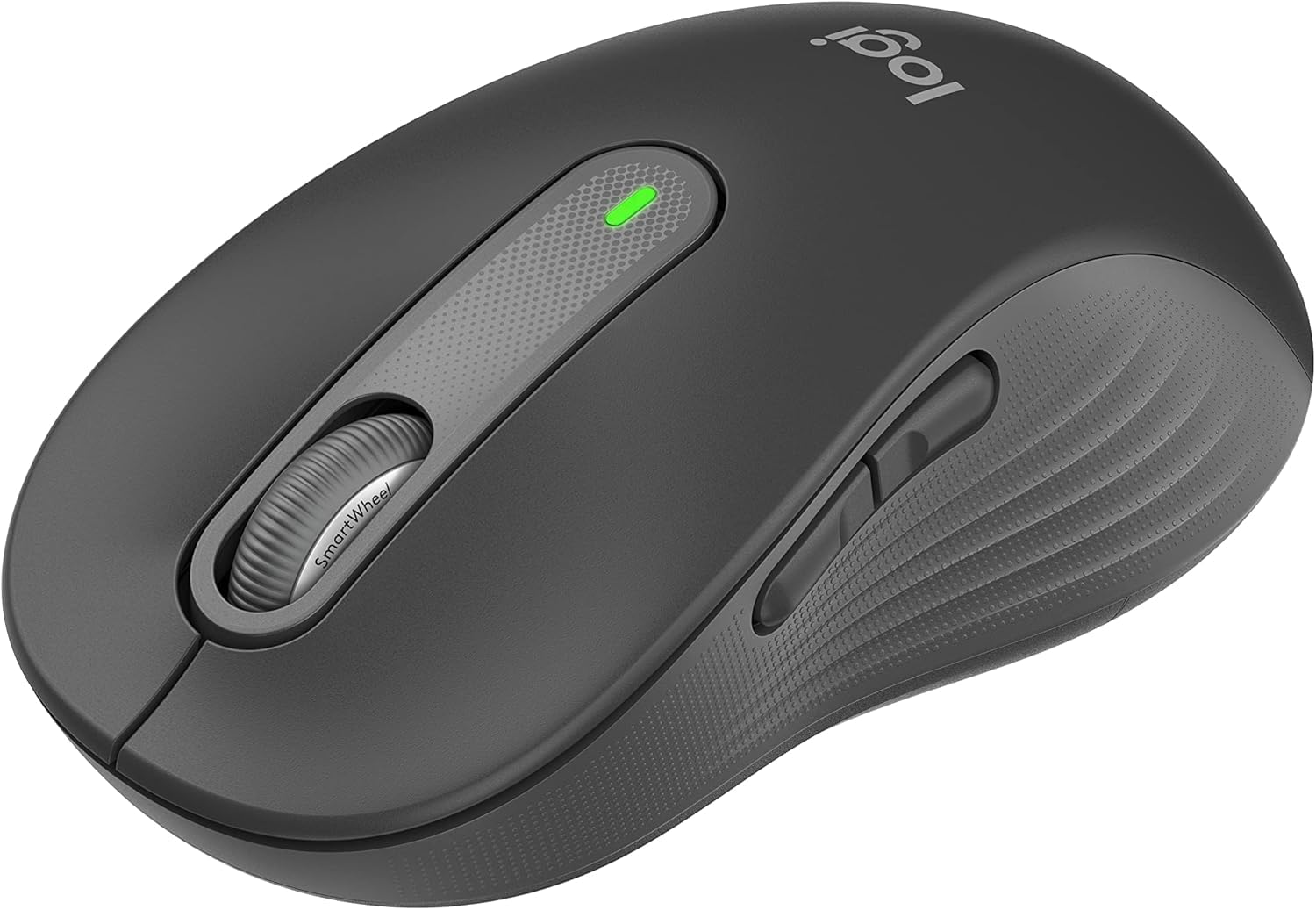
1. การตั้งค่า
Follow these steps to set up your Logitech Signature M650 L Wireless Mouse.
1.1 การติดตั้งแบตเตอรี่
The mouse requires one AA battery. To install or replace the battery:
- ค้นหาฝาปิดช่องใส่แบตเตอรี่ที่ด้านล่างของเมาส์
- เลื่อนฝาเปิดออก
- ใส่แบตเตอรี่ AA หนึ่งก้อน โดยตรวจสอบให้แน่ใจว่าขั้วถูกต้อง (+/-)
- ปิดฝาช่องใส่แบตเตอรี่ให้แน่น

The underside of the mouse, revealing the battery compartment and the storage slot for the Logi Bolt USB receiver.
1.2 การเชื่อมต่อ
The mouse offers two connection options: Bluetooth Low Energy or the Logi Bolt USB receiver.
- การใช้งานตัวรับสัญญาณ Logi Bolt USB: เสียบตัวรับสัญญาณ Logi Bolt USB เข้ากับพอร์ต USB ที่ว่างอยู่บนคอมพิวเตอร์ของคุณ เมาส์ควรเชื่อมต่อโดยอัตโนมัติ
- การใช้บลูทูธ: Turn on the mouse. On your computer, navigate to Bluetooth settings and select to add a new device. Choose the Logitech Signature M650 L from the list of available devices to pair.
1.3 เปิด/ปิดเครื่อง
A power switch is located on the underside of the mouse. Slide the switch to the 'On' position to activate the mouse and to the 'Off' position to conserve battery when not in use.
2. การใช้งานเมาส์
The Logitech Signature M650 L is designed for comfort and efficiency.
2.1 การเลื่อนด้วย SmartWheel
The adaptive SmartWheel provides two modes of scrolling:
- ความแม่นยำระดับบรรทัดต่อบรรทัด: สำหรับการนำทางโดยละเอียดในเอกสารและสเปรดชีต
- ฟรีสปินเร็วสุด ๆ: Automatically switches to free spin mode for rapid scrolling through long web pages or documents with a flick of the finger.
2.2 การคลิกแบบเงียบ
The mouse features SilentTouch technology, reducing click noise by 90% for a quieter work environment.

A user operating the Logitech Signature M650 L mouse, highlighting its silent click feature.
2.3 ปุ่มด้านข้างที่ปรับแต่งได้
The side buttons can be customized to perform various functions, such as navigating forwards and backwards in web browsers or activating specific application commands. Use the Logitech Options+ software to personalize these buttons.

The Logitech Options+ software interface, demonstrating how to customize the mouse's side buttons.
2.4 การออกแบบตามหลักสรีรศาสตร์
Designed for larger hands, the contoured shape, soft thumb area, and rubber side grips provide comfort during long hours of use.
3. การบำรุงรักษา
การบำรุงรักษาอย่างถูกต้องจะช่วยให้เมาส์ของคุณมีอายุการใช้งานยาวนานและมีประสิทธิภาพเหมาะสมที่สุด
3.1 การทำความสะอาด
ในการทำความสะอาดเมาส์ของคุณ:
- ใช้ผ้านุ่มไม่เป็นขุย
- Dampen the cloth lightly with water or a mild, non-abrasive cleaner.
- Wipe the surface of the mouse gently. Avoid getting moisture into openings.
- สำหรับเซ็นเซอร์แสง ให้ใช้สำลีแห้งเช็ดทำความสะอาดฝุ่นหรือสิ่งสกปรกออกอย่างระมัดระวัง
3.2 การเปลี่ยนแบตเตอรี่
Replace the AA battery when the mouse's indicator light signals low power or when performance degrades. Refer to section 1.1 for battery installation instructions.
4 การแก้ไขปัญหา
If you encounter issues with your mouse, try the following solutions:
4.1 ปัญหาการเชื่อมต่อ
- ตรวจสอบพลังงาน: Ensure the mouse is turned on and has sufficient battery power.
- ซ่อมแซมอุปกรณ์: If using Bluetooth, try unpairing and re-pairing the mouse in your computer's Bluetooth settings. If using the USB receiver, try unplugging and re-inserting it into a different USB port.
- การรบกวน: Move the mouse closer to your computer and away from other wireless devices that might cause interference.
4.2 Jumpy or Erratic Cursor
- เซ็นเซอร์ทำความสะอาด: ตรวจสอบให้แน่ใจว่าเซ็นเซอร์แสงที่อยู่ด้านล่างของเมาส์สะอาดและปราศจากสิ่งสกปรก
- พื้นผิว: Use the mouse on a non-reflective, opaque surface. Highly reflective or transparent surfaces can interfere with tracking.
4.3 ปุ่มกดไม่ตอบสนอง
- แบตเตอรี่: เปลี่ยนแบตเตอรี่หากแบตเตอรี่เหลือน้อย
- ซอฟต์แวร์: If customizable buttons are not working, check the Logitech Options+ software for correct configuration.
5. ข้อมูลจำเพาะ
| ขนาดสินค้า | 4.7 x 2.6 x 0.04 นิ้ว |
| น้ำหนักสินค้า | 3.92 ออนซ์ |
| หมายเลขรุ่นสินค้า | M650 |
| แบตเตอรี่ | ต้องใช้แบตเตอรี่ AA 1 ก้อน (รวมอยู่ด้วย) |
| ยี่ห้อ | โลจิเทค |
| สี | กราไฟท์ |
| เทคโนโลยีการเชื่อมต่อ | บลูทูธ, USB, ไร้สาย |
| คุณสมบัติพิเศษ | ไร้สาย |
| เทคโนโลยีตรวจจับการเคลื่อนไหว | ออฟติคอล |
6. การรับประกันและการสนับสนุน
This product is a renewed item. Please refer to the seller's specific return policy for details. The typical return policy for renewed items is a 90-day refund/replacement period.
For further assistance or technical support, please visit the official Logitech support webเว็บไซต์หรือติดต่อฝ่ายบริการลูกค้าของพวกเขา


