1. บทนำ
The Sharper Image Smartphone TV Screen Magnifier enhances your mobile viewing experience by transforming your smartphone screen into a larger, 12-inch curved display. This device is cordless and rechargeable, featuring dual 5W wireless speakers for an immersive audio experience. It is designed for convenient viewing of movies, videos, and games, and is suitable for travel or presentations.
2. สินค้าหมดview
Familiarize yourself with the components of your Smartphone TV Screen Magnifier.

รูปที่ 2.1: The Smartphone TV Screen Magnifier with a phone mounted, showing the magnified display.
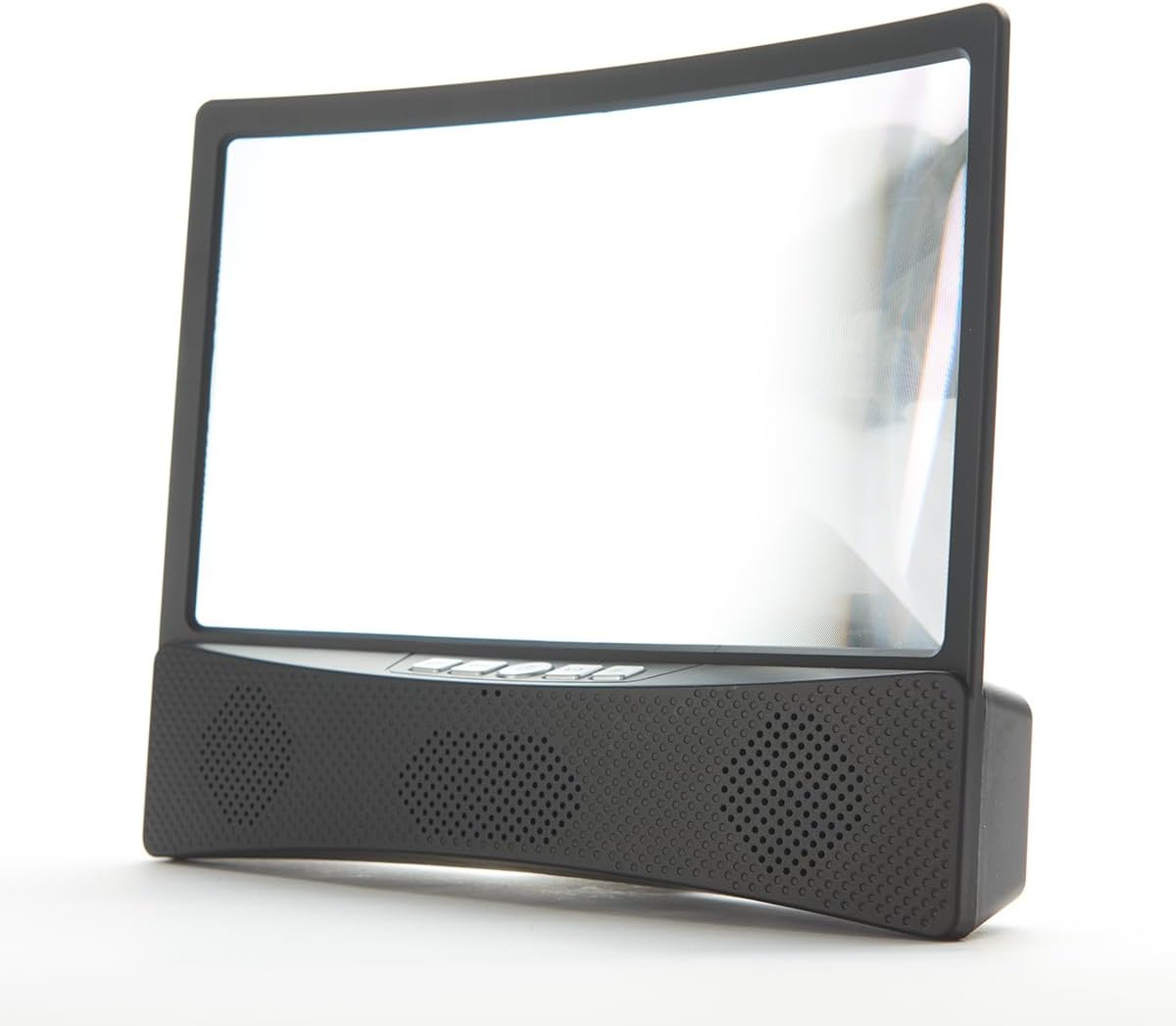
รูปที่ 2.2: ด้านหน้า view of the device, highlighting the curved screen and integrated speaker grilles.

รูปที่ 2.3: ด้านข้าง view illustrating the device's profile and the adjustable phone stand.
ส่วนประกอบ:
- Curved Magnifier Screen: 12-inch display for enlarged viewการไอเอ็นจี
- ที่วางสมาร์ทโฟน: Securely holds your smartphone above the magnifier.
- Integrated Speaker Base: Houses dual 5W wireless speakers and control buttons.
- ปุ่มควบคุม: Power, volume, and playback controls (refer to device for specific button layout).
- พอร์ตชาร์จ: สำหรับชาร์จแบตเตอรี่ภายใน
3. การตั้งค่า
3.1 การชาร์จอุปกรณ์
Before first use, fully charge the Smartphone TV Screen Magnifier. Connect the provided charging cable to the device's charging port and to a suitable USB power source. The charging indicator light will show the charging status.
3.2 Placing Your Smartphone
- Gently pull up the smartphone holder located at the top of the magnifier unit.
- Place your smartphone securely into the holder, ensuring it is stable.
- Adjust the angle of your phone for optimal viewing through the magnifier screen.
3.3 การเปิดเครื่องและการจับคู่บลูทูธ
- Press and hold the Power button on the speaker base until the indicator light illuminates.
- On your smartphone, navigate to your Bluetooth settings.
- ค้นหา available devices and select "Sharper Image Magnifier" (or similar name) to pair.
- Once paired, you will hear a confirmation tone, and audio from your phone will play through the magnifier's speakers.
4. การดำเนินการ
4.1 Using the Magnifier Screen
Once your smartphone is placed in the holder, content displayed on your phone screen will be magnified and projected onto the 12-inch curved screen. Adjust your viewing distance and the phone's angle for the clearest image.
การควบคุมลำโพง 4.2
- ปุ่มเปิด/ปิด: กดค้างไว้เพื่อเปิดหรือปิดอุปกรณ์
- เพิ่ม/ลดระดับเสียง: Press the '+' or '-' buttons to adjust the speaker volume.
- เล่น/หยุดชั่วคราว: Press the Play/Pause button to control media playback on your connected smartphone.
- ข้ามแทร็ก: Use the appropriate buttons (refer to device markings) to skip forward or backward through tracks.
5. การบำรุงรักษา
5.1 การทำความสะอาด
- หน้าจอ: ใช้ผ้านุ่มไม่เป็นขุยเช็ดเบาๆampened with water or a screen-safe cleaner, to gently wipe the magnifier screen. Avoid abrasive materials or harsh chemicals.
- ร่างกาย: เช็ดพื้นผิวภายนอกด้วยผ้าแห้งนุ่ม
5.2 การดูแลแบตเตอรี่
- เพื่อยืดอายุการใช้งานแบตเตอรี่ ควรหลีกเลี่ยงการปล่อยให้แบตเตอรี่หมดเกลี้ยงบ่อยๆ
- Recharge the device regularly, even if not in constant use.
- เก็บอุปกรณ์ไว้ในที่แห้งและเย็นเมื่อไม่ใช้งาน
5.3 พื้นที่จัดเก็บ
When not in use, fold down the smartphone holder and store the device in a clean, dry environment away from direct sunlight and extreme temperatures.
6 การแก้ไขปัญหา
6.1 ไม่มีไฟฟ้า
- ตรวจสอบให้แน่ใจว่าอุปกรณ์ชาร์จเต็มแล้ว เสียบอุปกรณ์เข้ากับแหล่งจ่ายไฟและปล่อยให้ชาร์จอย่างน้อย 30 นาที ก่อนที่จะลองเปิดเครื่องอีกครั้ง
- ตรวจสอบว่าสายชาร์จและอะแดปเตอร์ใช้งานได้ปกติหรือไม่
6.2 No Sound from Speakers / Bluetooth Connection Issues
- ตรวจสอบให้แน่ใจว่าอุปกรณ์เปิดอยู่และชาร์จจนเต็มแล้ว
- ตรวจสอบว่าเปิดใช้งาน Bluetooth บนสมาร์ทโฟนของคุณแล้ว
- Make sure the device is within the Bluetooth range (typically 10 meters or 33 feet).
- Unpair and re-pair the device from your smartphone's Bluetooth settings.
- Increase the volume on both the magnifier and your smartphone.
6.3 Screen Clarity Issues
- Ensure the magnifier screen is clean and free of dust or smudges.
- Adjust the position and angle of your smartphone in the holder.
- ปรับแต่งของคุณ viewing distance from the magnifier screen.
7. ข้อมูลจำเพาะ
- ขนาดหน้าจอ: จอโค้ง 12 นิ้ว
- เอาท์พุตลำโพง: ลำโพงไร้สายคู่ 5W
- แหล่งพลังงาน: แบตเตอรี่ภายในแบบชาร์จไฟได้
- การเชื่อมต่อ: ไร้สาย (Bluetooth)
- หมายเลขรุ่น: B0BP6YDWHM
- ผู้ผลิต: ภาพคมชัดยิ่งขึ้น
8. การสาธิตวิดีโอ
Watch these official videos for visual guidance on using your Sharper Image Smartphone TV Screen Magnifier.
8.1 ผลิตภัณฑ์เกินview and Features (1:10)
วิดีโอนี้ให้ข้อมูลทั่วไปเกี่ยวกับview of the Smartphone TV Screen Magnifier and its key features, including the magnified display and wireless speakers.
8.2 Setup and Basic Operation (1:28)
Learn how to set up your device, place your smartphone, and perform initial Bluetooth pairing for audio playback.
8.3 Advanced Usage Tips (1:50)
This video demonstrates additional tips for optimizing your viewing and audio experience with the magnifier.
8.4 Full Demonstration (3:10)
A comprehensive demonstration covering all aspects of the product, from unboxing to advanced features.
9. ข้อมูลด้านความปลอดภัย
- อย่าให้เครื่องสัมผัสกับอุณหภูมิที่สูงหรือต่ำเกินไป แสงแดดโดยตรง หรือความชื้นสูง
- เก็บอุปกรณ์ให้ห่างจากน้ำหรือของเหลวอื่นๆ
- Do not attempt to disassemble or modify the device. This will void any potential warranty.
- ใช้เฉพาะสายชาร์จที่ให้มาหรือที่เทียบเท่าที่ได้รับการรับรองเท่านั้น
- เก็บให้พ้นจากมือเด็ก
10. การรับประกันและการสนับสนุน
For warranty information or technical support, please contact Sharper Image customer service. Refer to the product packaging or the official Sharper Image webเว็บไซต์สำหรับรายละเอียดการติดต่อ