1. บทนำ
This manual provides comprehensive instructions for the installation, operation, and maintenance of your TP-Link TL-SG3428XF 24-Port SFP L2+ Smart Managed Switch. This device is designed to deliver high-performance networking solutions for small to medium-sized businesses and enterprise environments, featuring advanced capabilities like Omada SDN integration, 10GE SFP+ uplinks, and robust security features.
2. สินค้าหมดview
The TP-Link TL-SG3428XF is a JetStream 24-Port SFP L2+ Managed Switch equipped with 4 10GE SFP+ slots. It offers full Gigabit fiber speeds with 20 Gigabit SFP ports and 4 Gigabit SFP/RJ45 Combo ports, ensuring high-speed and reliable connections for various network devices.
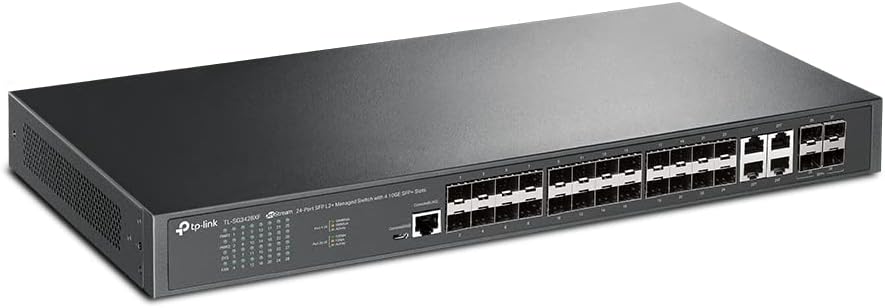
รูปที่ 2.1 : ด้านหน้า view of the TP-Link TL-SG3428XF switch, displaying the 24 SFP ports and 4 10GE SFP+ uplink ports, along with status LEDs and console ports.

รูปที่ 2.2: ด้านหลัง view of the TP-Link TL-SG3428XF switch, highlighting the dual AC power inputs (100-240V~ 50/60Hz 0.6A) and the grounding screw for electrical safety.
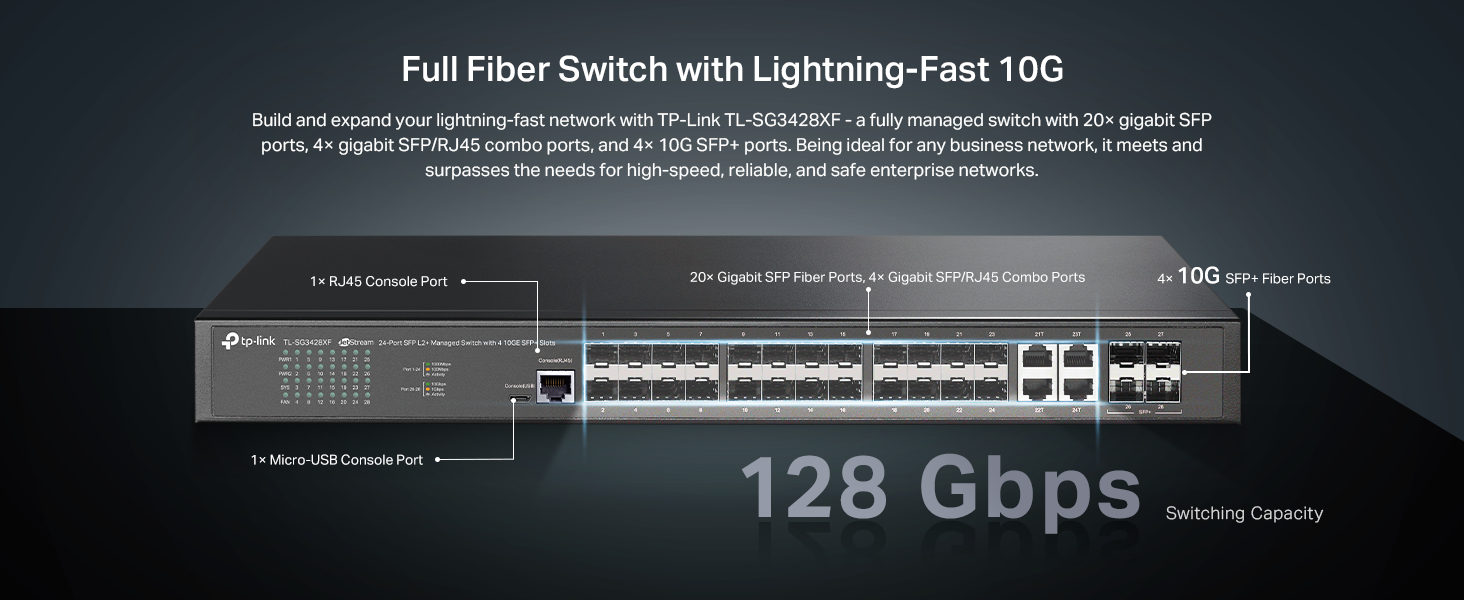
Figure 2.3: Detailed port layout of the TL-SG3428XF, indicating 20 Gigabit SFP ports, 4 Gigabit SFP/RJ45 Combo ports, 4 10G SFP+ Fiber Ports, and console ports.
3. คุณสมบัติหลัก
- 10G Lightning-Fast Connections: Equipped with 4 10Gbps SFP+ Ports for high-bandwidth connectivity and non-blocking switching capacity.
- Full Gigabit Fiber Speeds: Features 20 Gigabit SFP ports and 4 Gigabit SFP/RJ45 Combo ports for high-speed and reliable connections.
- การสนับสนุน Omada SDN: Integrates with Omada's Software Defined Networking (SDN) platform, allowing centralized cloud management of network devices including switches, access points, and gateways.
- การเข้าถึงคลาวด์: Enables remote cloud access and management via the Omada app, providing control from a single interface anywhere, anytime.
- ความปลอดภัยเครือข่ายที่ได้รับการปรับปรุง: Includes advanced security features such as 802.1Q VLAN, IP-MAC-Port binding, ACL, Port Security, DoS defend, Storm control, DHCP Snooping, and 802.1X radius authentication.
- L2+/L3 Features: Supports Static Routing, IPv6, DHCP Server, DHCP Relay, and IP Interfaces for advanced network management.
4. คำแนะนำในการตั้งค่า
4.1 เนื้อหาบรรจุภัณฑ์
Before proceeding with the installation, verify that your package contains the following items:
- TP-Link TL-SG3428XF Switch
- สายไฟ
- ชุดติดตั้งบนแร็ค (ขายึดและสกรู)
- คู่มือการติดตั้ง
4.2 การติดตั้งทางกายภาพ
- หมดแรง: Ensure all network devices, including the switch, are powered off before installation.
- การติดตั้ง:
- ตำแหน่งเดสก์ท็อป: วางสวิตช์บนพื้นผิวเรียบและมั่นคง ตรวจสอบให้แน่ใจว่ามีการระบายอากาศที่เพียงพอรอบๆ อุปกรณ์
- การติดตั้งแร็ค: Attach the provided rackmount brackets to the sides of the switch using the included screws. Secure the switch into a standard 19-inch equipment rack.
- การต่อลงดิน: Connect a grounding wire from the grounding screw on the rear panel of the switch to a proper earth ground. This is crucial for protection against electrical surges.
- การเชื่อมต่อไฟฟ้า: Connect the power cord to the switch's power inlet and then to a power outlet. It is highly recommended to use an Uninterruptible Power Supply (UPS) to protect against power fluctuations and outagใช่
- เชื่อมต่อเครือข่าย:
- Connect your network devices (servers, workstations, access points, etc.) to the SFP or SFP/RJ45 Combo ports using appropriate fiber optic cables or Ethernet cables.
- For 10GE SFP+ uplinks, use compatible SFP+ transceivers and fiber optic cables to connect to your core network or other high-speed devices.
5. คู่มือการใช้งาน
5.1 การเปิดเครื่อง
After all physical connections are made, power on the switch. The Power LED on the front panel should illuminate, indicating that the device is receiving power. The Link/Act LEDs for connected ports will light up when a valid connection is established and blink during data transmission.
5.2 Initial Configuration (Omada SDN)
The TL-SG3428XF is designed for seamless integration with TP-Link's Omada SDN platform. For initial setup and advanced management:
- Ensure your Omada Controller (hardware or software) is set up and running on your network.
- Connect the switch to your network. The Omada Controller should automatically discover the switch.
- Adopt the switch within the Omada Controller interface.
- Once adopted, you can configure VLANs, QoS, port security, static routing, and other advanced features through the centralized Omada interface or Omada app.
For detailed configuration steps, refer to the Omada SDN Controller User Guide available on the TP-Link support webเว็บไซต์.
5.3 โหมดสแตนด์อโลน
The switch can also operate in standalone mode. Access the web-based management interface by connecting a computer directly to one of the switch's ports and configuring your computer's IP address to be in the same subnet as the switch's default IP address (refer to the Installation Guide for default IP). Then, open a web เบราว์เซอร์และป้อนที่อยู่ IP ของสวิตช์
6. การบำรุงรักษา
- การทำความสะอาดปกติ: Keep the switch and its ventilation openings clean and free from dust to ensure proper airflow and prevent overheating.
- อัพเดตเฟิร์มแวร์: ตรวจสอบ TP-Link เป็นระยะ website for firmware updates. Keeping the firmware up-to-date ensures optimal performance, security, and access to new features.
- สภาพแวดล้อม : Ensure the switch operates within its specified environmental conditions (temperature, humidity) to prolong its lifespan.
- การจัดการสายเคเบิล: Maintain organized cable routing to prevent accidental disconnections and improve airflow.
7 การแก้ไขปัญหา
- ไม่มีไฟฟ้า: If the Power LED is off, ensure the power cord is securely connected to both the switch and a working power outlet. Verify the power source is active.
- ไม่มีการเชื่อมโยง/กิจกรรม: If a port's Link/Act LED is off, check the cable connection between the switch and the connected device. Ensure the connected device is powered on and functioning correctly. Verify cable type and length meet specifications.
- ความเร็วเครือข่ายช้า: Check for duplex mismatches between the switch port and the connected device. Ensure cables are not damaged and meet the required category (e.g., Cat5e or higher for Gigabit speeds). Verify network congestion or misconfigurations in Omada SDN.
- การเข้าถึงอินเทอร์เฟซการจัดการ: หากคุณไม่สามารถเข้าถึง web-based management interface, ensure your computer's IP address is in the same subnet as the switch. Clear your browser's cache or try a different browser.
- การเชื่อมต่อไม่ต่อเนื่อง: Investigate potential sources of electromagnetic interference. Ensure the switch is adequately ventilated to prevent overheating.
8. ข้อมูลจำเพาะ
| คุณสมบัติ | รายละเอียด |
|---|---|
| หมายเลขรุ่น | TL-SG3428XF |
| ยี่ห้อ | ทีพี ลิงค์ |
| จำนวนพอร์ต | 24 SFP Ports + 4 SFP/Ethernet Combo Ports |
| พอร์ตอัพลิงค์ | 4 x 10Gbps SFP+ Ports |
| ประเภทอินเทอร์เฟซ | RJ45 (for combo ports), SFP, SFP+ |
| อัตราการถ่ายโอนข้อมูล | 176 กิกะบิตต่อวินาที (ความสามารถในการสลับ) |
| การใช้พลังงานสูงสุด | 50 วัตต์ |
| คะแนนอุณหภูมิบน | 75 องศาเซลเซียส |
| ขนาดสินค้า | 17.32 x 8.66 x 1.73 นิ้ว |
| น้ำหนักสินค้า | 6.55 ปอนด์ |
| อุปกรณ์ที่รองรับ | Desktop (and Rackmount) |
| ยูพีซี | 840030708213 |
| ASIN | B0BNSTR8N4 |
9. การรับประกันและการสนับสนุน
The TP-Link TL-SG3428XF is backed by an industry-leading 5-year warranty. Free technical support is available from 6 AM to 6 PM PST, Monday to Friday.
หากต้องการความช่วยเหลือเพิ่มเติม โปรดไปที่ฝ่ายสนับสนุน TP-Link อย่างเป็นทางการ webไซต์หรือติดต่อทีมสนับสนุนด้านเทคนิคของพวกเขา
- สนับสนุน Webเว็บไซต์: myproducts.tp-link.com/us
- การสนับสนุนทางอีเมล์: support.USA@tp-link.com
- การสนับสนุนทางโทรศัพท์: (866) 225-8139


