การแนะนำ
This manual provides detailed instructions for the setup, operation, and maintenance of your Taiahiro ML-981 Retro Mechanical Keyboard. Please read this guide thoroughly to ensure proper use and to maximize your keyboard's functionality.
เนื้อหาแพ็คเกจ
ตรวจสอบว่ารายการทั้งหมดที่ระบุไว้ด้านล่างนี้รวมอยู่ในแพ็คเกจของคุณ:
- Taiahiro ML-981 Retro Mechanical Keyboard
- คู่มือการใช้งาน
- ตัวดึงกุญแจ
- Spare Mechanical Blue Switches
- สายไฟ USB-C
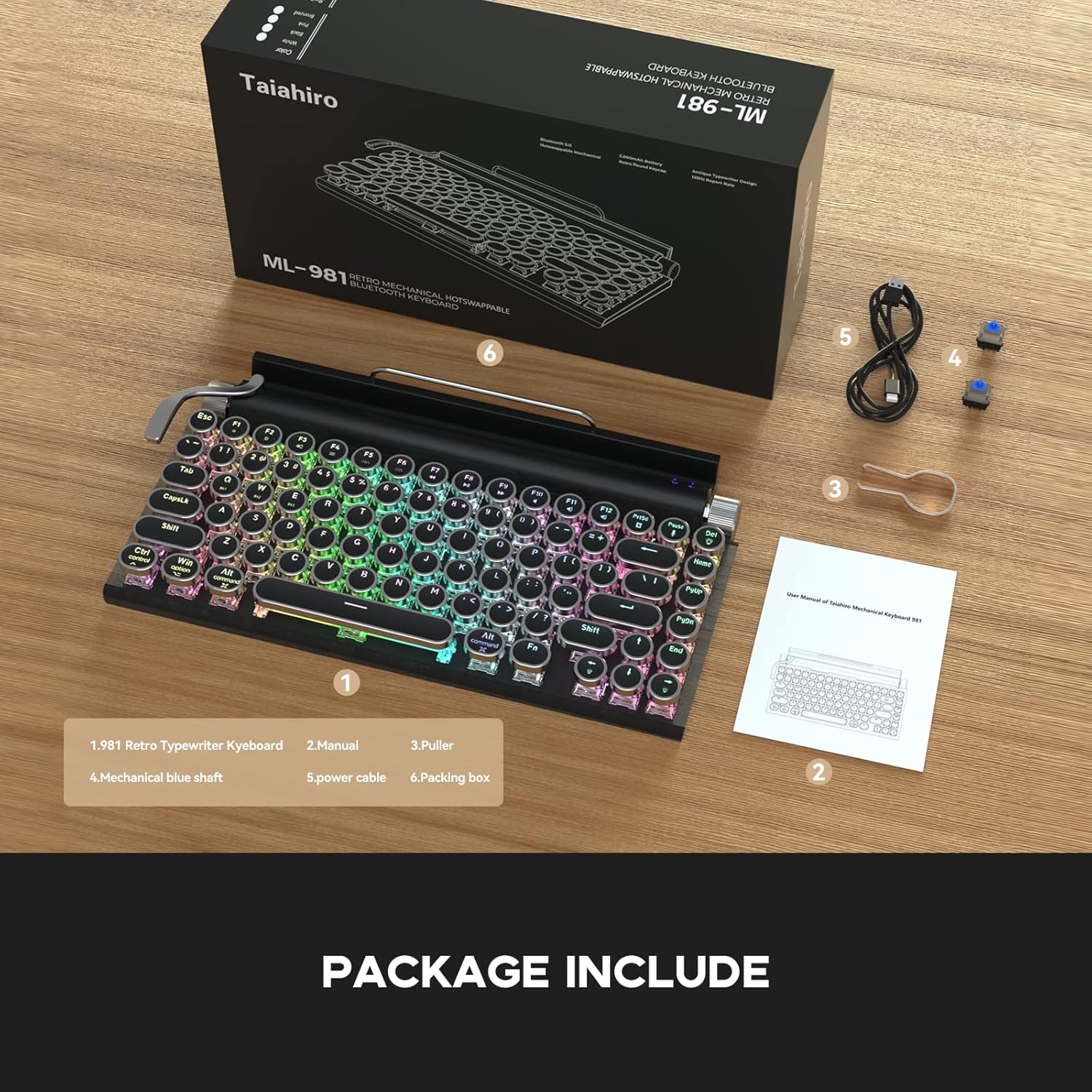
The image displays the Taiahiro ML-981 keyboard along with its accessories, including the user manual, keycap puller, spare mechanical blue switches, and USB-C charging cable.
สินค้าเกินview
The Taiahiro ML-981 keyboard features a retro design with modern functionality, offering multiple connectivity options and customizable backlighting.
คุณสมบัติหลัก:
- Dual-mode connectivity: USB-C wired and Bluetooth 5.0.
- Multi-device support: Connects up to 3 Bluetooth devices simultaneously.
- Integrated bracket for holding smartphones or tablets.
- Mechanical blue switches for tactile feedback.
- Adjustable RGB backlight with multiple lighting modes.
- Dedicated knobs for brightness and volume control.
- Compatibility with Windows, macOS, and Android operating systems.

This image illustrates the main features of the keyboard, such as its dual connectivity, multi-device pairing, and integrated stand.
ส่วนประกอบแป้นพิมพ์:
- ปุ่มปรับความสว่าง: Located on the right side, used to adjust backlight brightness.
- ปุ่มปรับระดับเสียง: Located on the right side, used to adjust audio volume.
- Backlight Lever: Located on the left side, used to cycle through backlight modes.
- Integrated Bracket: Located at the top, designed to hold mobile devices.
- Wired Mode/Charging Port: พอร์ต USB-C สำหรับเชื่อมต่อแบบมีสายและชาร์จไฟ
- System Switch Button: Toggles between Windows and Mac layouts.
- Power and Connection Switch Button: Controls power and switches between connection modes.

รายละเอียด view of the keyboard's physical controls and ports, including the knobs, lever, and switches.
การตั้งค่าและการเชื่อมต่อ
การชาร์จคีย์บอร์ด:
Connect the provided USB-C cable to the charging port on the keyboard and to a USB power source. The keyboard can be used while charging.
เปิด/ปิดเครื่อง:
Locate the Power and Connection Switch Button on the side of the keyboard. Slide it to the 'ON' position to power on the device. Slide to 'OFF' to power off.
ตัวเลือกความเข้ากันได้ของระบบ:
Use the System Switch Button to select the appropriate operating system mode (Windows or Mac) for optimal key mapping.
การเชื่อมต่อแบบมีสาย:
Connect the USB-C cable from the keyboard to your computer's USB port. The keyboard will automatically switch to wired mode.
การเชื่อมต่อบลูทูธ 5.0:
The keyboard supports connecting up to three devices via Bluetooth. To pair a device:
- Ensure the keyboard is powered on and in Bluetooth mode (indicated by the Power and Connection Switch Button).
- On your device (PC, laptop, tablet, or phone), enable Bluetooth and search for available devices.
- Select 'Taiahiro Keyboard' from the list of devices.
- ปฏิบัติตามคำแนะนำบนหน้าจอเพื่อดำเนินการจับคู่ให้เสร็จสมบูรณ์
To switch between paired Bluetooth devices, use the designated function keys (refer to the keyboard layout for specific key combinations, often Fn + 1/2/3).

This image demonstrates the keyboard's dual-mode connectivity, showing both wired USB-C and wireless Bluetooth 5.0 connections.

The image highlights the keyboard's ability to pair with multiple devices, such as a tablet and a smartphone, for seamless switching.
คำแนะนำการใช้งาน
การควบคุมแบ็คไลท์:
The keyboard features multiple LED backlight modes. To adjust:
- เปลี่ยนโหมด: Pull the backlight lever (located on the left side) to cycle through different lighting effects.
- ปรับความสว่าง/ความเร็ว: Rotate the brightness knob (located on the right side) to increase or decrease the backlight intensity or animation speed.

This image displays the keyboard's vibrant LED backlighting, highlighting the various lighting modes available.
การควบคุมระดับเสียง:
Rotate the volume knob (located on the right side) to adjust the audio output volume of your connected device.
Using the Integrated Bracket:
The keyboard includes an integrated bracket at the top, designed to securely hold your smartphone or tablet while you type.
This video demonstrates the Taiahiro Retro Typewriter Keyboard in use, showcasing its typing experience and how it functions with a tablet and smartphone in the integrated holder.
การซ่อมบำรุง
การทำความสะอาด:
To clean your keyboard, power it off and disconnect it from any devices. Use a soft, dry cloth to wipe down the surface. For deeper cleaning, a slightly damp cloth can be used, ensuring no moisture enters the key switches or internal components. Avoid harsh chemicals.
การเปลี่ยนสวิตช์:
The Taiahiro ML-981 keyboard features hot-swappable mechanical switches, allowing for easy replacement without soldering. Use the provided keycap puller to remove the keycap, then use the switch puller to carefully extract the switch. Align the pins of the new switch with the sockets and press firmly until it clicks into place. Replace the keycap.

This image illustrates the process of replacing a mechanical switch on the keyboard using the provided tools.
การแก้ไขปัญหา
- แป้นพิมพ์ไม่เชื่อมต่อผ่านบลูทูธ:
Ensure the keyboard is charged and powered on. Verify that the Power and Connection Switch Button is in the correct Bluetooth mode. On your device, turn Bluetooth off and on again, then attempt to re-pair. Ensure no other devices are interfering with the connection. - คีย์ไม่ตอบสนอง:
Check if the keyboard is properly connected (wired or Bluetooth). If using Bluetooth, ensure it's paired and selected. If wired, ensure the USB-C cable is securely connected. Try restarting the keyboard. - ไฟแบ็คไลท์ไม่ทำงานหรือค้าง:
Ensure the keyboard is powered on. Try pulling the backlight lever to cycle through modes. Adjust the brightness knob. If the issue persists, power cycle the keyboard. - Incorrect key output (e.g., 'Z' types 'Y'):
Verify that the System Switch Button is set to the correct operating system (Windows or Mac) for your connected device.
ข้อมูลจำเพาะ
| ขนาดสินค้า | 12.6 x 7 x 1.5 นิ้ว |
| น้ำหนักสินค้า | 2.23 ปอนด์ |
| ผู้ผลิต | ไทอาฮิโระ |
| แบตเตอรี่ | แบตเตอรี่ลิเธียมโพลิเมอร์ 1 ก้อน (รวมอยู่ด้วย) |
| เทคโนโลยีการเชื่อมต่อ | บลูทูธ 5.0, USB-C แบบมีสาย |
| คำอธิบายแป้นพิมพ์ | เครื่องจักรกล |
| อุปกรณ์ที่รองรับ | แล็ปท็อป, พีซี, สมาร์ทโฟน, แท็บเล็ต |
| คุณสมบัติพิเศษ | Backlit, Integrated Stand, Round Key, Hot-swappable Switches |
| สี | สีดำเงา |
| แป้นพิมพ์แบ็คไลท์ | อาร์จีบี |
| สไตล์ | ย้อนยุค |
| วัสดุ | โลหะ |
การรับประกันและการสนับสนุน
For warranty information and technical support, please refer to the contact details provided on the product packaging or the official Taiahiro webไซต์นี้ โปรดเก็บใบเสร็จรับเงินที่ซื้อไว้เพื่อใช้เรียกร้องการรับประกัน


