1. บทนำ
The Baseus Orange Dot Wireless Presentation Pointer is a versatile 2-in-1 device designed to enhance your presentations and public speaking engagements. It combines both digital and physical laser modes, offers smart voice recording with transcription, and provides universal compatibility with USB-A and Type-C devices. This manual provides detailed instructions on setting up, operating, and maintaining your presentation pointer to ensure optimal performance.
2. คุณสมบัติหลัก
- Dual Laser Modes: Seamlessly switch between digital and physical laser modes, suitable for various screen types including LCD displays.
- Smart Voice Recording: Automatically saves recordings with a QR code for easy sharing and retrieval of important meeting notes.
- Universal USB/Type-C Compatibility: Equipped with a dual-port receiver (USB-A/Type-C) for broad applicability across Windows and macOS devices.
- 100 Meter Laser Distance: Provides strong signal penetration, ideal for large venues and auditoriums.
- Optimized Key Positions: Dedicated buttons for full screen, black screen, and page-turning functions for smooth presentation flow.
- Automatic Transcription: Features smart voice assistant technology for real-time speech-to-text transcription, enhancing efficiency.

The Baseus Orange Dot Wireless Presentation Pointer features a smart voice assistant for higher efficiency, offering smart speech-to-text transcription, real-time Chinese-English subtitles, digital/physical dual laser mode, and mouse control/magnifying glass/spotlight functions.
Experience real-time Chinese-English subtitle display during your presentations, facilitating communication in diverse environments.

Easily save and share your presentation content by scanning a generated QR code, providing convenient access to audio and text records.
วิดีโอนี้มีเนื้อหาเกี่ยวกับview of the Baseus Wireless Presentation Pointer, showcasing its design and primary functions.
3. อะไรอยู่ในกล่อง
เมื่อเปิดบรรจุภัณฑ์คุณจะพบกับสิ่งของดังต่อไปนี้:
- 1 x Baseus Orange Dot Wireless Presentation Pointer
- 1 x USB/Type-C Receiver
- 1 x คู่มือผู้ใช้

The main unit of the Baseus Orange Dot Wireless Presentation Pointer, showcasing its sleek design and integrated receiver.
4. คู่มือการติดตั้ง
4.1 การเชื่อมต่อเครื่องรับ
- Locate the USB/Type-C receiver stored at the bottom of the presentation pointer. Gently pull it out.
- Identify the appropriate port on your computer (USB-A or Type-C).
- Insert the receiver into the corresponding USB-A or Type-C port on your computer. The device is plug-and-play and should be recognized automatically.
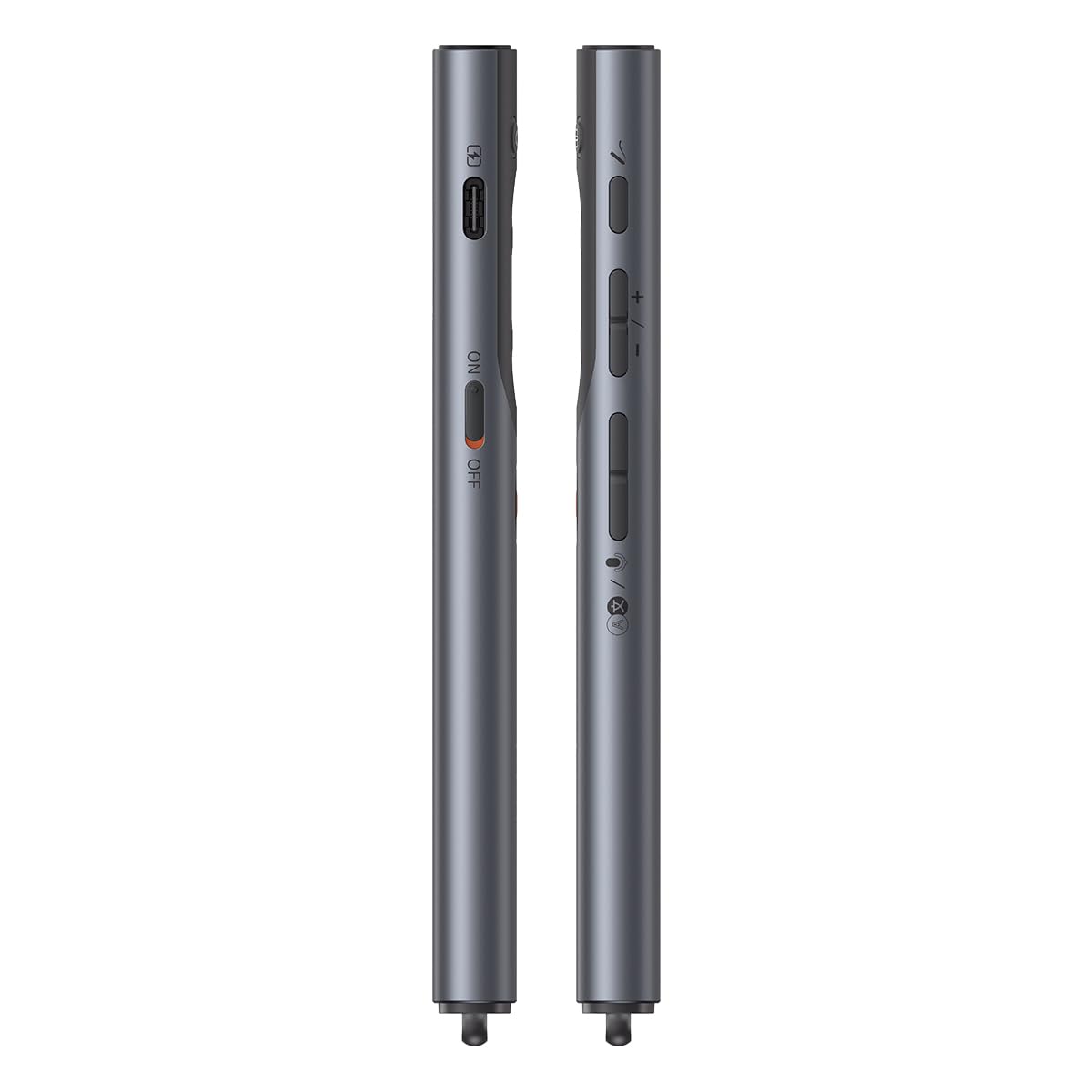
- Turn on the presentation pointer using the ON/OFF switch located on the side.

ฝั่งโปรfile of the presenter, illustrating the power switch and volume adjustment buttons for easy access during use.
5. คู่มือการใช้งาน
5.1 การควบคุมขั้นพื้นฐาน
- เลื่อนหน้าขึ้น/ลง: Use the dedicated arrow buttons to navigate through your presentation slides.
- เต็มหน้าจอ/หน้าจอดำ: Press the designated button to toggle between full-screen mode and a black screen, allowing you to focus audience attention.
5.2 Laser Pointer Function
- Physical Laser: Press and hold the laser button to activate the traditional red laser pointer for physical screens.
- เลเซอร์ดิจิทัล: For LCD/LED screens, activate the digital laser mode through the device's software (if applicable) or a specific button press as indicated in the quick start guide.
5.3 Smart Voice Assistant & Transcription
- To utilize the smart voice recording and transcription features, ensure the corresponding Baseus Office app is installed on your computer.
- Activate the voice recording function via the app or a dedicated button on the pointer.
- After recording, a QR code will be generated. Scan this code with your smartphone to access and share the transcribed text and audio.
5.4 Mouse Control & Spotlight
- The pointer supports mouse control, allowing you to move the cursor on your screen.
- Activate spotlight or magnifying glass functions through specific button combinations or software settings to highlight key areas of your presentation.

Illustrates the mouse control, spotlight, and magnifying glass functionalities available with the presenter, enhancing interaction with your slides.
6. การบำรุงรักษาและการดูแล
- การทำความสะอาด: เช็ดอุปกรณ์ด้วยผ้าแห้งเนื้อนุ่ม หลีกเลี่ยงการใช้สารทำความสะอาดที่มีฤทธิ์กัดกร่อนหรือตัวทำละลาย
- พื้นที่จัดเก็บ: Store the pointer in a cool, dry place away from direct sunlight and extreme temperatures. Ensure the receiver is securely stored within the pointer when not in use.
- แบตเตอรี่: The AI Version (Charging) model is rechargeable. Use the provided charging cable or a compatible USB-C cable to charge the device. Avoid overcharging.
7 การแก้ไขปัญหา
| ปัญหา | สาเหตุที่เป็นไปได้ | สารละลาย |
|---|---|---|
| Pointer not responding | Low battery; Receiver not properly connected; Device not powered on. | Charge the pointer; Re-insert the receiver firmly; Turn on the power switch. |
| เลเซอร์ไม่ทำงาน | Laser mode not activated; Obstruction; Software issue for digital laser. | Ensure laser button is pressed; Check for obstructions; Restart presentation software. |
| Voice recording/transcription issues | Baseus Office app not installed/running; Microphone blocked; Poor audio quality. | Install/open Baseus Office app; Ensure microphone is clear; Speak clearly and closer to the device. |
| มีขอบเขตจำกัด | Interference; Distance too far; Obstructions. | Reduce distance to receiver; Remove obstructions; Avoid strong electromagnetic interference. |
8. ข้อมูลจำเพาะผลิตภัณฑ์
| คุณลักษณะ | รายละเอียด |
|---|---|
| ยี่ห้อ | เบสอุส |
| แบบอย่าง | AI Version (Charging) |
| สี | AI Version (Charging) |
| อุปกรณ์ที่รองรับ | Projector, PC, Laptops, LED/LCD TVs, Mac |
| วัสดุ | พลาสติก |
| ขนาดรายการ (ยาว x กว้าง x สูง) | 8.1 x 18.6 x 2.1 เซนติเมตร |
| ระยะเลเซอร์ | สูงสุด 100 เมตร |
| การเชื่อมต่อ | Wireless (USB-A/Type-C Receiver) |
9. การรับประกันและการสนับสนุน
For warranty information, technical support, or service inquiries, please refer to the warranty card included in your product packaging or visit the official Baseus webไซต์ โปรดเก็บใบเสร็จรับเงินของคุณไว้เป็นหลักฐานการซื้อสำหรับการเรียกร้องการรับประกันใดๆ


