1. บทนำ
Thank you for choosing the Cherry KW 9100 Slim Wireless Rechargeable Keyboard. This extra-slim, low-profile keyboard is designed for Mac computers, offering versatile connectivity options and a comfortable typing experience. This manual provides essential information for setting up, operating, maintaining, and troubleshooting your new keyboard.
The keyboard features dual wireless connectivity (Bluetooth and 2.4 GHz wireless USB receiver), allowing you to easily switch between devices. It incorporates high-quality CHERRY SC scissor technology for quiet and precise keystrokes, and includes AES-128 encryption for secure data transmission. The integrated rechargeable battery provides weeks of use on a single charge, and the keyboard can be charged while in use via the included USB-A to USB-C cable.

Image 1.1: The Cherry KW 9100 Slim Wireless Rechargeable Keyboard, showcasing เค้าโครงเต็มรูปแบบและโปรที่บางเฉียบfile.
2. ข้อมูลด้านความปลอดภัย
- Do not expose the keyboard to liquids, excessive moisture, or extreme temperatures.
- ควรหลีกเลี่ยงการทำแป้นพิมพ์ตกหรือกระแทกอย่างแรง
- ควรวางแป้นพิมพ์ให้ห่างจากสนามแม่เหล็กแรงสูง
- อย่าพยายามถอดประกอบหรือดัดแปลงแป้นพิมพ์ การทำเช่นนี้จะทำให้การรับประกันเป็นโมฆะ
- ใช้เฉพาะสาย USB-A ถึง USB-C ที่ให้มาในการชาร์จเท่านั้น
3. เนื้อหาบรรจุภัณฑ์
ตรวจสอบว่ามีรายการทั้งหมดอยู่ในแพ็คเกจของคุณ:
- Cherry KW 9100 Slim Wireless Rechargeable Keyboard
- สาย USB-A ถึง USB-C
- 2.4 GHz Wireless USB Receiver
- Magnetic Strip (for angle adjustment)
- คู่มือการใช้งาน (เอกสารนี้)
4. การตั้งค่า
4.1. การชาร์จคีย์บอร์ด
Before first use, or when the battery indicator shows low power, connect the keyboard to a USB power source (e.g., computer USB port, USB wall adapter) using the provided USB-A to USB-C cable. The keyboard can be used while charging.
4.2. Connecting via 2.4 GHz Wireless USB Receiver
- Locate the 2.4 GHz wireless USB receiver.
- Insert the USB receiver into an available USB-A port on your Mac computer.
- On the keyboard, slide the connectivity switch (located on the side) to the 'RF' position.
- แป้นพิมพ์ควรเชื่อมต่อกับคอมพิวเตอร์ของคุณโดยอัตโนมัติ
4.3. การเชื่อมต่อผ่าน Bluetooth
Ensure your Mac computer has Bluetooth 4.0 or higher.
- On the keyboard, slide the connectivity switch (located on the side) to the 'BT' position.
- บน Mac ให้ไปที่ การตั้งค่าระบบ (หรือ การตั้งค่าระบบ- บลูทูธ.
- ตรวจสอบว่าบลูทู ธ เปิดอยู่
- The keyboard should appear in the list of discoverable devices (e.g., "CHERRY KW 9100"). Select it to pair.
- ปฏิบัติตามคำแนะนำบนหน้าจอเพื่อดำเนินการจับคู่ให้เสร็จสมบูรณ์

ภาพที่ 4.1: ด้านข้าง view of the keyboard, highlighting the RF/BT connectivity switch and the USB-C charging port.
4.4. การปรับมุมของแป้นพิมพ์
The keyboard includes a removable magnetic strip that can be attached to the underside to adjust the typing angle for improved ergonomics. Simply attach the strip to the designated area on the bottom of the keyboard.
5. การใช้งานคีย์บอร์ด
5.1. Switching Between Connectivity Modes
Use the slide switch on the side of the keyboard to toggle between 'RF' (2.4 GHz wireless) and 'BT' (Bluetooth) modes. This allows you to seamlessly switch between two connected devices, for example, a laptop via Bluetooth and a desktop PC via the USB receiver.
5.2. Key Functions and Mac Layout
The keyboard features a Mac-specific layout, including Command, Option, and Control keys. The function keys (F1-F15) provide quick access to various system functions such as brightness, media control, and volume. Some function keys may require pressing the 'Fn' key simultaneously depending on your Mac's system settings.
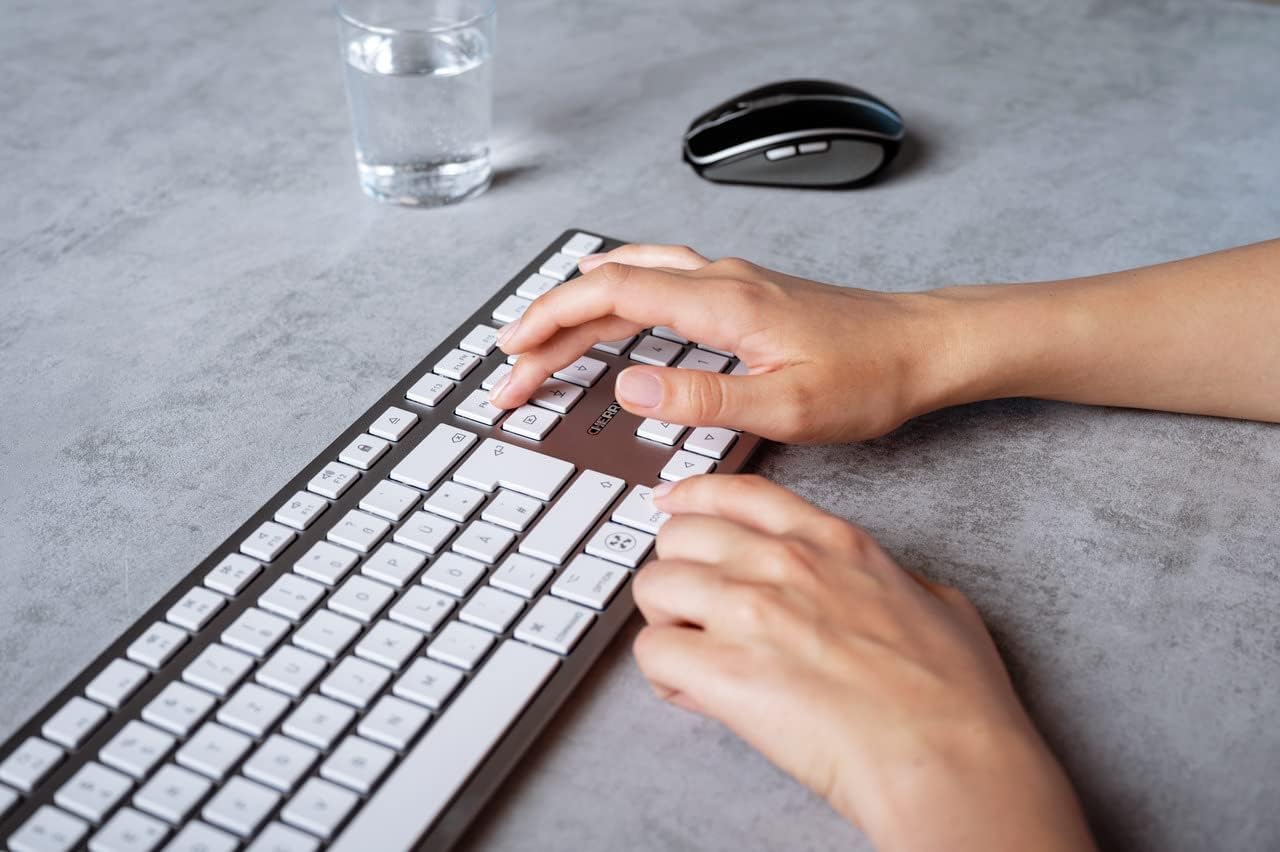
Image 5.1: A user typing on the Cherry KW 9100 keyboard, demonstrating its ergonomic design and key spacing.
5.3. การจัดการพลังงาน
To conserve battery life, the keyboard will enter a sleep mode after a period of inactivity. To wake it up, simply press any key. The keyboard will reconnect automatically to the last active device.
6. การบำรุงรักษา
6.1. การทำความสะอาด
ในการทำความสะอาดแป้นพิมพ์ ให้เช็ดพื้นผิวเบาๆ ด้วยผ้าเนื้อนุ่มที่ไม่เป็นขุย สำหรับคราบสกปรกที่ติดแน่น ให้เช็ดเบาๆ อีกครั้งampen the cloth with water or a mild, non-abrasive cleaning solution. Ensure no liquid enters the keyboard. Do not use harsh chemicals or abrasive materials.
6.2. การจัดเก็บ
When not in use for extended periods, store the keyboard in a dry, cool place. It is recommended to fully charge the battery before long-term storage.
7 การแก้ไขปัญหา
| ปัญหา | สาเหตุที่เป็นไปได้ | สารละลาย |
|---|---|---|
| Keyboard not connecting via 2.4 GHz. | USB receiver not properly inserted; keyboard switch in 'BT' mode; low battery. | Ensure receiver is fully inserted. Slide keyboard switch to 'RF'. Charge the keyboard. Try a different USB port. |
| คีย์บอร์ดไม่เชื่อมต่อผ่านบลูทูธ | Keyboard switch in 'RF' mode; Bluetooth off on Mac; low battery; pairing issue. | Slide keyboard switch to 'BT'. Ensure Bluetooth is enabled on your Mac. Charge the keyboard. Remove and re-pair the keyboard in Mac's Bluetooth settings. |
| คีย์ไม่ตอบสนองหรือล่าช้า | แบตเตอรี่เหลือน้อย; สัญญาณรบกวน; แป้นพิมพ์อยู่ในโหมดพักเครื่อง | Charge the keyboard. Move closer to the receiver/Mac. Press any key to wake the keyboard. |
| Function keys (F1-F15) not working as expected. | System settings; 'Fn' key usage. | Check your Mac's Keyboard settings (System Settings > Keyboard) for function key behavior. Try pressing the 'Fn' key simultaneously with the desired function key. |
| แบตเตอรี่หมดเร็วมาก | Frequent use; keyboard not entering sleep mode. | Ensure the keyboard is allowed to enter sleep mode when idle. Fully charge the keyboard. |
8. ข้อมูลจำเพาะ
| คุณสมบัติ | รายละเอียด |
|---|---|
| หมายเลขรุ่น | เจเค-9110ยูเอส-1 |
| ยี่ห้อ | เชอร์รี่ |
| เทคโนโลยีการเชื่อมต่อ | Bluetooth, USB-A (for receiver), USB-C (for charging) |
| อุปกรณ์ที่รองรับ | Mac computers with Bluetooth 4.0 or higher and USB-A connections |
| คำอธิบายแป้นพิมพ์ | โปรต่ำfile, extra-slim, wireless, scissor-switch keyboard with adjustable angle and rechargeable battery |
| คุณสมบัติพิเศษ | Magnetic (for angle adjustment), Travel |
| สี | เงิน |
| วัสดุ | โลหะ, พลาสติก |
| ขนาดสินค้า | 17.32 x 5.12 x 0.59 นิ้ว (44 x 13 x 1.5 ซม.) |
| น้ำหนักสินค้า | 1.94 ปอนด์ (0.88 กก.) |
| ผู้ผลิต | เชอร์รี่ |
9. การรับประกันและการสนับสนุน
Your Cherry KW 9100 Slim Wireless Rechargeable Keyboard is covered by a manufacturer's warranty. For detailed warranty information, technical support, or service inquiries, please visit the official Cherry webหรือติดต่อฝ่ายสนับสนุนลูกค้าโดยตรง โปรดเก็บหลักฐานการซื้อไว้เพื่อใช้ในการเคลมประกัน
การสนับสนุนทางออนไลน์: www.cherry.de


