1. บทนำ
This manual provides essential information for the safe and efficient operation of your suevery SV240ZA 24-inch 165Hz IPS Gaming Monitor. Please read this manual thoroughly before using the product and retain it for future reference. This monitor is designed for gaming, home office, and general computing tasks, offering a Full HD 1080p resolution, a high refresh rate, and fast response time for a smooth visual experience.
2. ข้อมูลด้านความปลอดภัย
- อย่าวางจอภาพไว้ในที่ที่มีฝนหรือความชื้น เพื่อป้องกันไฟไหม้หรือไฟฟ้าช็อต
- อย่าเปิดจอภาพcasinก. ไม่มีชิ้นส่วนใดที่ผู้ใช้สามารถซ่อมบำรุงเองได้ภายใน แนะนำให้ช่างผู้ชำนาญการซ่อมบำรุงเป็นผู้รับผิดชอบ
- วางจอภาพบนพื้นผิวที่มั่นคงและเรียบเพื่อป้องกันไม่ให้ตก
- ตรวจสอบให้แน่ใจว่ามีการระบายอากาศที่เหมาะสมรอบ ๆ จอภาพ อย่าปิดกั้นช่องระบายอากาศ
- ใช้เฉพาะอะแดปเตอร์ไฟฟ้าที่ให้มาพร้อมกับจอภาพเท่านั้น
- ถอดปลั๊กไฟออกจากเต้าเสียบหากจะไม่ใช้จอภาพเป็นเวลานาน
3. เนื้อหาบรรจุภัณฑ์
ตรวจสอบว่ามีรายการทั้งหมดอยู่ในแพ็คเกจ:
- 1 x suevery SV240ZA Monitor
- 1 x Stand Base
- สาย HDMI 1 เส้น
- 1 x สายเคเบิลดิสเพลย์พอร์ต
- 1 x คู่มือผู้ใช้
- อะแดปเตอร์ไฟฟ้า 1 ตัว
4. คำแนะนำในการตั้งค่า
4.1 การประกอบขาตั้ง
Attach the stand base to the monitor neck, then secure the neck to the back of the monitor. Ensure all screws are tightened securely.
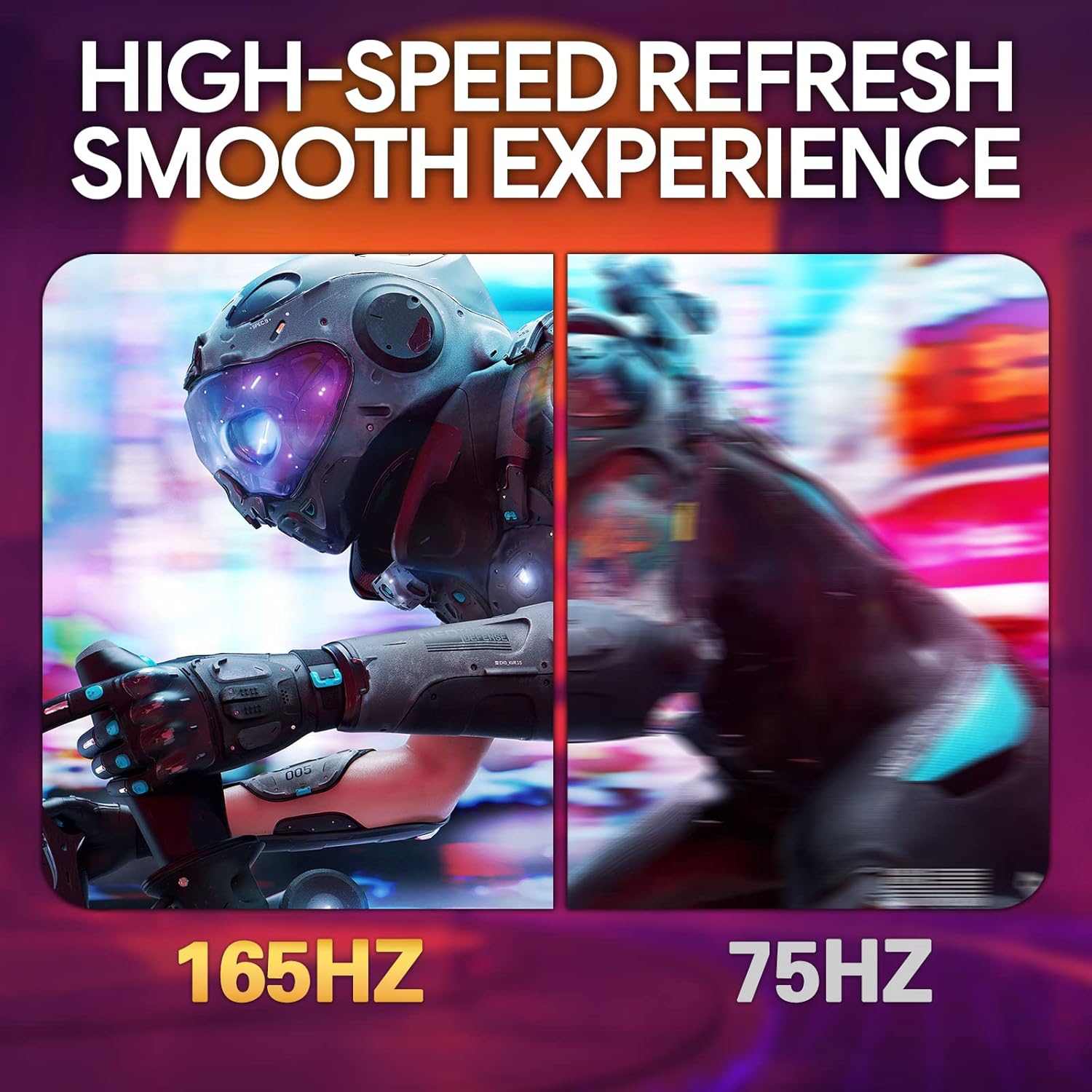
Image: The suevery SV240ZA monitor fully assembled with its desktop stand.
4.2 การติดตั้ง VESA
The monitor supports VESA mounting with a 75mm x 75mm pattern. Remove the stand if attached, and use appropriate VESA screws to mount the monitor to a compatible wall mount or desk arm.

Image: Rear of the monitor illustrating the 75mm x 75mm VESA mount compatibility.
4.3 สายเชื่อมต่อ
Connect the power adapter to the monitor and a power outlet. Use either the HDMI or DisplayPort cable to connect the monitor to your computer or gaming device. For audio output, connect headphones or external speakers to the 3.5mm audio out port.

ภาพ: เหนือview of the monitor's rear ports including USB, HDMI, DisplayPort, and Audio out.
4.4 การเปิดเครื่องครั้งแรก
Press the power button located on the monitor to turn it on. The monitor will automatically detect the input signal. If no signal is detected, ensure your source device is powered on and connected correctly.
5. คู่มือการใช้งาน
5.1 เมนูการแสดงผลบนหน้าจอ (OSD)
The OSD menu allows you to adjust various monitor settings. Typically, buttons on the back or bottom of the monitor are used to navigate and select options within the OSD.
5.2 การปรับการตั้งค่าการแสดงผล
- อัตราการรีเฟรช: The monitor supports up to 165Hz. Ensure your graphics card settings are configured to utilize the maximum refresh rate for a smoother experience.
- เวลาตอบสนอง: With a 1ms GTG response time, motion blur is significantly reduced. This setting is often managed automatically or through specific OSD options.
- ฟรีซิงค์: Enable AMD FreeSync in the OSD menu and your graphics card control panel to synchronize the monitor's refresh rate with your GPU's frame rate, eliminating screen tearing and stuttering.
- การตั้งค่าสี: Adjust brightness, contrast, color temperature, and gamma for optimal visual quality. The IPS panel provides 99% sRGB color gamut and 8-bit color depth for rich and vibrant colors.
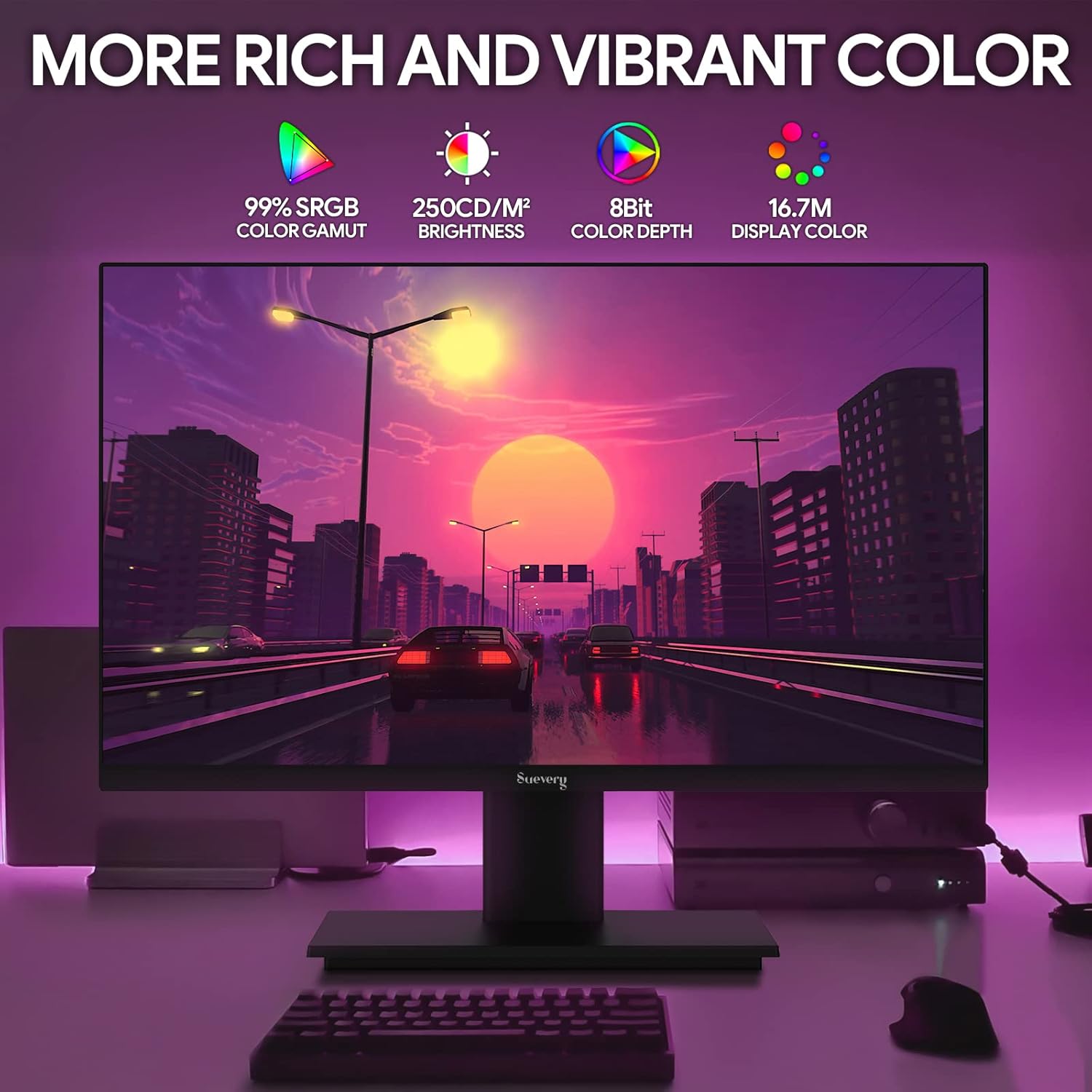
Image: The monitor's display capabilities, highlighting rich and vibrant color reproduction.
5.3 การปรับความเอียง
The monitor allows for tilt adjustment from -3 to 18 degrees. Gently adjust the screen to your preferred viewมุมอิง

Image: Illustration of the monitor's adjustable tilt feature.
5.4 เอาต์พุตเสียง
Connect your headphones or external speakers to the 3.5mm audio out port for private listening or enhanced sound.

Image: User connecting headphones to the 3.5mm audio out port on the monitor.
6. คุณสมบัติมากกว่าview
6.1 อัตราการรีเฟรชสูงและเวลาตอบสนองรวดเร็ว
Experience smooth visuals with a 165Hz refresh rate and a 1ms GTG response time, reducing motion blur and ghosting in fast-paced content.

Image: Visual comparison demonstrating the smoothness of a 165Hz refresh rate versus 75Hz.

Image: Visual comparison highlighting the reduction of afterimage and ghosting with 1ms GTG response time.
6.2 Adaptive Sync Technology
AMD FreeSync support synchronizes the monitor's refresh rate with compatible graphics cards, eliminating screen tearing and stuttering for fluid gameplay.
Image: Demonstrates the smooth display experience provided by 165Hz and FreeSync technology.
6.3 IPS Panel and Full HD Resolution
The IPS panel offers wide 178-degree viewing angles and accurate color reproduction. The 1920 x 1080p Full HD resolution provides clear and detailed images.

Image: Illustrates the enhanced detail and realism of 1080p Full HD resolution compared to standard HD.
6.4 HDR Technology
HDR (High Dynamic Range) technology enhances contrast and color accuracy, bringing more lifelike images to your screen.

Image: Visual representation of how HDR technology improves image quality compared to SDR.
6.5 ความเข้ากันได้ในวงกว้าง
Equipped with HDMI and DisplayPort, the monitor connects to various devices such as PCs, laptops, gaming consoles, and TV boxes.

Image: The monitor connected to multiple devices, demonstrating its broad compatibility.
7. การบำรุงรักษา
7.1 การทำความสะอาดจอภาพ
- ถอดปลั๊กจอภาพทุกครั้งก่อนทำความสะอาด
- ใช้ผ้านุ่มไม่เป็นขุยค่อยๆ งampเคลือบด้วยน้ำหรือน้ำยาทำความสะอาดหน้าจอชนิดอ่อนที่ไม่กัดกร่อน
- ห้ามฉีดน้ำยาทำความสะอาดลงบนหน้าจอโดยตรง
- Avoid using harsh chemicals like alcohol, benzene, or thinners, as they can damage the screen surface.
7.2 การดูแลทั่วไป
- เก็บจอภาพให้ห่างจากแสงแดดโดยตรงและแหล่งความร้อน
- หลีกเลี่ยงการวางวัตถุหนักบนจอภาพหรือสายเคเบิล
- อย่าให้จอภาพสัมผัสกับอุณหภูมิหรือความชื้นที่สูงเกินไป
8 การแก้ไขปัญหา
หากคุณพบปัญหาเกี่ยวกับจอภาพของคุณ โปรดดูขั้นตอนการแก้ไขปัญหาทั่วไปต่อไปนี้:
| ปัญหา | สาเหตุที่เป็นไปได้ | สารละลาย |
|---|---|---|
| ไม่มีภาพบนหน้าจอ | สายไฟถูกตัดการเชื่อมต่อ; สายวิดีโอถูกตัดการเชื่อมต่อ; เลือกแหล่งสัญญาณอินพุตไม่ถูกต้อง | ตรวจสอบการเชื่อมต่อสายไฟและสายวิดีโอ ตรวจสอบให้แน่ใจว่าได้เลือกแหล่งสัญญาณเข้าที่ถูกต้อง (HDMI/DP) ผ่านเมนู OSD แล้ว |
| ภาพสั่นไหวหรือไม่เสถียร | Video cable loose or damaged; Graphics card driver issue; Refresh rate mismatch. | Secure video cable. Update graphics card drivers. Adjust refresh rate in your computer's display settings. Enable FreeSync if applicable. |
| ไม่มีเสียงออกจากช่องสัญญาณเสียงออก | Headphones/speakers not connected; Volume too low; Incorrect audio output device selected on computer. | Ensure audio device is properly connected. Increase volume on monitor and computer. Select the monitor as the default audio output device in your computer's sound settings. |
| จอภาพไม่เปิด | Power cable disconnected; Power adapter faulty. | ตรวจสอบให้แน่ใจว่าสายไฟเชื่อมต่อกับจอภาพและเต้ารับไฟฟ้าที่ใช้งานได้แน่นหนาแล้ว ทดสอบเต้ารับด้วยอุปกรณ์อื่น |
9. ข้อมูลจำเพาะ
| คุณสมบัติ | ข้อมูลจำเพาะ |
|---|---|
| ยี่ห้อ | การฟ้องร้อง |
| แบบอย่าง | SV240ZA |
| ขนาดหน้าจอ | 24 นิ้ว |
| ปณิธาน | ความละเอียด Full HD 1080p (1920 x 1080 พิกเซล) |
| อัตราส่วนภาพ | 16:9 น. |
| ประเภทแผง | IPS (LCD) |
| อัตราการรีเฟรช | 165 เฮิรตซ์ |
| เวลาตอบสนอง | 1 Millisecond (GTG) |
| อัตราส่วนคอนทราสต์ | 1000:1 น. |
| ความสว่าง | 220 ซีดี/ตรม. |
| Viewอิงแองเกิล | 178 องศา |
| การเชื่อมต่อ | 1 x HDMI, 1 x DisplayPort, 1 x USB (charging only), 1 x 3.5mm Audio Out |
| การซิงค์แบบปรับตัว | เอเอ็มดี ฟรีซิงค์ |
| แท่นยึด VESA | 75มม. x 75มม. |
| การปรับความเอียง | -3 ถึง 18 องศา |
| ขนาด (กว้าง x สูง x ลึก) | 54.6 cm x 32.3 cm x 9.7 cm (approximate, without stand) |

Image: Detailed dimensions of the suevery SV240ZA monitor.
10. การรับประกันและการสนับสนุน
10.1 นโยบายการรับประกัน
The suevery SV240ZA monitor comes with a one-year free warranty. Returns and replacements are free within 30 days of purchase for quality issues.
10.2 การสนับสนุนลูกค้า
For any quality issues or support inquiries regarding your monitor, please contact suevery customer support. Refer to the contact information provided with your purchase documentation or visit the official suevery webเว็บไซต์เพื่อขอความช่วยเหลือ