1. บทนำ
This manual provides essential instructions for the safe and effective use of your Xiaomi Mi Portable Photo Printer. Please read this manual thoroughly before operating the device and retain it for future reference. This portable printer allows you to print 2x3 inch photos instantly from your iOS or Android device using ZINK inkless printing technology, featuring AR photos and dynamic video capabilities.
2. เนื้อหาบรรจุภัณฑ์
ตรวจสอบว่ารายการทั้งหมดที่ระบุไว้ด้านล่างนี้รวมอยู่ในแพ็คเกจของคุณ:
- Mi Portable Photo Printer x 1
- Photo paper pack (5-sheet) x 1
- สาย USB x 1
- คู่มือการใช้งาน x 1

Figure 2.1: Package Contents Diagram. This image illustrates the printer, USB cable, instruction manual, and a 5-sheet photo paper pack included in the box.
3. สินค้าหมดview
The Xiaomi Mi Portable Photo Printer is a compact and lightweight device designed for on-the-go photo printing. It utilizes ZINK (Zero Ink) technology, eliminating the need for ink cartridges.
3.1 คุณสมบัติหลัก
- การออกแบบที่กะทัดรัด: Small and portable, easily fits into a pocket or bag.
- ZINK Inkless Printing: Prints vibrant 2x3 inch photos without ink.
- AR Photos & Dynamic Videos: Scan printed photos with the Mi Home/Xiaomi Home app to view augmented reality effects or dynamic videos.
- การเชื่อมต่อบลูทูธ: Connects wirelessly to iOS and Android devices.
- การเชื่อมต่อหลายอุปกรณ์: Supports simultaneous Bluetooth connections for shared printing.
- การรวมแอป: Offers various templates, collages, and filters via the Mi Home/Xiaomi Home app.
3.2 ส่วนประกอบของอุปกรณ์

รูปที่ 3.1 : ด้านหน้า view of the Xiaomi Mi Portable Photo Printer with a photo being ejected. This image highlights the printer's compact size and its primary function.
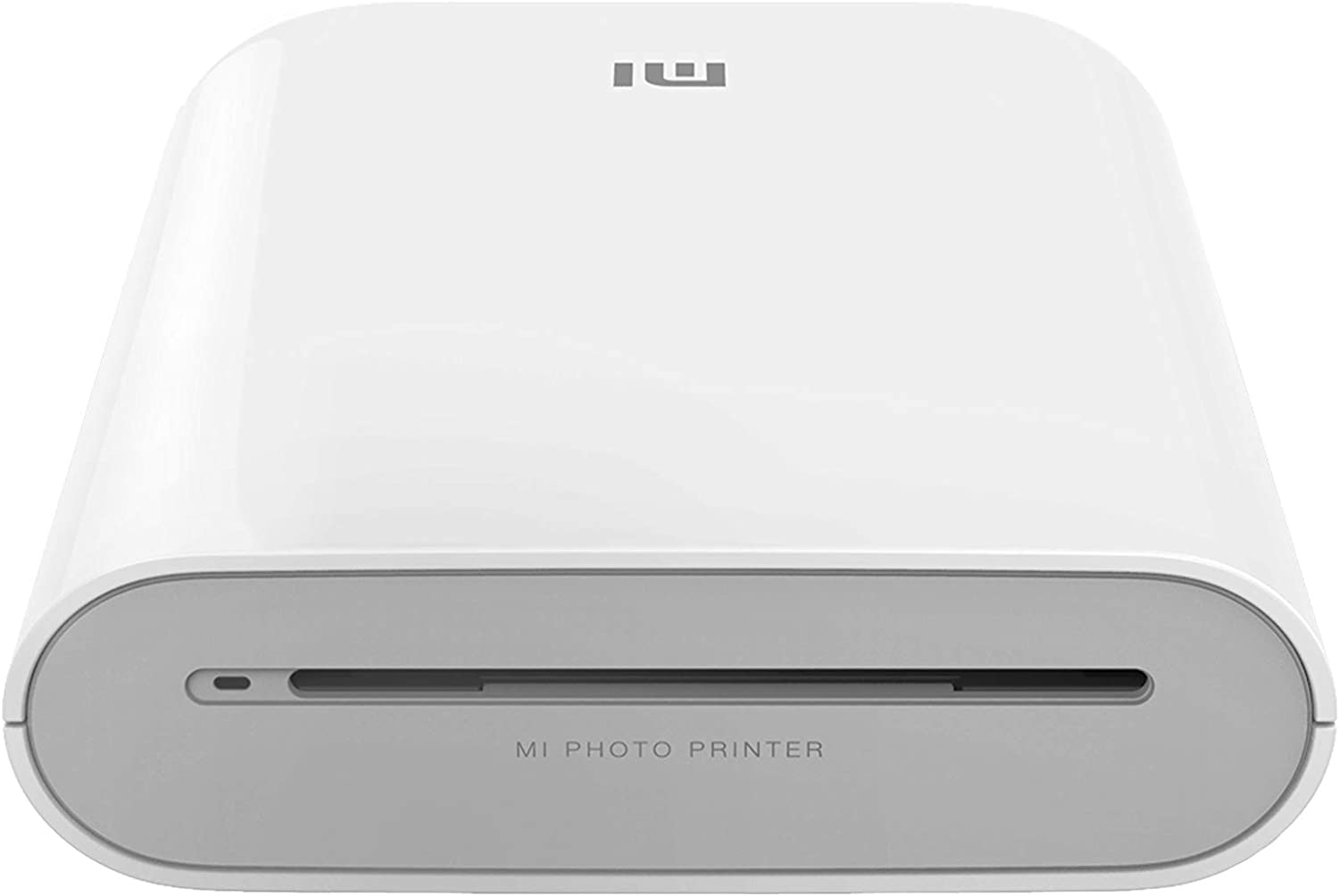
รูปที่ 3.2: หน้าผาก view of the printer, displaying the photo output slot and branding.
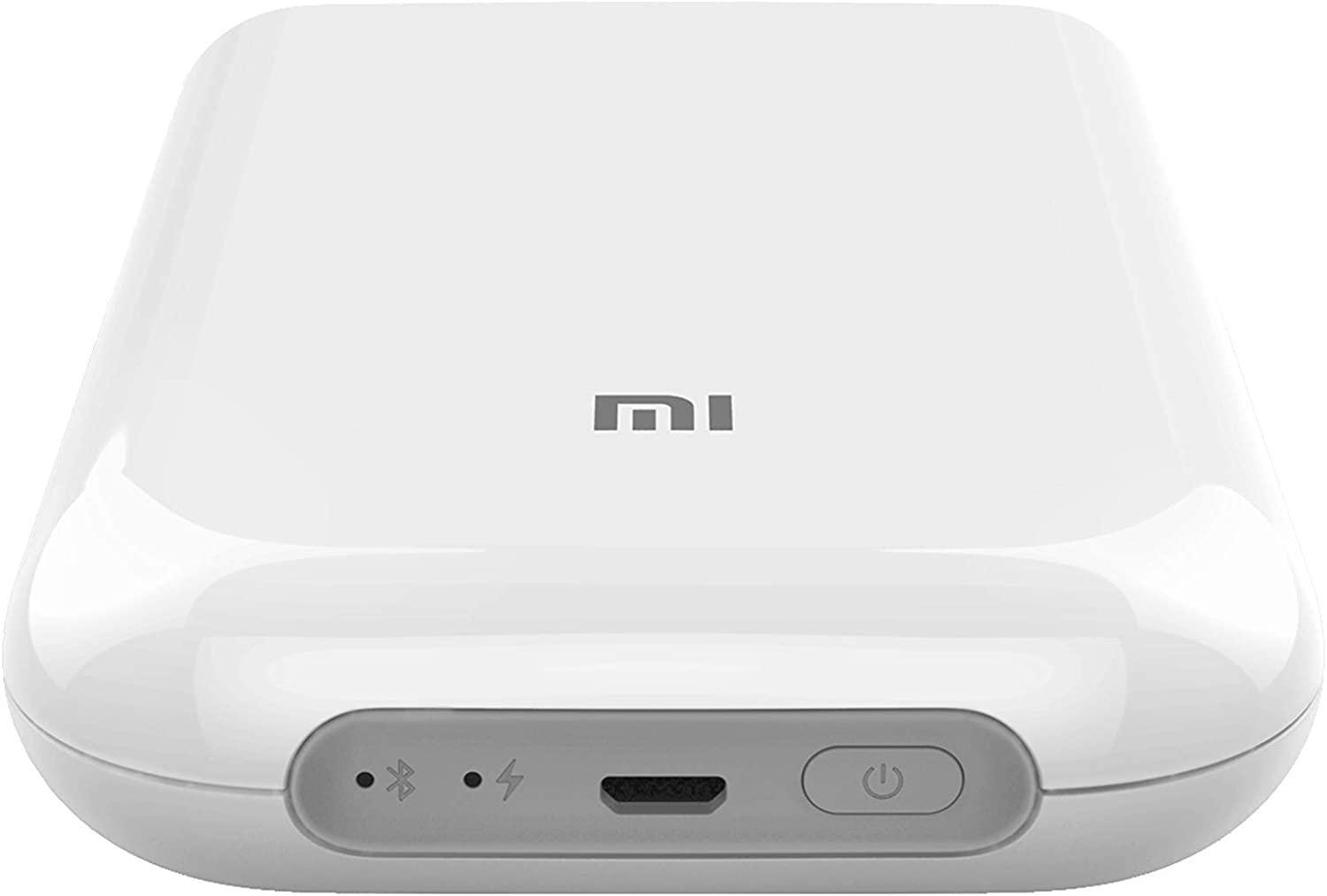
รูปที่ 3.3: ด้านบน view of the printer, illustrating the control panel with the power button, charging port, and status indicators.

Figure 3.4: The printer held in a hand, emphasizing its compact and portable design.
4. การตั้งค่า
4.1 การชาร์จเครื่องพิมพ์
Before first use, fully charge the printer. Connect the provided USB cable to the printer's charging port and a suitable USB power adapter (not included). The indicator light will show charging status.
4.2 การใส่กระดาษภาพถ่าย
- Open the paper tray cover on the printer.
- Insert the ZINK photo paper pack into the tray with the blue calibration card facing down, followed by the photo paper with the glossy side facing up.
- ปิดฝาถาดกระดาษให้แน่น
4.3 การติดตั้งแอป Mi Home/Xiaomi Home
Download and install the 'Mi Home' or 'Xiaomi Home' app from your device's app store (Google Play Store for Android, Apple App Store for iOS). Follow the on-screen instructions to create an account or log in.
หมายเหตุสำคัญ: Some users have reported regional restrictions with the app, limiting device usability to specific regions. Please ensure the app and device are compatible with your geographical location before use.
4.4 การจับคู่ผ่านบลูทูธ
- Ensure your printer is charged and powered on.
- เปิดใช้งาน Bluetooth บนอุปกรณ์ iOS หรือ Android ของคุณ
- Open the Mi Home/Xiaomi Home app and tap the '+' icon to add a new device.
- Select the Xiaomi Mi Portable Photo Printer from the list of available devices.
- ทำตามคำแนะนำในแอปเพื่อทำการจับคู่ให้เสร็จสมบูรณ์
5. คู่มือการใช้งาน
5.1 เปิด/ปิดเครื่อง
- เปิดเครื่อง: Press and hold the power button on the printer until the indicator light illuminates.
- หมดแรง: กดปุ่มเปิด/ปิดค้างไว้อีกครั้งจนกว่าไฟแสดงสถานะจะดับ
5.2 การพิมพ์ภาพถ่าย
- Ensure the printer is connected to your device via Bluetooth and has sufficient paper loaded.
- เปิดแอป Mi Home/Xiaomi Home
- Select the photo you wish to print from your device's gallery or take a new photo within the app.
- Utilize the app's editing features, such as filters, collages, or templates, if desired.
- Tap the print icon in the app to send the image to the printer. The photo will emerge from the output slot.

Figure 5.1: Printer in use with the companion app, showcasing printed photos and creative possibilities.
5.3 AR Photos and Dynamic Videos
The printer supports AR (Augmented Reality) photos and dynamic videos. When printing a photo, you can record or upload a video within the Mi Home/Xiaomi Home app. After printing, scan the physical photo using the app's AR feature to experience the embedded virtual effects or play the dynamic video.
5.4 การเชื่อมต่อผู้ใช้หลายคน
The printer supports multiple simultaneous Bluetooth connections. Up to three devices can connect to the printer at once. Print jobs from different devices will be added to a queue and printed sequentially.
6. การบำรุงรักษา
6.1 การทำความสะอาดเครื่องพิมพ์
To maintain optimal print quality, periodically clean the exterior of the printer with a soft, dry cloth. Do not use liquid cleaners or abrasive materials. The ZINK printing technology does not require print head cleaning as there are no ink cartridges.
6.2 Replacing Photo Paper
When the paper supply is depleted, follow the instructions in Section 4.2 to load a new pack of ZINK 2x3 inch photo paper. Always use genuine Xiaomi ZINK photo paper for best results.
6.3 การดูแลแบตเตอรี่
To prolong battery life, avoid exposing the printer to extreme temperatures. If the printer will not be used for an extended period, charge it to approximately 50% before storage and recharge it every few months.
7 การแก้ไขปัญหา
If you encounter issues with your Xiaomi Mi Portable Photo Printer, refer to the following common problems and solutions:
| ปัญหา | วิธีแก้ปัญหาที่เป็นไปได้ |
|---|---|
| เครื่องพิมพ์ไม่สามารถเปิดได้ | Ensure the printer is fully charged. Connect it to a power source and try again. |
| ไม่สามารถเชื่อมต่อผ่านบลูทูธได้ | Verify Bluetooth is enabled on your device and the printer. Restart both devices. Ensure the printer is not already connected to another device. Check app permissions. |
| คุณภาพการพิมพ์ไม่ดี / การพิมพ์ว่างเปล่า | Ensure genuine ZINK photo paper is loaded correctly with the glossy side up. Check if the blue calibration card was used with the paper pack. The paper may be expired or damaged. |
| กระดาษติด | Power off the printer. Carefully open the paper tray and remove any jammed paper. Do not force the paper out. Reload paper correctly. |
| App not functioning correctly / Regional restrictions | Ensure the Mi Home/Xiaomi Home app is updated to the latest version. Check your device's region settings. Some app features or device functionality may be restricted based on geographical location. |
หากปัญหายังคงอยู่ โปรดติดต่อฝ่ายสนับสนุนอย่างเป็นทางการของ Xiaomi webเว็บไซต์หรือติดต่อฝ่ายบริการลูกค้า
8. ข้อมูลจำเพาะ
| คุณสมบัติ | ข้อมูลจำเพาะ |
|---|---|
| แบบอย่าง | เครื่องพิมพ์ภาพพกพา Mi |
| ยี่ห้อ | เสี่ยวหมี่ |
| เทคโนโลยีการพิมพ์ | เทคโนโลยีซิงค์ |
| เทคโนโลยีการเชื่อมต่อ | บลูทูธ |
| ระบบปฏิบัติการที่รองรับ | แอนดรอยด์, ไอโอเอส |
| ขนาดสื่อสูงสุด | ขนาด 2 x 3 นิ้ว |
| ขนาดแผ่น | ขนาด 2 x 3 นิ้ว |
| ความละเอียดการพิมพ์สูงสุด | 313 x 400 จุดต่อนิ้ว |
| เอาท์พุตเครื่องพิมพ์ | สี |
| การพิมพ์สองด้าน | ไม่มี (ซิมเพล็กซ์) |
| ความจุแผ่นอินพุตสูงสุด | 1 |
| วิธีการควบคุม | แอป |
| ประเภทแบตเตอรี่ | ลิเธียมไอออน (รวมอยู่ด้วย) |
| ขนาดสินค้า (กxยxส) | 12.42 x 2.46 x 8.51 ซม. (124 x 25 x 85 มม.) |
| น้ำหนักสินค้า | 281 กรัม |
| สี | สีขาว |
9. ข้อมูลด้านความปลอดภัย
- ห้ามถอดประกอบ ซ่อมแซม หรือดัดแปลงอุปกรณ์ด้วยตนเอง
- ควรเก็บเครื่องพิมพ์ให้ห่างจากน้ำ ความชื้น และอุณหภูมิสูง
- หลีกเลี่ยงการทำเครื่องพิมพ์ตกหรือได้รับแรงกระแทกรุนแรง
- Use only the specified charging cable and genuine ZINK photo paper.
- เก็บให้พ้นจากมือเด็ก
10. การรับประกันและการสนับสนุน
สำหรับข้อมูลการรับประกัน การสนับสนุนด้านเทคนิค หรือการสอบถามบริการ โปรดดูบัตรรับประกันที่รวมอยู่ในผลิตภัณฑ์ของคุณหรือเยี่ยมชมฝ่ายสนับสนุน Xiaomi อย่างเป็นทางการ website. Ensure you have your product model and purchase details available when contacting support.