1. บทนำ
This manual provides detailed instructions for the setup, operation, and maintenance of your CUPEISI Android 14 Tablet, Model Q2S. Please read this manual thoroughly before using your device to ensure proper functionality and to maximize its lifespan.
The CUPEISI Q2S is a 7-inch tablet featuring the Android 14 operating system, a 1.6GHz Quad-core processor, 8GB RAM (4GB fixed, 4GB virtual), 32GB internal storage expandable up to 1TB, a 1024x600 IPS touch screen, and dual cameras.
2. เนื้อหาบรรจุภัณฑ์
ตรวจสอบว่ารายการทั้งหมดที่ระบุไว้ด้านล่างนี้มีอยู่ในบรรจุภัณฑ์ผลิตภัณฑ์ของคุณ:
- CUPEISI Android 14 Tablet (Model Q2S)
- สาย USB Type-C
- คู่มือการใช้งาน (เอกสารนี้)
หากมีรายการใดขาดหายหรือเสียหาย โปรดติดต่อฝ่ายสนับสนุนลูกค้า
3. อุปกรณ์โอเวอร์view
ทำความคุ้นเคยกับส่วนประกอบทางกายภาพของแท็บเล็ตของคุณ
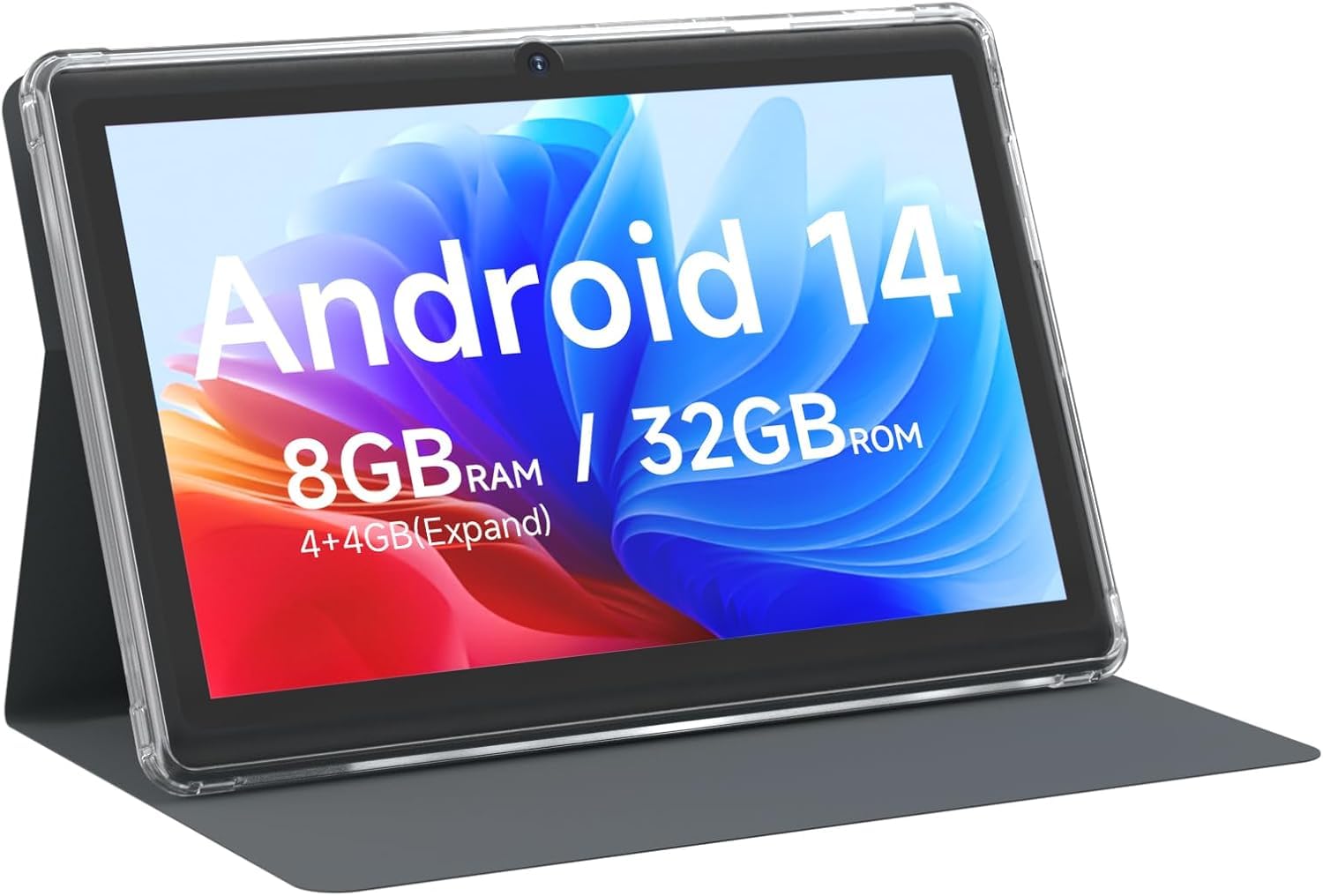
รูปที่ 3.1: ด้านหน้า view of the CUPEISI Q2S Tablet, showing the display with various application icons.

รูปที่ 3.2: ด้านหน้าและด้านหลัง views of the CUPEISI Q2S Tablet, highlighting its compact design and textured rear panel.

รูปที่ 3.3: The 7-inch IPS screen of the CUPEISI Q2S Tablet, showcasing its display quality.
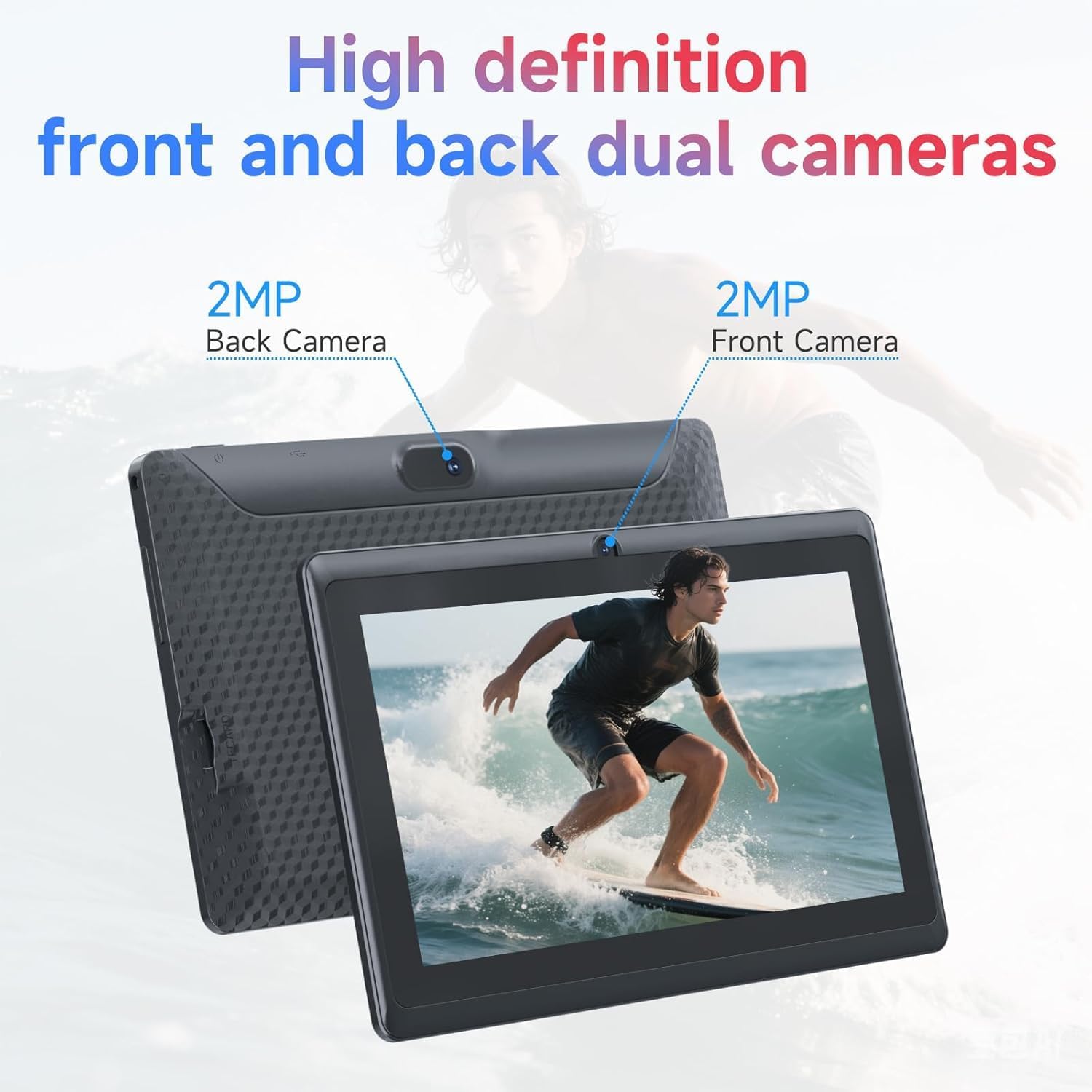
รูปที่ 3.4: Illustration of the CUPEISI Q2S Tablet's front and rear camera locations.
3.1 ปุ่มและพอร์ต
- ปุ่มเปิด/ปิด: Press and hold to turn the tablet on or off. Press briefly to sleep or wake the screen.
- ปุ่มปรับระดับเสียง: ปรับระดับเสียง
- พอร์ต USB Type-C: สำหรับชาร์จแท็บเล็ตและเชื่อมต่อกับคอมพิวเตอร์เพื่อถ่ายโอนข้อมูล
- ช่องเสียบการ์ด MicroSD: Insert a microSD card for expanded storage.
- กล้องหน้า: อยู่บริเวณขอบด้านหน้า ใช้สำหรับวิดีโอคอลและถ่ายเซลฟี่
- กล้องหลัง: Located on the back panel, used for taking photos and videos.
- ผู้บรรยาย: เอาท์พุตเสียง
4. การตั้งค่า
4.1 การชาร์จแท็บเล็ต
Before first use, fully charge the tablet. Connect the provided Type-C USB cable to the tablet's charging port and the other end to a compatible USB power adapter (not included) or a computer's USB port. The battery indicator on the screen will show charging status.
4.2 การเปิด/ปิดเครื่อง
- การเปิดเครื่อง: Press and hold the Power button until the CUPEISI logo appears.
- วิธีปิดเครื่อง: กดปุ่มเปิด/ปิดค้างไว้จนกระทั่งเมนูตัวเลือกพลังงานปรากฏขึ้น เลือก "ปิดเครื่อง" และยืนยัน
- ในการรีสตาร์ท: จากเมนูตัวเลือกพลังงาน เลือก "รีสตาร์ท" และยืนยัน
4.3 ตัวช่วยการตั้งค่าเริ่มต้น
Upon first power-on, the tablet will guide you through an initial setup process:
- เลือกภาษา: เลือกภาษาที่คุณต้องการ
- การเชื่อมต่อ Wi-Fi: Connect to an available Wi-Fi network. This is essential for downloading apps and accessing online services.
- บัญชี Google: Sign in with your Google account or create a new one. This allows access to Google Play Store, Gmail, and other Google services.
- วันที่และเวลา: ตั้งค่าวันที่และเวลาที่ถูกต้องหรืออนุญาตให้เครือข่ายตั้งค่าโดยอัตโนมัติ
- ล็อคหน้าจอ: ตั้งค่า PIN, รูปแบบ หรือรหัสผ่านเพื่อเพิ่มความปลอดภัยให้กับหน้าจอ
5. คู่มือการใช้งาน
5.1 การนำทางพื้นฐาน
- ท่าทางสัมผัส: แตะเพื่อเลือก ปัดเพื่อเลื่อน บีบเพื่อซูม
- หน้าจอหลัก: ศูนย์กลางสำหรับแอปและวิดเจ็ตของคุณ
- แผงการแจ้งเตือน: ปัดลงจากด้านบนของหน้าจอเพื่อเข้าถึงการแจ้งเตือนและการตั้งค่าด่วน
- ลิ้นชักแอป: ปัดขึ้นจากด้านล่างของหน้าจอเพื่อ view แอปพลิเคชันที่ติดตั้งทั้งหมด
5.2 การติดตั้งและการจัดการแอปพลิเคชัน
You can download and install applications from the Google Play Store. The tablet is GMS certified, ensuring compatibility with Google services.
- ติดตั้งแอพ: เปิด เพลย์สโตร์ app, search for your desired app, and tap "Install".
- ถอนการติดตั้งแอป: Press and hold an app icon on the home screen or app drawer, then drag it to "Uninstall" or select the uninstall option. Alternatively, go to การตั้งค่า > แอป > ดูแอปทั้งหมดเลือกแอป แล้วแตะ "ถอนการติดตั้ง"
6. การเชื่อมต่อ
6.1 การเชื่อมต่อ Wi-Fi
หากต้องการเชื่อมต่อกับเครือข่าย Wi-Fi:
- ไปที่ การตั้งค่า > เครือข่ายและอินเทอร์เน็ต > Wi-Fi.
- สลับ Wi-Fi On.
- เลือกเครือข่ายที่คุณต้องการจากรายการเครือข่ายที่มี
- ป้อนรหัสผ่านหากได้รับแจ้งและแตะ เชื่อมต่อ.
The tablet supports 2.4G/5G WiFi 6 for faster and more stable connections.
6.2 การจับคู่บลูทูธ
วิธีเชื่อมต่อกับอุปกรณ์บลูทูธ (เช่น หูฟัง ลำโพง):
- ไปที่ การตั้งค่า > อุปกรณ์ที่เชื่อมต่อ > การตั้งค่าการเชื่อมต่อ > Bluetooth.
- สลับบลูทูธ On.
- ตรวจสอบให้แน่ใจว่าอุปกรณ์ Bluetooth ของคุณอยู่ในโหมดจับคู่
- แตะ จับคู่อุปกรณ์ใหม่ and select your device from the list.
- ปฏิบัติตามคำแนะนำบนหน้าจอเพื่อทำการจับคู่ให้เสร็จสิ้น
7. การใช้กล้อง
แท็บเล็ตของคุณมีกล้องหน้า 2MP และกล้องหลัง 5MP
- เปิด กล้อง แอป.
- แตะไอคอนกล้องเพื่อสลับระหว่างกล้องหน้าและกล้องหลัง
- แตะปุ่มชัตเตอร์เพื่อถ่ายภาพ
- เลือกโหมดวิดีโอเพื่อบันทึกวิดีโอ
8. การจัดการการจัดเก็บข้อมูล
The tablet comes with 32GB of internal storage. You can expand this storage up to 1TB using a microSD card.

รูปที่ 8.1: Tablet screen illustrating available storage space (8GB RAM, 32GB ROM).
8.1 การใส่การ์ด MicroSD
- ค้นหาช่องเสียบการ์ด microSD ที่ด้านข้างของแท็บเล็ต
- ค่อยๆ ใส่การ์ด microSD ลงในช่องเสียบจนกระทั่งได้ยินเสียงคลิกเข้าที่
- แท็บเล็ตจะตรวจจับหน่วยความจำใหม่ คุณอาจได้รับแจ้งให้ฟอร์แมตการ์ดเพื่อการใช้งานแท็บเล็ตอย่างมีประสิทธิภาพสูงสุด
8.2 การจัดการพื้นที่จัดเก็บข้อมูล
ถึง view and manage your storage, go to การตั้งค่า > การจัดเก็บข้อมูล. Here you can see how much space is used by apps, photos, videos, and other files, and manage your microSD card.
9. การบำรุงรักษา
9.1 การทำความสะอาดแท็บเล็ต
- ใช้ผ้านุ่มที่ไม่เป็นขุยในการทำความสะอาดหน้าจอและตัวเครื่องแท็บเล็ต
- สำหรับรอยเปื้อนฝังแน่น ให้เช็ดออกเล็กน้อยampเทน้ำหรือน้ำยาทำความสะอาดหน้าจอที่ออกแบบมาสำหรับอุปกรณ์อิเล็กทรอนิกส์ลงบนผ้า
- หลีกเลี่ยงการใช้สารเคมีที่รุนแรง น้ำยาทำความสะอาดที่มีฤทธิ์กัดกร่อน หรือสเปรย์แอโรซอล
9.2 การดูแลแบตเตอรี่
- หลีกเลี่ยงการสัมผัสแท็บเล็ตในอุณหภูมิที่สูงหรือต่ำเกินไป (ร้อนหรือเย็น)
- อย่าปล่อยให้แบตเตอรี่หมดเกลี้ยงบ่อยๆ ควรชาร์จก่อนที่ระดับแบตเตอรี่จะลดลงต่ำกว่า 20%
- ใช้เฉพาะสาย Type-C ที่ให้มาสำหรับการชาร์จ
9.3 การอัปเดตซอฟต์แวร์
ตรวจสอบการอัปเดตซอฟต์แวร์เป็นระยะเพื่อให้มั่นใจถึงประสิทธิภาพและความปลอดภัยที่เหมาะสมที่สุด ไปที่ การตั้งค่า > ระบบ > อัปเดตระบบ.
10 การแก้ไขปัญหา
หัวข้อนี้จะกล่าวถึงปัญหาทั่วไปที่คุณอาจพบกับแท็บเล็ตของคุณ
10.1 แท็บเล็ตเปิดไม่ติด
- Ensure the tablet is sufficiently charged. Connect it to a power source and wait a few minutes before attempting to power it on again.
- กดปุ่มเปิด/ปิดค้างไว้อย่างน้อย 10-15 วินาที เพื่อบังคับรีสตาร์ท
10.2 ประสิทธิภาพการทำงานช้าหรือแอปพลิเคชันหยุดทำงาน
- ปิดแอพพลิเคชันพื้นหลังที่ไม่จำเป็น
- Clear the cache of frequently used apps (การตั้งค่า > แอป > ดูแอปทั้งหมด > [ชื่อแอป] > ที่เก็บข้อมูลและแคช > ล้างแคช).
- Ensure you have sufficient free storage space. Uninstall unused apps or move large fileไปยังการ์ด microSD
- รีสตาร์ทแท็บเล็ต
10.3 ปัญหาการเชื่อมต่อ Wi-Fi
- Ensure Wi-Fi is enabled on the tablet (การตั้งค่า > เครือข่ายและอินเทอร์เน็ต > Wi-Fi).
- รีสตาร์ทเราเตอร์ Wi-Fi ของคุณ
- Forget the network and reconnect (การตั้งค่า > เครือข่ายและอินเทอร์เน็ต > Wi-Fi, tap the network, then ลืม).
10.4 แบตเตอรี่หมดเร็ว
- ลดความสว่างหน้าจอ
- ปิดใช้งาน Wi-Fi, Bluetooth และ GPS เมื่อไม่ได้ใช้งาน
- Close background apps that consume significant power.
- ตรวจสอบการใช้งานแบตเตอรี่ใน ตั้งค่า > แบตเตอรี่ เพื่อระบุแอปที่กินพลังงาน
11. ข้อมูลจำเพาะ
Detailed technical specifications for the CUPEISI Android 14 Tablet Q2S.
| ชื่อรุ่น | Q8MPRO |
| หมายเลขรุ่นสินค้า | Q2S |
| ระบบปฏิบัติการ | แอนดรอยด์ 14 |
| โปรเซสเซอร์ | 1.6 GHz Quad-core (ARM) |
| แรม | หน่วยความจำ 8GB (4GB แบบถาวร, 4GB แบบเสมือน) |
| การจัดเก็บข้อมูลภายใน | หน่วยความจำแฟลช 32 GB |
| พื้นที่เก็บข้อมูลแบบขยายได้ | สูงสุด 1TB ผ่านการ์ด MicroSD |
| ขนาดหน้าจอ | 7 นิ้ว |
| ความละเอียดหน้าจอ | 1024 x 600 pixels IPS HD Touch Screen |
| กล้องหลัง | 5 MP |
| กล้องหน้า | 2 MP |
| ประเภทไร้สาย | 802.11g (2.4G/5G WiFi 6) |
| บลูทูธ | บีที 5.0 |
| อายุการใช้งานแบตเตอรี่โดยเฉลี่ย | 6 ชั่วโมง |
| น้ำหนักสินค้า | 13.4 ออนซ์ |
| ขนาดสินค้า | 7.5 x 0.3 x 4.3 นิ้ว |
12. ข้อมูลด้านความปลอดภัย
- Do not expose the tablet to water or excessive moisture.
- ควรหลีกเลี่ยงการทำแท็บเล็ตตกหรือกระแทกอย่างรุนแรง
- Do not attempt to disassemble or repair the tablet yourself. This may void the warranty and cause damage.
- Use the tablet in well-ventilated areas.
- Keep the tablet away from strong magnetic fields.
- ทิ้งแท็บเล็ตและแบตเตอรี่อย่างมีความรับผิดชอบตามกฎระเบียบท้องถิ่น
13. การรับประกันและการสนับสนุน
For warranty information and customer support, please refer to the documentation provided with your purchase or visit the official CUPEISI website. If you encounter any issues not covered in this manual, please contact CUPEISI customer service for assistance.


