1. บทนำ
The LogiLink SH0125 is a 2-gang Smart Home Wi-Fi Wall Switch designed to provide convenient control over your lighting. It integrates with existing Wi-Fi networks and can be managed via the Smart Life or Megos Smart Home application. This device also supports voice control through Amazon Alexa and Google Home, offering enhanced automation for your home environment.
2. ข้อมูลด้านความปลอดภัย
- การติดตั้งระบบไฟฟ้า: Installation must be performed by a qualified electrician in accordance with local electrical codes and regulations. Ensure the main power supply is disconnected before installation.
- สำหรับใช้ภายในอาคารเท่านั้น: This device is intended for indoor use in dry locations. Do not expose to moisture or extreme temperatures.
- ระดับพลังงาน: Do not exceed the maximum load rating of 230 Watts (AC 230V, 10.0 A). Overloading can cause damage to the switch and connected devices, and poses a fire hazard.
- การทำความสะอาด: ถอดปลั๊กไฟออกก่อนทำความสะอาด ใช้ผ้านุ่มและแห้ง ห้ามใช้น้ำยาทำความสะอาดชนิดน้ำหรือสเปรย์
3. เนื้อหาบรรจุภัณฑ์
กรุณาตรวจสอบแพ็คเกจสำหรับรายการต่อไปนี้:
- 1x LogiLink SH0125 Smart Home Wi-Fi Wall Switch
- 1x User Manual (French version included, English provided here)
4. สินค้าหมดview
The LogiLink SH0125 features a sleek design with two touch-sensitive buttons for manual control. The rear of the device provides terminals for electrical wiring.

รูปที่ 1: ด้านหน้า view of the LogiLink SH0125 Smart Home Wi-Fi Wall Switch. It features a white glass panel with two circular touch buttons, each marked with a power symbol. The 'Powered by Tuya' logo is visible in the bottom left corner.
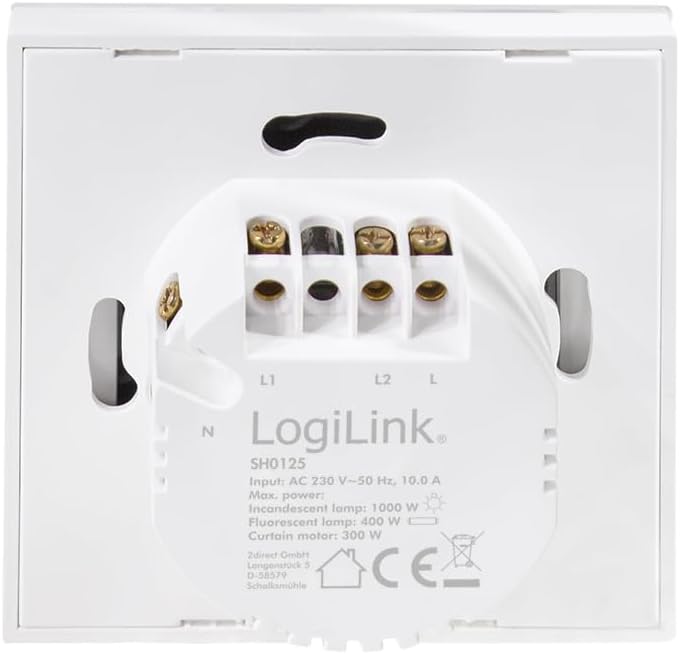
รูปที่ 2: กลับ view of the LogiLink SH0125 Smart Home Wi-Fi Wall Switch. This image displays the wiring terminals labeled L1, L2, L, and N, along with product specifications such as input voltage (AC 230V), frequency (50 Hz), and maximum power ratings for different lamp ประเภท
5. การตั้งค่า
5.1. การติดตั้งระบบไฟฟ้า
- ตัดการเชื่อมต่อไฟฟ้า: Before beginning any electrical work, ensure the main power supply to the circuit is turned off at the circuit breaker.
- ถอดสวิตช์เก่าออก: ถอดสวิตช์ไฟติดผนังตัวเดิมออกจากกล่องอย่างระมัดระวัง
- ระบุสายไฟ: Identify the Live (L), Neutral (N), and Load (L1, L2) wires. Refer to Figure 2 for terminal identification on the LogiLink SH0125.
- Wire the Switch: Connect the wires to the corresponding terminals on the LogiLink SH0125.
- ต่อสายไฟ (Live wire) เข้ากับขั้ว 'L'
- ต่อสายกลาง (Neutral) เข้ากับขั้ว 'N'
- Connect the Load wire for the first light circuit to the 'L1' terminal.
- Connect the Load wire for the second light circuit to the 'L2' terminal.
- เมานต์สวิตช์: Carefully place the wired switch into the wall box and secure it with screws. Attach the faceplate.
- คืนค่าพลัง: เปิดแหล่งจ่ายไฟหลักอีกครั้งที่เบรกเกอร์
5.2. การจับคู่แอป
To control your switch via smartphone, you need to pair it with the Smart Life or Megos Smart Home app.
- ดาวน์โหลดแอพ: Download and install the 'Smart Life' or 'Megos Smart Home' app from your device's app store (iOS or Android).
- ลงทะเบียน/เข้าสู่ระบบ: เปิดแอปและลงทะเบียนบัญชีใหม่หรือเข้าสู่ระบบด้วยบัญชีที่มีอยู่
- เข้าสู่โหมดจับคู่: With the switch powered on, press and hold one of the touch buttons for approximately 5-10 seconds until the LED indicator on the switch starts blinking rapidly. This indicates it is in pairing mode.
- เพิ่มอุปกรณ์ในแอป: In the app, tap the '+' icon (usually in the top right corner) to add a new device. Select 'Wall Switch (Wi-Fi)' or a similar category.
- เชื่อมต่อกับ Wi-Fi: Follow the on-screen instructions to connect the switch to your 2.4GHz Wi-Fi network. Ensure your phone is also connected to the same 2.4GHz network during pairing. Note: This device does not support 5GHz Wi-Fi networks.
- การจับคู่แบบสมบูรณ์: Once the switch is successfully added, you can rename it and assign it to a room within the app.
รูปที่ 3: The LogiLink SH0125 Smart Home Wi-Fi Wall Switch positioned next to a smartphone displaying the 'Register' or 'Login with Existing Account' screen of the Smart Home application, illustrating the initial setup phase.
6. การใช้งานสวิตช์
6.1. การควบคุมด้วยตนเอง
Each touch button on the switch controls one connected light circuit. Simply tap a button to toggle the corresponding light ON or OFF.
6.2. การควบคุมแอป
After successful pairing, you can control the switch from the Smart Life or Megos Smart Home app:
- เปิด/ปิด: Tap the virtual switch icons in the app to turn lights on or off.
- การกำหนดตารางเวลา: Set schedules for your lights to turn on or off automatically at specific times.
- ฉาก: Create custom scenes to control multiple smart devices with a single command.
- ระบบอัตโนมัติ: Set up automations based on conditions like sunrise/sunset, temperature, or other smart device statuses.

รูปที่ 4: ภาพระยะใกล้ view of a hand holding a smartphone, showing the Smart Life application interface. The app displays two virtual light switches, labeled 'Switch 1' and 'Switch 2', allowing for remote control of connected lighting.
6.3. การควบคุมด้วยเสียง (Alexa/Google Home)
To enable voice control, link your Smart Life/Megos Smart Home account to Amazon Alexa or Google Home:
- เปิดแอปผู้ช่วยเสียง: เปิดแอป Amazon Alexa หรือแอป Google Home บนสมาร์ทโฟนของคุณ
- Enable Skill/Link Account: ค้นหา the 'Smart Life' or 'Megos Smart Home' skill/service and enable it. You will be prompted to link your account using your app credentials.
- ค้นพบอุปกรณ์: Once linked, ask your voice assistant to discover devices (e.g., "Alexa, discover my devices" or "Hey Google, sync my devices").
- คำสั่งเสียง: You can now control your lights using voice commands, such as:
- "Alexa เปิดไฟห้องนั่งเล่น"
- "เฮ้ กูเกิล ปิดไฟในครัว"
7. การบำรุงรักษา
The LogiLink SH0125 requires minimal maintenance. Ensure the power is off before cleaning.
- การทำความสะอาด: Use a soft, dry, lint-free cloth to wipe the surface of the switch. Do not use abrasive cleaners, solvents, or chemical sprays, as these can damage the finish or internal components.
- อัพเดตเฟิร์มแวร์: Periodically check the Smart Life/Megos Smart Home app for available firmware updates to ensure optimal performance and security.
8 การแก้ไขปัญหา
If you encounter issues with your LogiLink SH0125, refer to the following common solutions:
| ปัญหา | สาเหตุที่เป็นไปได้ | สารละลาย |
|---|---|---|
| สวิตช์ไม่ตอบสนองต่อการสัมผัส | No power; incorrect wiring; switch malfunction. | Check circuit breaker. Verify wiring (refer to Section 5.1). If problem persists, contact support. |
| ไม่สามารถเชื่อมต่อ Wi-Fi/แอปได้ | Incorrect Wi-Fi password; 5GHz Wi-Fi network; switch not in pairing mode; weak Wi-Fi signal. | Ensure correct 2.4GHz Wi-Fi password. Confirm switch is blinking rapidly (pairing mode). Move switch closer to router or improve Wi-Fi signal. |
| การควบคุมด้วยเสียงไม่ทำงาน | Account not linked; device not discovered; incorrect voice command. | Ensure Smart Life/Megos Smart Home account is linked in Alexa/Google Home app. Ask assistant to discover devices. Use correct device names in commands. |
| ไฟกระพริบหรือไม่ดับสนิท | Incompatible load (e.g., some LED lights); minimum load not met. | Ensure connected lights are compatible with smart switches. Some LED lights may require a bypass capacitor (not included) to prevent flickering. Consult a qualified electrician. |
9. ข้อมูลจำเพาะ
| คุณสมบัติ | ข้อมูลจำเพาะ |
|---|---|
| หมายเลขรุ่น | SH0125 |
| ยี่ห้อ | โลจิลิงค์ |
| อินพุต Voltage | ไฟฟ้ากระแสสลับ 230 โวลต์ ~ 50 เฮิรตซ์ |
| กระแสไฟสูงสุด | 10.0 ก |
| Max. Power (Total) | 230 วัตต์ |
| ขนาด (กว้าง x ยาว x สูง) | 8.6 x 8.6 x 3.4 ซม. |
| น้ำหนัก | 90 กรัม |
| วัสดุ | พลาสติก |
| สี | สีขาว |
| บริการ Wi-Fi มาตรฐาน | 2.4 GHz (IEEE 802.11b/g/n) |
| วิธีการควบคุม | Application, Touch Button |
| ความเข้ากันได้ | Tuya, Amazon Alexa, Google Home |
| ประเภทการติดตั้ง | แบบฝัง |
10. การรับประกันและการสนับสนุน
LogiLink products are designed and manufactured to the highest quality standards. For information regarding warranty terms and conditions, please refer to the documentation provided with your purchase or visit the official LogiLink website. For technical support or assistance with product setup and troubleshooting, please contact LogiLink customer service through their official channels.


