1. สินค้าหมดview
The RisoPhy Wireless Mechanical Keyboard (Model: PC388A) is a versatile input device designed for gaming and office use, offering three distinct connection options: 2.4GHz wireless, Bluetooth 5.0, and traditional USB-C wired mode. This allows for seamless switching between multiple devices, enhancing productivity and gaming flexibility.
Equipped with linear red mechanical switches, the keyboard provides a smooth, quiet, and responsive typing experience with minimal resistance. Its compact 94-key layout includes an efficient numeric pad and offset arrow keys, optimizing desk space without sacrificing essential functionality. The keyboard features immersive RGB backlighting with 20 customizable light effects, 16.8 million colors, and adjustable brightness and speed settings. Built with a durable metal base and PBT-engineered keycaps, it ensures longevity and a comfortable ergonomic design for extended use.

Image: RisoPhy Wireless Mechanical Keyboard with its included USB receiver.
2. เนื้อหาบรรจุภัณฑ์
- 1 x RisoPhy Wireless Mechanical Keyboard (Model: PC388A)
- 1 x สาย USB-C เป็น USB-A
- 1 x 2.4GHz USB Receiver (stored in the keyboard's back compartment)
- 1 x คู่มือผู้ใช้ (เอกสารนี้)
3. การตั้งค่าและการเชื่อมต่อ
Your RisoPhy keyboard offers three versatile connection modes: 2.4GHz wireless, Bluetooth, and wired USB-C. Ensure the keyboard is adequately charged before initial wireless use. Connect the provided USB-C cable to the keyboard and a power source (e.g., computer USB port, USB wall adapter) to charge.
3.1. การตั้งค่าทั่วไป
- Locate the power switch on the back of the keyboard.
- Select your desired connection mode using the switch: "2.4G" for wireless, "BT" for Bluetooth, or "OFF" for wired mode (when connected via USB-C cable).

ภาพ: ด้านหลัง view of the keyboard showing the mode switch and USB receiver storage.
3.2. การเชื่อมต่อไร้สาย 2.4GHz
- Retrieve the 2.4GHz USB receiver from its storage slot on the back of the keyboard.
- เสียบตัวรับสัญญาณ USB เข้ากับพอร์ต USB-A ที่ว่างอยู่บนคอมพิวเตอร์หรืออุปกรณ์ที่ใช้งานร่วมกันได้
- Set the keyboard's mode switch to "2.4G". The keyboard should automatically connect.

Image: The 2.4GHz USB receiver being used with a laptop.
3.3. การเชื่อมต่อบลูทู ธ
คีย์บอร์ดนี้รองรับการเชื่อมต่อกับอุปกรณ์บลูทูธได้พร้อมกันสูงสุดสามเครื่อง
- Set the keyboard's mode switch to "BT".
- กดค้างไว้ ฟิน +1!, เอฟเอ็น + 2@, หรือ เอฟเอ็น + 3# กดค้างไว้ 3-5 วินาที จนกระทั่งปุ่มที่เกี่ยวข้อง (1, 2 หรือ 3) กระพริบเร็ว แสดงว่าอยู่ในโหมดจับคู่
- On your device (PC, Mac, iPad, etc.), enable Bluetooth and search for "RisoPhy Keyboard" or similar.
- Select the keyboard from the list to pair. The flashing light will become solid once connected.
- หากต้องการสลับระหว่างอุปกรณ์บลูทูธที่จับคู่ เพียงแค่กด ฟิน +1!, เอฟเอ็น + 2@, หรือ เอฟเอ็น + 3# สั้นๆ
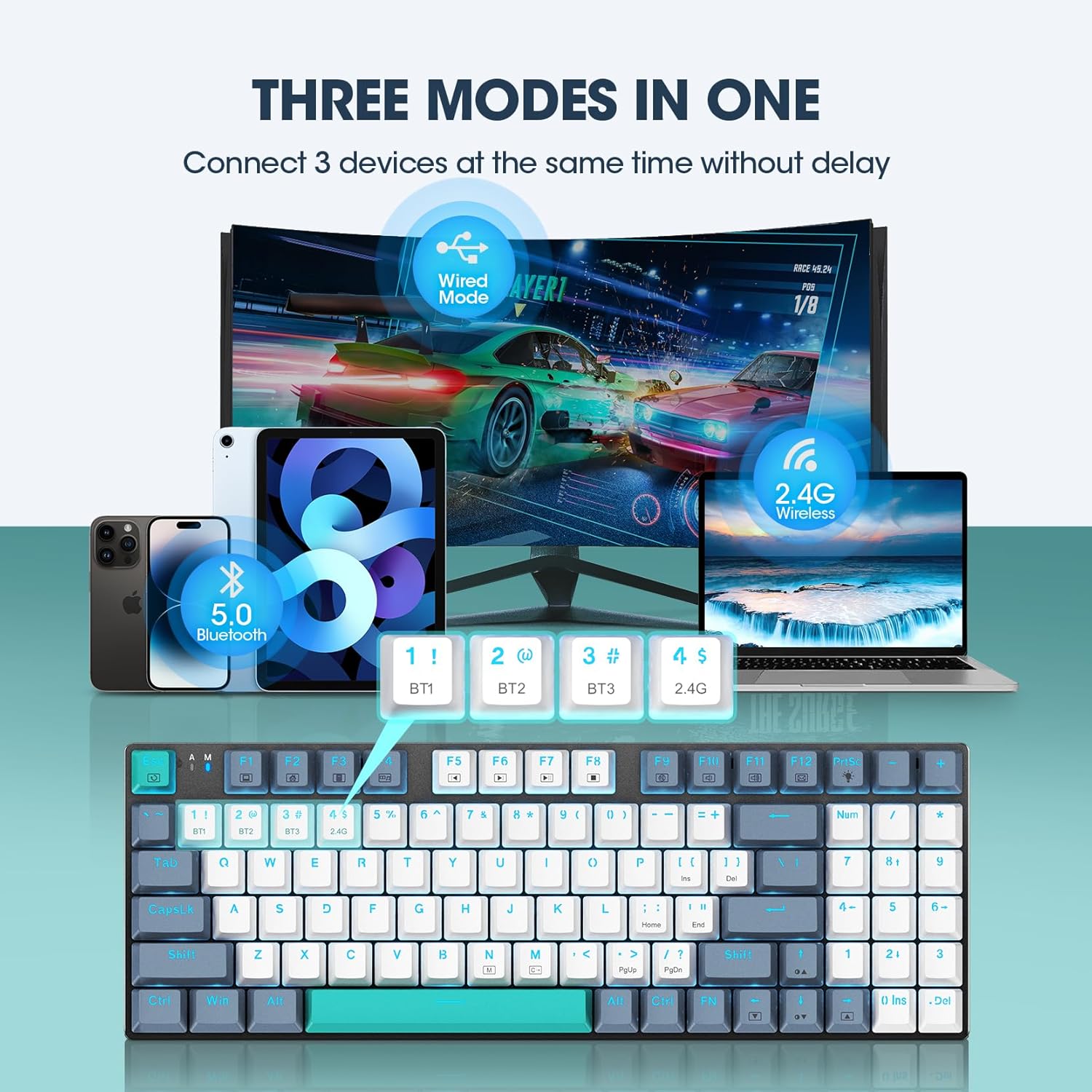
Image: Visual representation of the keyboard's triple-mode connectivity.
3.4. การเชื่อมต่อแบบใช้สาย USB-C
- เชื่อมต่อสาย USB-C ที่ให้มาเข้ากับพอร์ต USB-C ของแป้นพิมพ์
- ต่อปลายอีกด้านของสาย USB-C (USB-A) เข้ากับพอร์ต USB ที่ว่างอยู่บนคอมพิวเตอร์ของคุณ
- Ensure the keyboard's mode switch is set to "OFF" for wired operation. The keyboard will be recognized automatically.

Image: The USB-C port on the keyboard for wired connection and charging.
4. คู่มือการใช้งาน
4.1. การควบคุมแสง RGB
The RisoPhy keyboard features vibrant RGB backlighting with multiple effects. Use the following key combinations to customize your lighting:
- Fn + เอ็น: Cycle through 20 different light modes (e.g., SOLID COLOR, streamer, horse racing, neon).
- fn+ม: Change backlight color (16.8 million colors available).
- ฟน + ↑ / ↓: Adjust light brightness (4 levels).
- Fn + ← / →: Adjust light speed.

Image: RGB backlight effects and control shortcuts.
Advanced lighting customization and macro programming can be done via the dedicated software. Refer to the official RisoPhy webเว็บไซต์สำหรับดาวน์โหลดซอฟต์แวร์และดูคำแนะนำ

Image: Software interface for customizing lighting and macros.
4.2. ทางลัดมัลติมีเดีย
Access common functions quickly using the Fn key in combination with the F-keys:
| คีย์ผสม | การทำงาน |
|---|---|
| Fn+F1 | คอมพิวเตอร์ของฉัน |
| Fn+F2 | ค้นหา |
| Fn+F3 | เครื่องคิดเลข |
| Fn+F4 | มัลติมีเดีย |
| Fn+F5 | เพลงก่อนหน้า |
| Fn+F6 | เพลงถัดไป |
| Fn+F7 | เล่น/หยุดชั่วคราว |
| Fn+F8 | หยุด |
| Fn+F9 | ปิดเสียง |
| Fn+F10 | ลดระดับเสียง |
| Fn+F11 | เพิ่มปริมาณ |
| Fn+F12 | อีเมล |
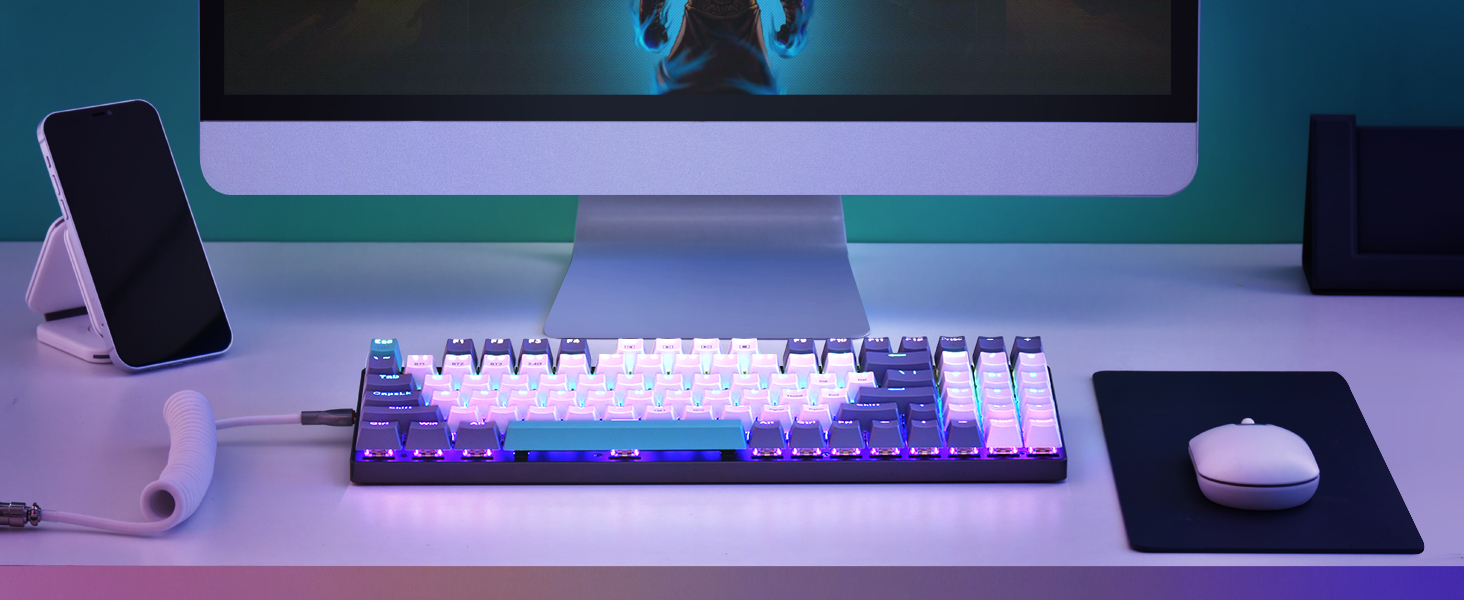
Image: Multimedia shortcuts for enhanced productivity.
4.3. หลักสรีรศาสตร์และการออกแบบ
The keyboard is designed for comfort during prolonged use:
- U-Shaped Keys: Provide a better finger touch and reduce typing fatigue.
- ขาตั้งพับได้: Located on the back, these allow you to adjust the keyboard's angle for a more comfortable typing position.
- คีย์แคป PBT: Ultra-durable and sweat-proof, designed for a longer lifespan and clear backlighting.
Image: Ergonomic features of the keyboard, including U-shaped keys and foldable stands.
5. การบำรุงรักษา
To ensure the longevity and optimal performance of your RisoPhy keyboard, follow these maintenance guidelines:
- การทำความสะอาด: Use a soft, dry cloth to wipe down the keyboard surface regularly. For deeper cleaning, use compressed air to remove dust and debris from between the keycaps. Avoid using harsh chemicals or abrasive materials.
- คีย์แคป: The PBT keycaps are designed for durability. If necessary, they can be carefully removed for cleaning using a keycap puller (not included). Ensure proper re-installation.
- พื้นที่จัดเก็บ: เมื่อไม่ได้ใช้งานเป็นเวลานาน ควรเก็บแป้นพิมพ์ไว้ในที่แห้งและเย็น หลีกเลี่ยงแสงแดดโดยตรงและอุณหภูมิที่สูงหรือต่ำเกินไป
- การดูแลแบตเตอรี่ For wireless modes, avoid completely draining the battery frequently. Charge the keyboard when the low battery indicator appears.
6 การแก้ไขปัญหา
If you encounter issues with your RisoPhy keyboard, please refer to the following common solutions:
- แป้นพิมพ์ไม่ตอบสนอง (ไร้สาย):
- ตรวจสอบให้แน่ใจว่าแป้นพิมพ์มีประจุไฟแล้ว
- Verify the mode switch is set correctly (2.4G or BT).
- สำหรับระบบ 2.4G โปรดตรวจสอบให้แน่ใจว่าตัวรับสัญญาณ USB เสียบเข้ากับอุปกรณ์ของคุณอย่างแน่นหนาแล้ว ลองใช้พอร์ต USB อื่นดู
- For Bluetooth, ensure your device's Bluetooth is enabled and the keyboard is properly paired (Fn + 1/2/3). Try re-pairing if necessary.
- เลื่อนแป้นพิมพ์ให้ใกล้กับตัวรับสัญญาณ/อุปกรณ์มากขึ้น เพื่อขจัดปัญหาการรบกวน
- แป้นพิมพ์ไม่ตอบสนอง (แบบมีสาย):
- ตรวจสอบให้แน่ใจว่าสาย USB-C เชื่อมต่อกับคีย์บอร์ดและคอมพิวเตอร์ของคุณอย่างแน่นหนา
- Verify the mode switch is set to "OFF".
- ลองเสียบเข้ากับพอร์ต USB อื่นบนคอมพิวเตอร์ของคุณ หรือใช้สาย USB-C เส้นอื่นดู
- ไฟ RGB ไม่ทำงาน/การปรับแต่ง:
- ตรวจสอบให้แน่ใจว่าแป้นพิมพ์เปิดอยู่
- Check if the brightness is set too low (Fn + ↑).
- Refer to Section 4.1 for correct key combinations for lighting control.
- หากใช้โปรที่กำหนดเองfiles, ensure the software is running and the profile อยู่ในสถานะใช้งานอยู่
- กุญแจติดหรือไม่ลงทะเบียน:
- Clean the key affected by dust or debris (refer to Maintenance section).
- ตรวจสอบให้แน่ใจว่าคีย์แคปติดตั้งอยู่บนสวิตช์อย่างถูกต้อง
If the issue persists after trying these steps, please contact RisoPhy customer support for further assistance.
7. ข้อมูลจำเพาะ
| คุณสมบัติ | รายละเอียด |
|---|---|
| ยี่ห้อ | ริโซฟี |
| แบบอย่าง | PC388A |
| เทคโนโลยีการเชื่อมต่อ | บลูทูธ 5.0, ไร้สาย 2.4G, USB-C แบบมีสาย |
| คำอธิบายแป้นพิมพ์ | คีย์บอร์ดสำหรับเล่นเกม |
| ประเภทสวิตซ์ | สวิตช์เชิงกลสีแดงเชิงเส้น |
| วัสดุปุ่มกด | พีบีที |
| จำนวนคีย์ | 94 คีย์ |
| การแบ็คไลท์ | RGB (16.8 ล้านสี 20 เอฟเฟกต์) |
| อุปกรณ์ที่รองรับ | PC, Mac, iPad, Gaming Console |
| คุณสมบัติพิเศษ | Ergonomic Design, Programmable (via software) |
| น้ำหนักสินค้า | 1.65 ปอนด์ |
| ขนาดแพ็คเกจ | 14.41 x 5.79 x 1.77 นิ้ว |
8. วิดีโอผลิตภัณฑ์อย่างเป็นทางการ
Video: RisoPhy 2023 Upgrade RGB Bluetooth Mechanical Keyboard. This video demonstrates the keyboard's features, including its multi-mode connectivity, RGB lighting, and ergonomic design.
9. การรับประกันและการสนับสนุน
RisoPhy is committed to providing high-quality products and customer satisfaction. While specific warranty details are not provided in this manual, please refer to your purchase documentation or the product listing for warranty information.
For any questions, technical support, or assistance with your RisoPhy Wireless Mechanical Keyboard, please contact customer service through the following methods:
- Click on the seller's name on the product page and send us messages.
- Click on the store name in your order history and click to send us messages.
We aim to provide a response to your satisfaction.


