1. บทนำ
This manual provides detailed instructions for the Nulea Wireless Ergonomic Keyboard, Model RT05. This keyboard is designed to enhance typing comfort and efficiency through its split, splayed, and curved layout, integrated wrist rest, and versatile connectivity options. It features a 7-color adjustable backlight and convenient USB-C charging.

Figure 1.1: Nulea Wireless Ergonomic Keyboard (Model RT05)
This image displays the Nulea Wireless Ergonomic Keyboard from a top-down perspective, highlighting its split design, integrated wrist rest, and full key layout including a numeric keypad. The keyboard is black with yellow accents on the spacebar area.
2. เนื้อหาบรรจุภัณฑ์
ตรวจสอบว่ามีรายการทั้งหมดอยู่ในแพ็คเกจ:
- Ergonomic Keyboard x1
- สาย USB x1
- คู่มือการใช้งาน x1
3. การตั้งค่า
3.1 การชาร์จเริ่มต้น
Before first use, fully charge the keyboard using the provided USB-C cable. The keyboard features a 2000mAh internal battery for extended operation.
- Connect the USB-C end of the cable to the keyboard's charging port.
- เชื่อมต่อปลาย USB-A เข้ากับแหล่งพลังงาน USB ที่เข้ากันได้ (เช่น พอร์ต USB ของคอมพิวเตอร์ อะแดปเตอร์ติดผนัง)
- The battery indicator light will provide charging status. Recharge when the battery level is below 10% (backlight will turn off to conserve power).

Figure 3.1: USB-C Quick Charging
This image illustrates the Nulea keyboard being charged via a USB-C cable, with a graphic indicating a 2000mAh built-in rechargeable battery. The image emphasizes the convenience of USB-C charging.
3.2 การเชื่อมต่อแบบไร้สาย
The Nulea keyboard supports both Bluetooth and 2.4G USB connectivity, allowing connection to up to three devices simultaneously.
การเชื่อมต่อ USB 2.4G:
- ค้นหาตัวรับสัญญาณ USB 2.4G (โดยปกติจะอยู่ในช่องเก็บของบนแป้นพิมพ์)
- เสียบตัวรับสัญญาณ USB เข้ากับพอร์ต USB ที่พร้อมใช้งานบนคอมพิวเตอร์ของคุณ
- เปิดแป้นพิมพ์ ระบบจะเชื่อมต่อกับตัวรับสัญญาณโดยอัตโนมัติ
การเชื่อมต่อบลูทู ธ :
- เปิดคีย์บอร์ด
- กดปุ่ม Fn key simultaneously with either Q (for 2.4G), W (for Bluetooth 1), or E (for Bluetooth 2) to select the desired connection channel. For Bluetooth pairing, select W or E.
- Hold the selected Fn + ว or Fn + อี key combination for 3-5 seconds until the indicator light flashes rapidly, indicating pairing mode.
- On your device (computer, smartphone, tablet), go to Bluetooth settings and search for new devices.
- Select "Nulea Keyboard" or a similar name from the list of available devices to complete the pairing process.
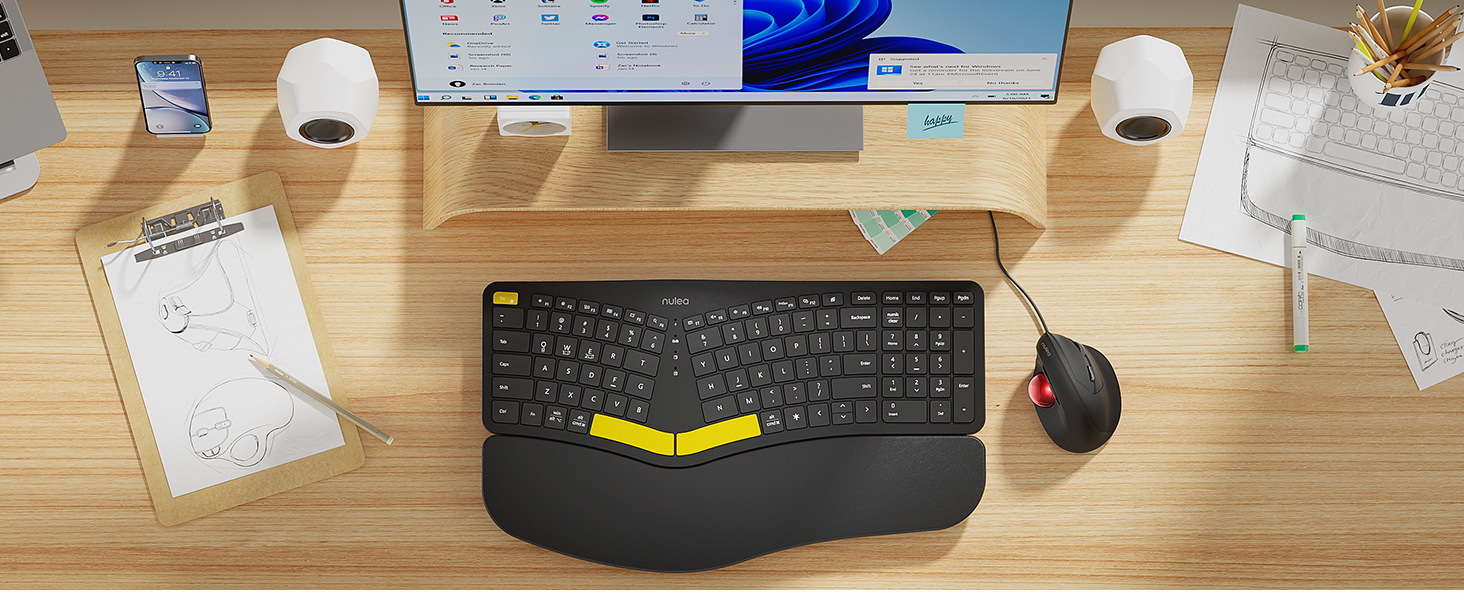
Figure 3.2: Wireless Connectivity Setup
This diagram illustrates the three connectivity options for the Nulea keyboard: 2.4G USB connection via a dongle, and two separate Bluetooth connections. It shows how to switch between devices using Fn + Q/W/E keys.
4. คู่มือการใช้งาน
4.1 เปิด/ปิดเครื่อง
Locate the power switch on the keyboard (typically on the top edge or underside) and slide it to the 'ON' or 'OFF' position.
4.2 การสลับระหว่างอุปกรณ์ที่เชื่อมต่อ
Once multiple devices are paired, you can switch between them instantly:
- กด เอฟเอ็น+คิว to switch to the 2.4G USB connected device.
- กด Fn + ว เพื่อสลับไปใช้ Bluetooth Device 1
- กด Fn + อี เพื่อสลับไปใช้ Bluetooth Device 2

Figure 4.1: Easy Device Switching
This image shows the Nulea keyboard connected to a desktop monitor, a laptop, and a smartphone, illustrating its ability to easily switch between up to three paired devices with a single tap.
การควบคุมแบ็คไลท์ 4.3
The keyboard features a 7-color backlight with 3 brightness levels. You can customize the lighting to your preference:
- To cycle through backlight colors (blue, green, red, cyan, purple, yellow, white), press the backlight control key (refer to keyboard layout for specific key).
- To adjust brightness levels, use the dedicated brightness control keys (refer to keyboard layout).
- Note: When the battery level drops below 10%, the backlight will automatically turn off to preserve basic keyboard functionality.

Figure 4.2: Adjustable 7-Color Backlight
This image displays the Nulea keyboard in a dimly lit environment, showcasing its illuminated keys with a vibrant backlight. The image highlights the 7 available backlight colors and 3 brightness levels.
4.4 Adjustable Tilt Legs
The keyboard is equipped with 4 adjustable tilt legs, allowing you to set the keyboard at 3 different angles for optimal wrist comfort and posture.
- Gently pull out the tilt legs located on the underside of the keyboard to adjust the angle.
- Experiment with different tilt levels to find the most comfortable position for your typing style.

Figure 4.3: Adjustable Tilt Legs
ภาพนี้แสดงด้านข้าง view of the Nulea keyboard on a desk, with its adjustable tilt legs extended to demonstrate the ergonomic angle. The image emphasizes how the tilt legs help maintain a comfortable wrist position.
4.5 ประสบการณ์การพิมพ์
The keyboard features spherical-dished key shapes designed to conform to your fingertips, promoting effortless and comfortable typing.

Figure 4.4: Spherical-Dished Keys
This close-up image focuses on the keys of the Nulea keyboard, highlighting their spherical-dished shape designed for comfortable and precise typing.
5. การบำรุงรักษา
5.1 การทำความสะอาด
เพื่อรักษารูปลักษณ์และการทำงานของแป้นพิมพ์:
- Disconnect the keyboard from all devices and power sources before cleaning.
- ใช้ผ้านุ่มไม่เป็นขุยเช็ดเล็กน้อยampชุบน้ำหรือน้ำยาทำความสะอาดอ่อนๆ เพื่อเช็ดพื้นผิว
- หลีกเลี่ยงการใช้สารเคมีรุนแรง น้ำยาทำความสะอาดที่มีฤทธิ์กัดกร่อน หรือตัวทำละลาย
- ใช้ลมอัดเพื่อกำจัดฝุ่นละอองและเศษต่างๆ ออกจากระหว่างปุ่ม
5.2 การดูแลแบตเตอรี่
เพื่อยืดอายุแบตเตอรี่:
- Recharge the keyboard when the battery low indicator appears.
- หลีกเลี่ยงการระบายแบตเตอรี่จนหมดบ่อยครั้ง
- หากจะเก็บคีย์บอร์ดไว้เป็นเวลานาน ควรชาร์จแบตเตอรี่ให้ได้ประมาณ 50% ก่อนเก็บรักษา
6 การแก้ไขปัญหา
6.1 แป้นพิมพ์ไม่ตอบสนอง
- ตรวจสอบให้แน่ใจว่าแป้นพิมพ์เปิดอยู่
- ตรวจสอบระดับแบตเตอรี่และชาร์จไฟหากจำเป็น
- For 2.4G connection, ensure the USB receiver is securely plugged into the device. Try a different USB port.
- For Bluetooth connection, ensure Bluetooth is enabled on your device and the keyboard is paired. Try re-pairing the keyboard.
- Ensure you are on the correct connection channel (Fn + Q/W/E).
6.2 ไฟแบ็คไลท์ไม่ทำงาน
- Check the battery level. The backlight automatically turns off when the battery is below 10%. Recharge the keyboard.
- Ensure the backlight is turned on and brightness is adjusted using the dedicated keys.
6.3 Connectivity Issues / Lag
- Move the keyboard closer to your device to reduce interference.
- Avoid placing the keyboard near other wireless devices that may cause interference (e.g., Wi-Fi routers, cordless phones).
- ตรวจสอบให้แน่ใจว่าระบบปฏิบัติการของอุปกรณ์และไดรเวอร์บลูทูธของคุณเป็นเวอร์ชันล่าสุด
7. ข้อมูลจำเพาะ
| คุณสมบัติ | รายละเอียด |
|---|---|
| ชื่อรุ่น | RT05 |
| ขนาดสินค้า | 16.5"ยาว x 9.6"กว้าง x 1.3"สูง (41.9 x 24.4 x 3.3 ซม.) |
| น้ำหนักสินค้า | 3.5 ปอนด์ (1.59 กก.) |
| ผู้ผลิต | นูเลีย |
| แบตเตอรี่ | แบตเตอรี่ลิเธียมไอออน 1 ก้อน (รวมอยู่ด้วย) |
| เทคโนโลยีการเชื่อมต่อ | 2.4G USB, Bluetooth |
| อุปกรณ์ที่รองรับ | แล็ปท็อป, พีซี, สมาร์ทโฟน, แท็บเล็ต |
| คุณสมบัติพิเศษ | Backlit, Rechargeable, Split Keyset Design, Adjustable Tilt Legs |
| สี | สีดำ |
8. การรับประกันและการสนับสนุน
For warranty information, technical support, or service inquiries, please refer to the contact information provided on the Nulea official webหรือติดต่อผู้ขายโดยตรง เก็บใบเสร็จรับเงินไว้เพื่อใช้ในการเคลมประกัน
This user manual is included with your product for future reference.


