1. บทนำ
This manual provides essential instructions for the safe and effective use of your XPLORA X6 Play 4G Watch Phone. Designed for children, this device offers communication, location tracking, and activity features, all managed through a parent-controlled application. Please read this manual thoroughly before operating the device.
2. อะไรอยู่ในกล่อง
Upon unboxing your XPLORA X6 Play, ensure all components are present:
- XPLORA X6 Play Watch Phone
- สาย USB
- Pre-installed Xplora Connect SIM card (requires subscription)
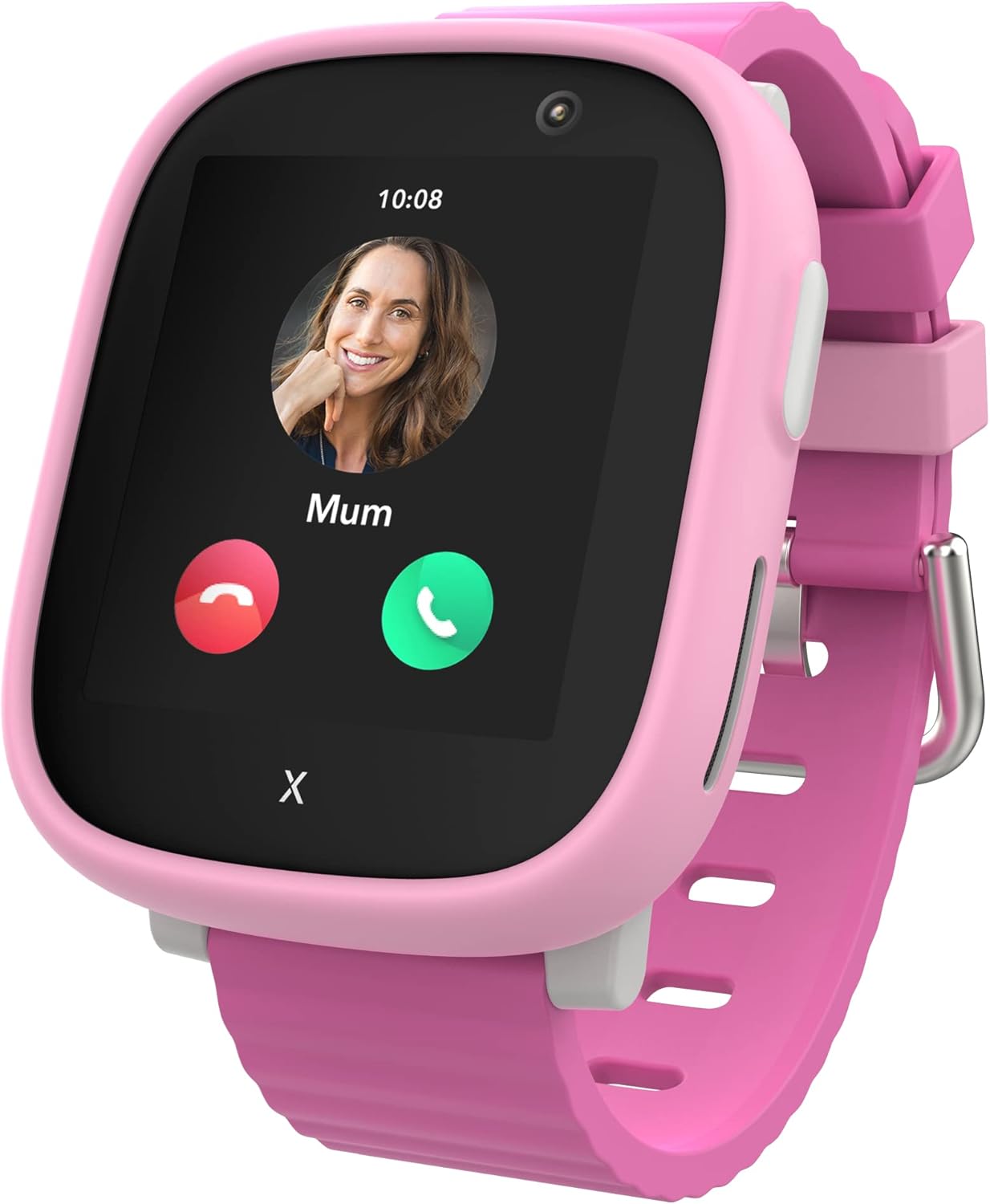
Image: The XPLORA X6 Play Watch Phone, shown in pink, displaying an incoming call from 'Mum'.
3. สินค้าหมดview
The XPLORA X6 Play is a feature-rich smartwatch designed for children, offering a blend of safety and communication functionalities.

ภาพ: โอเวอร์view of the XPLORA X6 Play, highlighting its role as a child's first phone, available in multiple colors.
คุณสมบัติหลัก:
- การโทรด้วยเสียง: Make and receive calls from pre-approved numbers.
- ข้อความ: Send and receive texts, emojis, images, and voice messages within the Xplora app network.
- ฟังก์ชั่น SOS: A dedicated button to alert emergency contacts with the child's location.
- GPS Location & Safety Zones: Track the device's location and set up virtual boundaries for alerts.
- กล้อง: กล้องในตัวสำหรับถ่ายภาพ
- pedometer: Tracks steps to encourage physical activity.
- โหมดโรงเรียน: Minimizes distractions during school hours.
- Wi-Fi & 4G Network Compatibility: Ensures reliable connectivity.
4. คู่มือการติดตั้ง
Follow these steps to set up your XPLORA X6 Play:
- Set up your SIM: The XPLORA X6 Play comes with a pre-installed Xplora Connect SIM card. After receiving your watch, select the desired subscription plan. A minimum 12-month subscription is required. You will receive a confirmation email once the plan is active.
- Download the Xplora App: Install the official Xplora app on your smartphone. The app is available for both iOS and Android devices.
- Create an Xplora Account: Open the app and follow the on-screen instructions to create your parent account.
- Activate your Xplora Watch: Within the app, select the option to add and pair your new device. Follow the prompts to link your X6 Play watch to your parent account. This process typically involves scanning a QR code displayed on the watch screen.

Image: A visual guide illustrating the three main steps for setting up the XPLORA X6 Play: SIM activation, downloading the Xplora app, and activating the watch.
5. คู่มือการใช้งาน

Image: Icons depicting the various features available for children on the XPLORA X6 Play watch.
5.1. การโทรออกและรับสาย
The X6 Play allows children to make and receive calls only from numbers pre-approved by a guardian through the Xplora app. To make a call, navigate to the contacts list on the watch screen and select the desired contact. To answer an incoming call, tap the green answer icon. To end a call, tap the red hang-up icon.
5.2. การส่งและรับข้อความ
Children can receive text messages, emojis, images, and voice messages. They can reply using images, emojis, and voice messages. Text messaging is primarily facilitated through the Xplora app, meaning communication is with approved contacts who also use the app.
5.3. ฟังก์ชั่น SOS
In an emergency, the child can press and hold the SOS button on the watch. This action will immediately notify pre-set emergency contacts and transmit the child's current GPS location to them.
5.4. GPS Location Tracking
The X6 Play utilizes multiple services to provide location data. Guardians can view the watch's location in real-time via the Xplora app. For optimal accuracy, ensure the watch has a clear view of the sky and is connected to a network.
5.5. โหมดโรงเรียน
School Mode can be activated by parents through the Xplora app. When active, the watch will limit its functions to prevent distractions during school hours. Only the time display and SOS function will be accessible, blocking calls and messages.
5.6. เครื่องนับก้าวและการติดตามกิจกรรม
The built-in pedometer tracks the child's steps throughout the day. This data can be viewed on the watch and within the parent app, encouraging physical activity. The Xplora GoPlay Activity Platform offers additional engagement by rewarding physical activity.

Image: The XPLORA X6 Play screen showing a step counter with 450 steps recorded towards a goal of 1000.
5.7. ฟังก์ชันกล้อง
The X6 Play includes a camera for taking photos. Children can access the camera app on the watch screen to capture moments. Photos can be shared with approved contacts via the messaging feature.
Video: An official XPLORA video showcasing the X6 Play's features and design, including its use by children.
6. Parent App Features
The Xplora parent app provides comprehensive control and monitoring capabilities:

Image: A smartphone displaying the Xplora parent app interface, highlighting features for parental control and monitoring.
- Parent-Controlled Contacts: Manage and approve all contacts the child can communicate with.
- การติดตามตำแหน่ง: View the real-time location of the watch and its history.
- School Mode Management: Schedule and activate School Mode to limit watch functions during specific times.
- Safety Zones (Geo-Fencing): Set up virtual safe zones around locations like home or school. Receive notifications when the child enters or leaves these areas.
- การติดตามกิจกรรม: Track the child's steps and activity levels.
- การตั้งค่าระยะไกล: Adjust various watch settings remotely from your smartphone.
7. การบำรุงรักษา
7.1. การทำความสะอาด
เช็ดหน้าจอนาฬิกาและสายนาฬิกาเป็นประจำด้วยผ้าเนื้อนุ่มและแห้งamp ใช้ผ้าเช็ดทำความสะอาด หลีกเลี่ยงการใช้สารเคมีรุนแรงหรือวัสดุที่มีฤทธิ์กัดกร่อน เพราะอาจทำให้เครื่องเสียหายได้
7.2. การดูแลแบตเตอรี่
To prolong battery life, avoid extreme temperatures. Charge the watch using the provided USB cable. Do not use unauthorized chargers, as this may damage the battery or device.
7.3. ความทนทานต่อน้ำ
The XPLORA X6 Play has a degree of water resistance. However, it is not recommended for swimming or prolonged submersion. Avoid exposing the watch to high-pressure water or steam.
8 การแก้ไขปัญหา
| ปัญหา | วิธีแก้ปัญหาที่เป็นไปได้ |
|---|---|
| นาฬิกาไม่เปิดหรือชาร์จ: | Ensure the USB cable is securely connected to both the watch and a power source. Try a different USB port or power adapter. Allow the watch to charge for at least 30 minutes before attempting to turn it on. If issues persist, contact support. |
| Calls or messages not working: | Verify that the SIM card is properly inserted and activated with an active subscription plan. Check network signal strength on the watch. Ensure all contacts are approved in the parent app. Restart the watch and the parent's smartphone app. |
| ตำแหน่ง GPS ที่ไม่ถูกต้อง: | GPS accuracy can be affected by environment (e.g., indoors, dense urban areas, tall buildings). For best results, ensure the watch has a clear view of the sky. Restarting the watch can sometimes improve GPS performance. Check the Xplora app for any location service settings. |
| Messages delayed: | Message delivery relies on network connectivity. Check the watch's network signal indicator. Ensure both the watch and the parent's smartphone have a stable internet connection. Restarting both devices may help synchronize communication. |
| School Mode not functioning as expected: | Verify that School Mode is correctly configured and activated for the desired times in the parent app. Ensure the watch's internal clock is synchronized with the network time. |
9. ข้อมูลจำเพาะ
- ชื่อรุ่น : X6 เล่น
- ยี่ห้อ: เอ็กซ์พลอร่า
- ขนาดหน้าจอ: 1.52 นิ้ว
- ระบบปฏิบัติการ: แอนดรอยด์
- เทคโนโลยีการเชื่อมต่อ: ไวไฟ,4จี
- คุณสมบัติพิเศษ: จีพีเอส
- แบตเตอรี่: แบตเตอรี่ลิเธียมไอออน 1 ก้อน (รวมอยู่ด้วย)
- น้ำหนักสินค้า: 8.1 ออนซ์
- ขนาดแพ็คเกจ: 8.78 x 2.76 x 1.61 นิ้ว
- ผู้ผลิต: XPLORA Technologies Limited
- วันที่เข้าใช้งานครั้งแรก: 29 ตุลาคม 2022
10. การรับประกันและการสนับสนุน
For warranty information, please refer to the documentation provided with your purchase or visit the official XPLORA website. If you encounter any issues not covered in this manual or require further assistance, please contact XPLORA customer support. Contact details can typically be found on the XPLORA website or within the Xplora parent application.
For additional resources and information, you may visit the XPLORA Store on Amazon.


