1. บทนำ
This manual provides detailed instructions for the safe and efficient use of your PeriPage A40 Portable Thermal Printer. The PeriPage A40 is an inkless, portable printer designed for various printing needs, including documents, web pages, photos, and specialized papers like tattoo transfer paper. It offers wireless connectivity via Bluetooth and is compatible with Android, iOS, Windows, and Mac OS devices.
โปรดอ่านคู่มือนี้อย่างละเอียดก่อนใช้งานอุปกรณ์ เพื่อให้มั่นใจว่าอุปกรณ์ทำงานได้อย่างถูกต้องและป้องกันความเสียหาย
2. ข้อมูลด้านความปลอดภัย
- อย่าให้เครื่องพิมพ์โดนน้ำหรือความชื้นมากเกินไป
- หลีกเลี่ยงอุณหภูมิที่สูงจัด แสงแดดโดยตรง หรือสภาพแวดล้อมที่มีฝุ่นละอองมาก
- Use only the specified thermal paper for optimal performance and to prevent damage to the print head.
- เก็บอุปกรณ์ให้ห่างจากเด็ก
- อย่าพยายามถอดประกอบหรือซ่อมแซมเครื่องพิมพ์ด้วยตนเอง โปรดติดต่อฝ่ายบริการลูกค้าเพื่อขอความช่วยเหลือ
- Ensure the printer is charged using a compatible power adapter.
3. เนื้อหาบรรจุภัณฑ์
เมื่อแกะกล่องแล้วโปรดตรวจสอบว่ามีสิ่งของทั้งหมดที่ระบุไว้ด้านล่างนี้อยู่:
- PeriPage A40 Portable Thermal Printer
- สายชาร์จแบบ USB Type-C
- คู่มือการใช้งาน (เอกสารนี้)
- Thermal Paper Roll (1 additional roll included)
- Paper Width Adjustment Clips (2 clips)

Image: The PeriPage A40 printer shown with a sample document being printed. This illustrates the compact design and printing capability of the device.
4. สินค้าหมดview
The PeriPage A40 is a versatile, inkless thermal printer designed for portability and convenience. It utilizes thermal transfer technology to produce crisp, monochrome prints without the need for ink cartridges, toner, or ribbons.
คุณสมบัติหลัก:
- การพิมพ์ความร้อนแบบไม่ใช้หมึก: Environmentally friendly and cost-effective, requiring only thermal paper.
- ความละเอียดสูง: Delivers clear black and white prints at 300 x 300 dpi.
- รองรับกระดาษหลายขนาด: Accommodates thermal paper widths of 210mm (A4/US Letter), 107mm, 77mm, and 56mm, supporting both roll and folded paper.
- การเชื่อมต่อไร้สาย: Connects via Bluetooth to Android and iOS smartphones/tablets.
- ความเข้ากันได้ในวงกว้าง: Supports printing from Windows and Mac OS computers via USB.
- การออกแบบพกพา: Compact and lightweight (1.45 pounds) for easy travel.
- อายุการใช้งานแบตเตอรี่ยาวนาน: Equipped with two 2600mAh lithium batteries, capable of printing up to 360 A4 sheets on a full charge.
- ฟังก์ชันเพิ่มเติม: Includes basic scanning capabilities.
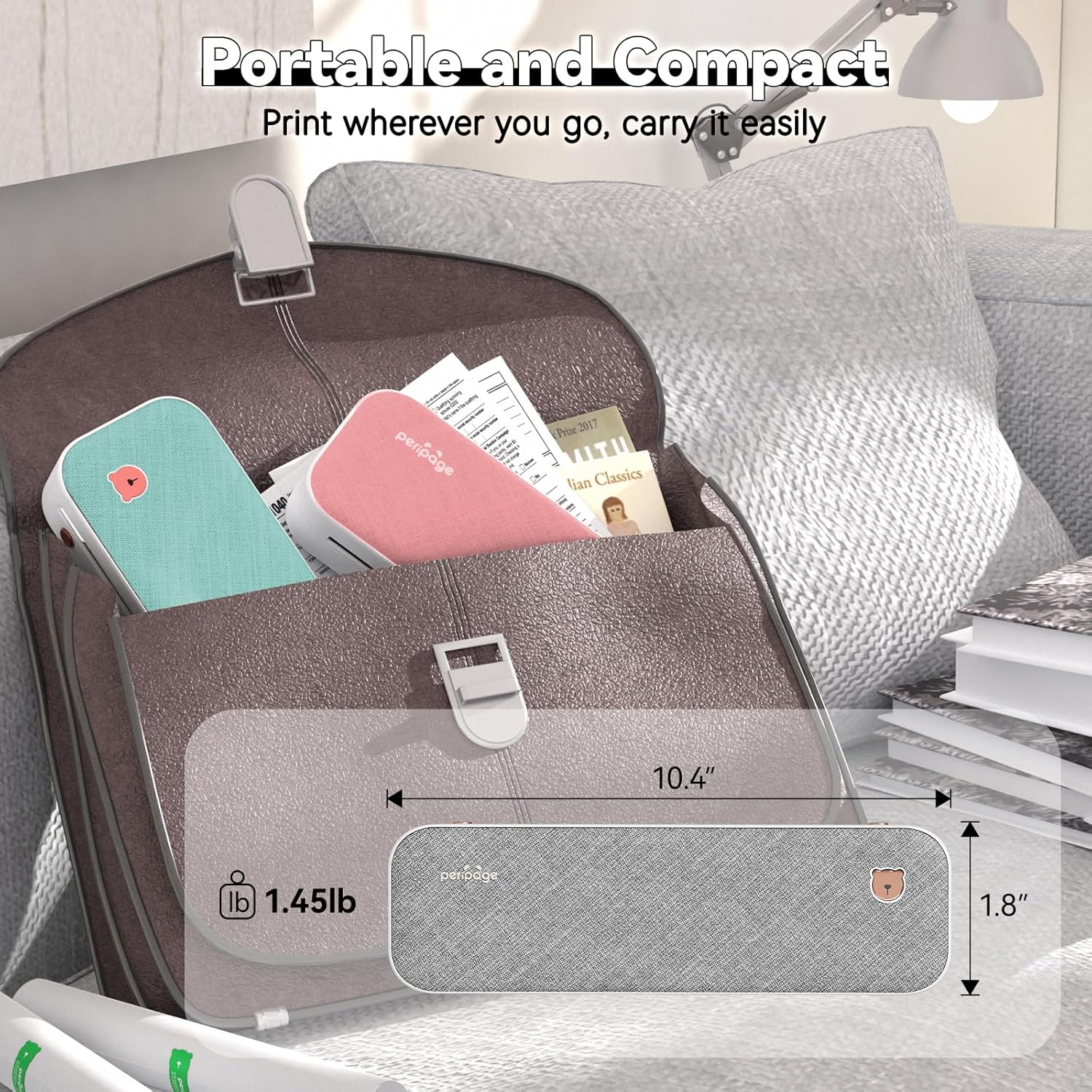
Image: The PeriPage A40 printer shown inside a bag, demonstrating its compact size and portability for travel or mobile use.
5. การตั้งค่า
5.1 การชาร์จเครื่องพิมพ์
Before first use, fully charge the printer. Connect the included USB Type-C cable to the printer's charging port and the other end to a compatible USB power adapter (not included) or a computer's USB port. The indicator light will show charging status.
5.2 การเปิด/ปิดเครื่อง
To power on the printer, press and hold the power button for approximately 2 seconds until the indicator light illuminates. To power off, press and hold the power button again until the indicator light turns off.

ภาพ: ภาพระยะใกล้ view of the PeriPage A40 printer's power button, indicating the action required to turn the device on.
5.3 App Download (for Mobile Devices)
For mobile printing, you must download the official "PeriPage" application. ค้นหา "PeriPage" in your device's app store (Google Play Store for Android or Apple App Store for iOS) or scan the QR code provided in the physical instruction manual.

Image: A smartphone displaying the PeriPage application download page, illustrating where to find the app for mobile printing.
5.4 Connecting to Mobile Devices (Bluetooth)
- Ensure the PeriPage A40 printer is powered on.
- Open the "PeriPage" app on your smartphone or tablet.
- Within the app, navigate to the device connection section (usually indicated by a Bluetooth icon or "Connect Device").
- The app will search for available PeriPage printers. Select "PeriPage A40" from the list to establish a Bluetooth connection.
- A successful connection will be indicated within the app.

Image: A smartphone screen displaying the Bluetooth connection process to the PeriPage A40 printer within the application.
5.5 Connecting to Computers (Windows/Mac OS)
- Ensure the PeriPage A40 printer is powered on.
- เชื่อมต่อเครื่องพิมพ์เข้ากับคอมพิวเตอร์ของคุณโดยใช้สาย USB Type-C ที่ให้มา
- For Windows and Mac OS, you may need to install the printer driver. Visit the official PeriPage webงาน (www.ileadtek.com) to download the appropriate driver for your operating system.
- ปฏิบัติตามคำแนะนำบนหน้าจอเพื่อดำเนินการติดตั้งไดรเวอร์ให้เสร็จสมบูรณ์
- Once the driver is installed, the printer will be recognized by your computer and ready for use.

Image: The PeriPage A40 printer connected to a laptop using a USB-C cable, demonstrating the wired connection method for computer printing.
6. คู่มือการใช้งาน
6.1 กำลังโหลดกระดาษ
The PeriPage A40 supports both thermal roll paper and folded thermal paper. It can accommodate various widths (210mm, 107mm, 77mm, 56mm).
- เปิดฝาครอบเครื่องพิมพ์
- If using roll paper, place the roll into the paper compartment. Ensure the paper feeds smoothly from the bottom and extends slightly out of the printer's paper exit slot.
- If using folded paper, stack the sheets neatly and insert them into the paper compartment. Ensure the leading edge is straight and aligned.
- Use the two included paper width adjustment clips to secure the paper in place, matching the width of your thermal paper.
- Close the printer cover firmly.

Image: An illustration demonstrating the two methods of loading thermal paper into the PeriPage A40: using a roll of paper or folded sheets, with clips for width adjustment.
6.2 การพิมพ์จากอุปกรณ์เคลื่อนที่
- Ensure your PeriPage A40 is powered on and connected via Bluetooth to the PeriPage app.
- เปิดแอป PeriPage
- Select the document, image, web page, or other content you wish to print from within the app. The app supports various formats including PDF, JPG, PNG, Word, Excel, and PowerPoint.
- Adjust print settings such as density, size, and orientation as needed.
- Tap the "Print" button in the app to initiate printing.

Image: A smartphone screen showing a document open in the PeriPage app, ready to be sent to the printer for mobile printing.
6.3 การพิมพ์จากคอมพิวเตอร์
- Ensure your PeriPage A40 is powered on and connected to your computer via USB, with the necessary drivers installed.
- เปิดเอกสารหรือรูปภาพที่คุณต้องการพิมพ์บนคอมพิวเตอร์ของคุณ
- ไปที่ "File" > "Print" (or use the print shortcut, e.g., Ctrl+P on Windows, Command+P on Mac).
- Select "PeriPage A40" as your printer.
- Adjust print settings as required (e.g., paper size, orientation).
- คลิก "พิมพ์" เพื่อส่งงานไปยังเครื่องพิมพ์

Image: A laptop displaying an image being printed, with the PeriPage A40 printer actively producing the output, illustrating computer printing functionality.
6.4 Supported Paper Sizes
The PeriPage A40 is designed to be versatile with paper sizes. It supports the following thermal paper widths:
- 210มม.: Equivalent to A4 or US Letter/Legal length.
- 107มม.
- 77มม.
- 56มม.
Ensure you use thermal paper specifically designed for thermal printers. The maximum diameter for thermal roll paper is 30mm.

Image: Two PeriPage A40 printers illustrating the use of different thermal paper sizes (A4, 4-inch, 3-inch, 2-inch) and types (folding paper and thermal roll paper).
7. การบำรุงรักษา
7.1 การทำความสะอาดเครื่องพิมพ์
- โปรดตรวจสอบให้แน่ใจว่าเครื่องพิมพ์ปิดอยู่และถอดปลั๊กออกจากแหล่งจ่ายไฟก่อนทำความสะอาด
- เช็ดทำความสะอาดภายนอกเครื่องพิมพ์ด้วยผ้าแห้งเนื้อนุ่ม
- To clean the thermal print head, gently wipe it with a cotton swab lightly dampเคลือบด้วยแอลกอฮอล์ไอโซโพรพิล ทิ้งไว้ให้แห้งสนิทก่อนใช้งาน
- ห้ามใช้น้ำยาทำความสะอาดที่มีฤทธิ์กัดกร่อนหรือตัวทำละลาย
7.2 การจัดเก็บเอกสาร
Store thermal paper in a cool, dry place away from direct sunlight and heat to preserve its quality and print longevity.
7.3 การดูแลแบตเตอรี่
- หลีกเลี่ยงการปล่อยแบตเตอรี่จนหมดบ่อยครั้ง
- If storing the printer for an extended period, charge it to about 50% and recharge every few months to maintain battery health.
8 การแก้ไขปัญหา
8.1 เครื่องพิมพ์ไม่เปิดเครื่อง
- Ensure the battery is charged. Connect the printer to a power source and allow it to charge for at least 30 minutes before attempting to power on again.
- Verify that the power button is pressed and held for the required duration (approx. 2 seconds).
8.2 ไม่สามารถเชื่อมต่อผ่านบลูทูธได้
- Make sure the printer is powered on and within range of your mobile device.
- ตรวจสอบให้แน่ใจว่าได้เปิดใช้งาน Bluetooth บนอุปกรณ์มือถือของคุณ
- Close and reopen the PeriPage app.
- โปรดรีสตาร์ททั้งเครื่องพิมพ์และอุปกรณ์มือถือของคุณ
- Check if the PeriPage app has Bluetooth permissions enabled in your device settings.
8.3 No Print Output or Blank Pages
- Verify that thermal paper is loaded correctly and not upside down. Thermal paper has a specific side that reacts to heat.
- Check if the paper compartment cover is fully closed.
- Ensure the printer is connected and selected as the active printer in your app or computer settings.
- The print head might be dirty. Refer to the "Cleaning the Printer" section.
8.4 คุณภาพการพิมพ์ไม่ดี
- โปรดตรวจสอบให้แน่ใจว่าคุณใช้กระดาษความร้อนคุณภาพสูง
- Clean the print head as described in the "Maintenance" section.
- ปรับการตั้งค่าความหนาแน่นของการพิมพ์ภายในแอป PeriPage หรือไดรเวอร์เครื่องพิมพ์
- Check if the thermal paper is old or has been exposed to heat/light, which can degrade its printing capability.

Image: A visual comparison demonstrating the clear and crisp print quality achievable with the PeriPage A40 printer, highlighting its "Excellent Printing Ability".
9. ข้อมูลจำเพาะ
| คุณสมบัติ | ข้อมูลจำเพาะ |
|---|---|
| แบบอย่าง | เอ40 |
| เทคโนโลยีการพิมพ์ | เทอร์มอล |
| ความละเอียดในการพิมพ์ | 300 x 300 dpi (ขาวดำ) |
| การเชื่อมต่อ | บลูทูธ, USB Type-C |
| อุปกรณ์ที่รองรับ | แอนดรอยด์, iOS, Windows, Mac OS |
| ความกว้างกระดาษที่รองรับ | 210mm (A4/US Letter), 107mm, 77mm, 56mm |
| ความจุแผ่นอินพุตสูงสุด | 360 sheets (A4 equivalent, with full battery) |
| แบตเตอรี่ | 2 x 2600mAh Lithium Batteries |
| ขนาดสินค้า | ลึก 2.5 นิ้ว x กว้าง 10.9 นิ้ว x สูง 4.09 นิ้ว |
| น้ำหนักสินค้า | 1.45 ปอนด์ (658 กรัม) |
| เอาท์พุตเครื่องพิมพ์ | เอกรงค์ |
| ฟังก์ชั่นเพิ่มเติม | Scan (basic) |
10. การรับประกันและการสนับสนุน
The PeriPage A40 Portable Thermal Printer comes with a limited warranty. For specific warranty terms and conditions, please refer to the warranty card included in your package or visit the official PeriPage webเว็บไซต์.
For technical support, troubleshooting assistance, or inquiries regarding your product, please contact PeriPage customer service through their official website or the contact information provided in your product documentation. When contacting support, please have your model number (A40) and purchase details ready.
เป็นทางการ Webเว็บไซต์: www.ileadtek.com


