การแนะนำ
This manual provides detailed instructions for the setup, operation, and maintenance of your HUNSN RJ03 Micro Firewall Appliance. The RJ03 is a compact, fanless mini PC designed for network security applications, including use as a firewall, VPN router, or other network appliance. It features an Intel Celeron N5105 processor and multiple 2.5GbE LAN ports.
โปรดอ่านคู่มือนี้อย่างละเอียดก่อนใช้งานอุปกรณ์เพื่อให้มั่นใจถึงการติดตั้งที่ถูกต้องและประสิทธิภาพการทำงานที่เหมาะสมที่สุด
ข้อมูลด้านความปลอดภัย
- Ensure the device is placed on a stable, flat surface with adequate ventilation.
- Use only the provided power supply. Using an incorrect power supply may damage the device and void the warranty.
- อย่าให้เครื่องสัมผัสกับน้ำ ความชื้น หรืออุณหภูมิที่สูงหรือต่ำเกินไป
- Avoid opening the chassis unless performing authorized upgrades (RAM, SSD/HDD, WiFi module). Disconnecting internal components improperly can cause damage.
- In case of malfunction, disconnect the power supply and contact support. Do not attempt repairs yourself.
เนื้อหาแพ็คเกจ
ตรวจสอบว่ามีรายการทั้งหมดอยู่ในแพ็คเกจ:
- HUNSN RJ03 Firewall Appliance
- Power Supply (DC12V3A)
- สายไฟ
- บัตรรับประกัน
สินค้าเกินview
The HUNSN RJ03 is a compact, fanless mini PC designed for robust network applications. Its aluminum chassis acts as a heatsink, ensuring silent operation.
แผงด้านหน้า

รูปที่ 1: เค้าโครงแผงด้านหน้า
The front panel provides essential user interfaces:
- ปุ่มเปิด/ปิด: ใช้สำหรับเปิดหรือปิดอุปกรณ์
- CLR CMOS Button: A small button to clear CMOS settings, often requiring a pin to press.
- พอร์ต USB 3.0 (2x): สำหรับเชื่อมต่ออุปกรณ์ USB ความเร็วสูง
- พอร์ต Type-C: Supports display output and USB connectivity.
- ช่องเสียบการ์ด TF: For TransFlash (MicroSD) memory cards.
- Antenna Connectors (2x): For optional WiFi antennas.
แผงด้านหลัง
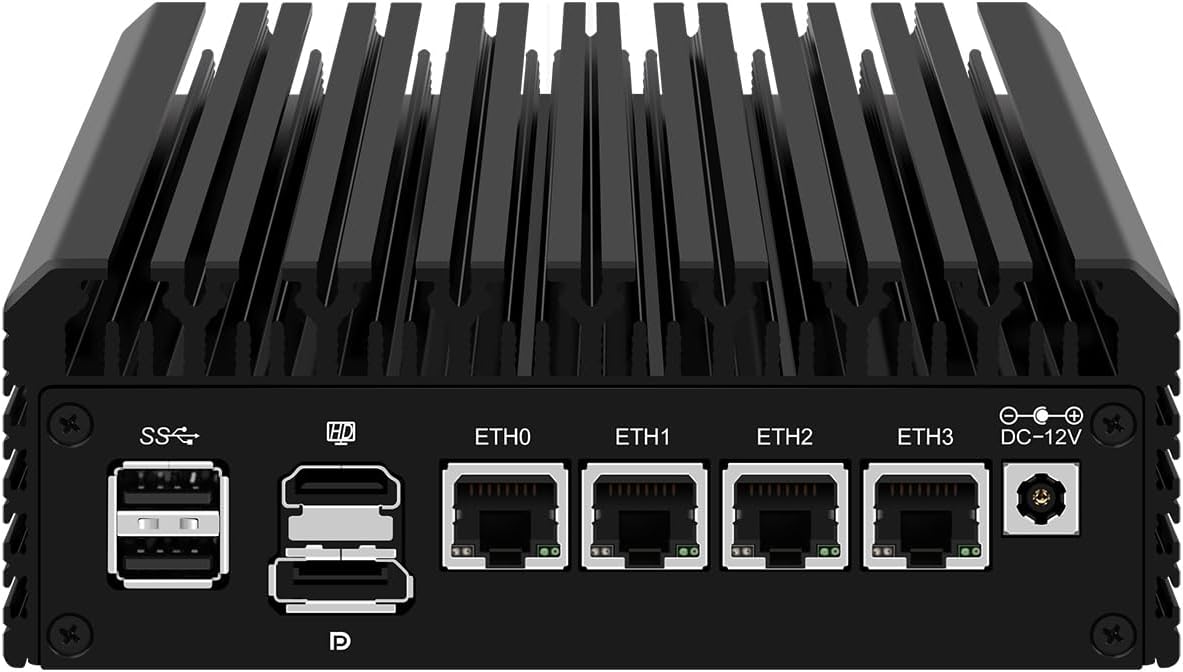
รูปที่ 2: เค้าโครงแผงด้านหลัง
The rear panel houses the primary connectivity options:
- พอร์ต USB 2.0 (2x): สำหรับเชื่อมต่ออุปกรณ์ USB มาตรฐาน
- พอร์ต HDMI: สำหรับเชื่อมต่อกับจอแสดงผล
- ดิสเพลย์พอร์ต (DP): สำหรับเชื่อมต่อกับจอแสดงผล
- LAN Ports (4x 2.5GbE I226-V): Four 2.5 Gigabit Ethernet ports for network connections (ETH0, ETH1, ETH2, ETH3).
- DC_IN Port: For connecting the 12V power adapter.
คำแนะนำการตั้งค่า
1. Hardware Installation (Optional)
If you purchased a barebones unit or wish to upgrade, follow these steps to install RAM, SSD/HDD, or a WiFi module. Ensure the device is powered off and disconnected from the power source before proceeding.
- เปิดฝาครอบตัวเครื่อง: Carefully remove the screws securing the bottom panel of the appliance.
- ติดตั้ง RAM: The device supports 2 x SODIMM DDR4 2933MHz, up to 32GB. Insert the RAM modules into the SODIMM slots, ensuring they are seated correctly and the clips lock them in place.
- ติดตั้งพื้นที่จัดเก็บข้อมูล:
- M.2 NVMe SSD: Insert the M.2 2280 PCIe 3.0 x1 NVMe SSD into its dedicated slot and secure it with the provided screw.
- 2.5 Inch SATA SSD/HDD: Connect a 2.5-inch SATA SSD or HDD using the internal SATA data and power cables (if included). Secure the drive within the chassis.
- Install M.2 WiFi Module (Optional): If installing a WiFi 6 module, insert it into the M.2 WiFi slot and connect the antenna cables.
- ปิดแชสซี: Replace the bottom panel and secure it with the screws.
2. การเชื่อมต่ออุปกรณ์ต่อพ่วง
- การเชื่อมต่อไฟฟ้า: Connect the provided power adapter to the DC_IN port on the rear panel, then plug the power cord into an electrical outlet.
- การเชื่อมต่อเครือข่าย: Connect your network cables to the 2.5GbE LAN ports (ETH0-ETH3) as required for your network configuration (e.g., WAN, LAN, DMZ).
- Display and Input (Optional): For initial setup or direct interaction, connect a monitor via HDMI or DisplayPort, and a keyboard/mouse to the USB ports.
3. การบูตเริ่มต้น
Press the Power ON/OFF button on the front panel. The device should power on. If a display is connected, you will see the boot sequence.
การติดตั้งระบบปฏิบัติการ
The HUNSN RJ03 supports a variety of operating systems and network appliance software. It supports UEFI boot only.
- ระบบที่รองรับ: 5.10.x and above core-based FreeBSD router systems, Linux distributions, or Windows operating systems.
- Firewall Software: Compatible with popular open-source solutions such as pfSense and OPNsense.
- กระบวนการติดตั้ง:
- Prepare a bootable USB drive with your chosen operating system or firewall software.
- Connect the USB drive to a USB port on the RJ03.
- Power on the device and enter the BIOS/UEFI setup (usually by pressing DEL or F2 during boot) to configure the boot order, prioritizing the USB drive.
- ทำตามคำแนะนำบนหน้าจอเพื่อติดตั้งระบบปฏิบัติการ
- Network Driver Considerations: The Intel I226-V 2.5GbE LAN ports may require specific drivers or a newer kernel version for optimal performance, especially with certain older operating systems or firewall distributions (e.g., older pfSense versions). Ensure your chosen OS version supports these NICs or be prepared to install necessary drivers.
การดำเนินการ
Once the operating system is installed and configured, the HUNSN RJ03 functions as a reliable network appliance. Specific operation details will depend on the software installed (e.g., OPNsense, pfSense).
- การจัดการพลังงาน: The device supports hardware auto power-on (enabled by default), network wake-up (Wake-on-LAN), and system power management features. These can typically be configured in the BIOS/UEFI settings.
- การออกแบบที่ไม่มีพัดลม: The fanless design ensures silent operation (0.00dB noise). The aluminum chassis acts as a large heatsink, dissipating heat efficiently.
- การจัดการอุณหภูมิ: The device is designed to operate within a temperature range of 0°C to 70°C. While the chassis may feel warm to the touch, this is normal for fanless systems and indicates effective heat dissipation.
การซ่อมบำรุง
- การทำความสะอาด: Periodically clean the exterior of the device with a soft, dry cloth. Do not use liquid cleaners or aerosols. Ensure ventilation fins are free from dust accumulation to maintain optimal cooling.
- การระบายความร้อน: Although fanless, ensure the device has adequate airflow around its chassis. Avoid placing it in enclosed spaces without ventilation. If operating in consistently high ambient temperatures or under heavy load, consider adding an external USB fan for additional cooling, especially if system temperatures are a concern.
- อัพเดตเฟิร์มแวร์: Check the HUNSN support website or contact customer service for any available BIOS/UEFI firmware updates, which may improve compatibility or performance.
การแก้ไขปัญหา
| ปัญหา | สาเหตุที่เป็นไปได้ | สารละลาย |
|---|---|---|
| อุปกรณ์ไม่เปิดเครื่อง | No power, faulty power supply, or internal connection issue. |
|
| ไม่มีเอาต์พุตการแสดงผล | Incorrect display connection, monitor input, or BIOS settings. |
|
| Network interfaces (LAN ports) not working or slow. | Missing or incorrect network drivers, incompatible OS kernel. |
|
| Device runs very warm. | Normal operation for fanless design, or insufficient ventilation. |
|
ข้อมูลจำเพาะ
| หมายเลขรุ่น | HUNSN RJ03 |
| แชสซี | Aluminum, Fanless Design |
| โปรเซสเซอร์ | Intel Celeron N5105 (4M Cache, up to 2.90 GHz) |
| AES-NI Support | ใช่ |
| หน่วยความจำ | 2 x SODIMM DDR4 2933MHz, max. 32GB (4GB installed in base model) |
| พื้นที่จัดเก็บ | 1 x M.2 2280 PCIe 3.0 x1 NVMe SSD, 1 x 2.5 Inch SATA SSD/HDD (128GB SSD installed in base model) |
| การ์ดเครือข่าย | 4 x 2.5GbE Intel I226-V LAN |
| อินเทอร์เฟซ I/O | Power ON/OFF, CLR CMOS, 2 x USB 3.0, Type-C (Display/USB), TF Card Slot, 2 x USB 2.0, HDMI, DisplayPort, 4 x LAN, DC_IN |
| การขยายตัว | 1 x M.2 WiFi 6 slot |
| พลัง | DC100-240V AC/50-60Hz input, 12V3A output |
| อุณหภูมิในการทำงาน | 0°ซ ~ 70°ซ |
| อุณหภูมิในการจัดเก็บ | -20°C ~ 80°C |
| ความชื้นสัมพัทธ์ | 10% ~ 90% ไม่มีการควบแน่น |
| ทีดีพี | 10วัตต์ |
| ระบบระบายความร้อน | Fanless, supports optional 12V 4-pin 8010 fan |
| ขนาด | 145.6 x 135.6 x 53.6มม. |
| น้ำหนัก | 1.5 กก. (ประมาณ 3.3 ปอนด์) |
| ความเข้ากันได้ของระบบ | FreeBSD router systems (5.10.x+), Linux distros, Windows OS (UEFI support only) |
| คุณสมบัติพิเศษ | Hardware auto power on (default), network wake-up, system power management, temperature management |
การรับประกันและการสนับสนุน
Your HUNSN RJ03 appliance comes with a warranty. Please refer to the included warranty card for specific terms and conditions. For technical support, troubleshooting assistance, or inquiries regarding parts and upgrades, please contact HUNSN customer service through the retailer where you purchased the product or visit the official HUNSN store online.
สำหรับทรัพยากรเพิ่มเติมและข้อมูลผลิตภัณฑ์ คุณสามารถเยี่ยมชมได้ที่ HUNSN Store on Amazon.
