1. บทนำ
Thank you for choosing the Meetion C4120 2.4G Wireless Mouse and Keyboard Combo. This manual provides essential information for setting up, operating, and maintaining your new wireless peripheral set. Please read it thoroughly before use to ensure optimal performance and longevity.
This combo includes a full-size wireless keyboard and a wireless optical mouse, designed for efficient and comfortable use across various operating systems.
2. เนื้อหาบรรจุภัณฑ์
- Meetion 2.4G Wireless Keyboard
- Meetion 2.4G Wireless Mouse
- USB Nano Receiver (typically stored inside the mouse battery compartment)
- คู่มือการใช้งาน (เอกสารนี้)
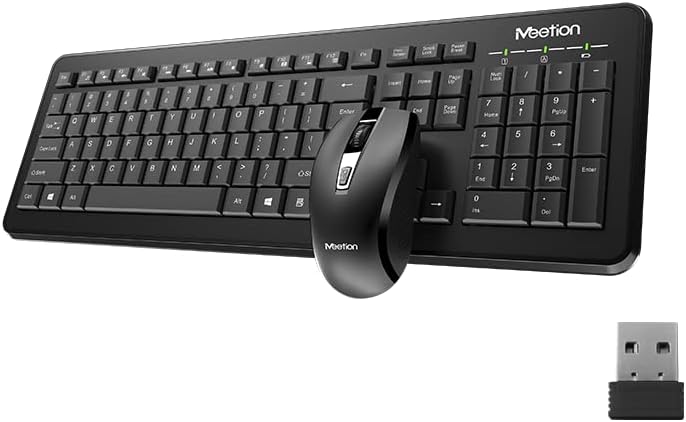
Image Description: This image displays the Meetion C4120 wireless keyboard, the wireless mouse, and the compact USB nano receiver, which is essential for connecting both devices to your computer.
3. คู่มือการติดตั้ง
3.1. การติดตั้งแบตเตอรี่
การติดตั้งแบตเตอรี่คีย์บอร์ด
- ค้นหาช่องใส่แบตเตอรี่ที่ด้านล่างของแป้นพิมพ์
- เปิดฝาช่องใส่แบตเตอรี่
- Insert the required batteries (e.g., 2 x AAA alkaline batteries), ensuring correct polarity (+/-).
- ปิดฝาช่องใส่แบตเตอรี่ให้แน่น
การติดตั้งแบตเตอรี่เมาส์
- ค้นหาช่องใส่แบตเตอรี่ที่ด้านล่างของเมาส์
- เปิดฝาช่องใส่แบตเตอรี่
- Remove the USB Nano Receiver from its storage slot.
- Insert the required battery (e.g., 1 x AA alkaline battery), ensuring correct polarity (+/-).
- ปิดฝาช่องใส่แบตเตอรี่ให้แน่น
3.2. การเชื่อมต่อกับคอมพิวเตอร์ของคุณ
- Ensure batteries are correctly installed in both the keyboard and mouse.
- Turn on the power switch on the underside of the mouse (if present).
- เสียบตัวรับสัญญาณ USB Nano เข้ากับพอร์ต USB ที่ว่างอยู่บนคอมพิวเตอร์ของคุณ
- คอมพิวเตอร์ของคุณจะตรวจจับและติดตั้งไดรเวอร์ที่จำเป็นโดยอัตโนมัติ กระบวนการนี้อาจใช้เวลาสักครู่
- เมื่อติดตั้งไดรเวอร์แล้ว คีย์บอร์ดและเมาส์ก็น่าจะพร้อมใช้งานแล้ว

Image Description: This image shows the top view of the wireless keyboard and mouse, along with the USB receiver, illustrating their compact design and how they appear together.
4. คู่มือการใช้งาน
4.1. ฟังก์ชันแป้นพิมพ์
The Meetion C4120 keyboard features a standard layout with a numeric keypad for efficient data entry.
ไฟแสดงสถานะ:
- Num ล็อคตัวบ่งชี้: Illuminates when the numeric keypad is active.
- Caps ล็อคตัวบ่งชี้: Illuminates when Caps Lock is engaged.
- ตัวบ่งชี้การล็อคการเลื่อน: ไฟจะสว่างขึ้นเมื่อเปิดใช้งาน Scroll Lock
- ไฟแสดงสถานะแบตเตอรี่: May flash or illuminate to indicate low battery power. Replace batteries when this occurs.
4.2. ฟังก์ชันของเมาส์
The Meetion C4120 wireless mouse is equipped with a 1200 DPI optical sensor for precise tracking and smooth cursor movement.
ปุ่ม:
- ปุ่มคลิกซ้าย: การเลือกและการเปิดใช้งานตามมาตรฐาน
- ปุ่มคลิกขวา: เข้าถึงเมนูบริบท
- ล้อเลื่อน: เลื่อนเอกสารและ web หน้าต่างๆ นอกจากนี้ยังสามารถใช้เป็นปุ่มคลิกกลางได้ด้วย
- ปุ่มปรับ DPI: Located below the scroll wheel, this button allows you to cycle through different DPI settings for varying cursor speeds.
DPI (จุดต่อนิ้ว): The mouse operates at 1200 DPI, providing accurate and smooth cursor movement suitable for general computing tasks.

Image Description: This image provides a detailed view of the Meetion C4120 wireless mouse, highlighting its ergonomic design and the USB nano receiver.
5 การแก้ไขปัญหา
5.1. Keyboard or Mouse Not Responding
- ตรวจสอบแบตเตอรี่: ตรวจสอบให้แน่ใจว่าใส่แบตเตอรี่อย่างถูกต้องและมีประจุเพียงพอ เปลี่ยนแบตเตอรี่หากจำเป็น
- ตรวจสอบตัวรับสัญญาณ USB: Make sure the USB Nano Receiver is securely plugged into a working USB port on your computer. Try a different USB port.
- สวิตช์ไฟ: Ensure the mouse's power switch (if applicable) is in the "ON" position.
- สร้างการเชื่อมต่อใหม่: ถอดตัวรับสัญญาณ USB ออก รอสักครู่ แล้วเสียบกลับเข้าไปใหม่
- การรบกวน: Move the keyboard and mouse closer to the USB receiver. Avoid placing the receiver near other wireless devices or large metal objects that could cause interference.
- รีสตาร์ทคอมพิวเตอร์: บางครั้งการรีสตาร์ทคอมพิวเตอร์ง่ายๆ ก็สามารถแก้ไขปัญหาการเชื่อมต่อได้
5.2. Lagging or Intermittent Connection
This can often be caused by wireless interference. Try the suggestions above regarding proximity and interference sources.
5.3. Mouse Cursor Jumps or is Inaccurate
Ensure the mouse optical sensor is clean and free from dust or debris. Use the mouse on a clean, non-reflective surface.
6. การบำรุงรักษา
To ensure the longevity and optimal performance of your Meetion C4120 wireless combo, follow these maintenance guidelines:
- การทำความสะอาด:
- Keyboard: Use a soft, dry cloth to wipe the surface. For deeper cleaning, use compressed air to remove debris from between keys. Avoid liquid cleaners directly on the keys.
- Mouse: Use a soft, dry cloth to clean the exterior. Ensure the optical sensor on the underside is free of dust and lint.
- การเปลี่ยนแบตเตอรี่: Replace batteries promptly when the low battery indicator appears or performance degrades. Dispose of old batteries responsibly according to local regulations.
- พื้นที่จัดเก็บ: When not in use for extended periods, remove batteries and store the devices in a cool, dry place away from direct sunlight and extreme temperatures.
- หลีกเลี่ยงของเหลว: ควรเก็บแป้นพิมพ์และเมาส์ให้ห่างจากของเหลวเพื่อป้องกันความเสียหาย
7. ข้อมูลจำเพาะผลิตภัณฑ์
| คุณสมบัติ | รายละเอียด |
|---|---|
| แบบอย่าง | C4120 (MT-C4120) |
| ยี่ห้อ | การประชุม |
| การเชื่อมต่อ | 2.4G ไร้สาย |
| DPI ของเมาส์ | 1200 DPI Optical |
| ความเข้ากันได้ | วินโดวส์, แมค, ลินุกซ์ |
| ประเภทแป้นพิมพ์ | ขนาดมาตรฐานพร้อมแป้นพิมพ์ตัวเลข |
| Battery Type (Keyboard) | Alkaline (e.g., 2x AAA*) |
| Battery Type (Mouse) | Alkaline (e.g., 1x AA*) |
| สี | สีดำ |
*Note: Battery types are typical for such devices; please refer to the product packaging for exact requirements.
8. การรับประกันและการสนับสนุน
8.1. การรับประกันของผู้ผลิต
The Meetion C4120 Wireless Mouse and Keyboard Combo comes with a รับประกันจากผู้ผลิต 1 ปี ตั้งแต่วันที่ซื้อ การรับประกันนี้ครอบคลุมถึงข้อบกพร่องในวัสดุและฝีมือการผลิตภายใต้การใช้งานปกติ
The warranty does not cover damage caused by misuse, accident, unauthorized modification, or external causes such as liquid damage.
8.2. การสนับสนุนลูกค้า
For technical assistance, warranty claims, or further inquiries, please contact Meetion customer support through their official webไซต์หรือผู้ค้าปลีกที่ซื้อผลิตภัณฑ์
Please have your product model number (C4120 or MT-C4120) and proof of purchase ready when contacting support.


