1. สูงกว่าview
The BIGTREETECH 5-inch HDMI Touch Screen Display is a versatile monitor designed for various applications, offering an 800x480 resolution with a 160° IPS viewing angle. It features 5-point capacitive touch functionality and includes audio output capabilities. This display is compatible with devices such as Raspberry Pi, Sovol-SV08 3D printers, and Windows PCs.

Figure 1: BIGTREETECH 5-inch HDMI Touch Screen Display
ภาพนี้แสดงด้านหน้า view of the BIGTREETECH 5-inch HDMI Touch Screen Display, highlighting its compact design and touch interface.

รูปที่ 2: กว้าง Viewing Angle Demonstration
This image illustrates the 160-degree wide viewing angle of the IPS display, showing consistent image quality from various perspectives.
2. ข้อมูลจำเพาะผลิตภัณฑ์
| พารามิเตอร์ | ค่า |
|---|---|
| ขนาดสินค้า | 121 x 76 มม. |
| กำลังไฟเข้า | กระแสตรง 5 โวลต์ |
| ลอจิกฉบับที่tage | กระแสตรง 3.3 โวลต์ |
| ขนาดหน้าจอ | จอแสดงผล IPS ขนาด 5 นิ้ว |
| ความละเอียดหน้าจอ | ขนาด 800x480 |
| หน้าจอ Viewอิงแองเกิล | 160° |
| ประเภทสัมผัส | Capacitive, 5-point touch |
| เอาท์พุตเสียง | 3.5mm earphone/speaker jack |
3. เนื้อหาบรรจุภัณฑ์
โดยทั่วไปแพ็คเกจจะประกอบด้วยรายการต่อไปนี้:
- BIGTREETECH 5-inch HDMI Touch Screen Display
- สาย HDMI
- USB Cable (for touch and power)
- Mounting hardware (e.g., screws, standoffs, brackets)
4. การตั้งค่าและการติดตั้ง
4.1 Connecting to a Display Output Device (e.g., Raspberry Pi, Sovol-SV08, PC)
- Connect the display to your device using the provided HDMI cable. Ensure a secure connection.
- Connect the display to your device using the Type-C data cable. This cable provides power and enables touch functionality.
- For PC connections, the operating system will typically load the necessary drivers automatically. Once drivers are loaded, the touch device should be recognized.
- After connecting the HDMI cable, the LCD should display content within approximately 5 seconds.
Video 1: Hosyond 5-inch Touchscreen IPS Display Driver-Free Interface
This video demonstrates the physical connection of the 5-inch display to a Raspberry Pi board, including securing it with screws and connecting the DSI ribbon cable (if applicable, though the product description mentions HDMI and Type-C for this model). It shows the display booting up with the Raspberry Pi desktop and basic touch interaction.
Video 2: ELECROW 5-inch Raspberry Pi Screen 800x480 LCD Display Setup
This video illustrates the connection process of a 5-inch 800x480 LCD display to a Raspberry Pi, demonstrating how to connect the HDMI and USB cables for display and touch functionality. It also shows the display working with a Raspberry Pi operating system.
4.2 เอาต์พุตเสียง
To enable audio output, plug a 3.5mm earphone or speaker into the AUDIO interface located on the display.

Figure 3: Audio Output Interface
This image highlights the 3.5mm audio jack on the display, indicating where to connect external headphones or speakers for audio output.
5. คู่มือการใช้งาน
ไฟแสดงสถานะ 5.1 ดวง
- D6 (Red Light): The power indicator. Lights up when the motherboard is powered on, indicating normal power supply.
- D7 (Green Light): The working status indicator. Flashes when the screen is operating normally.
5.2 การปรับความสว่างหน้าจอ
The BIGTREETECH HDMI5 V1.0 supports brightness adjustment:
- กดปุ่ม Ks1 button เพื่อเพิ่มความสว่าง
- กดปุ่ม Ks3 button เพื่อลดความสว่าง

Figure 4: Brightness Adjustment Feature
This image visually represents the adjustable brightness feature of the display, showing a slider for control.
5.3 การปรับทิศทางการแสดงผล
The BIGTREETECH HDMI5 V1.0 supports horizontal display direction adjustment:
- กดปุ่ม Ks2 button to adjust the display orientation horizontally.
5.4 ฟังก์ชันการสัมผัส
The display features a 5-point capacitive touch screen, allowing for intuitive interaction with compatible operating systems.
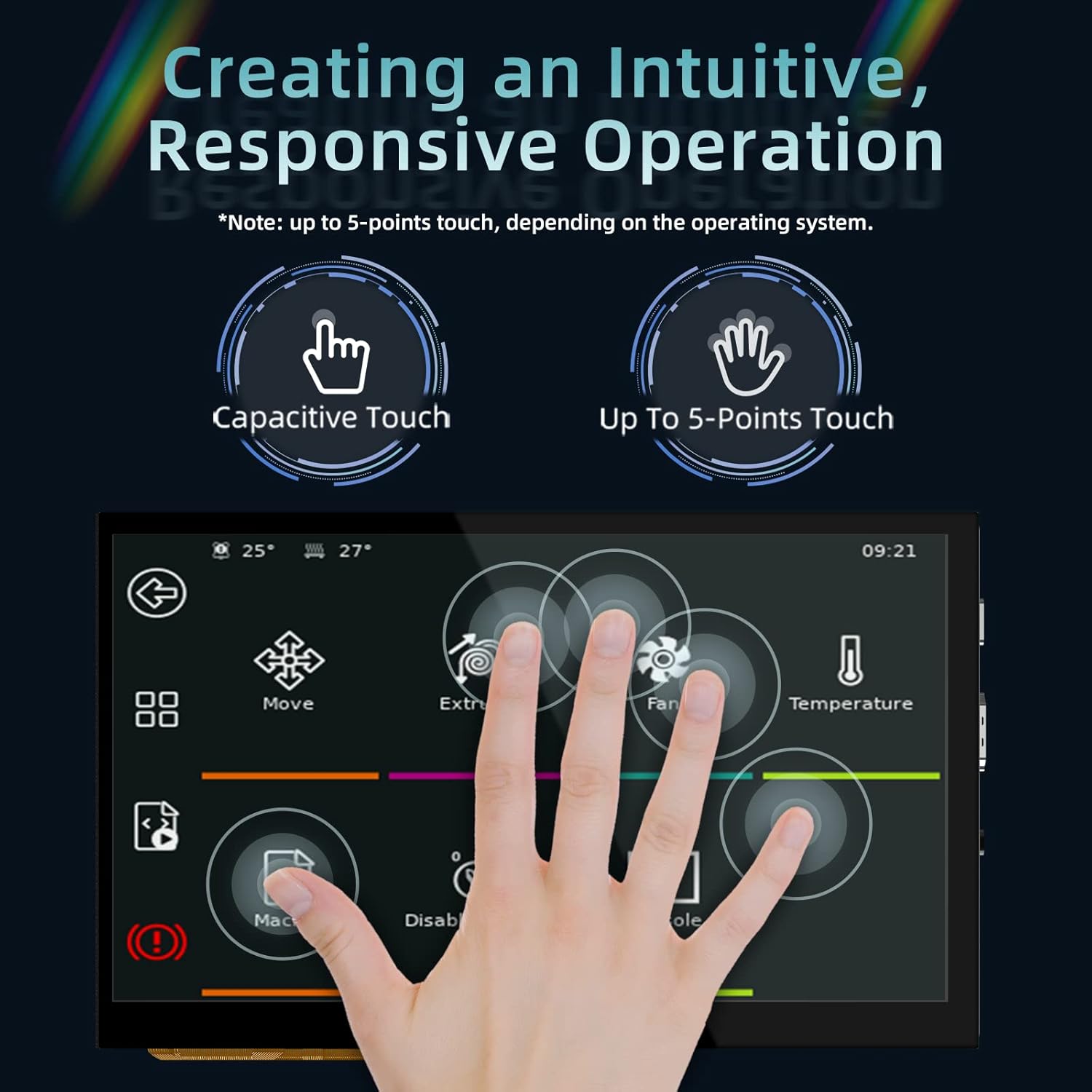
Figure 5: 5-Point Capacitive Touch
This image demonstrates the 5-point capacitive touch capability of the display, showing multiple finger touches recognized simultaneously.
Video 3: LESOWN 5-inch IPS Small HDMI LCD Screen Portable Monitor Usage
This video showcases the 5-inch display connected to a computer, demonstrating its use as a secondary screen and highlighting the touch functionality for navigating the operating system interface.
6 การแก้ไขปัญหา
- ไม่มีจอแสดงผล: Ensure both the HDMI cable and the Type-C data cable are securely connected. Verify that the power indicator (D6 red light) is on.
- ไม่มีการตอบสนองแบบสัมผัส: For PC connections, confirm that the operating system has successfully loaded the touch screen drivers. Reconnect the Type-C data cable.
- การวางแนวหน้าจอไม่ถูกต้อง: Use the Ks2 button to adjust the display direction.
- จอแสดงผลสลัว: Adjust the brightness using the Ks1 and Ks3 buttons.
7. การบำรุงรักษา
- รักษาหน้าจอให้สะอาดด้วยผ้านุ่มที่ไม่เป็นขุย หลีกเลี่ยงการใช้น้ำยาทำความสะอาดที่มีฤทธิ์กัดกร่อน
- Protect the display from extreme temperatures and humidity.
- Avoid applying excessive force to the screen or connections.
8. การรับประกันและการสนับสนุน
สำหรับข้อมูลการรับประกันและการสนับสนุนทางเทคนิค โปรดดูที่เว็บไซต์อย่างเป็นทางการของ BIGTREETECH webหรือติดต่อฝ่ายบริการลูกค้าโดยตรง เก็บใบเสร็จรับเงินไว้เพื่อใช้ในการเคลมประกัน
เป็นทางการ Webเว็บไซต์: ร้าน BIGTREETECH บน Amazon


