1. สินค้าหมดview
The Brook Wingman PS2 Converter allows users to connect modern game controllers wirelessly or wired to PlayStation 2 (PS2), PlayStation 1 (PS1), and PlayStation Classic consoles. This device enhances the retro gaming experience by providing compatibility with a wide range of contemporary controllers, including those from PlayStation 5, PlayStation 4, Xbox Series X/S, Xbox One, and Nintendo Switch Pro.
คุณสมบัติหลัก:
- Broad Controller Compatibility: Supports wireless connections for Xbox Series X/S/Elite 2/One (Bluetooth models), PS5/PS4/PS3, and Nintendo Switch Pro controllers. Supports wired connections for Xbox 360 controllers.
- ฟังก์ชั่น Plug-and-Play: ออกแบบมาเพื่อให้ติดตั้งง่ายและใช้งานได้ทันที
- ฟังก์ชั่นเทอร์โบ: Offers 5 adjustable turbo levels for enhanced gameplay.
- การแมปปุ่มใหม่: Allows for self-defined button configurations.
- ความหน่วงต่ำ: Utilizes Brook's exclusive technology for stable, ultra-low latency performance.

Image 1.1: Brook Wingman PS2 Converter and its retail packaging.

ภาพที่ 1.2: ด้านหน้า view of the Brook Wingman PS2 Converter, highlighting its compact design.
2. เนื้อหาบรรจุภัณฑ์
โปรดตรวจสอบว่าสินค้าทั้งหมดมีอยู่ในแพ็คเกจของคุณ:
- Brook Wingman PS2 Converter (1 unit)
- คู่มือการใช้งาน (เอกสารนี้)
3. โครงสร้างอุปกรณ์และพอร์ต
The Wingman PS2 Converter features several ports for connectivity:
- PS2 Port: Connects directly to the controller port of your PS2 or PS1 console.
- พอร์ตไมโครยูเอสบี: Used for connecting to PS Classic consoles, PC (XID mode), and for providing additional power if needed (e.g., for some PS2 models).
- พอร์ต USB (ชนิด A): For wired controller connections and automatic device registration.
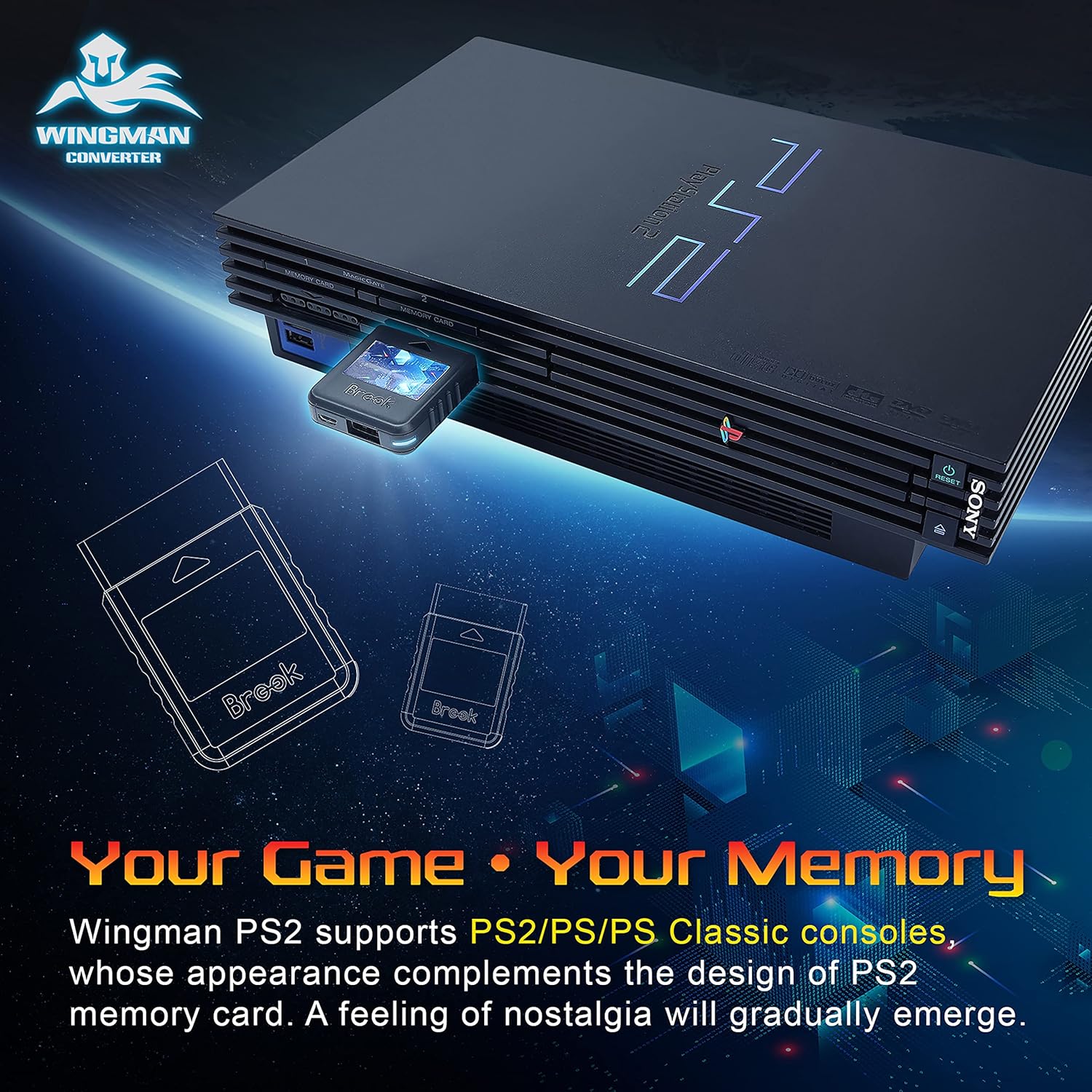
Image 3.1: Diagram illustrating the various ports and their functions on the Wingman PS2 Converter.
4. คำแนะนำในการตั้งค่า
4.1 การเชื่อมต่อเริ่มต้น
- Insert the Wingman PS2 Converter into an available controller port on your PlayStation 2, PlayStation 1, or PlayStation Classic console.
- For PlayStation Classic or PC (XID mode), connect a Micro USB cable from the converter's Micro USB port to the console/PC.
- If your PS2 console's rumble fuse is burnt out or if the converter does not power on, connect a Micro USB cable from the converter's Micro USB port to a USB port on your PS2 console or an external USB power source.

Image 4.1: The Wingman PS2 Converter inserted into a PlayStation 2 console's memory card slot.
4.2 Controller Pairing (Wireless)
To pair a wireless controller:
- Ensure the Wingman PS2 Converter is connected to your console and powered on.
- Activate the pairing mode on your wireless controller (refer to your controller's manual for specific instructions).
- The converter will automatically detect and pair with the controller. A successful connection will be indicated by a stable LED light on the converter.
- Each Wingman PS2 Converter can pair with one wireless device at a time.
4.3 Wired Controller Connection
To connect a wired controller:
- Connect your wired controller (e.g., Xbox 360) to the USB Type-A port on the Wingman PS2 Converter.
- The converter will automatically register the device, and it will be ready for use.

Image 4.2: A visual guide to controller compatibility with the Wingman PS2 Converter, including wired and wireless options.
5. คู่มือการใช้งาน
5.1 ฟังก์ชันเทอร์โบ
The turbo function allows for rapid, continuous input of a button press without repeatedly pressing the button. This can reduce hand fatigue during gameplay.
- The Wingman PS2 Converter offers 5 selectable turbo levels. Refer to the official Brook website or product documentation for specific button combinations to activate and adjust turbo settings.
- Once activated, the assigned button will continuously register input at the selected turbo speed.

Image 5.1: Visual representation of the five adjustable turbo frequency levels (5, 10, 15, 20, 25 inputs per second).
5.2 Button Remapping
Customize your gaming experience by remapping controller buttons to suit your preferences.
- Consult the official Brook website or product documentation for detailed instructions on how to access and configure button remapping.
- Self-defined buttons allow for a personalized control scheme.

Image 5.2: A modern controller with highlighted buttons, demonstrating the flexibility of button remapping.
6. การอัปเดตเฟิร์มแวร์
Brook periodically releases firmware updates to improve product performance, add new features, and enhance controller compatibility. It is recommended to keep your Wingman PS2 Converter's firmware up to date.
- Visit the official Brook webงาน (www.brookaccessory.com) to check for the latest firmware versions.
- Download the firmware update tool and follow the provided instructions carefully to update your device.
- Ensure the converter remains connected to your computer throughout the update process to prevent interruption.
7 การแก้ไขปัญหา
If you encounter issues with your Wingman PS2 Converter, please refer to the following common solutions:
- Converter Not Powering On: Ensure the converter is fully inserted into the PS2/PS1 controller port. If using a PS2 console, some models may require additional power. Connect a Micro USB cable from the converter's Micro USB port to a USB port on your PS2 or an external USB power adapter.
- ตัวควบคุมไม่เชื่อมต่อ/จับคู่:
- Verify that your controller is supported by the Wingman PS2 Converter (refer to Section 1.1).
- ตรวจสอบให้แน่ใจว่าตัวควบคุมอยู่ในโหมดจับคู่
- ลองเชื่อมต่อคอนโทรลเลอร์ใหม่อีกครั้ง
- If using a wired connection, ensure the USB cable is securely connected to both the controller and the converter.
- ความล่าช้าในการป้อนข้อมูล: The Wingman PS2 Converter is designed for ultra-low latency. If you experience noticeable input lag, ensure your console and display settings are optimized for gaming. Verify that the converter's firmware is up to date.
- Unexpected Disconnections: Ensure the converter is firmly seated in the console port. If using a wireless controller, check for potential interference from other wireless devices.
For further assistance, please visit the official Brook support webเว็บไซต์.
8. ข้อมูลจำเพาะ
| คุณสมบัติ | รายละเอียด |
|---|---|
| ขนาดสินค้า | 2.23 x 1.71 x 0.51 นิ้ว |
| น้ำหนักสินค้า | 0.64 ออนซ์ |
| อุปกรณ์ที่รองรับ | Xbox Series X/S/Elite 2/One (BT model), PS5/PS4/PS3, Switch Pro, Xbox 360 (wired) |
| ประเภทขั้วต่อ | USB Type A, Micro USB |
| ความเข้ากันได้ของคอนโซล | PlayStation 2, PlayStation 1, PlayStation Classic |
9. ข้อมูลการรับประกัน
Brook products are covered by a manufacturer's warranty against defects in materials and workmanship. The specific warranty period and terms may vary by region. Please retain your proof of purchase for warranty claims.
For detailed warranty information, please visit the official Brook webไซต์หรือติดต่อฝ่ายสนับสนุนลูกค้าของพวกเขา
10. การสนับสนุนลูกค้า
For technical support, frequently asked questions, and additional resources, please visit the official Brook webเว็บไซต์:
You may also find helpful information and community support through online forums dedicated to retro gaming and Brook products.