1. บทนำ
The ROFAVEZCO HDMI Splitter 1x2 (Model EZ-SP12H28S) is an advanced device designed to duplicate a single HDMI input signal to two separate HDMI outputs simultaneously. It supports high-resolution video formats including 8K@60Hz and 4K@120Hz, along with advanced audio and video technologies such as HDR, Dolby Vision, VRR, G-Sync, and HDCP 2.3 bypass. This splitter is ideal for home theater setups, gaming environments, and professional AV distribution, allowing users to display content on multiple screens without signal degradation.

Figure 1.1: ROFAVEZCO HDMI Splitter 1x2
2. เนื้อหาบรรจุภัณฑ์
โปรดตรวจสอบว่าสินค้าทั้งหมดมีอยู่ในแพ็คเกจ:
- 1 x ROFAVEZCO HDMI 2.1 Splitter
- อะแดปเตอร์ไฟฟ้า 1 ตัว
- สายรัดเคเบิลแบบใช้ซ้ำได้ 2 ชิ้น
- 1 x คู่มือผู้ใช้

รูปที่ 2.1: อะไรอยู่ในกล่อง
3. สินค้าหมดview
The HDMI Splitter features clearly labeled ports and indicators for easy setup and operation. Understanding these components is essential for proper use.
แผงด้านหน้า
- OUT2 4K/1080P Switch: Selects output resolution for OUT2 (4K or 1080P downscaled).
- HDMI ใน: Connects to your HDMI source device.
- เอาต์พุต HDMI1: Primary HDMI output. Supports full resolution and CEC.
- เอาต์พุต HDMI2: Secondary HDMI output. Supports downscaling.
- EDID Select Button: Cycles through EDID modes (4K 7.1CH, 4K 5.1CH, 4K 2.1CH, Copy).
- อัปเดตพอร์ต: Micro USB port for firmware updates.
แผงด้านหลัง
- แหล่งจ่ายไฟ DC/5V: เชื่อมต่อกับอะแดปเตอร์ไฟฟ้าที่ให้มา

Figure 3.1: HDMI Splitter Port Layout and Functions
4. การตั้งค่า
ทำตามขั้นตอนต่อไปนี้เพื่อตั้งค่าตัวแยกสัญญาณ HDMI ของคุณ:
- ปิดอุปกรณ์: Ensure all HDMI source devices (e.g., game console, PC) and display devices (e.g., TV, monitor) are powered off before making connections.
- เชื่อมต่อแหล่งสัญญาณ HDMI: Connect an HDMI cable (HDMI 2.1 recommended for 4K@120Hz/8K@60Hz) from your source device to the HDMI IN พอร์ตบนตัวแยกสัญญาณ
- เชื่อมต่อจอแสดงผล HDMI:
- เชื่อมต่อสาย HDMI จาก ช่องต่อ HDMI1 port on the splitter to your primary display.
- เชื่อมต่อสาย HDMI จาก ช่องต่อ HDMI2 port on the splitter to your secondary display.
- เชื่อมต่อพลังงาน: เชื่อมต่ออะแดปเตอร์ไฟฟ้าที่ให้มาเข้ากับ กระแสตรง/5โวลต์ input on the splitter, then plug the adapter into a power outlet.
- เปิดอุปกรณ์: เปิดอุปกรณ์แสดงผลของคุณก่อน จากนั้นจึงเปิดอุปกรณ์แหล่งสัญญาณ HDMI
หมายเหตุสำคัญ: For optimal performance with 4K@120Hz or 8K@60Hz signals, use high-quality HDMI 2.1 cables shorter than 3 meters (approximately 10 feet).

Figure 4.1: Typical Setup with Gaming Console
5. การดำเนินการ
The HDMI Splitter allows for flexible configuration of video and audio outputs through its EDID and scaler settings.
5.1 การตั้งค่า EDID
The EDID (Extended Display Identification Data) setting determines the video and audio capabilities reported to the source device. Use the เลือก EDID ปุ่มเพื่อหมุนเวียนผ่านโหมดต่อไปนี้:
| โหมด | คำอธิบาย |
|---|---|
| 4K@120Hz 7.1CH | Outputs 4K@120Hz video with 7.1 channel audio (e.g., Dolby Atmos). |
| 4K@120Hz 5.1CH | Outputs 4K@120Hz video with 5.1 channel audio. |
| 4K@120Hz 2.1CH | Outputs 4K@120Hz video with 2.1 channel audio (stereo). |
| สำเนา | Learns and copies the EDID from the display connected to ช่องต่อ HDMI1. This is recommended for most setups to ensure compatibility. |

Figure 5.1: EDID Setting Options
5.2 Scaler Settings (OUT2)
การ OUT2 4K/1080P switch on the front panel controls the downscaling behavior for the ช่องต่อ HDMI2 ท่าเรือ:
- Switch to "4K": ช่องต่อ HDMI2 will pass through the 4K signal without downscaling.
- Switch to "1080P": ช่องต่อ HDMI2 will downscale a 4K signal to 1080P. This is useful when connecting to a 1080P display while your primary display (OUT1) is 4K.
บันทึก:
- ช่องต่อ HDMI2 does not support 8K@60Hz; 8K@60Hz is only available on ช่องต่อ HDMI1.
- If the HDMI source is 4K@60Hz (e.g., PS5, Xbox), OUT2 can downscale to 1080P@60Hz.
- If the HDMI source is 4K@120Hz (e.g., PS5, Xbox), OUT2 can downscale to 1080P@120Hz.
- The splitter does NOT downscale HDR Dolby Vision (4K60 4:2:2) and frequency.

Figure 5.2: Scaler Setting for OUT2
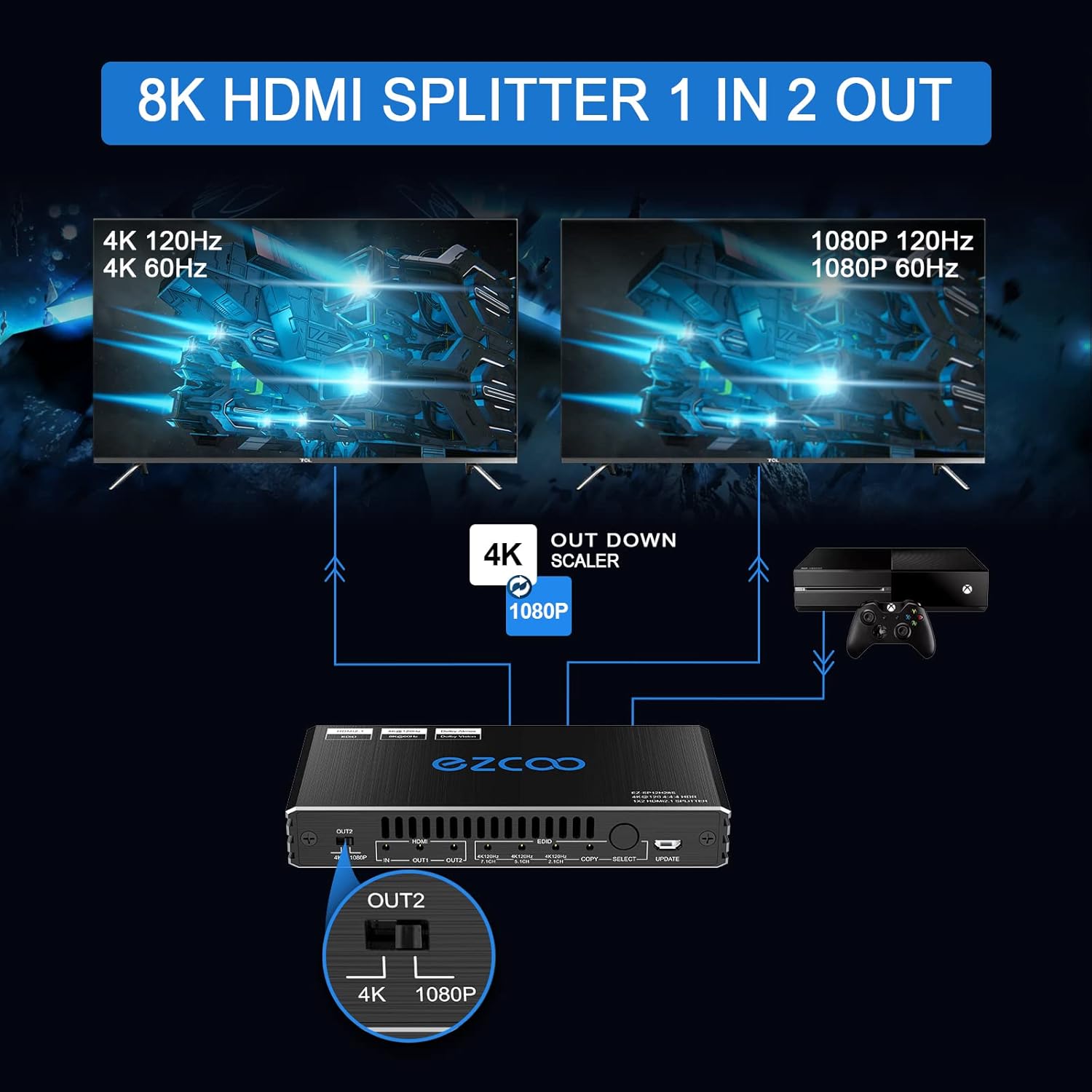
Figure 5.3: Simultaneous Output with Downscaling
6. ความเข้ากันได้
The ROFAVEZCO HDMI Splitter is widely compatible with various HDMI source and display devices:
- อุปกรณ์ต้นทาง: Game consoles (PS5, PS4 Pro, Xbox One S, Xbox Series X, Nintendo Switch), PCs, laptops, projectors, Apple TV, Roku, Fire TV, Nvidia Shield, Xfinity box, Android TV Box, Blu-ray players, 4K cameras.
- อุปกรณ์แสดงผล: 4K TVs, 8K TVs, 1080P TVs, monitors (including VRR, G-Sync, Free Sync compatible monitors like Odyssey G7).
- รูปแบบเสียง: Dolby Digital 7.1CH, Dolby Atmos, DTS:X, TrueHD, DTS-HD Master.
- Video Technologies: HDR, HDR10+, Dolby Vision, VRR (Variable Refresh Rate), ALLM (Auto Low Latency Mode), 3D Vision, HDCP 2.3.

Figure 6.1: 8K UHD Input Source Compatibility
7. อัพเดตเฟิร์มแวร์
Firmware updates can improve product performance and compatibility. To update the firmware:
- รับเฟิร์มแวร์ล่าสุด file (e.g., EZ-SP12H28EAS-V0.99.20.bin) and the update tool (UartAssist, GigaDevice_MCU_ISP_Programmer) from the manufacturer's official webไซต์หรือติดต่อฝ่ายสนับสนุนลูกค้า
- Connect a Micro USB cable from your computer to the อัปเดต port on the front panel of the splitter.
- Follow the specific video guide or instructions provided with the firmware update package to enter update mode and run the programming software.
บันทึก: Ensure stable power supply during the update process. Do not disconnect the device or power off your computer until the update is complete.

Figure 7.1: Firmware Update Process
8 การแก้ไขปัญหา
If you encounter issues with your HDMI Splitter, please refer to the following common problems and solutions:
- ไม่มีสัญญาณบนจอแสดงผล:
- Ensure all HDMI cables are securely connected and are HDMI 2.1 certified for high resolutions.
- Verify the power adapter is correctly connected and the splitter is receiving power.
- Try setting the EDID mode to "COPY" to match the capabilities of your primary display.
- Test with different HDMI cables or source/display devices to isolate the issue.
- หน้าจอกะพริบหรือสัญญาณไม่เสถียร:
- Use shorter, high-quality HDMI 2.1 cables (less than 3m).
- ตรวจสอบให้แน่ใจว่าแหล่งจ่ายไฟมีเสถียรภาพ
- Reboot the splitter by disconnecting and reconnecting the power.
- Audio Issues (No Audio or Incorrect Channels):
- Adjust the EDID setting to match your audio setup (e.g., 7.1CH, 5.1CH, 2.1CH).
- Ensure your source device's audio output settings are configured correctly.
- Downscaling Not Working on OUT2:
- ตรวจสอบความถูกต้อง OUT2 4K/1080P switch is set to "1080P".
- Note that OUT2 does not support 8K@60Hz and does not downscale HDR Dolby Vision.
- CEC Not Functioning:
- เท่านั้น ช่องต่อ HDMI1 supports CEC. Ensure your primary display is connected to OUT1 and supports CEC.
- Check CEC settings on your connected devices.
If problems persist, please contact ROFAVEZCO customer support for assistance.
9. ข้อมูลจำเพาะ
| คุณสมบัติ | ข้อมูลจำเพาะ |
|---|---|
| หมายเลขรุ่น | EZ-SP12H28S |
| เวอร์ชัน HDMI | HDMI2.1 การเชื่อมต่อ |
| เวอร์ชัน HDCP | HDCP 2.3, HDCP 2.2 Bypass |
| ความละเอียดสูงสุด | 8K@60Hz, 4K@120Hz (4:4:4 8bit) |
| ความลึกของสี | Deep Color, 3D |
| รองรับ HDR | HDR, HDR10+, Dolby Vision |
| VRR/ALLM | รองรับ |
| การสนับสนุนด้านเสียง | Dolby Digital 7.1CH, Dolby Atmos, DTS:X, TrueHD, DTS-HD Master |
| การจัดการ EDID | 4K5.1/4K7.1/Copy Mode |
| การลดขนาด | OUT2 only: 4K@120Hz to 1080P@120Hz, 4K@60Hz to 1080P@60Hz |
| การสนับสนุน CEC | OUT1 only |
| ขนาดสินค้า | 6 x 5 x 3.3 นิ้ว |
| น้ำหนักสินค้า | 13 ออนซ์ |
| แหล่งจ่ายไฟ | กระแสตรง 5 โวลต์ |
10. ข้อมูลด้านความปลอดภัย
To ensure safe and reliable operation of your HDMI Splitter, please observe the following:
- Do not expose the device to high temperatures, humidity, or direct sunlight.
- หลีกเลี่ยงการทำอุปกรณ์หล่นหรือกระแทกอย่างรุนแรง
- ห้ามถอดประกอบหรือพยายามซ่อมแซมอุปกรณ์ด้วยตนเอง แนะนำให้ส่งช่างผู้ชำนาญเข้ารับบริการทั้งหมด
- ใช้เฉพาะอะแดปเตอร์ที่ให้มาเท่านั้น
- เก็บอุปกรณ์ให้ห่างจากน้ำหรือของเหลวอื่นๆ
- ตรวจสอบให้แน่ใจว่ามีการระบายอากาศที่เหมาะสมรอบๆ อุปกรณ์เพื่อป้องกันความร้อนสูงเกินไป
11. การรับประกันและการสนับสนุน
ROFAVEZCO products come with a standard warranty. For specific warranty terms and conditions, please refer to the warranty card included with your product or visit the official ROFAVEZCO webเว็บไซต์.
For technical support, troubleshooting assistance, or any inquiries regarding your HDMI Splitter, please contact ROFAVEZCO customer service. Contact information can typically be found on the product packaging, the official website, or the included user manual.
คุณอาจพบแหล่งข้อมูลเพิ่มเติมและคำถามที่พบบ่อยได้ที่ EZCOOTECH Brand Store on Amazon.


