การแนะนำ
This manual provides detailed instructions for the Powerwave Switch Wireless Controller. Learn how to set up, operate, maintain, and troubleshoot your controller to enhance your gaming experience on Nintendo Switch, PC, Android, and iOS devices.

ด้านหน้า view of the Powerwave Switch Wireless Controller, showcasing its Star White design with blue grips and red shoulder buttons. The controller features standard button layouts including A, B, X, Y buttons, a D-pad, and dual analog sticks.
คุณสมบัติผลิตภัณฑ์
- การเชื่อมต่อบลูทูธไร้สาย: Enjoy seamless gaming without cables.
- 3-Speed Dual-Motor Vibration: Experience immersive feedback with adjustable vibration intensity.
- การควบคุมการเคลื่อนไหว: Enhance gameplay with precise motion sensing capabilities.
- ความเข้ากันได้กับหลายแพลตฟอร์ม: Works wirelessly with Nintendo Switch, PC, Android, and iOS 13 and above.
- 4 Programmable Macro Buttons: Customize complex inputs and activate them with a single button press.
- โหมดเทอร์โบ: Enable rapid-fire commands for quick actions in games.
- 8-Colour Rotating LED Lighting Effect: Adds a vibrant visual element to your gaming setup.

Visual representation of the controller's key features, including Wireless Bluetooth, 3-Speed Dual-Motor, PC/Android/iOS13 compatibility, 8-Colour Rotating LED, and Programmable Macro Buttons.
คู่มือการติดตั้ง
1. การชาร์จครั้งแรก
Before first use, fully charge the controller using the provided USB-C cable. Connect the cable to the controller's USB-C port and the other end to a USB power source (e.g., Nintendo Switch dock, PC, or USB wall adapter). The LED indicators will show charging status.
2. การจับคู่กับ Nintendo Switch
- จากเมนู HOME ของ Nintendo Switch เลือก ตัวควบคุม, แล้ว เปลี่ยนกริป/สั่งซื้อ.
- On the Powerwave controller, press and hold the ปุ่ม HOME (house icon) for 3-5 seconds until the LED indicators start flashing rapidly.
- เมื่อจับคู่แล้ว ไฟ LED ของเครื่องเล่นที่สอดคล้องกันบนตัวควบคุมจะสว่างขึ้นอย่างต่อเนื่อง
3. Pairing with PC, Android, or iOS (Bluetooth)
- Ensure Bluetooth is enabled on your device (PC, Android phone/tablet, iOS device).
- On the Powerwave controller, press and hold the ปุ่ม HOME for 3-5 seconds until the LED indicators flash rapidly.
- On your device, search for new Bluetooth devices. Select "Powerwave Controller" (or similar) from the list to pair.
- Once connected, the LED indicators on the controller will stop flashing and remain solid.
คำแนะนำการใช้งาน
การควบคุมพื้นฐาน
The Powerwave Switch Wireless Controller features standard button layouts for intuitive gameplay. Refer to your game's specific control scheme for optimal use.
Programmable Macro Buttons (M1, M2, M3, M4)
The controller includes four programmable macro buttons on the back (M1, M2, M3, M4) for executing complex command sequences with a single press.
- การเข้าสู่โหมดการเขียนโปรแกรม: กดปุ่มค้างไว้ ปุ่มมาโคร (usually a small button near the M buttons) until the indicator light flashes.
- Recording Macro: Press the desired M button (M1-M4) you wish to program. Then, input the sequence of buttons you want to record (e.g., A, B, X, Y, L, R, ZL, ZR, D-pad directions, analog stick movements).
- การออกจากโหมดการเขียนโปรแกรม: กดปุ่ม ปุ่มมาโคร again to save the macro and exit programming mode. The indicator light will stop flashing.
- Using Macro: Simply press the programmed M button during gameplay to execute the recorded sequence.
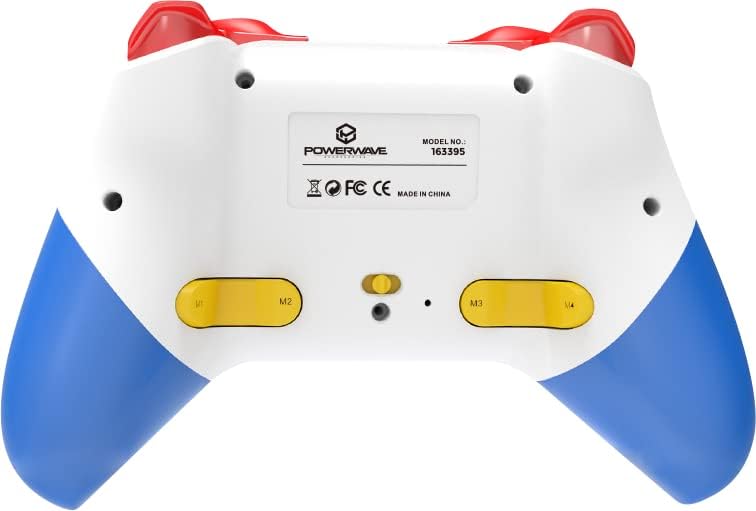
หลัง view of the Powerwave Switch Wireless Controller, highlighting the M1, M2, M3, and M4 programmable macro buttons, along with the model number and regulatory markings.
โหมดเทอร์โบ
Turbo mode allows a button to be pressed repeatedly as long as it is held down, providing a rapid-fire function.
- การเปิดใช้งานเทอร์โบ: กดปุ่มค้างไว้ ปุ่มเทอร์โบ (usually marked 'T') and then press the desired action button (e.g., A, B, X, Y, L, R, ZL, ZR). The button will now be in Turbo mode.
- การปรับความเร็วเทอร์โบ: ขณะที่ถือ ปุ่มเทอร์โบ, move the Right Analog Stick Up or Down to cycle through different turbo speeds (slow, medium, fast).
- การปิดใช้งานเทอร์โบ: To remove Turbo from a specific button, press and hold the ปุ่มเทอร์โบ and then press the same action button again. To clear all Turbo settings, press and hold the ปุ่มเทอร์โบ เป็นเวลา 5 วินาที
การปรับการสั่นสะเทือน
The controller features 3-speed dual-motor vibration. To adjust vibration intensity, press and hold the ปุ่มสั่น (if available, or a combination like Turbo + D-pad Up/Down) to cycle through intensities (Off, Low, Medium, High).
เอฟเฟกต์แสง LED
The 8-colour rotating LED lighting effect can be toggled or adjusted. Refer to the specific button combination for your controller model, often involving a dedicated LED button or a combination with the Turbo button.
การซ่อมบำรุง
- การทำความสะอาด: ใช้ผ้านุ่มและแห้งเช็ดคอนโทรลเลอร์ สำหรับสิ่งสกปรกฝังแน่น ให้เช็ดเบาๆampชุบผ้าด้วยน้ำ ห้ามใช้สารเคมีรุนแรงหรือน้ำยาทำความสะอาดที่มีฤทธิ์กัดกร่อน
- พื้นที่จัดเก็บ: เก็บตัวควบคุมไว้ในที่แห้งและเย็น ห่างจากแสงแดดโดยตรงและอุณหภูมิที่สูงหรือต่ำมาก
- การดูแลแบตเตอรี่ เพื่อยืดอายุการใช้งานแบตเตอรี่ ควรหลีกเลี่ยงการปล่อยประจุแบตเตอรี่จนหมดบ่อยๆ ควรชาร์จเป็นประจำ แม้จะไม่ได้ใช้งานเป็นเวลานานก็ตาม
- หลีกเลี่ยงการหยด: ควรปกป้องตัวควบคุมจากการกระแทกและการตกหล่น ซึ่งอาจทำให้ชิ้นส่วนภายในเสียหายได้
การแก้ไขปัญหา
| ปัญหา | วิธีแก้ปัญหาที่เป็นไปได้ |
|---|---|
| ตัวควบคุมไม่เปิดใช้งาน | Ensure the controller is fully charged. Connect it to a power source and allow it to charge for at least 30 minutes before attempting to turn it on again. |
| Controller fails to pair with device. |
|
| อาการหน่วงของอินพุตหรือการตัดการเชื่อมต่อระหว่างการเล่นเกม |
|
| ปุ่มหรือแท่งอนาล็อกไม่ตอบสนอง |
|
ข้อมูลจำเพาะ
- หมายเลขรุ่น: 163395
- ขนาดสินค้า : 15 x 6 x 10 ซม.
- น้ำหนัก: 212 กรัม
- การเชื่อมต่อ: บลูทูธไร้สาย
- ความเข้ากันได้: Nintendo Switch, Nintendo Switch Lite, Nintendo Switch OLED, PC, Android, iOS 13+
- คุณสมบัติ: 3-Speed Dual-Motor Vibration, Motion Controls, 4 Programmable Macro Buttons, Turbo Mode, 8-Colour Rotating LED Lighting Effect
- Unsupported Functions (Nintendo Switch): HD Rumble, NFC, IR Camera
การรับประกันและการสนับสนุน
For warranty information and technical support, please refer to the official Powerwave webหรือติดต่อฝ่ายบริการลูกค้า เก็บหลักฐานการซื้อไว้เพื่อใช้ในกรณีที่ต้องการเคลมประกัน
Powerwave Official Webเว็บไซต์: www.powerwave.com.au


