สินค้าเกินview
The iClever KP10 is an aluminum wireless number pad designed for enhanced data entry and productivity across multiple devices. It features a slim, durable build and supports dual-device connectivity via Bluetooth.
คุณสมบัติหลัก
- Smarter, Faster Input: 34 essential keys including calculator, PgUp, PgDn, Insert, and more for efficient data handling.
- Dual-Device, Wide Compatibility: Connects to 2 devices and is compatible with Windows, Mac, iOS, Android, and Chrome OS, suitable for laptops, tablets, and phones.
- Stable & Ultra-Slim Build: Constructed with a stainless steel base, ABS top cover, and scissor switches for durability and a lifespan of over 5 million keystrokes.
- ชาร์จเร็วด้วย USB-C: A 1-hour charge provides up to 100 hours of use.
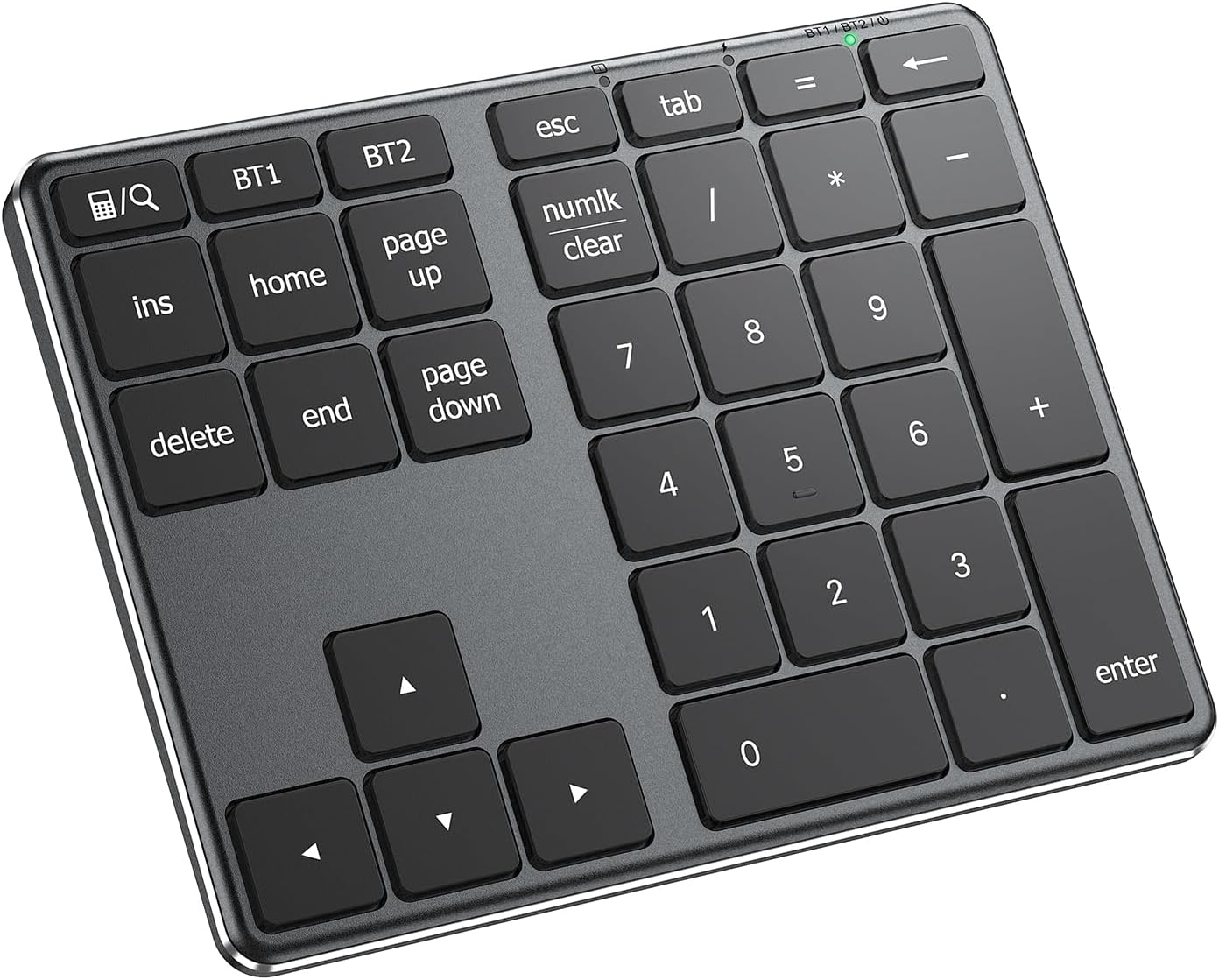
แบบบน-ล่าง view of the iClever KP10 Aluminum Wireless Number Pad, showcasing its sleek black design and full 34-key layout.
เนื้อหาแพ็คเกจ
The following items are included in your iClever Number Pad package:
- แป้นพิมพ์ตัวเลข iClever KP10
- สายชาร์จ USB-C
- คู่มือการใช้งาน
ข้อมูลจำเพาะ
| คุณสมบัติ | รายละเอียด |
|---|---|
| ขนาดสินค้า | 5.75 x 4.45 x 0.51 นิ้ว (ยาว 5.74 นิ้ว x กว้าง 4.44 นิ้ว x สูง 0.51 นิ้ว) |
| น้ำหนักสินค้า | 7.7 ออนซ์ |
| ผู้ผลิต | iClever |
| ASIN | B0B1CWJCS5 |
| หมายเลขรุ่นสินค้า | KP10 |
| วันที่พร้อมใช้งานครั้งแรก | 16 พฤษภาคม 2022 |
| ยี่ห้อ | iClever |
| อุปกรณ์ที่รองรับ | คอมพิวเตอร์พีซี, แล็ปท็อป, ไอแมค, แมคบุ๊ก, แท็บเล็ต, สมาร์ทโฟน, ไอโฟน, ไอแพด |
| เทคโนโลยีการเชื่อมต่อ | บลูทูธ |
| คำอธิบายแป้นพิมพ์ | Bluetooth Keyboard, Scissor Switch, Portable Size |
| การใช้งานที่แนะนำสำหรับผลิตภัณฑ์ | สำนักงาน |
| คุณสมบัติพิเศษ | Laptop typing experience, USB-C Charge, Multi-OS, Aluminum solid build |
| สี | สีดำ |
| สไตล์ | ร่วมสมัย |
| วัสดุ | อะคริโลไนไตรล์ บิวทาไดอีน สไตรีน, โลหะ |
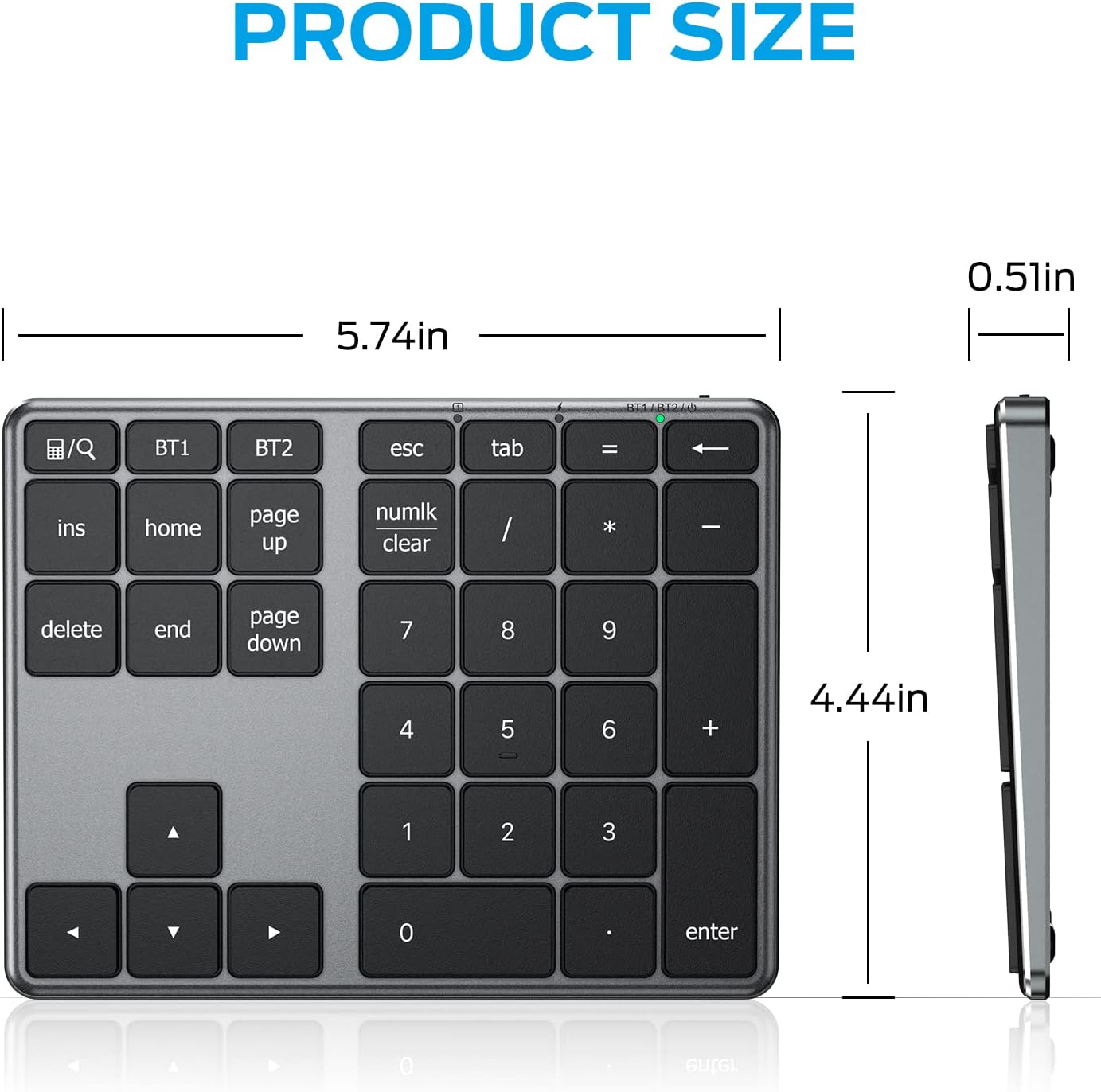
A diagram illustrating the compact dimensions of the iClever KP10 Number Pad, measuring 5.74 inches in length, 4.44 inches in width, and 0.51 inches in height.
การตั้งค่า
Charging the Number Pad
Before initial use, fully charge the number pad. Connect the provided USB-C charging cable to the number pad's USB-C port and to a power source (e.g., computer USB port or a charger with voltage below 5V). The charging indicator will be red while charging and turn green when fully charged.

A visual representation of the iClever KP10 Number Pad being charged via its USB-C port, alongside indicators showing 1 hour charge time for 100 hours working or 30 days standby.
Pairing with Devices (Bluetooth)
The iClever KP10 supports connection to two devices simultaneously. Follow these steps to pair:
- เปิดใช้งานแป้นตัวเลขโดยใช้สวิตช์เปิด/ปิด
- กด . ค้างไว้ BT1 or BT2 key for 3-5 seconds until the corresponding indicator light flashes rapidly, indicating pairing mode.
- On your device (laptop, tablet, smartphone), enable Bluetooth and search for available devices.
- Select "iClever KP10" (or similar name) from the list of found devices to complete the pairing process.
- Repeat for a second device using the other BT key.

An illustration demonstrating the iClever KP10 Number Pad's ability to connect to two devices simultaneously, such as a laptop and a tablet, via Bluetooth 5.1 technology.
การดำเนินการ
ฟังก์ชั่นปุ่มพื้นฐาน
The iClever KP10 features a standard numeric keypad layout with additional function keys for enhanced productivity.

รายละเอียด view of the 34-key numeric keypad layout of the iClever KP10, highlighting the arrangement of number keys, operators, and special function keys like Numlk, Page Up/Down, Insert, and Delete.
ฟังก์ชั่นคีย์พิเศษ
- Calculator Key (🔍/Q): On Windows, this key functions as a calculator shortcut. On macOS/iOS, it functions as a search shortcut.
- Numlk Key (Numlk/Clear): On Windows, this key functions as Number Lock, enabling or disabling the numeric keypad. On macOS, it functions as the Clear key. The Numlk indicator light may deactivate after 6 seconds of non-use as a battery-saving feature, but Numlk remains active until pressed again.
- PgUp, PgDn, Ins, Home, End: These keys provide quick navigation and editing functions.
- ปุ่มลูกศร: ปุ่มลูกศรเฉพาะสำหรับการนำทาง

A diagram illustrating the dedicated shortcut keys on the iClever KP10 Number Pad, including Search/Calculator, Tab, Home, End, and Numlk/Clear keys, designed for quick access to common functions.
การสลับระหว่างอุปกรณ์
ในการสลับระหว่างอุปกรณ์ที่จับคู่ไว้ เพียงแค่กดปุ่ม BT1 or BT2 key corresponding to the desired device. The number pad will automatically connect to the selected device.

An image depicting the iClever KP10 Number Pad's capability to support two connected devices, shown with an iPad and a laptop, allowing seamless switching between them.
การซ่อมบำรุง
การทำความสะอาด
To clean the number pad, use a soft, dry cloth. For stubborn dirt, a slightly damp สามารถใช้ผ้าชุบสบู่เหลวอ่อนๆ เช็ดทำความสะอาดได้ โดยระวังอย่าให้ของเหลวเข้าไปในตัวเครื่อง หลีกเลี่ยงน้ำยาทำความสะอาดที่มีฤทธิ์กัดกร่อนหรือตัวทำละลาย
การดูแลแบตเตอรี่
To prolong battery life, avoid fully discharging the number pad frequently. Recharge the device when the battery indicator is low. Always use a charger with a voltage below 5V or a computer USB port for charging to prevent damage.
การแก้ไขปัญหา
Calculator Key or Numlk Key Not Working
The calculator key functions as "Calculator" on Windows and "Search" on macOS/iOS. The Numlk key functions as "Number lock" on Windows and "Clear" on macOS. Ensure your operating system is correctly recognized by the number pad.
Keyboard Gets Delayed Frequently / Input Repeats
Lag and repeat problems are typically caused by signal interference. Consider the following troubleshooting steps:
- Verify the iClever is connected to the built-in Bluetooth of your device, not an external Bluetooth adapter.
- Ensure the number pad and your device are in close proximity.
- Move away from metal objects and other sources of wireless signal interference (e.g., cordless phones, wireless speakers, Wi-Fi routers, computer power supplies).
- Disconnect other wireless accessories temporarily to check for interference.
- Charge the iClever number pad for at least one hour.
- Test the number pad on another device to isolate the issue.
Note: Input smoothness may be affected by multiple wireless accessories connected to the device, during the first few seconds after switching devices or waking them up, or if the PC case is placed under a desk, blocking the signal.
Charging Indicator / Charging Issues
The charging indicator remains red while charging and turns green when fully charged. If the number pad does not charge, ensure you are using a charger with a voltage below 5V or a computer USB port. Higher voltage chargers may cause the keyboard to shut down.
Cannot Operate Computer by USB Cable
The USB cable provided is for charging purposes only. It cannot be used to operate your device or for data transfer.
การรับประกันและการสนับสนุน
Your iClever Number Pad comes with a 12-month hassle-free warranty. For any product-related inquiries or support, please contact iClever customer service. Lifetime responsive customer support is available to assist you.
Additional resources, including a Troubleshooting Guide and User Manual in PDF format, are available for download:


