1. บทนำ
This manual provides detailed instructions for the installation, operation, and maintenance of your SCOORNEST Wireless Security Camera. This compact, battery-operated camera is designed for indoor use, offering 1080P HD video, night vision, and remote monitoring capabilities via a mobile application. Please read this manual thoroughly before using the product to ensure proper function and safety.

Image: The SCOORNEST Wireless Security Camera discreetly placed in a living room, providing wide area surveillance.
2. คุณสมบัติของผลิตภัณฑ์
The SCOORNEST Wireless Security Camera offers a range of features for effective home monitoring:
- วิดีโอ HD 1080P: บันทึกภาพอาหารได้อย่างชัดเจนและละเอียดtage.
- ไร้สายและใช้แบตเตอรี่: Flexible placement without the need for constant power outlets.
- การมองเห็นตอนกลางคืน: Provides clear monitoring in low-light or dark conditions.
- การตรวจจับการเคลื่อนไหว: Alerts you to detected movement, enhancing security.
- การควบคุมระยะไกลผ่านแอปพลิเคชัน: Monitor and control the camera from your smartphone or tablet.
- การใช้งานหลายสถานการณ์: Suitable for monitoring homes, babies, pets, elderly care, and office spaces.

Image: Key features of the camera, including 1080P resolution, motion detection, WiFi connectivity, and wireless operation.

Image: Demonstration of the camera's 1080P resolution, providing clear and smooth video quality.
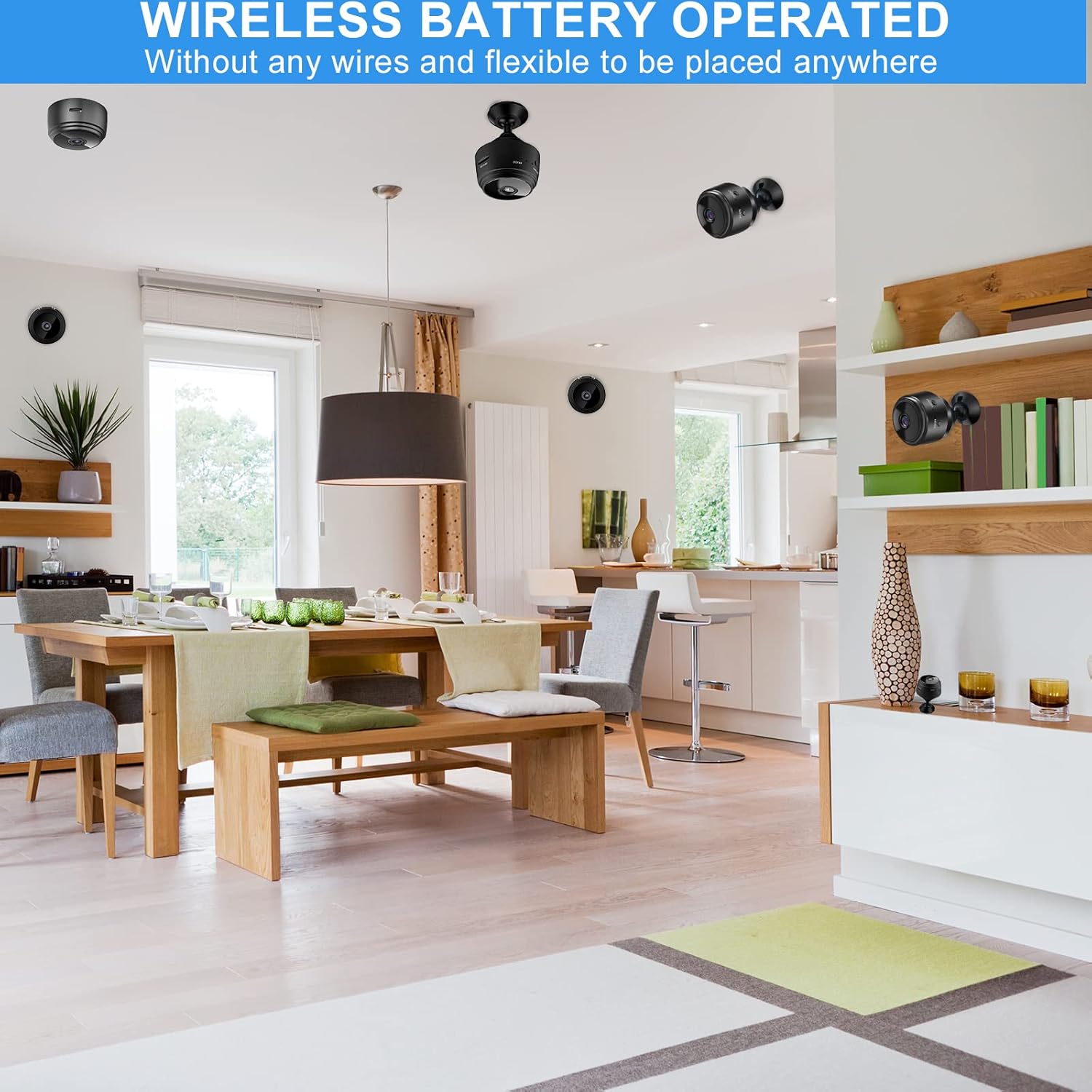
Image: The camera's motion detection feature, sensitive to capture movement and trigger alerts.

Image: Comparison of day and night vision, illustrating the camera's ability to monitor in various lighting conditions.
3. คู่มือการติดตั้ง
Follow these steps to set up your SCOORNEST Wireless Security Camera:
- ชาร์จกล้อง: Before first use, fully charge the camera using the provided USB cable. A red indicator light typically signifies charging, turning off or changing color when complete.
- ดาวน์โหลดแอป: ค้นหา "HDwifiCamPro" in the App Store (iOS) or Google Play Store (Android) and install it on your smartphone.
- เปิดกล้อง: กดปุ่มเปิด/ปิดค้างไว้จนกระทั่งไฟแสดงสถานะติด
- เชื่อมต่อกับโทรศัพท์: Open the HDwifiCamPro app. Follow the in-app instructions to connect the camera to your phone. This usually involves connecting to the camera's temporary Wi-Fi hotspot first, then configuring it to connect to your home 2.4GHz Wi-Fi network.
- วางตำแหน่งกล้อง: Place the camera in your desired monitoring location. Its wireless design allows for flexible placement. Ensure it has a clear line of sight to the area you wish to monitor.
Image: Visual guide for connecting the camera to your smartphone and home WiFi network.
4. คู่มือการใช้งาน
Once your camera is set up, you can begin monitoring:
- สด View: Open the HDwifiCamPro app and select your camera to view ฟีดวิดีโอสด
- การบันทึก: The camera supports continuous recording or motion-activated recording. Ensure a microSD card (not included) is inserted for local storage, or utilize cloud storage options if available through the app.
- การแจ้งเตือนการเคลื่อนไหว: Enable motion detection in the app settings to receive notifications on your phone when movement is detected.
- Night Vision Activation: Night vision typically activates automatically in low-light conditions.
- การเข้าถึงระยะไกล: As long as your camera is connected to Wi-Fi and your phone has internet access, you can view the live feed and manage settings from anywhere.

Image: Live monitoring of the camera feed on a smartphone.

ภาพ: อดีตample of using the camera for pet monitoring via the mobile app.

Image: The camera feed can be viewed on multiple devices, including laptops, tablets, and smartphones.
5. การบำรุงรักษา
To ensure the longevity and optimal performance of your camera:
- การทำความสะอาด: เช็ดเลนส์และตัวกล้องเบาๆ ด้วยผ้านุ่มและแห้ง หลีกเลี่ยงการใช้สารเคมีรุนแรงหรือวัสดุที่มีฤทธิ์กัดกร่อน
- การดูแลแบตเตอรี่ Recharge the camera regularly, especially if it's not connected to a continuous power source. Avoid fully depleting the battery frequently to prolong its lifespan.
- การอัปเดตซอฟต์แวร์: Check the HDwifiCamPro app periodically for firmware updates for your camera. Keeping the software updated can improve performance and security.
- พื้นที่จัดเก็บ: If storing the camera for an extended period, ensure it is fully charged and stored in a cool, dry place.
6 การแก้ไขปัญหา
หากคุณพบปัญหาเกี่ยวกับกล้อง โปรดดูปัญหาทั่วไปและวิธีแก้ไขต่อไปนี้:
| ปัญหา | สาเหตุที่เป็นไปได้ | สารละลาย |
|---|---|---|
| กล้องไม่เชื่อมต่อกับ Wi-Fi | รหัสผ่าน Wi-Fi ไม่ถูกต้อง; กล้องอยู่ไกลจากเราเตอร์เกินไป; ใช้เครือข่าย Wi-Fi 5GHz | Ensure correct 2.4GHz Wi-Fi password; move camera closer to router; ensure router supports 2.4GHz. |
| คุณภาพของภาพไม่ดี | Dirty lens; insufficient lighting; weak Wi-Fi signal. | Clean the lens; ensure adequate lighting or rely on night vision; improve Wi-Fi signal strength. |
| แบตเตอรี่หมดเร็ว | ถ่ายทอดสดบ่อยครั้ง viewing; continuous recording; high motion detection sensitivity. | Reduce live viewing time; use motion-activated recording; adjust motion detection sensitivity; keep camera plugged in if possible. |
| แอปไม่ได้รับการแจ้งเตือน | App notifications disabled; motion detection off; phone in Do Not Disturb mode. | Check app notification settings; enable motion detection; disable Do Not Disturb. |
หากปัญหายังคงอยู่ โปรดดูข้อมูลการติดต่อได้ในส่วนการรับประกันและการสนับสนุน
7. ข้อมูลจำเพาะ
| คุณสมบัติ | รายละเอียด |
|---|---|
| ขนาดสินค้า | 3.98 x 2.4 x 1.46 นิ้ว |
| น้ำหนักสินค้า | 2.08 ออนซ์ |
| หมายเลขรุ่น | FDA MASK 95 |
| ยี่ห้อ | สกอร์เนสต์ |
| ประเภทเลนส์ | มุมกว้าง |
| การออกแบบเลนส์ | ซูม |
| ประเภทโฟกัส | โฟกัสแบบแมนนวล |
| คำอธิบายการเคลือบเลนส์ | เคลือบ HD |
| วันที่พร้อมใช้งานครั้งแรก | 10 พฤษภาคม 2022 |
8. การรับประกันและการสนับสนุน
SCOORNEST is committed to providing quality products and customer satisfaction. Your SCOORNEST Wireless Security Camera comes with a รับประกันหนึ่งปี from the date of purchase. Additionally, we offer บริการหลังการขายตลอดอายุการใช้งาน.
For any product-related inquiries, technical support, or warranty claims, please contact our customer service team. Refer to the product packaging or the official SCOORNEST webเว็บไซต์สำหรับข้อมูลการติดต่อล่าสุด
You can also find a PDF version of the Instructions for Use ที่นี่.


