การแนะนำ
This manual provides comprehensive instructions for the installation, operation, and troubleshooting of your ROFAVEZCO USB 3.0 KVM Switch. This device allows you to control up to four HDMI source devices (such as computers, laptops, gaming consoles) from a single set of USB keyboard, USB mouse, and one HDMI monitor. It supports high-resolution video up to 4K@60Hz and offers convenient switching methods including front panel buttons, IR remote control, and keyboard hotkeys.
For optimal performance and to ensure proper functionality, please read this manual thoroughly before setting up and operating the KVM switch.
คุณสมบัติผลิตภัณฑ์
- สวิตช์ KVM HDMI 4 พอร์ต: Control four HDMI sources/computers with one set of USB keyboard, mouse, and a single HDMI monitor.
- การสนับสนุนความละเอียดสูง: Supports 4K@60Hz (4:4:4 8bit HDR Dolby Vision), 1080p@144Hz/120Hz/60Hz 3D.
- ฮับ USB 3.0: Integrated USB 3.0 ports for high-speed data transmission up to 5Gbps, allowing connection of additional USB devices like printers, scanners, game controllers, and external HDDs.
- วิธีการสลับหลายวิธี: Easily switch between connected computers using front panel buttons, IR remote control, or keyboard hotkeys.
- การสกัดเสียง: Features SPDIF Optical 5.1CH and Stereo 2.1CH audio extractor outputs.
- HDCP Bypass & CEC Support: Ensures compatibility with various HDMI devices and content protection.
- ความเข้ากันได้กว้าง: Compatible with Windows, macOS, Linux, iOS, Android, and various devices including PCs, laptops, PS5, Xbox One S, projectors, and HD cameras.
- การออกแบบที่ทนทาน: Industrial metal chassis for improved cooling and stable performance.
- ปลั๊กแอนด์เพลย์: ไม่จำเป็นต้องติดตั้งไดรเวอร์
เนื้อหาแพ็คเกจ

Image: The ROFAVEZCO USB 3.0 KVM Switch unit, accompanied by its power adapter, IR remote control, IR extension cable, and four USB 3.0 cables.
- 1 x ROFAVEZCO USB 3.0 KVM Switch (Model: EZ-SW41HA-KVMU3P)
- 1 x DC 5V 3A อะแดปเตอร์ไฟฟ้า
- สายเคเบิล USB 4 3.0 เส้น
- 1 x IR รีโมทคอนโทรล
- สายต่อขยาย IR 1 เส้น
- 1 x คู่มือผู้ใช้ (เอกสารนี้)
Product Diagram and Connections

Image: A detailed connection diagram illustrating how various devices such as PCs, laptops, gaming consoles, USB peripherals (mouse, keyboard, printer, camera), and a monitor connect to the KVM switch.
แผงด้านหน้า
- USB3.0 Ports (USB1, USB2, USB3, USB4): For connecting USB peripherals like keyboard, mouse, USB drives, etc.
- Hot Key Switch: Toggle switch to enable/disable keyboard hotkey functionality.
- Activity Display (IN1, IN2, IN3, IN4): LEDs indicating the currently active input.
- ปุ่มเลือก: Used to manually switch between inputs.
- ตัวรับสัญญาณ IR: For receiving signals from the IR remote control.
- IR Ext. Port: For connecting the IR extension cable.
แผงด้านหลัง
- USB3.0-PC Ports (USB3.0-PC1 to USB3.0-PC4): Connect these to the USB 3.0 ports on your source computers/laptops.
- HDMI IN Ports (HDMI IN1 to HDMI IN4): Connect these to the HDMI output of your source computers/laptops/consoles.
- HDMI ออก: Connect this to your HDMI monitor.
- กระแสตรง/5V: พอร์ตอินพุตไฟ
- SPDIF ออก: เอาต์พุตเสียงออปติคัล
- เสียงออก: เอาต์พุตเสียงสเตอริโอ 3.5 มม.
คำแนะนำการตั้งค่า
ปิดอุปกรณ์ทั้งหมด: Before making any connections, ensure all computers, the monitor, and the KVM switch are powered off.
เชื่อมต่ออินพุต HDMI: Connect the HDMI output of each computer/source device to the corresponding HDMI IN port (HDMI IN1 to HDMI IN4) on the KVM switch using high-quality HDMI 2.0 standard cables (less than 3 meters recommended).
Connect USB Inputs: Connect the USB 3.0 output of each computer/source device to the corresponding USB3.0-PC port (USB3.0-PC1 to USB3.0-PC4) on the KVM switch using the provided USB 3.0 cables. สำคัญ: Connect the USB HDMI cable first to wake up the USB switch (allow approximately 20 seconds for recognition).
เชื่อมต่อจอภาพ: Connect your HDMI monitor to the HDMI OUT port on the KVM switch.
เชื่อมต่อคีย์บอร์ดและเมาส์: Connect your USB keyboard to the USB2 port and your USB mouse to the USB1 port on the front panel of the KVM switch. For optimal performance, ensure the mouse is connected to USB1 and keyboard to USB2.
Connect Other USB Peripherals: If you have other USB devices (e.g., printer, scanner, USB drive), connect them to the remaining USB3.0 ports (USB3, USB4) on the front panel.
เชื่อมต่อเสียง (อุปกรณ์เสริม): If using external audio systems, connect your SPDIF optical cable to the SPDIF OUT port or a 3.5mm audio cable to the AUDIO OUT port.
Connect IR Extension Cable (Optional): If you plan to use the IR remote control from a distance or if the KVM switch is out of direct line of sight, connect the IR extension cable to the IR Ext. port and place the receiver in a suitable location.
เปิดเครื่อง: Connect the DC 5V 3A power adapter to the DC/5V port on the KVM switch and then plug it into a power outlet. Power on your monitor and then your computers/source devices.
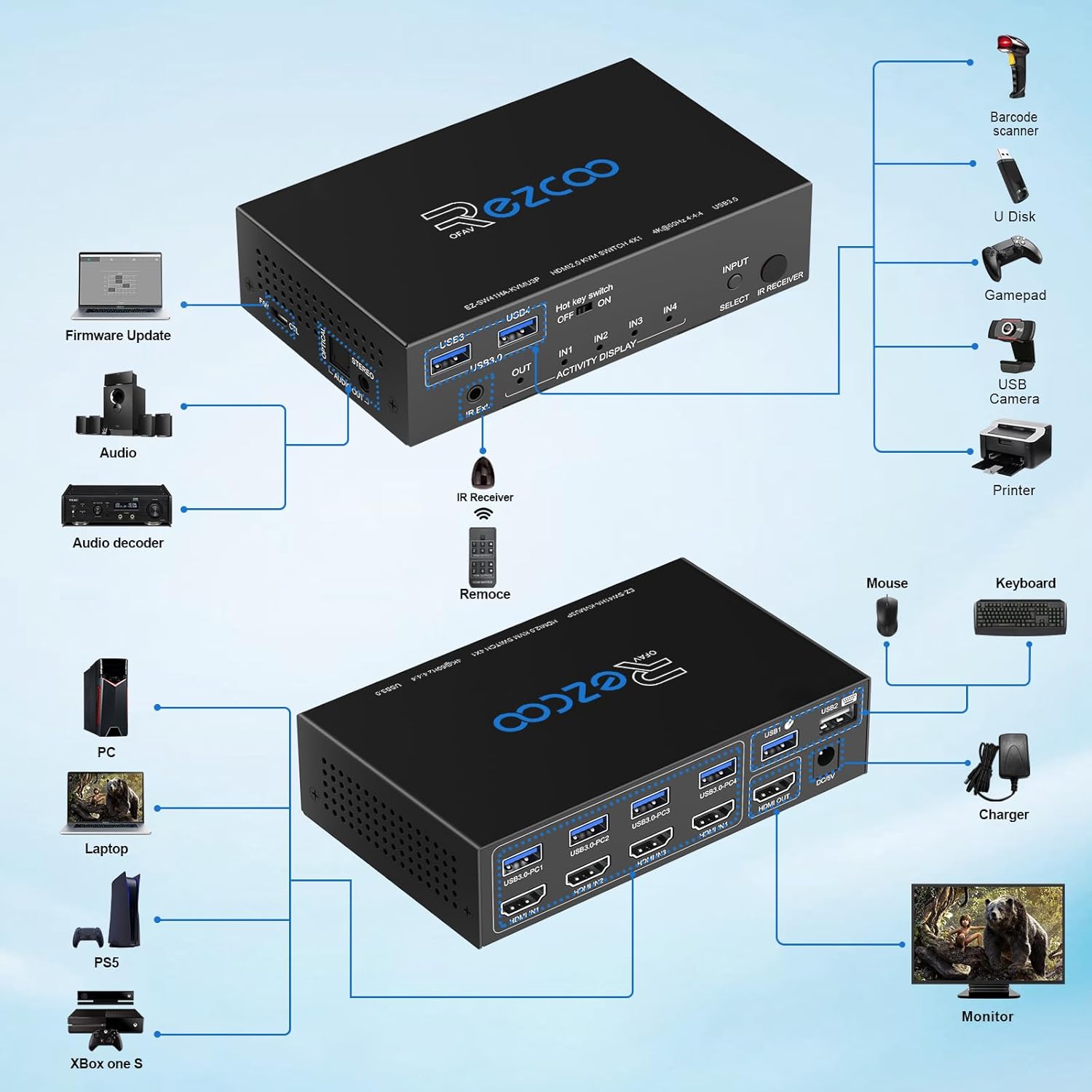
Image: Key considerations for setup, including using HDMI 2.0 standard cables under 3 meters, setting video format to AUTO mode for PS5/Laptop/PC, and ensuring display device compatibility.
หมายเหตุสำคัญ:
- Please use less than 3-meter AWG26 HDMI 2.0 Standard cables for all HDMI ports.
- The KVM switch does not support down-scaling a 4K source to a 1080p display.
- Set your PS5/Laptop/PC video format to AUTO mode. The KVM switch will copy the EDID of the TV or monitor automatically.
- Ensure your HDMI source and display devices support each other without the KVM switch connected first to rule out compatibility issues.
การใช้งานสวิตช์ KVM
The ROFAVEZCO KVM switch offers multiple convenient ways to switch between your connected source devices.
1. ปุ่มควบคุมด้านหน้า

Image: The KVM switch's front panel, highlighting the SELECT button and input indicator lights for manual switching.
เพียงแค่กดปุ่ม เลือก button on the front panel to cycle through the connected input sources (IN1, IN2, IN3, IN4). The corresponding LED will illuminate to indicate the active input.
2. IR รีโมทคอนโทรล
Use the provided IR remote control to switch inputs from a distance. Point the remote towards the IR receiver on the front panel of the KVM switch (or the IR extension cable receiver if connected).
- Press the numbered buttons (1, 2, 3, 4) on the remote to directly select the corresponding input source.
Video: An official product video demonstrating the features and usage of the USB 3.0 KVM Switch, including input switching.
3. Keyboard Hotkeys
Keyboard hotkeys provide a quick and efficient way to switch inputs without needing to reach for the KVM switch or remote. Ensure the "Hot Key switch" on the front panel is set to ON.

Image: A visual guide to the keyboard hotkey combinations for selecting inputs and navigating between ports.
| คำสั่งลัด | การทำงาน |
|---|---|
| * +1 | เลือกอินพุต 1 |
| * +2 | เลือกอินพุต 2 |
| * +3 | เลือกอินพุต 3 |
| * +4 | เลือกอินพุต 4 |
| Ctrl + Ctrl + ← | Select to previous port |
| Ctrl + Ctrl + → | Select to next port |
Note: Please press 'Ctrl+Ctrl+ESC' to reset the KVM switch if you encounter hotkey issues.
Audio and Video Information

Image: The KVM switch facilitating audio output to a soundbar, demonstrating its audio extraction capabilities for an immersive experience.
The KVM switch supports 18Gbps HDMI 2.0 with HDCP 2.2, offering stunning visuals up to 4K@60Hz 4:4:4 8bit HDR Dolby Vision, and high refresh rates like 1080p@144Hz/120Hz/60Hz 3D.
It also features a DE-embedded SPDIF Optical 5.1CH and Stereo 2.1CH Audio Extractor. Please note the following audio behavior:
- If the source plays 2.1ch audio, both SPDIF and Stereo audio outputs will work in sync.
- If the source plays 5.1ch audio, the SPDIF output will work, but the Stereo output will NOT.
- If the HDMI source plays 7.1ch audio, only the HDMI OUT will carry 7.1ch audio; SPDIF and Stereo outputs will NOT work.
ความเข้ากันได้
The ROFAVEZCO KVM switch is designed for broad compatibility with various operating systems and devices:
- ระบบปฏิบัติการ: Windows, macOS, iOS, Linux, Android.
- อุปกรณ์ต้นทาง: Desktop PCs, Laptops, Mac mini, PS5, Xbox One S, Projectors, HD Cameras.
- อุปกรณ์ต่อพ่วง USB: Bluetooth mechanical gaming keyboards, standard USB keyboards, USB mice, printers, scanners, game controllers, external HDDs, U Disks, USB cameras, barcode scanners.
การแก้ไขปัญหา
If you encounter issues with your KVM switch, please refer to the following common solutions:
| ปัญหา | วิธีแก้ปัญหาที่เป็นไปได้ |
|---|---|
| No video output or distorted image. |
|
| แป้นพิมพ์หรือเมาส์ไม่ตอบสนอง |
|
| Slow switching between inputs. |
|
| No audio or incorrect audio output. |
|
| KVM switch not powering on. |
|
ข้อมูลจำเพาะ
| คุณสมบัติ | รายละเอียด |
|---|---|
| หมายเลขรุ่น | EZ-SW41HA-KVMU3P |
| ขนาดสินค้า | 7.3 x 5.3 x 3 นิ้ว |
| น้ำหนักสินค้า | 1.32 ปอนด์ |
| เวอร์ชัน HDMI | HDMI2.0 การเชื่อมต่อ |
| เวอร์ชั่น USB | ยูเอสบี 3.0 |
| ความละเอียดสูงสุด | 4K@60Hz (4:4:4 8bit HDR) |
| มติอื่นๆ ที่รองรับ | 1080p@144Hz/120Hz/60Hz 3D |
| การปฏิบัติตาม HDCP | HDCP2.2 ขึ้นไป |
| เอาท์พุตเสียง | SPDIF Optical 5.1CH, Stereo 2.1CH |
| แหล่งจ่ายไฟ | กระแสตรง 5V 3A |
| ผู้ผลิต | อีซีคูเทค |
การรับประกันและการสนับสนุน
ROFAVEZCO products are manufactured with high standards of quality and performance. For any product-related inquiries, technical assistance, or warranty claims, please contact the manufacturer directly.
If you receive a product with components that do not meet the advertised specifications (e.g., a cable that is not USB 3.0), please contact us for a free replacement.
Manufacturer: EZCOOTECH
For further support, please visit the official EZCOOTECH store on Amazon: EZCOOTECH Store


